
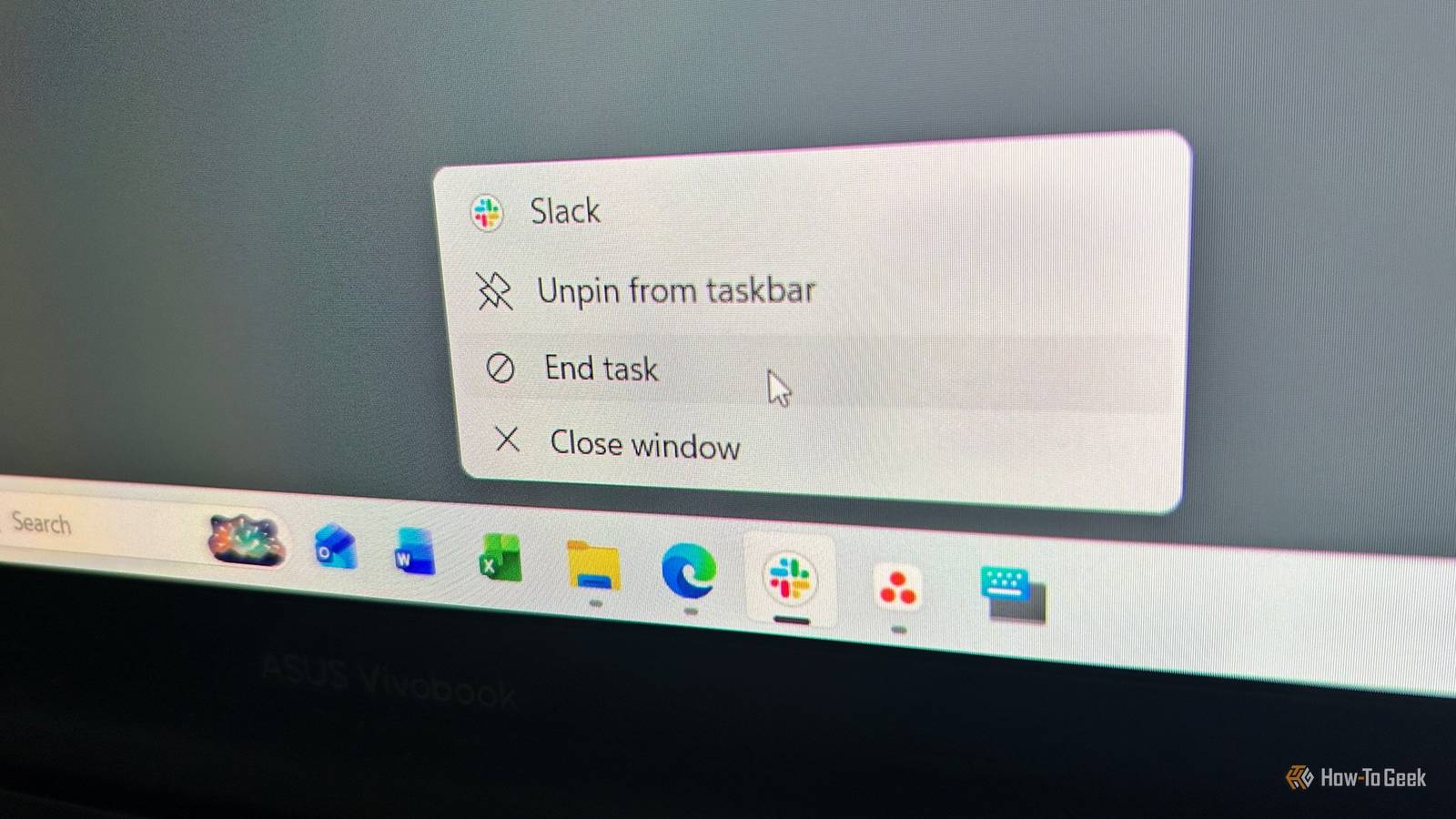
Published Aug 19, 2026, 2:30 PM EDT Tony Phillips is an experienced Microsoft Office user with a dual-honors degree in Linguistics and Hispanic Studies. Prior to starting with How-to Geek in January 2024, he worked as a document producer, data manager, and content creator for over ten years, and loves making spreadsheets and documents in his spare time. Tony is also an academic proofreader, experienced in reading, editing, and formatting over 3 million words of personal statements, resumes, reference letters, research proposals, and dissertations. Before joining How-To Geek, Tony formatted and wrote documents for legal firms, including contracts, Wills, and Powers of Attorney. Tony is obsessed with Microsoft Office! He will find any reason to create a spreadsheet, exploring ways to add complex formulas and discover new ways to make data tick. He also takes pride in producing Word documents that look the part. He has worked as a data manager in a secondary school in the UK and has years of experience in the classroom with Microsoft PowerPoint. He loves to encounter problems in Microsoft Office and use his expertise and legal-level training to find solutions. Outside of the Microsoft world, Tony is a keen dog owner and lover, football fan, astrophotographer, gardener, and golfer. Most of us have had an app freeze at exactly the wrong moment. I used to open Task Manager, hunt through the list, and force it to close. Windows 11 has a much quicker option, though, and it takes seconds to enable. You don't need Task Manager to kill a frozen app Windows has a much more convenient option Task Manager (Ctrl+Shift+Esc) is one of those tools I know I'll need at some point, but it's rarely where I want to be when an app has stopped responding. If something freezes, I don't particularly want to open another window, wait for it to appear, find the right app in a long list, then choose End task. I just want the misbehaving app gone. That's where Windows 11's End task option comes in. Once enabled, you can right-click an open app on the task bar and simply choose End task. There's no need to open Task Manager and search through its list of running processes. The app is already sitting on your task bar, so Windows gives you a direct way to deal with it. Before I show you how to enable it, there's an important distinction between this and the normal Close window command, whether you click the X or choose Close window from an app's task bar menu. Close window asks an app to shut down normally, giving it a chance to save, clean things up, and close properly. If an app has become unresponsive, though, it might ignore that request altogether. End task takes a much more forceful approach. It terminates the app's process rather than waiting for the app to cooperate. It's essentially the same functionality as Task Manager's End task command, but with the much more convenient location of the task bar. That's why I think of it as a Windows emergency button. You probably won't need it very often, but when an app has completely given up, it's exactly what you want. And yes, this particular task bar feature is only available in Windows 11. Turning on End Task takes just a few seconds One setting unlocks the shortcut On my version of Windows 11, the setting is under Settings > System > Advanced. Microsoft has moved this option around between Windows 11 versions, though, so some PCs may show it under Settings > System > For developers instead. If you can't find it, search Settings for End Task. On my PC, the full process is: Press Win+I to open Settings, or search Settings in the task bar. Select System. Select Advanced or For developers. Find End Task and switch it On. Now right-click the icon of an open app on the task bar. You should see End task in the menu. End task forcefully terminates the app, so any unsaved work could be lost. Some apps, including Microsoft 365's Word and Excel, have AutoRecover features that may restore some of your work when you reopen them, but don't rely on this. If an app is still responding, close it normally and save your work first. End task takes the whole app down Windows doesn't pick and choose There's one behavior worth knowing about before you start using this shortcut. If you have multiple windows of the same app open, Windows gives you an End all tasks option rather than letting you choose a single window. At first, that might seem like an odd limitation. I actually think it makes sense. End task is intended for situations where the whole app has stopped behaving properly. If I merely want to close one Word document or browser window, I'll use its normal Close window command. If the entire app has crashed, ending all of its tasks is usually what I want anyway. So I wouldn't treat this as a replacement for the normal way you close individual windows. It's a shortcut for when things have gone wrong. Task Manager still has plenty of work to do This isn't a process manager replacement The task bar option is deliberately simple. It gives you a convenient way to terminate a regular desktop app, but it doesn't turn the task bar into a replacement for Task Manager. You can't use the End task shortcut as a general-purpose way of managing every Windows process or digging into what's happening under the hood. For more detailed troubleshooting, resource monitoring, individual processes, and system-level problems, Task Manager is still the tool to use. That's fine by me. I don't want the task bar menu to become another miniature Task Manager. I just want a quick way to get rid of an app that has stopped responding. There's a Registry workaround if Windows hides the setting A little digging unlocks the same feature If your version of Windows 11 doesn't have the End Task toggle in Settings, there's also a Registry method. Press Win+R, type regedit in the Run dialog, press Enter, and confirm the User Account Control prompt. Then go to: KEY_CURRENT_USER\Software\Microsoft\Windows\CurrentVersion\Explorer\Advanced Look for a key called TaskbarDeveloperSettings. If it isn't there, right-click Advanced, choose New > Key, and call the new key TaskbarDeveloperSettings. Once you've got it, create a DWORD (32-bit) Value called TaskbarEndTask. Set its value to 1 to turn End Task on, or 0 to turn it off. As always with the Registry, take care before changing anything, and consider exporting the key as a backup first. If you're comfortable making the change, it's a useful fallback, but if the Settings toggle is available on your PC, that's the route I'd recommend. It's one less Windows annoyance to deal with I like small Windows tweaks that remove friction from things I already do. This is one of them. And if your PC has been feeling sluggish, it's worth changing a few Windows settings before you reach for the restart button.
Windows 11's hidden "End task" shortcut is the one feature every power user should enable
Full Article
Original Source
Read the full article at Howtogeek →KhanList aggregates and links to publicly available news content. We do not host full articles from third-party sources. Always verify important information with original sources.