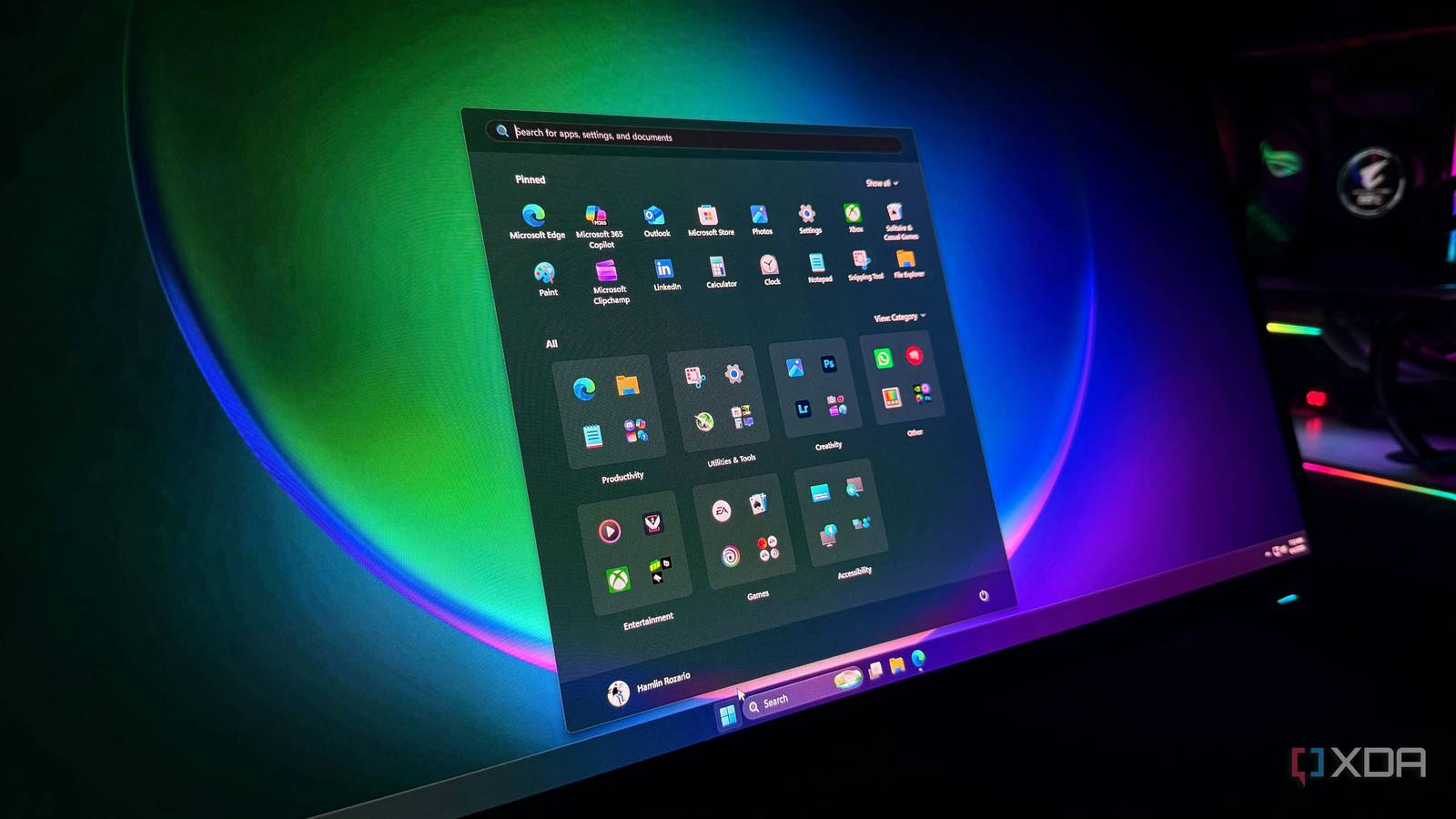
Published Jul 23, 2026, 5:00 PM EDT Ian is a journalist and creator from the UK living in Berlin, Germany. He's been into technology longer than he can remember, and has spent most of his career writing, creating videos, or interviewing people about the technology he loves. Ian is most likely to be found in the terminal, or running a long way for no discernible reason. I hate Windows 11. I know it's hardly a revolutionary take. Unfortunately, for creatives, Windows still wins, especially when it comes to hardware support. My dislike isn't much of a surprise. I love Linux, and with good reason, but when even my lifelong Windows friends hate Windows 11, something is up. Luckily, there are some simple changes you can make to Windows 11 (most of which work on Windows 10 too) that'll make your experience less painful — whether you are yearning for the old days of Windows, or trying to make it a little bit more macOS or Linux-inspired. Cutting back the bloat One tool undoes a lot of the damage Using Windows 11 can feel like a shock to the system. I log in, and immediately I'm being told about the stock market. I go to open my video editor, and the Start menu lights up like Las Vegas. The right-click menu, control panel, and default apps are all hidden behind well-meaning but utterly cryptic menus. Am I exaggerating? Perhaps, but the sheer amount of visual noise Windows 11 presents isn't fun for anyone. Luckily, Win11Debloat fixes most of these problems, and it's incredibly easy to use. Messing with your operating system can break things. Back up your data and consider carefully before making changes to a shared or work computer. Win11Debloat is a simple PowerShell script by GitHub user Raphire that addresses many common annoyances in Windows 10 and 11. Don't be fooled by the simple descriptor, though; the core of Win11Debloat is a highly customizable tool that toggles many annoying Windows features. You can turn off annoying elements on a case-by-case basis, but the default mode is a great starting point. The best part? It's just a script you enter into PowerShell. & ([scriptblock]::Create((irm "https://debloat.raphi.re/"))) This command, taken from the Win11Debloat GitHub page, downloads and runs Win11Debloat. I'd advise toggling the 'Create a system restore point' option in case you need to roll it back. Default mode removes AI integration, telemetry, ads and suggestions, Bing and Cortana, and much more, as outlined in the Win11Debloat Wiki. It also removed almost every piece of redundant Microsoft and third-party software typically bundled with Windows 11. Goodbye, Microsoft.ZuneVideo (Yes, Windows' Movies/Films & TV is still called Zune Video under the hood), you will not be missed. Make it look good A few small tweaks make a big difference To improve the visuals and feel of Windows 11, there are a few options. If you want the full macOS experience, you can get pretty close, but if customizability is your thing, there are really only two contenders, both with trade-offs. Seelen UI has seen significant changes and improvements in recent years, and can completely overhaul how your OS feels. It uses Tauri, a framework that bridges a Rust backend with a React-like frontend running on the Windows native WebView. It adds themes, window management, widgets, and launchers, all with limitless customization possibilities. Despite some users finding it slow and buggy, its extreme customization makes it popular. The trade-off is the potential for slowdowns, especially on multiple monitors where you'll be updating several WebViews per monitor. While the bug that made Seelen UI steal focus during games appears to be fixed, mod slowly, and expect bugs! I prefer Windhawk. While Seelen UI is a single piece of software, Windhawk is more like a mod aggregator with a large library of community-made mods. It uses runtime .dll injection into Windows 11 processes to run mods. It happens all in memory, making it fast and never touching the system or registry. This also ties into the trade-off. While you can limit how Windhawk injects into your system, it needs to inject directly into Explorer and other essential system tools. This means when it crashes, it can crash hard in unpredictable ways. You are also running community-created code on your machine. While the user base is vetted before mod submission, proceed at your own risk! For me, the main draw is visual. After downloading the Windhawk client, I searched for the Windows 11 Task Bar Styler. This mod adds themes to your taskbar and also acts as a great introduction to how Windhawk mods interact. Once you install the Task Bar Styler, you have the option of installing a variety of themes. I chose RosePine and, after installation, followed the theme notes to install the dependent mods with the correct settings. Boom. Instant eye candy. Windhawk can do a lot more than this, from tweaking animations and visuals to menu customization and removing the cursed 'to exit full screen, press and hold Esc' pop-up in browsers. However, instead of more mods, we are going to look closer to home for the next tweaks. Get some shiny new toys PowerToys isn't new, but it does solve many problems Credit where it's due, PowerToys is great. This collection of useful apps from Microsoft brings many features that have been missing from Windows for years. The Snipping Tool and built-in monitor zones in Windows 11 all started as PowerToys. You may have noticed that I nuked my Start menu earlier. That's because the Command Palette completely replaces it with a macOS Spotlight-like launcher. It even has a native dock, if you'd prefer to skip installing third-party mods. There's too much to cover here, but my personal PowerToys highlights include: Grab and Move — Linux-like window grabbing while holding the Alt key Color Picker — Get RBG, HEX, or any other format of color you can think of instantly, anywhere. Keyboard Manager — Simple key remapping with chord support Quick Accent — Simple context menu for accents — essential for bilingual typing on an English keyboard. There are many more, and the PowerToys documentation covers them all. Each of these represents something I hacked into or worked around in Windows in the past. Fair play, Microsoft, this is good. That said, there are still some things that shouldn't be this annoying. Better but not fixed There's only so much you can do These changes go a long way to making Windows 11 a much more pleasant experience, but Microsoft still finds ways to annoy seemingly everybody. For example, if you install a new text editor, you have to manually change every single type of file from Notepad to your new editor. This is a recent change, for decent security reasons, but it's infuriating. Windows Subsystem for Linux has gotten better and better, but for now, I'll be sticking to Unix where I can for the time being.
Windows 11 was unusable until I made these changes
Full Article
Original Source
Read the full article at Xda-developers →KhanList aggregates and links to publicly available news content. We do not host full articles from third-party sources. Always verify important information with original sources.