
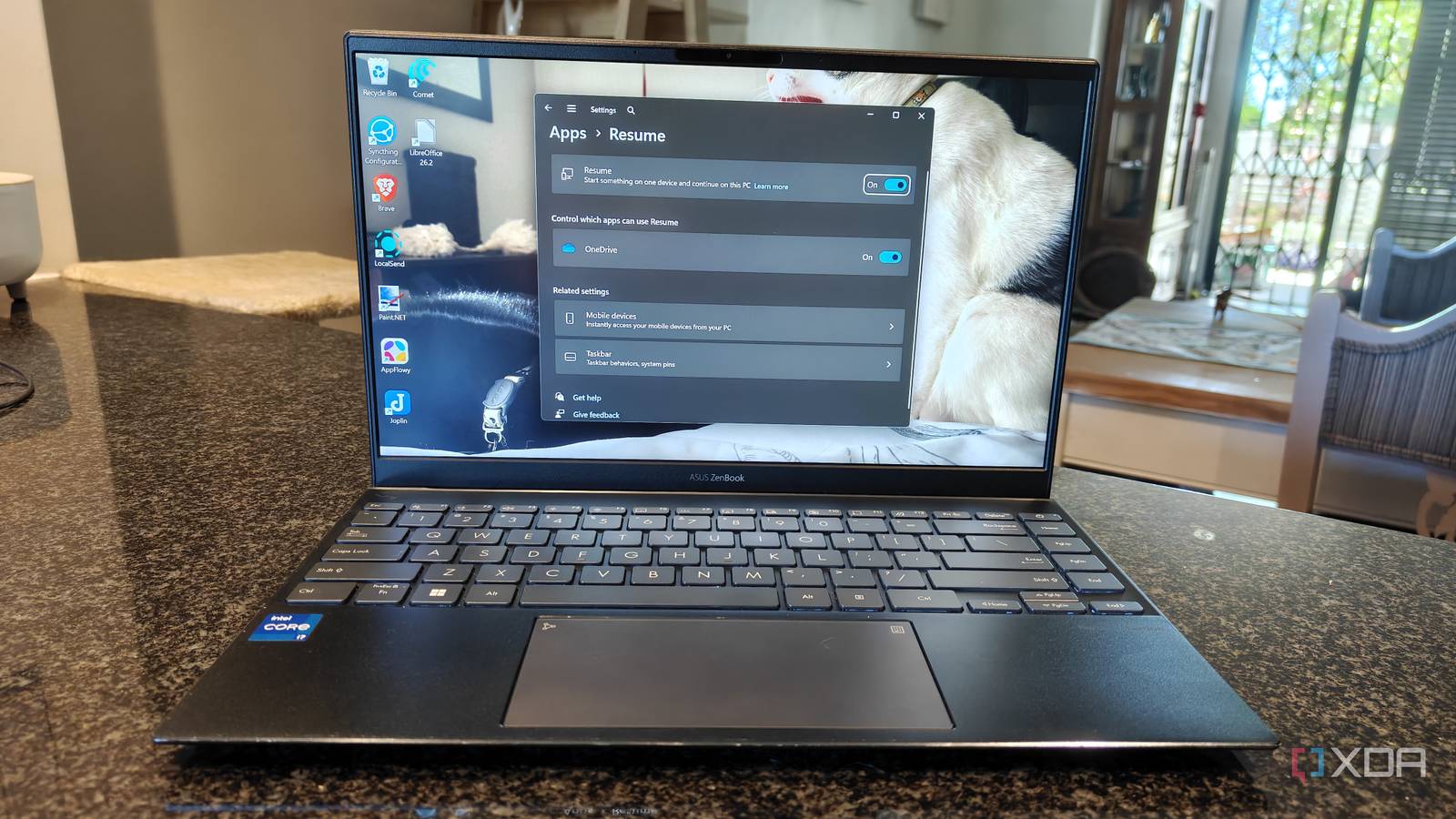
Published Nov 24, 2026, 1:30 PM EST Megan is a Software Writer at XDA Developers who has been writing about consumer technology since 2016. With a postgraduate degree in New Media journalism, she has always been passionate about diving deep into topics and writing about them in a way that makes them easier to understand for everyday consumers. She runs her own blog called Tech Valkyrie and has contributed to Tom's Guide and Android Authority. She also worked at MakeUseOf as a Lead Editor. In her spare time she plays video games and geeks out about the latest tech. Windows 11 comes with plenty of useful features, but also a significant amount of bloat. If you don't use certain features, they take up important resources unless you disable them from running in the background. Recently, I've been struggling with my aging PC's performance, so I decided to cut down on features I don't use. And after disabling them, my system felt a lot more responsive thanks to the freed-up resources. Cross-device Resume Cross-device syncing I don't need Cross-device Resume allows you to continue activities between your PC and your linked smartphone. The feature is enabled by default, so it's running in the background even if you don't use it. In my case, it was using around 5% of my PC's RAM when I was already dealing with freezing and stuttering due to high RAM usage from my browser. After disabling it, there were a few more resources available for my PC to use. While 5% isn't a huge amount of RAM, it gave a little extra breathing room that resulted in less freezing. I also didn't lose out on anything because I don't use the feature anyway. To disable Cross-device Resume: Open your Settings, then go to Apps -> Resume. Disable the toggle next to Resume so that it shows that the feature is Off. Start menu and Search content recommendations Bloat that slowed down my Start menu and Search bar My Start menu became more responsive once I disabled the recommendations built into the feature. These recommendations include tips, new apps, shortcuts, and recent files. This made the feature a lot more chaotic, and I ended up simply using the Search feature anyway (which also had its own bloat). So I decided to completely disable these recommendations. You can do this by going to Settings -> Personalization > Start and turning off the toggle for Show recommendations for tips, shortcuts, new apps, and more. I also disabled Show recently added apps and Show recommended files in Start, recent files in File Explorer, and items in Jump Lists. To get rid of the bloat in my Search bar, I went to Settings -> Privacy & security -> Search. Here, I disabled Show search highlights. Curbing unnecessary content In theory, widgets sound like a good idea. You can get information like the weather at a glance. But in reality, the lack of customization means that your PC spends time loading content recommendations and other information you don't necessarily need. This is true for the taskbar widgets, but also the lock screen widgets in Windows 11. When I enabled lock screen widgets, I noticed that it took extra time for my lock screen to fully load. That's because Windows was still fetching information like the weather, quizzes, events, and sports results. Meanwhile, whenever I clicked on the weather widget on my taskbar, I received loads of irrelevant information and low-quality article recommendations. Tired of dealing with the distracting widgets that slowed my PC down, I disabled them on both my lock screen and taskbar. You can disable taskbar widgets by going to Settings -> Personalization -> Taskbar. Then, turn off the Widgets toggle. To get rid of lock screen widgets, go to Settings -> Personalization -> Lock screen. Then set the option under Lock screen status to None. Edge background processes They take up resources even if you don't use the browser I don't use Microsoft Edge, nor do I use any of the features that are powered by the browser on my PC. That's why it was frustrating to see that Edge background processes were using up system resources even though I was doing everything I could to avoid its related features. Luckily, you can disable these background processes. To do this, open Edge and go to Settings -> System and performance -> System. Then, toggle off Startup boost and Continue running background extensions and apps when Edge is closed. This stops these processes from starting up and running in the background. If you haven't reviewed your startup apps, you may also want to check that Edge isn't starting up automatically when you turn on your PC. Only users in the European Economic Area (EEA) can uninstall Edge, so if you live outside that region, this is the closest you can get to disabling the app on Windows 11 without a third-party tool. Getting rid of unused features made my PC feel faster Now that I have disabled these features, my PC runs more smoothly and has more RAM to work with. I also don't have to deal with content recommendations loading when I access certain parts of my taskbar and search menu. Overall, this has made my experience feel more responsive, faster, and less bloated. If you're struggling with performance on your Windows 11 PC, consider disabling features and services you don't need — just make sure you avoid disabling anything essential for your system to function or needed for security.
Windows 11 was quietly eating my RAM, so I switched off 4 features I never touched
Full Article
Original Source
Read the full article at Xda-developers →KhanList aggregates and links to publicly available news content. We do not host full articles from third-party sources. Always verify important information with original sources.