
Published Oct 19, 2026, 8:00 AM EDT Vishwamoorthy's interest in tech started early, as a school student, watching Pixel 2 XL camera review videos and being awestruck by what a phone camera with excellent software could do. That curiosity stuck with him: since 2022, he's published over 1,500 articles covering smartphones, Android, and consumer tech news at FoneArena, one of India's leading tech publications. Lately, he's obsessed with how AI is reshaping the business world, the deals, the products, the quiet feature rollouts nobody notices until they're everywhere. Reading and writing about tech is what keeps him going; doomscrolling is what keeps him honest. Windows 11 is a widely adopted operating system in the PC world; hence, Microsoft tries to push its apps and services by default. While most PC geeks are aware of this and clean up their system right after setting up the OS, there's a high chance you might not have. Microsoft's key offerings and services on Windows 11, like Widgets, the Edge browser, OneDrive, Teams, and Copilot, silently eat up your memory during OS startup or in the background and increase your CPU load. You don't need to run complicated scripts to make your Windows 11 PC run faster. Simply disabling these services would improve your laptop or desktop's performance significantly. Disable Microsoft Edge background running and Startup Boost Stop Microsoft's browser from pre-loading into RAM when you aren't using it I've noticed that most people use Chrome as their preferred browser while leaving Microsoft Edge as the default OS browser. Even if Google Chrome is your daily browser, Edge quietly claims your system memory in the background. By default, Windows 11 enables Edge's Startup Boost, which silently launches core browser processes as soon as you boot up your PC. This can lead to increased boot-up time and RAM consumption. To stop Edge from running without your permission, open Edge, click the three-dot menu in the top right corner, and select Settings. Navigate to System and Performance in the left sidebar. Under the System section, toggle off Start-up boost and Continue running background extensions and apps when Edge is closed. Eliminate background web rendering for news feeds you never open The Widgets board you see in the bottom left corner of the screen looks innocent, but it does consume some resources in the background. It uses Microsoft Edge WebView2 processes to continuously fetch MSN headlines, stock market indicators, sports scores, and weather data in the background. In my own Task Manager, Windows Widgets consistently ties up around 60-70 MB of RAM while sitting completely idle and can consume over 300 MB when you interact with it. If you don't actively rely on that feed, turn it off entirely by right-clicking any empty space on your Windows taskbar and selecting Taskbar settings. In the window that opens, expand the Taskbar items menu and toggle Widgets to Off. Unlink and disable Microsoft OneDrive Reclaim system memory and stop aggressive background sync scans Even though you rarely use OneDrive, Windows 11 treats it as an essential system component, configuring it to launch on boot and monitor your folders constantly (if backup is enabled). In Task Manager, I noticed that it doesn't just run one process—it runs both the main "Microsoft OneDrive" app and "Microsoft OneDrive Sync Service." Even after simply opening and closing a folder, these two dormant services sit in the background, eating over 200 MB of memory combined. So, if you're someone who doesn't rely on OneDrive and you back up files locally or use other cloud providers like Google Drive, you need to unlink your account and disable its startup permission to truly free up resources. To do so, click the OneDrive cloud icon in your system tray, click the gear icon, and select Settings. Go to your Account tab, select Unlink this PC, and confirm by clicking Unlink account. Finally, open Settings on your PC, go to Apps, and then click Startup and toggle off Microsoft OneDrive and Microsoft OneDrive Sync Service. Unlinking your PC stops future cloud syncs, but it does not delete your existing local files. Ensure your important documents are safely backed up elsewhere before completely disabling the service. Disable Microsoft Teams at startup Keep the pre-installed chat client from bloating your boot time Microsoft bundles the consumer version of Teams directly into Windows 11, configuring it to start automatically every time you boot up your PC. Even if you don't rely on the app, it consumes memory in the background, anywhere between 150 MB and 300 MB, sometimes even more than a gigabyte when you accidentally open it. Unless Teams is your primary workspace tool, disable its startup permission. Open your Windows Settings app, and click Apps in the left sidebar, and then select Startup. Scroll through your installed apps until you find Microsoft Teams, and toggle the switch to off. The app will still function normally when launched manually, but it won't consume resources in the background while you boot up. I'd suggest uninstalling the app itself if you don't use it. Uninstall the Windows Copilot app Prevent idle AI services from consuming baseline CPU cycles Microsoft is pushing Copilot into every corner of Windows 11, integrating generative AI directly into the desktop environment. With recent updates, Copilot is available as a standalone desktop app, letting users open the app directly from the taskbar or Start menu. When the app is active, it easily consumes over 350 MB of memory, and even after you close it, it does run in the background to consume around 100 MB. It makes no sense to keep this app if you're not using it, and it just feels like bloatware installed through software updates. To remove the app completely, open your Windows Settings app, navigate to Apps, then select Installed apps, and scroll down to find Copilot. Click the three-dot menu next to the app and select Uninstall. A quick cleanup for a faster PC Disabling or uninstalling these Microsoft apps helped me save significant memory resources on my PC for other important tasks. I could feel the difference on my ASUS TUF Gaming laptop. Now, I rarely notice fans spinning while booting up or simply browsing in Chrome. Performance gain will vary depending on your hardware and usage, but every bit helps. Try disabling and uninstalling the features you don't rely on daily.
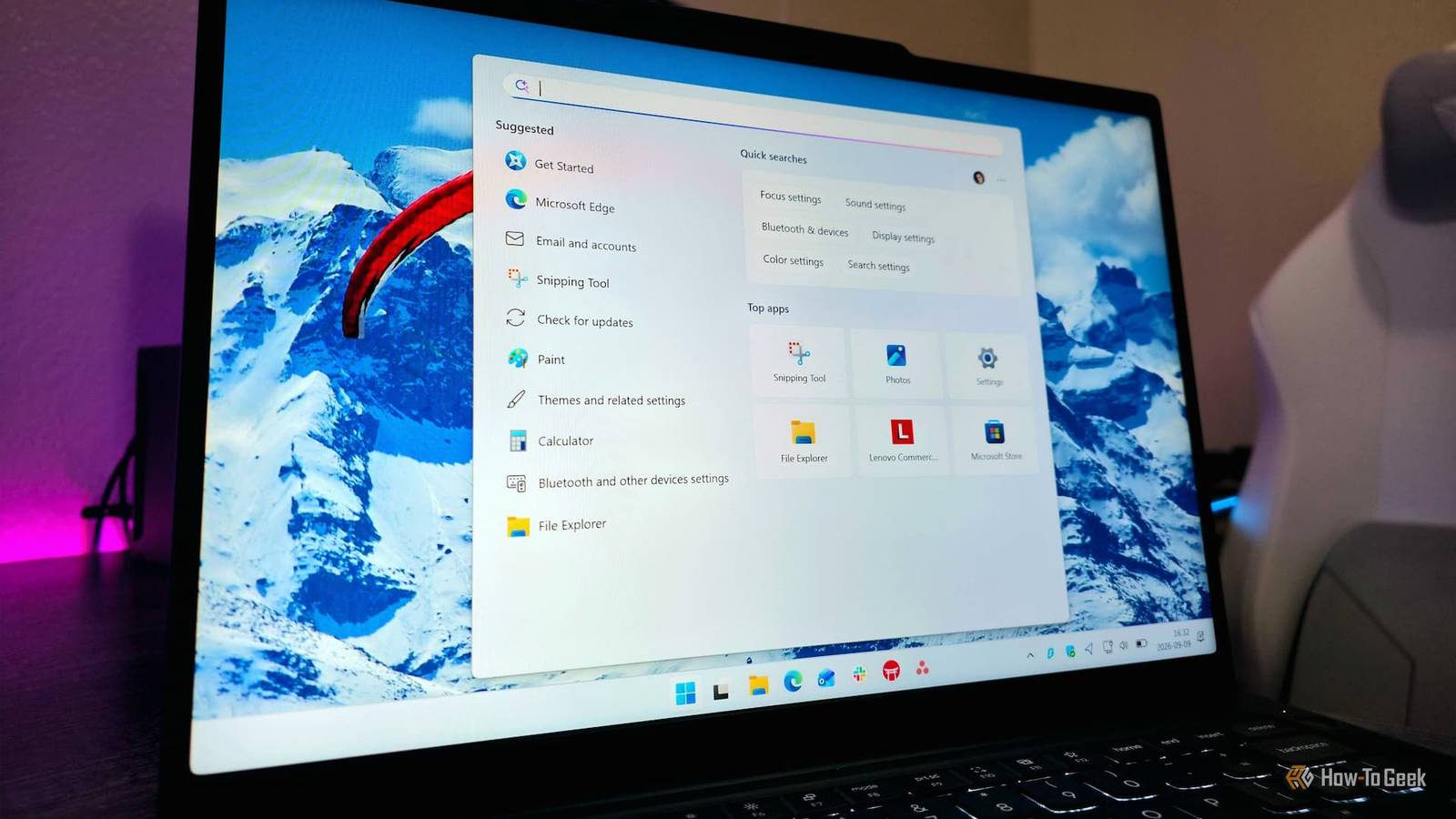
Windows 11 runs faster when you disable these 5 Microsoft apps
Full Article
Original Source
Read the full article at Howtogeek →KhanList aggregates and links to publicly available news content. We do not host full articles from third-party sources. Always verify important information with original sources.