
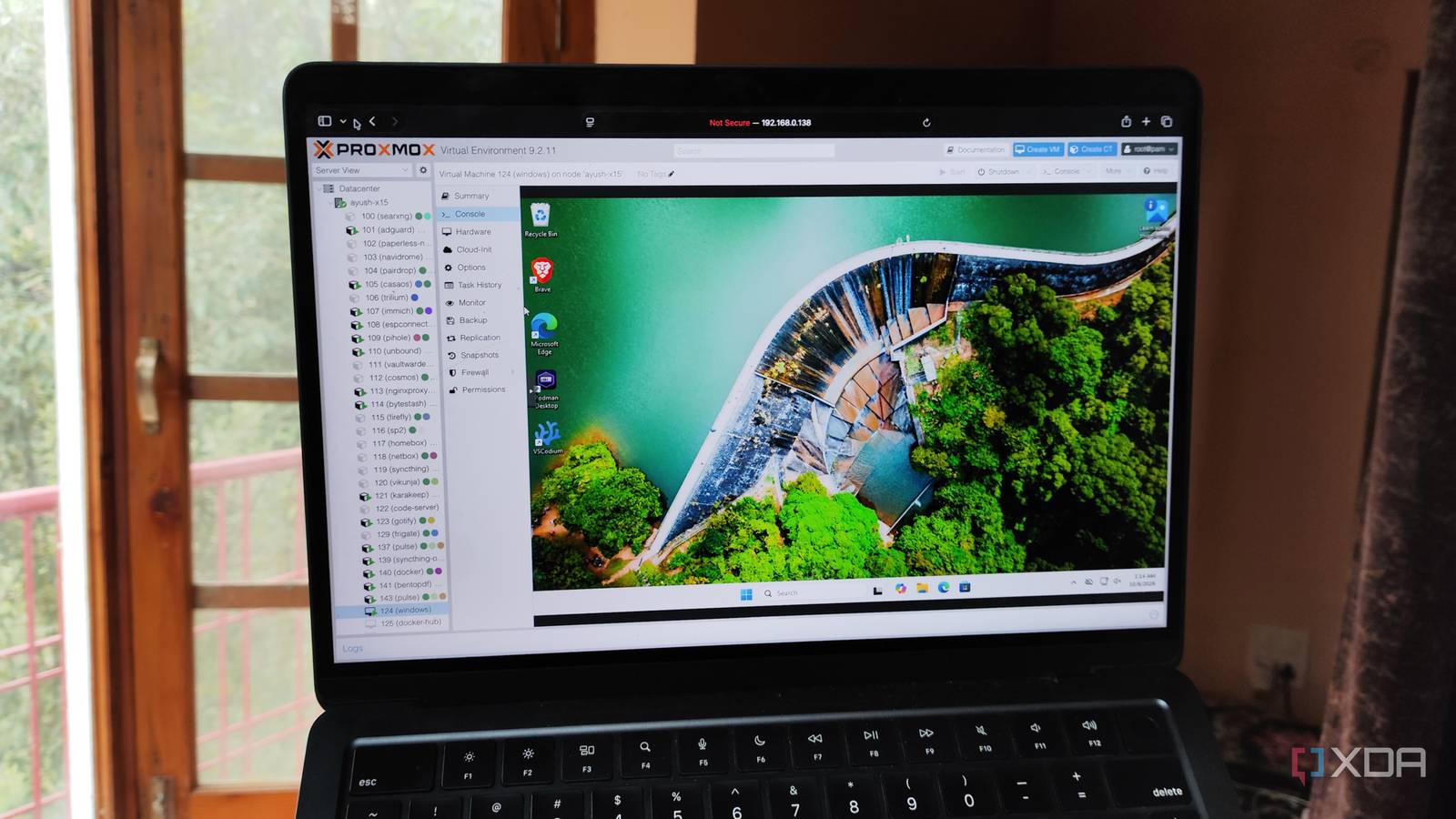
Published Oct 6, 2026, 1:30 PM EDT Ayush Pande is a PC hardware and gaming writer. When he's not working on a new article, you can find him with his head stuck inside a PC or tinkering with a server operating system. Besides computing, his interests include spending hours in long RPGs, yelling at his friends in co-op games, and practicing guitar. When I first got into Proxmox, I spent most of my time configuring lightweight Linux-flavored virtual guests. However, after going through the PVE documentation, I realized it was possible to get Windows 11 up and running as a virtual machine. But as it turned out, configuring a Windows 11 environment requires a lot of extra effort compared to traditional Linux VMs, to the point where I had to tweak additional settings even after I installed Microsoft’s flagship OS. That said, once I’d enabled all the advanced features, my Windows 11 VM became incredibly responsive, to the point where it could replace my daily driver for almost all my tasks. VirtIO drivers are pretty much essential for Proxmox-based Windows 11 VMs Heck, you can’t even proceed past the installation stage without the SCSI drivers When I spin up a conventional Linux distro on PVE, I’d typically add its ISO file as the boot drive, toss in some resources, and install it on a virtual disk. Windows 11, however, requires additional drives, and I’m not just talking about the EFI State or TPM State disks, either. Sure, I need to enable them as well before I add the Windows 11 ISO, but I’d also need the VirtIO package configured as an extra drive, as it provides essential paravirtualized drivers. This way, my Windows 11 VM gets direct access to certain peripherals on the PVE host instead of relying on slower emulated drivers. In fact, one of these drivers is practically necessary during the initial installation sequence. Specifically, the Red Hat SCSI passthrough driver within the amd64 directory of the win11 folder, as the Windows 11 installation wizard wouldn’t even detect my virtual drives if I don't install it. Unlike most Linux VMs, Windows 11 also doesn't work with the virtualized Ethernet adapter, which is why I installed NetKVM right after I was done with the SCSI passthrough drivers. The VirtIO collection even has QXL, guest-agent, and other useful drivers that I’d recommend setting up, as they make the Windows 11 VM more responsive. RDP works well with Windows 11 coding VMs Without it, the VM feels extremely sluggish Besides the VirtIO drivers, there are a couple of other ways I improve my Windows 11 VM’s performance. For example, I typically opt for Windows 11 Pro whenever I want to spin up a new dev environment for my PowerShell scripting needs. That’s because the QEMU console makes the Windows 11 VM feel too slow, regardless of the amount of CPU cores or memory I’d toss at it. But since I can log into my Windows 11 VM via the Remote Desktop functionality available on the Pro edition of the OS, I don’t need to contend with the QEMU console. Alternatively, the SPICE display is another neat option, though I personally prefer the ease of RDP for my coding and PowerShell experiments. I’ve also seen mixed results with host CPU passthrough when it comes to Windows 11, and that’s why I recommend leaving this setting at x86-64-AES instead. With GPU passthrough, it can even double as a remote gaming machine Its performance is surprisingly good, too Although my Windows 11 VM could handle typical coding experiments, it’s still too weak for bulkier projects… and that’s where my GPU comes into the equation. Proxmox supports PCIe passthrough functionality for both LXCs and VMs, and although it’s easier to pull off on the former, you can pair most graphics cards with a PVE virtual machine. And I say that as someone who has documented the procedure to pass all sorts of GPUs to my VMs. My outdated GTX 1080, for example, meshes incredibly well with lighter games. Of course, there’s a slight performance drop considering that my Windows 11 instance is virtualized. But the Apollo + Artemis combo is great for remotely streaming modern titles at 1080p, and with a little bit of Tailscale magic, this setup can run plenty of titles (including triple-A ones, provided I turn the settings down to medium/high) at playable frame rates. Likewise, Adobe’s GPU-heavy tools, Blender, and other productivity apps that can leverage a graphics card work without any compatibility issues whatsoever. But there is an annoying caveat to this setup Although I’ve gone over the essential setup aspects of my Windows 11 VM, I can’t end this article without talking about its biggest problem. Remember how I said “most games” run well on this virtualized instance of Windows 11? Unfortunately, games featuring anti-cheat technology can detect when the OS is running inside a VM, and I learned this the hard way. Elden Ring: Nightreign and Arc Raiders refused to run outright, and the same holds true for other anti-cheat-heavy e-sports titles. But aside from this caveat (and the extra legwork required to set up the VM), a Windows 11 VM is pretty darn good for my everyday tasks. Proxmox Proxmox is an open-source platform built on Debian Linux designed for server virtualization.
Windows 11 on Proxmox can replace your daily driver, if you know which settings to tweak
Full Article
Original Source
Read the full article at Xda-developers →KhanList aggregates and links to publicly available news content. We do not host full articles from third-party sources. Always verify important information with original sources.