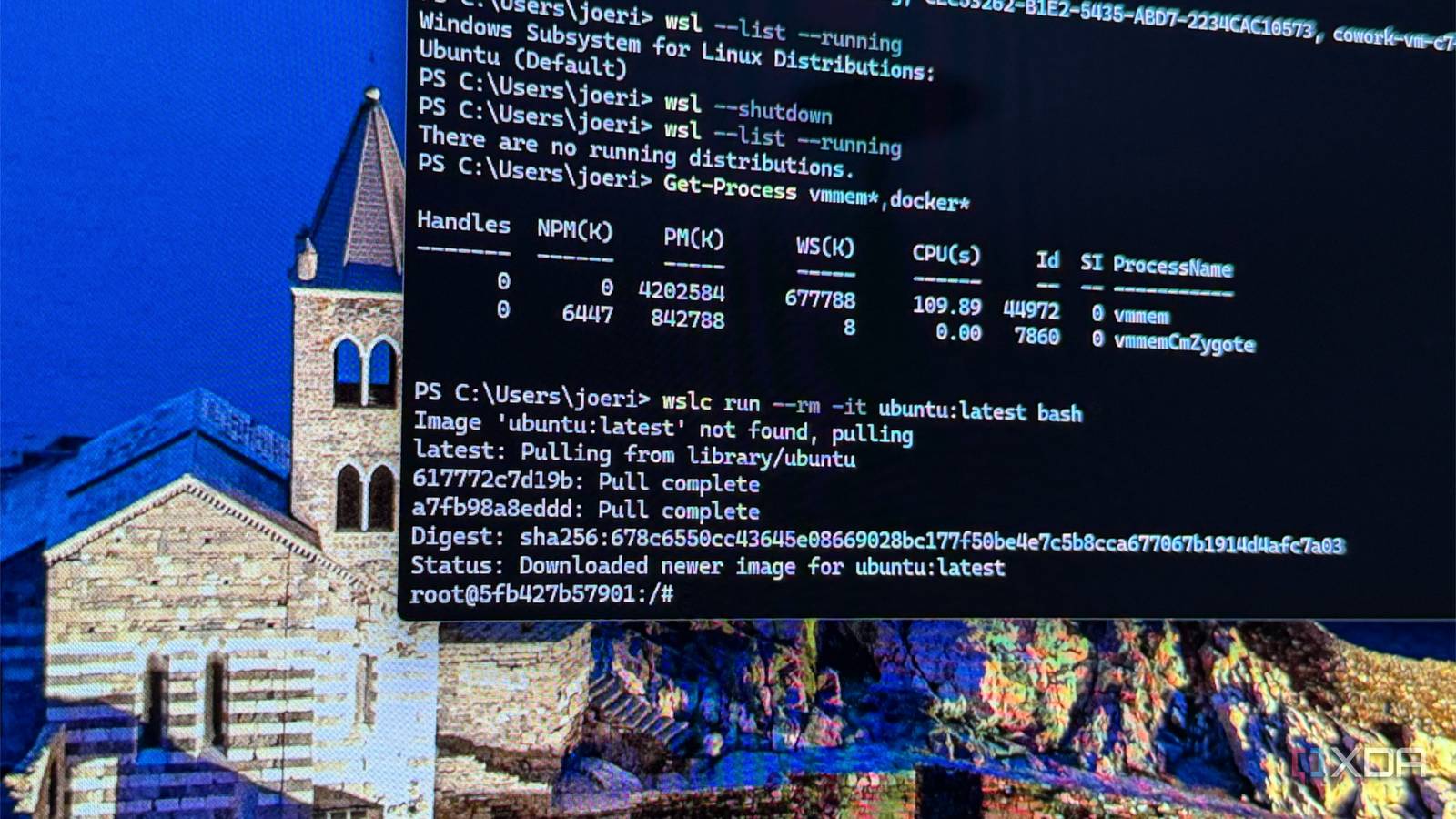
Published Aug 14, 2026, 8:00 PM EDT Maker, meme-r, and unabashed geek, Joe has been writing about technology since starting his career in 2018 at KnowTechie. He's covered everything from Apple to apps and crowdfunding and loves getting to the bottom of complicated topics. In that time, he's also written for SlashGear and numerous corporate clients before finding his home at XDA in the spring of 2023. He was the kid who took apart every toy to see how it worked, even if it didn't exactly go back together afterward. That's given him a solid background for explaining how complex systems work together, and he promises he's gotten better at the putting things back together stage since then. My homelab runs on containers, and while most of them are LXC’s on Proxmox, I also run them in Docker Desktop while I’m testing things. I’ve never liked that program, and it's a necessary evil, so when Microsoft shipped WSL Containers (wslc) in the latest WSL pre-release, I had to know if I could ditch Docker Desktop for good. I expected a speed test, and Microsoft to bumble its way through implementing necessary features. What I found was an architecture lesson in how to do things differently. Wslc builds a new private VM for every container, while Docker Desktop lives inside WSL’s shared virtual machine. That makes it well-suited for development work, but it’s not quite there for long-running home lab services. Every wslc session is its own virtual machine Just nobody tells you when one is running I started by hunting Docker Desktop’s RAM footprint, because it always feels like it’s siphoning off resources. Something does, but not the app, as it idles under 200 MB, including the privileged Windows service. Hyper-V’s diagnostic tool shows Docker’s engine running as a distro in the same shared WSL utility VM as my Ubuntu install. Running a wslc container creates a brand-new VM named after your user account that uses about 1.5 GB of RAM. Now, this is preview software so I shouldn’t be that surprised when something doesn’t work correctly. Microsoft said that these containers are supposed to disappear after you’re done. The container does. The VM holding your RAM hostage doesn’t, and it survives a manual WSL shutdown. The only fix is wslc system session terminate, which is explained three levels deep in the CLI. It works, but there’s no wslc command that tells you to do this in the first place. And that’s not the only oddity. Booting one wslc container also booted a fresh copy of the shared WSL VM, and re-registered my Ubuntu distro as running. That’s a total of 3.4 GB of RAM eaten up by one idle prompt. Run Linux natively in Windows, now with OCI containers that work how you expect them to, but without the need for Docker or Podman. The speed myths don’t survive hard numbers Wslc boots the same way every time because sessions inherit nothing Early coverage claimed wslc starts containers in under a second, compared to three to eight seconds through Docker Desktop. On my machine, at least on the newest version of WSL Containers, that gap doesn’t exist. I ran both through a measure-command harness with alpine, both warm and cold, and the gap is almost testing variance. Scenario wslc Docker Desktop Warm container start 357 to 384 ms 426 to 463 ms Cold start (session terminated/app quit) 2,387 to 2,611 ms 2,629 to 2,973 ms Cold start after force-kill n/a 6,667 ms Cold start after killing the helper app n/a 9,108ms (includes UAC prompt) Warm to warm, wslc wins by 60 ms, which is a gap no human is going to feel. Cold to cold was also close enough that it wasn't really noticeable, and that’s with wslc booting a whole new VM each time. The only change was dependent on how Docker shut down. If it was properly shut down, it came back in under three seconds. Crashing made it longer, as it needed to rebuild things, and the privileged Windows helper means a consent dialog must be approved. My six wslc starts were all within a 224 ms band, every single time. Private VMs inherit nothing, so there’s nothing to repair, regardless of how they’re pulled down. Known consistency is the important thing, not speed. CUDA worked on the first try But there’s a port gotcha Everyone wants to know whether GPU acceleration works in WSL Containers, particularly with Nvidia GPUs, because CUDA can be a fickle beast. I budgeted 15 minutes to see if it either worked or gave me enough trouble to tell everyone to avoid it for now. It took two minutes to know that it worked, and on the first try at that. A stock CUDA 12.4 image can see my RTX 5090 immediately; it takes one —gpus-all flag to set up, and you don’t have to juggle the drivers inside the container. It worked even on a CUDA 13.3 host driver. It’s GPU paravirtualization, not exclusive passthrough, but who really cares for testing purposes. Just know the total VRAM is also driving your Windows desktop, and budget accordingly. The rest of wslc’s flag list is missing a few things, which means this is better for dev containers but not infrastructure. There’s no —privileged or —device flags, and no —restart. Yeah, nothing you run survives a session dying, and that is a big missing piece. There’s also one thing with the networking stack that will trip you up. Everything binds to 127.0.0.1 by default, not 0.0.0.0 like Docker does. My nginx test only worked once I published an explicit 0.0.0.0, which also triggered a Windows firewall prompt attributed to COM Surrogate. Yeah, that prompt that everyone thinks might be from malware. At least Docker tells you where the firewall exception is coming from. Microsoft shipped the architecture but not the command The thing that many testers, myself included, went back to Docker Desktop for was Compose, and that’s not changed. At least, not from Microsoft, as wslc compose doesn’t work as of 2.9.3. There is no subset, regardless of what you might have read elsewhere. But that doesn’t mean it doesn’t exist. A community project called wslc-compose bridges the gap with a thin Python shim that drives Compose files in the language wslc wants. I installed it through pipx, and pointed it at a two-service test: nginx plus Postgres, with a depends_on in the file to trip things up. I expected it to trip up. It did not, and I ended up with a project-scoped network, a database started before the web container, and a deduplicated Alpine base layer shared between the two containers. That’s as good as it gets, and down -v removed the stack, including the networking. This works because Microsoft has already built the networking and volume lifecycles behind Compose. I have no idea why they haven’t put the top layer into place, but everything is ready for when they do. wslc compose This shim adds support for Compose workflows with Windows Subsystem for Linux Containers. Docker Desktop keeps its containers where I can see them The big question is whether or not wslc can replace Docker Desktop. And for me, that’s a big yes. I use dev containers most of the time, some GPU work, and a little bit of Compose stacks, and wslc now does all of that. They’re speedy, they are resource-friendly, and my RTX 5090 worked without any configuration. That’s the good news. However, WSL Containers have a visibility problem. Docker’s VMs sit in a GUI, where I can see them whether I want to or not. Wslc’s are not, and it takes a little bit of command-line to figure out what’s running. Maybe that’s a preview software issue, and Microsoft will add a nice TUI to manage them. One can hope, because I still have a burning dislike of Docker Desktop and the quicker I can ditch it, the better. If you want to poke at wslc yourself, wsl --update --pre-release is all it takes, and I'd start by learning the terminate command before wslc teaches you why.
Windows 11 can now run Linux containers without Docker, and I tested if WSL Containers could actually replace it
Full Article
Original Source
Read the full article at Xda-developers →KhanList aggregates and links to publicly available news content. We do not host full articles from third-party sources. Always verify important information with original sources.