
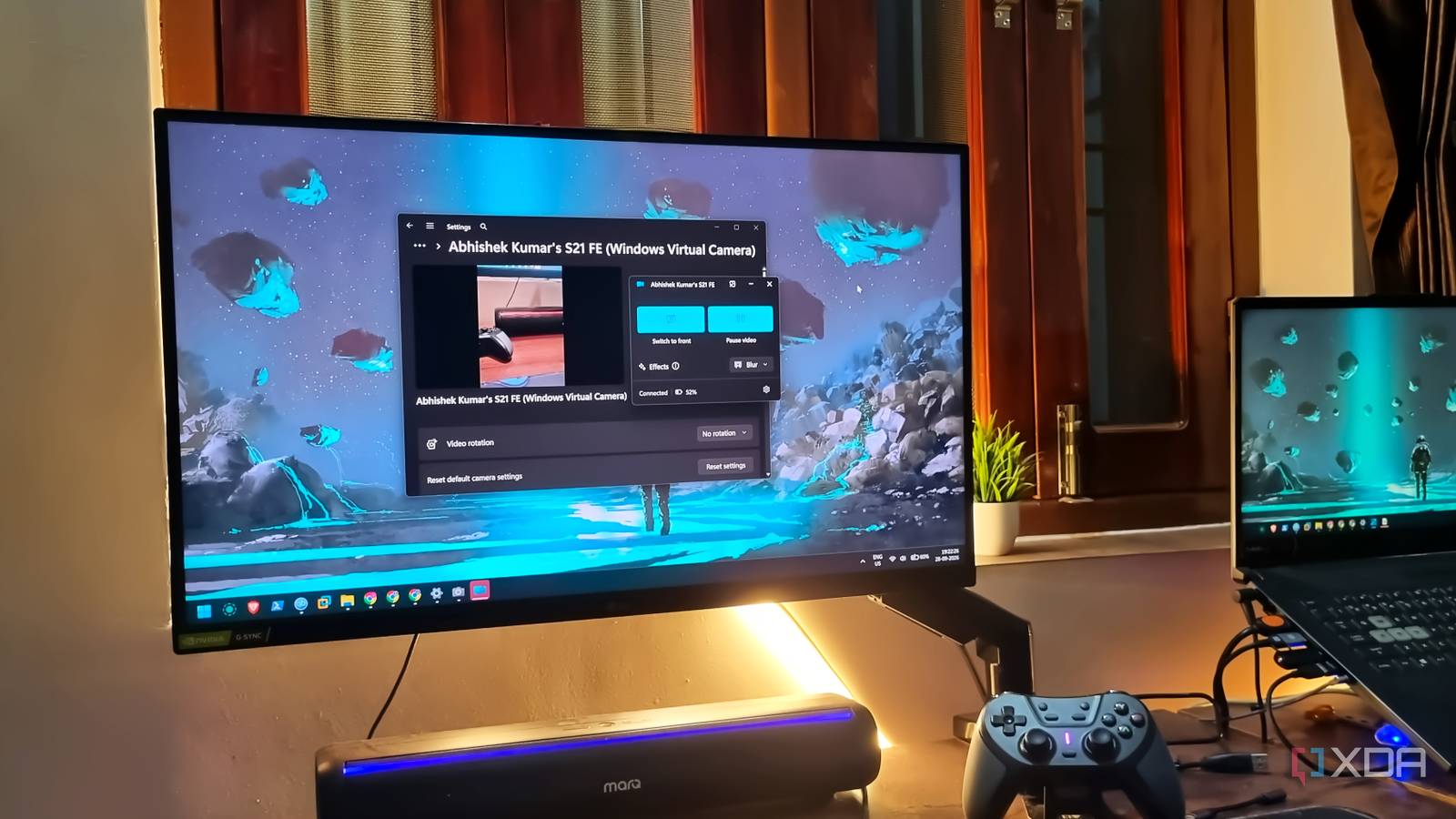
Published Sep 28, 2026, 5:00 PM EDT Abhishek is an author at XDA who covers computing. He has loved computers since he got the Lenovo G570 in 2012. Abhishek holds a master's degree in computer applications and began his writing career in 2018. He loves writing how-to articles, listicles, and informational posts on popular operating systems and web services. He closely follows the Windows Insider program and tests new Insider builds to discover upcoming experimental features and upgrades. His past work includes long-term collaborations with reputed publications like Tom's Hardware, and Windows Latest. When not writing anything, he is busy watching new episodes of One Piece or searching for something binge-worthy. Most laptops ship with a pretty basic webcam and have been doing so for decades. Some try to include privacy features like a physical shutter, but very few focus on the camera quality. It’s practically impossible to squeeze a very powerful camera into the super-thin top bezel. Most of us have become accustomed to the inferior webcam quality and even switched to an external one. Work demands a good webcam, and when laptop brands don’t ship one, a USB webcam can help. However, I haven't bought a new webcam since my old one faltered because Windows can use my phone as a webcam. It’s one of those simple yet crucial features that arrived in the OS very late but now serves as an integral part of my daily workflow. Let’s discuss the feature and why it’s better than spending money on a dedicated one. Good webcams are not cheap Better resolution demands more money I remember purchasing an ASUS laptop in 2021, and it was $1300 at that time. You would expect a moderately good webcam in that price range. But sadly, it came with the same blurry, pixelated, low-resolution webcam. I found it amusing that my 2012 laptop had the same webcam quality as the laptop I bought nearly a decade later. Webcams are rarely a priority in gaming or budget laptops, so you often need to buy an external one. You can find webcams for $15–$150 on any e-commerce website, and the cheapest ones are no better than the ones on your laptop. It's difficult to find a good webcam under $50, and the prices have slowly increased over time. In contrast, some of us might not think twice about the price; a user with a $500–$700 laptop will. Desktop users also have to spend on webcams if they have to attend video meetings. In my case, I have weekly calls, and the expensive webcam didn't justify my use case. Very few webcams can match the quality of my Samsung Galaxy phone’s camera. Since Windows 11 natively offers the option to use my phone as a camera, webcams seem like a bad investment. Windows 11 mobile device features make it possible But you need a companion app Microsoft started experimenting with mobile device features that act as a central point for connecting and managing everything on a phone. It started with a couple of settings, and using the phone as a webcam was the first. However, it won't work without a companion app. Microsoft released the Link to Windows app for both Android and iOS devices, and it made phone pairing extremely easy. My Samsung Galaxy phone has the app preinstalled for some reason, and that eliminates the hassle of installing it. While I would have loved it to be a Wi-Fi-only feature, Windows 11's Mobile devices feature needs a Microsoft account to work. You have to sign in with the same account on the mobile app as on your PC, and the features become available after a quick pairing process. On the PC side, you must enable the “Use as a connected camera” option in the mobile devices section to enable the feature. Your phone might prompt you to allow additional permissions for the feature to work. The best part of this feature is that it can work wirelessly over the same Wi-Fi network. So, you don't need to hide or tidy up cable connections like you have to with a webcam. After that, you can launch the camera app to check for the bump in camera quality, compared to your built-in or external webcam. A drastic improvement Crystal-clear image quality My phone camera, especially the back one, is miles better than my laptop's. The image quality is far superior to that of any budget webcam and comparable to the most expensive ones. I didn't have to invest a dime in this setup, and still, it outperforms most of the dedicated ones. The software experience is equally good, as I don't need to do anything else except choose from the available cameras. Windows 11's Camera app can swap between the available cameras. Even Google Meet picks it up in the browser without an issue and needs no further tweaks. On the phone side, you get some camera controls. The most useful one is cycling between the front and back cameras. You can pause the video if you want. Beyond those two buttons, you can access four effects. I use Blur to hide my messy room to some extent. You can also use Soft Focus for a slightly less blurry effect or Auto Framing to adjust the camera. The same controls are available on the PC as well. I haven't noticed any huge latency in this setup while attending or conducting video conferences. Wireless connections usually suffer from such setbacks, but it still remains usable for the most part. One thing that I don't like about the feature is that I need to keep the phone screen active. It doesn't work if your phone's locked, and that means the battery drains faster if you make a lot of calls. I suggest increasing your timeout duration so that the phone screen doesn't turn off after 30 seconds or one minute. It appears to be related to the phone's permissions or security settings that prevent access in locked mode. Some apps can actually work in locked mode as well, but Link to Windows doesn't support it at the moment. Still, it's not a big deal for short calls throughout the day. My phone's a better webcam Having a built-in webcam feature means I don't need to hunt for a third-party app. It needs a Microsoft account to work, so local account enthusiasts might not find it appealing. It doesn't have a subscription attached to it and is a quick way to boost your image and video quality. The best part is that you can use your personal phone or a spare one as a dedicated webcam for your setup. It saves you from purchasing expensive webcams, especially if you make occasional video calls. Windows 11 Pro Windows 11 Pro, with additional features like Hyper-V and Windows Sandbox support.
Windows 11 and my old Android phone made buying a webcam feel like a waste of money
Full Article
Original Source
Read the full article at Xda-developers →KhanList aggregates and links to publicly available news content. We do not host full articles from third-party sources. Always verify important information with original sources.