
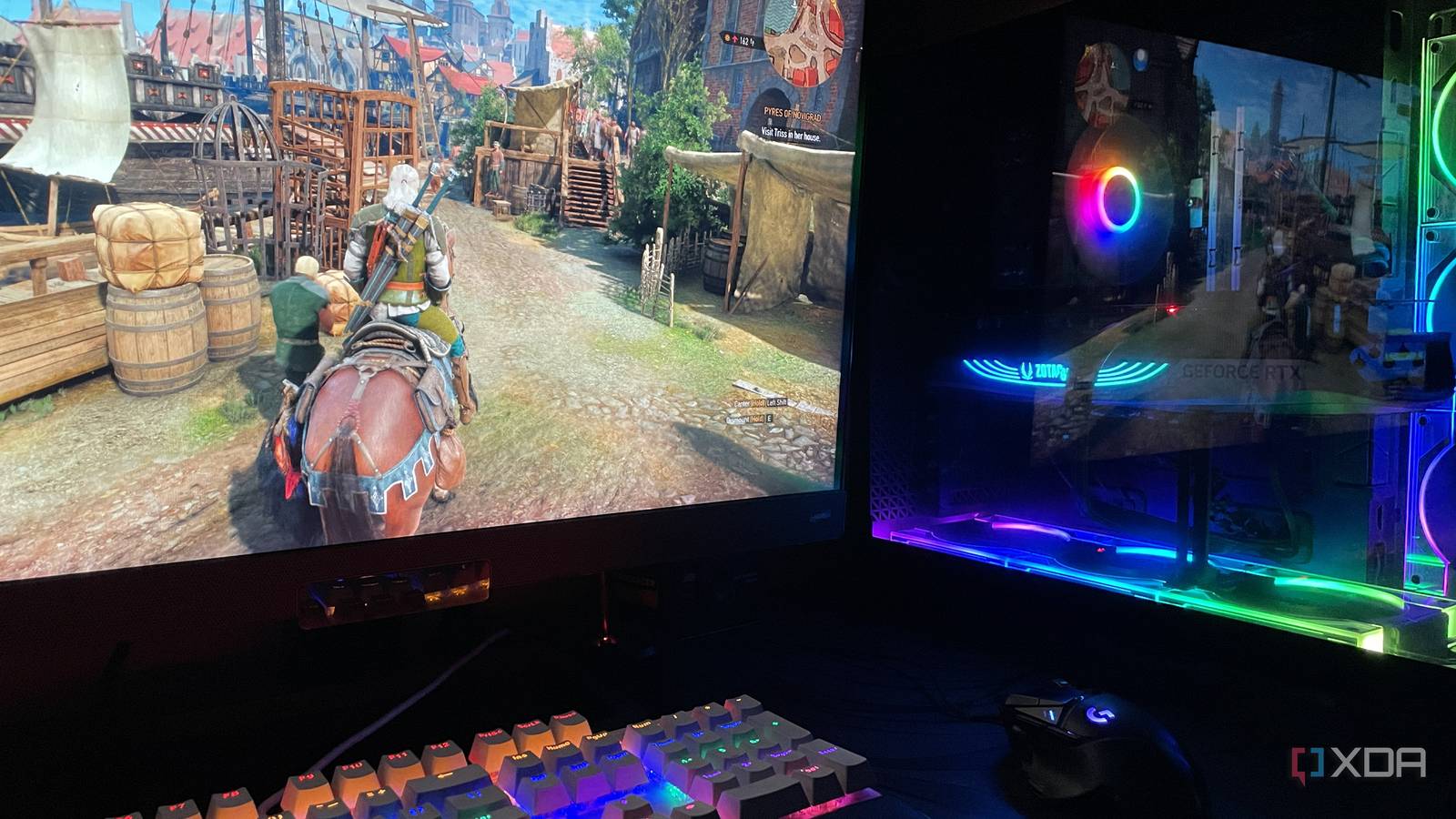
Published Nov 24, 2026, 7:00 AM EST Mainak is an ardent tech lover who grew up with computers. Since childhood, he has had the privilege of tinkering, taking things apart to fuel his curiosity. He is a computer science graduate specializing in programming, particularly memory management, as well as networking. Still, he has always had a soft corner for tech, which led him to develop a deep passion for tech journalism. Mainak loves explaining complex technical terms in simple layman's terms and lightening the conversation to set the mood right. Beyond tech, he is also a self-taught audio engineer and jazz guitarist who has mixed and mastered many audio projects. When a modern, demanding PC game starts feeling sluggish, there is one easy fix: upscaling. Most of us open the graphics menu and drop either DLSS or FSR another notch, moving from Quality to Balanced, Performance, or Ultra Performance. Although it gets the job done and improves the overall smoothness, we give up quite a bit of image sharpness in return. The catch is that image reconstruction only gives you extra frames when your GPU is the part struggling to keep up. I tested every DLSS level in Cyberpunk 2077 and The Witcher 3: Next-Gen at 1440p with Frame Generation turned off. My setup includes an Intel Core i5-13600K, 32GB of RAM, and an undervolted RTX 4090. The moment my processor hit its limits, dropping to lower presets didn't increase FPS; rather, both games looked blurrier, and my GPU barely did anything. Where upscaling works and where it stops Cyberpunk 2077 climbed fast at first, but then it hit a hard ceiling While testing Cyberpunk 2077, I used the Ultra preset and kept RT off entirely. This is because Night City pushes the CPU hard no matter where you drive; turning RT off stopped my RTX 4090 from hiding that processor limit and let me see the exact point where lowering internal resolution stopped helping. That said, my RTX 4090 ran flat out at 97% to 98% load and pulled nearly 300W, averaging around 78 FPS to 91 FPS (DLAA, Transformer model 1.0 / DLSS 4.0), and my processor was pulling around 65W. Switching to DLSS Quality showed drastic improvements. The live frames jumped to around 143–146 FPS, and the game felt more responsive. However, CPU power draw rose to 94W as it had to keep up with a much higher frame rate. Dropping to DLSS Balanced gave me the last real gain in this setup, pushing the live frame rate to the 166–181 FPS range. Past Balanced, the extra FPS stopped coming. When I enabled DLSS Performance, the in-game frame rate stayed in the same range as Balanced, while CPU power draw topped out at just above 101W. Next, enabling Ultra Performance didn't add any extra FPS, but my RTX 4090 fell to 68% load and pulled around 185W. With such aggressive DLSS presets, the GPU finished its work early and waited on the CPU for the next frame (a CPU bottleneck), which is why the GPU's power figure dropped so much, and my frame rate didn't change. You won't see a 100% CPU usage warning when this happens either, since games bottleneck on a few main threads rather than maxing out every core. Switching games or moving to FSR doesn't escape the CPU limit Turning on RT in Novigrad only made my CPU hit its limits a lot earlier Unlike Cyberpunk 2077, which keeps the processor busy almost everywhere in Night City and even more so in Phantom Liberty, The Witcher 3: Next-Gen is fairly easy on the CPU out in the open world, until you ride into Novigrad. To test this properly, I picked the Novigrad docks, a busy area that puts a heavy load on the CPU, and ran the same DLSS 4.0 setup. For settings, I kept HairWorks off and tested both standard Ultra (RT off) and the RT Ultra preset with Ray Reconstruction enabled. With RT off at first, my live frame rate jumped from 119 FPS on DLAA (at 95% GPU load and 292W) to 165 FPS on DLSS Quality (at 88% load and 241W), where it had already hit the CPU ceiling. Moving down to the Balanced, Performance, and Ultra Performance presets wasn't fruitful. Live frame rates stayed stuck in the 155 to 161 FPS range across all three lower tiers (160 FPS on Balanced, 155 FPS on Performance, and 161 FPS on Ultra Performance), with occasional dips. Meanwhile, GPU power and usage fell from 292W at 95% load on DLAA down to 147W at 65% load on Ultra Performance, while my CPU stayed in the 79W to 84W range. Switching to AMD FSR Ultra Performance in the exact same spot gave me a live frame rate of 168 FPS, and 1% lows sat at 86 FPS. My RTX 4090 dropped to 61% load and drew 144W, while CPU power stayed around the same 80W range. At that point, the drop in image sharpness simply wasn't worth it. Turning RT all the way up at the Novigrad docks shows how quickly this ceiling drops once you add a heavier lighting load. With native DLAA, my frame rate averaged around 53 FPS, with my RTX 4090 pinned at 98% load at around 311W. Using DLSS Quality and Balanced presets pushed the averages to 79-87 FPS, with GPU usage around 91%. Dropping further down to Performance and Ultra Performance kept the frame rate around 87 FPS (with 1% lows also at 60-61 FPS), while GPU usage fell from 91% to 82% and then below 76% with Ultra Performance. What if you play at 4K instead of 1440p, or run a much more mid-range setup? A mid-range GPU gives image reconstruction more room to work, while a mid-range CPU hits this wall even sooner Playing at 4K or gaming on a mid-range rig shifts where the bottleneck starts, but neither one lets you escape the CPU ceiling once your processor runs out of headroom. Since I tested at 1440p on an RTX 4090, it's fair to ask how this plays out at 4K or on a more typical mid-range CPU and GPU pairing. At 4K, your graphics card has to push more than twice as many pixels as it does at 1440p, and a mid-range GPU has far less raw horsepower than a flagship card. In both cases, GPU usage stays pinned near 99% much longer, giving lower presets like Balanced and Performance more room to add real FPS before hitting a wall. Still, a mid-range setup doesn't just come with a slower GPU; it usually pairs it with a more modest processor, too, and if you're playing at 1080p on a weaker rig, you can run into this CPU wall even sooner. Since 1080p puts a lot less pixel load on the GPU, even a modern entry-level option can easily outpace an older CPU in dense ray-traced scenes no matter how much you push DLSS or FSR. Even at 4K, you can still be CPU-limited, and using Ultra Performance drops the 4K output to 720p internally, 1440p to 480p, and 1080p to 360p. In the end, we trade clarity for no meaningful performance gains. Watch your GPU usage before using aggressive resolution scaling The results in these tests are specific to my setup at 1440p, so the exact point where DLSS/FSR presets stop helping will vary based on your PC's configuration. Before you drop them another notch, pull up a performance overlay and check your GPU load. The moment it falls below 90% (assuming there isn't a frame-rate cap) and your FPS stops climbing, going much lower won't have a meaningful impact. Instead, settling for better image quality will matter more.
Why cranking up DLSS or FSR stops giving you free FPS the moment your CPU falls behind
Full Article
Original Source
Read the full article at Xda-developers →KhanList aggregates and links to publicly available news content. We do not host full articles from third-party sources. Always verify important information with original sources.