
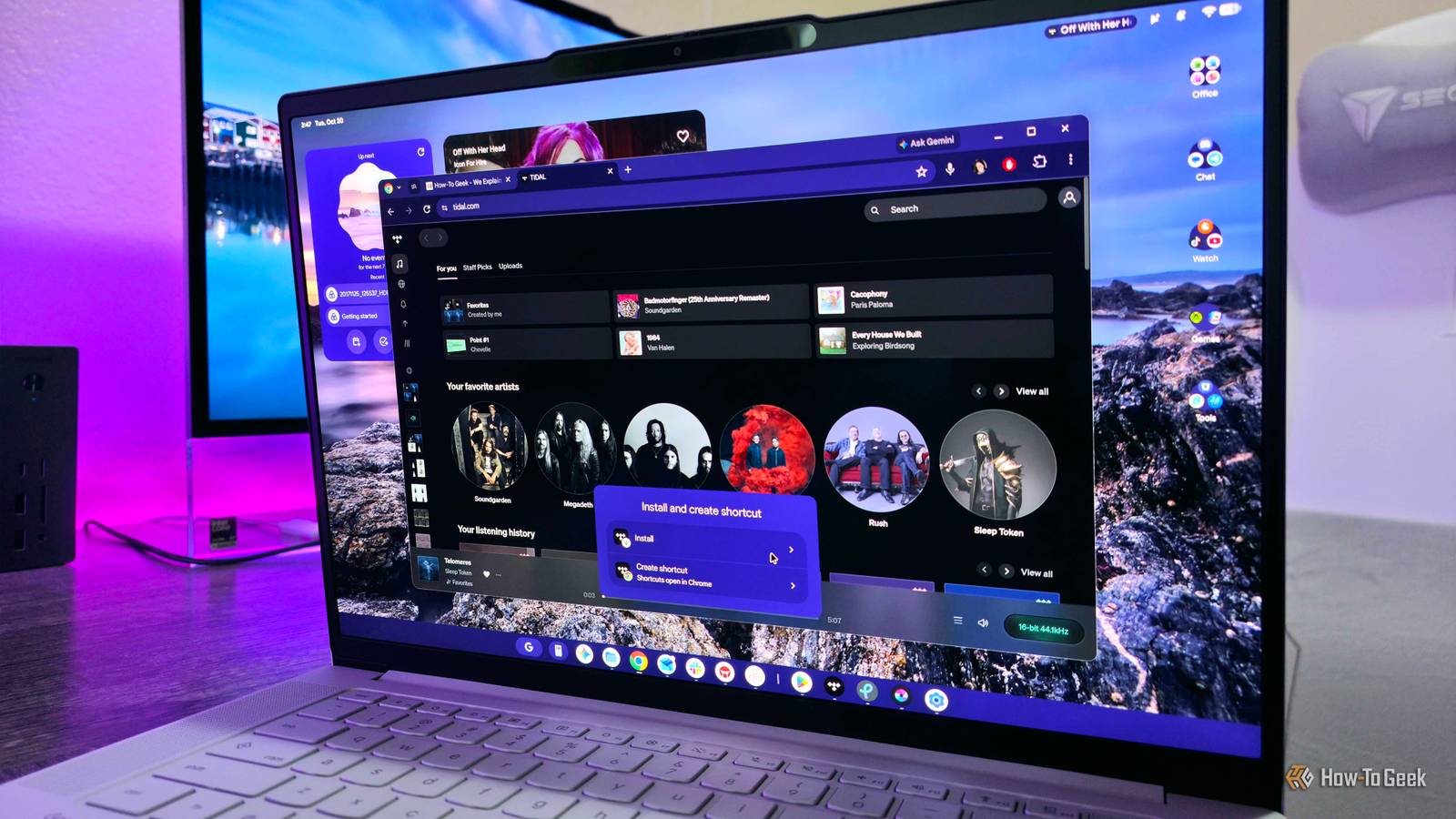
Published Oct 22, 2026, 8:00 AM EDT Zachary Boddy is a seasoned journalist with over six years of experience covering technology and video games, and is now contributing to How-To Geek. Zachary's career began at Windows Central, where their long-running, deep-rooted passion as a tech and gaming nerd fueled thousands of published articles, including reviews, guides, interviews, editorials, and so much more. When Zachary isn't writing, they're playing video games, reading books, listening to music, and spending time with their family, a very food-motivated cat and an exceptionally creative daughter. Google is taking another crack at convincing consumers that it can make compelling laptops for the masses, and the name of this latest attempt is "Googlebook." Chromebooks have officially begun their long decline into obscurity, leaving Googlebooks to bridge the gaps between ChromeOS, Android, Linux, and all the AI features Google wants you to use. At the core of Googlebook OS is the full Google Play Store and its millions of apps, but my time with Android apps on the first-generation Lenovo Googlebook 15 has laid out an undeniable truth: Progressive Web Apps are still superior, and it's not a close fight. The sorry state of apps on Googlebook OS Multiple ways to install your apps, but there's compromise everywhere No matter how good an operating system is, how easy it is to access the apps you need can make or break your experience. Googlebook OS tackles this problem from three primary angles; each comes with its own set of compromises, but there is an obvious winner in the end. First and foremost is the native Google Play Store, which gives you access to millions of Android apps and games. The quantity of the apps available through the Play Store isn't the issue, but rather the quality. There's a small subset of Android applications that have already been optimized for Googlebook OS' desktop environment and mouse-and-keyboard input, but the majority of Android apps treat your Googlebook like an Android tablet at best and an awkwardly shaped phone at worst. How natural it is to navigate through an app, the density of information on your screen, the power of the tools and options at your disposal—it all varies wildly depending on how optimized the specific Android app is for Googlebook OS. The loss of control and waste of screen real estate aside, the most frustrating part about relying on the Google Play Store for your software needs is that these apps are designed for touch input first. It's all too common to discover clicking and dragging, right-clicking, and shift-clicking don't work, forcing you to shift how you use your Googlebook with awkwardly long clicks and swipes. Oh, and I can't forget to mention that there are actually lots of Play Store apps that are either fully unsupported on Googlebook OS, or will install but ultimately won't launch. Even supported Android apps can perform poorly depending on the architecture of your Googlebook, especially if you have an x86 Intel system rather than a preferred Arm64 Qualcomm system. At least if you do have an Intel system, your experience with Linux applications should be better. Yes, Google has built a new Linux Terminal for Googlebook OS, which allows users to access a headless Debian command line environment to install Linux apps, use developer tools, and run AI workloads. The in-preview Terminal is great to have, but it's actually demonstrably inferior to the Linux environment available on ChromeOS, lacking windowed GUI app support, app drawer integration, USB passthrough, dynamic memory, and more. Google has big plans for the Terminal, but it's a far cry from something like the Windows 11 Terminal that lets you run multiple Linux distros and is packed with features and options. At the end of the day, Progressive Web Apps (PWAs) remain undefeated. Web apps are the clear winner here Desktop-grade productivity versus watered down mobile apps The third way to access your apps on Googlebook OS has been at the core of Google's desktop efforts since the dawn of Chromebooks: Progressive Web Apps installed through the Chrome browser. Web apps are efficient, lightweight, easy to install, and—most importantly—often mirror their desktop counterparts in features, mouse-and-keyboard optimization, and customization. What you may lose in offline functionality you gain in usability and power, an easy trade-off to make in most situations. Even a basic streaming app like TIDAL, which more-or-less offers feature parity between its web and mobile versions, is still better as a web app on Googlebook OS with smoother performance, actual tooltips, an interface optimized for large screens, and intuitive, consistent navigation with mouse-and-keyboard compared to the unresponsive touch targets in the mobile app. These differences are even more pronounced with apps like Asana or Slack, valuable tools used by the How-To Geek team. Modern web apps are powerful and scalable, and they're still treated as natively installed applications, including appearing in Settings and the app drawer, being able to be pinned to your taskbar or desktop, enabling push notifications, and accessing your local storage or hardware features. No Play Store app felt better than its web app alternative in my testing, including "Made for Desktop" applications like Pixlr, a photo editing app that performs worse and is more convoluted to navigate than the simple-yet-powerful web app version I install on all my devices. As is the way with Googlebook OS, though, even the best way to get your apps is worse when compared to the competition, and that includes web apps. On Windows 11, whether you install web applications through Microsoft Edge or Google Chrome, you still get a toolbar alongside the window controls with a variety of browser functions and features, including accessing the web app's privacy settings and permissions, managing extensions, copying the active page link, casting or sharing the page, and even basic browser controls like back, refresh, zoom, and find. On Googlebook OS, you get a link to the web app's page in Settings, and a button to open the current page in your browser. It adds an unnecessary layer any time you need one of those browser tools, and partially defeats the purpose of installing a web app in the first place (in that it's not just a browser tab, but its own windowed app). Even worse is when, for the first time ever, I was told that a tried-and-true web app is "not installable" on my Googlebook; I install the Asana PWA on all my devices alongside many others, but that specific web app is blocked for me, forcing me to stay in the browser or use the inferior Android app. I can't say I'm shocked about these weaknesses when Google Chrome itself is missing features on Googlebook OS compared to even ChromeOS, like multi-user profiles, but it does cause additional disappointment in Google's latest desktop effort. With Googlebooks, apps are the way to go I wish I could say that Google's aspiration to transform the Google Play Store into a haven of richly featured, perfectly optimized Googlebook apps is destined to come to fruition, but Google has an unfortunately terrible track record of convincing developers that its large-screen devices deserve the time and money required to properly develop those apps. I'm positive that there will be measured, slow improvements as Google convinces its biggest partners to come aboard, and smaller developers take the chance, but the larger landscape will ultimately remain unchanged. Googlebooks aren't going to meaningfully shift the needle for Android apps on desktop, especially given the overall state of the operating system and its initial reception. For that reason and everything I've said before, Progressive Web Apps installed through the browser remain the ultimate way to create, share, consume, and manage your software.
Web apps are still better than Android apps on Googlebooks
Full Article
Original Source
Read the full article at Howtogeek →KhanList aggregates and links to publicly available news content. We do not host full articles from third-party sources. Always verify important information with original sources.