
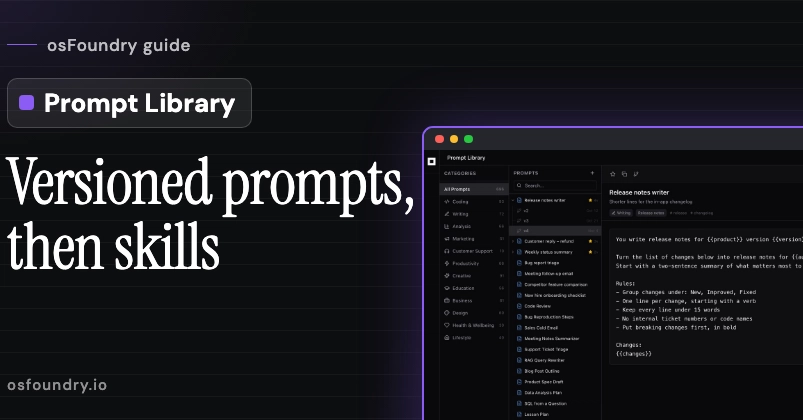
Most good prompts live in the wrong place: a chat from three weeks ago, a notes file, a Slack message to yourself. You rewrite them from memory, they drift, and nobody remembers which wording actually worked. osFoundry's Prompt Library gives those prompts one home with search, favourites and versions, and Studio's Skills and Tools turn the ones you trust into instructions an agent can follow, with the tools it's allowed to use spelled out. One library for built-in and your own prompts osFoundry is a desktop app that puts chat, agents, files and tools in one window. The Prompt Library opens on three columns: categories with counts (Coding, Writing, Analysis, Customer Support and more), the prompt list, and the selected prompt. The app ships with several hundred built-in prompts, and your own sit in the same list. Starring a prompt makes it a favourite, and search looks through titles, descriptions, prompt text and tags. Each prompt shows its category, tags, author, date and how many times it has been used. The toolbar has Favorite, Copy, Duplicate, the version badge, Edit and Delete. The prompt text can carry placeholders such as {{product}} and {{audience}}, which comes in handy later. Versions instead of overwriting This is where the library stops being a notes file. When you edit a prompt you can either Save, which overwrites it, or Save as New Version, which keeps the original and adds the edited text as the next version. The versions hang under the original prompt as a small tree, each with its date, and the original shows how many versions it has. In the example, Release notes writer has v2 (Oct 12), v3 (Oct 21) and v4 (Nov 4); v4 adds a short summary line, a 15-word limit per line and breaking changes first. You open any version to read or reuse it, so the wording that worked in October is still there after the November rewrite. If you want a separate prompt rather than another version, Duplicate makes an independent copy that starts again at v1. My Prompts narrows the list to the prompts you wrote and the built-ins you starred, with their versions underneath. Fill in the blanks, then send The Prompt Library is also a side panel next to chat. When you insert a prompt that has {{placeholders}}, osFoundry asks for each value first and then drops the finished text into the message box. In the example the release-notes prompt asks for product, version, audience and changes. That turns one well-tested prompt into a form: the instructions stay the same, and only the parts that change each time are typed in. From prompt to skill A prompt is something you paste in. A skill is something an agent picks up on its own when the task matches. Skills live in Studio, under Skills and Tools. You create one with + (or Import a Markdown or text file) and paste in the prompt that has proven itself. A skill carries more than the text: a name, slug, group and version number (1.3.0 in the example) a description and a trigger: when it should be used, such as "When the user asks for release notes, a changelog or a 'what's new' post" the tools it may use (here git_log, read_file and web_fetch) and which agents it is meant for tags, an example request, and the instructions themselves as Markdown steps, including what never to do The tools behind it, with their limits A skill only provides instructions; what an agent can actually do is defined by tools. Each tool in the Tools tab has its permissions (repo:read for git_log), an approval policy (no approval, let the runtime decide, or require approval before every use), the context sent to the worker, and its function schema, with a Test button to try it. Above the list, Unattended runs sets what happens when nobody is watching: scheduled agents, file-watch triggers and room apps. The default is to ask for approval; you can also let them run without asking, or have them plan first and then ask. A chat always uses its own approval mode from the message box. Use case: release notes that stop drifting Sammy writes release notes every two weeks. The first prompt was rough, so each fix went into a new version: v2 grouped changes under New, Improved and Fixed, v3 dropped internal ticket numbers, and v4 shortened the lines for the in-app changelog. When a teammate asks how the notes for 2.3 were written, the answer is v3, still in the tree. For quick runs, Sammy inserts the prompt from the side panel and fills in product, version and audience. Once v4 has held up for a few releases, Sammy pastes it into a "Release notes" skill, limits it to reading the git log and files, and the writer agent now picks it up whenever someone asks for release notes. Questions people ask first Can I compare two versions side by side? Versions open one at a time, each with its own date and text. Save as New Version keeps the previous wording, so nothing is lost when you rewrite a prompt. Where are my prompts stored? The built-in prompts ship with the app. Your own prompts, edits and favourites are kept on this device. Does a prompt turn into a skill automatically? No. You create the skill in Studio's Skills and Tools and paste the prompt in as its instructions, then choose its trigger and the tools it may use. Can a skill do anything on its own? A skill is instructions. What actually runs is defined by the tools that are enabled, with their permissions and approval policy. Is it free? osFoundry is free to use on your own device. Work that runs on osFoundry's servers, and model calls through osFoundry, use credits. The desktop app is free to download at osfoundry.io/download.
Turning one-off prompts into versioned prompts and skills in osFoundry
Full Article
Original Source
Read the full article at Dev →KhanList aggregates and links to publicly available news content. We do not host full articles from third-party sources. Always verify important information with original sources.