
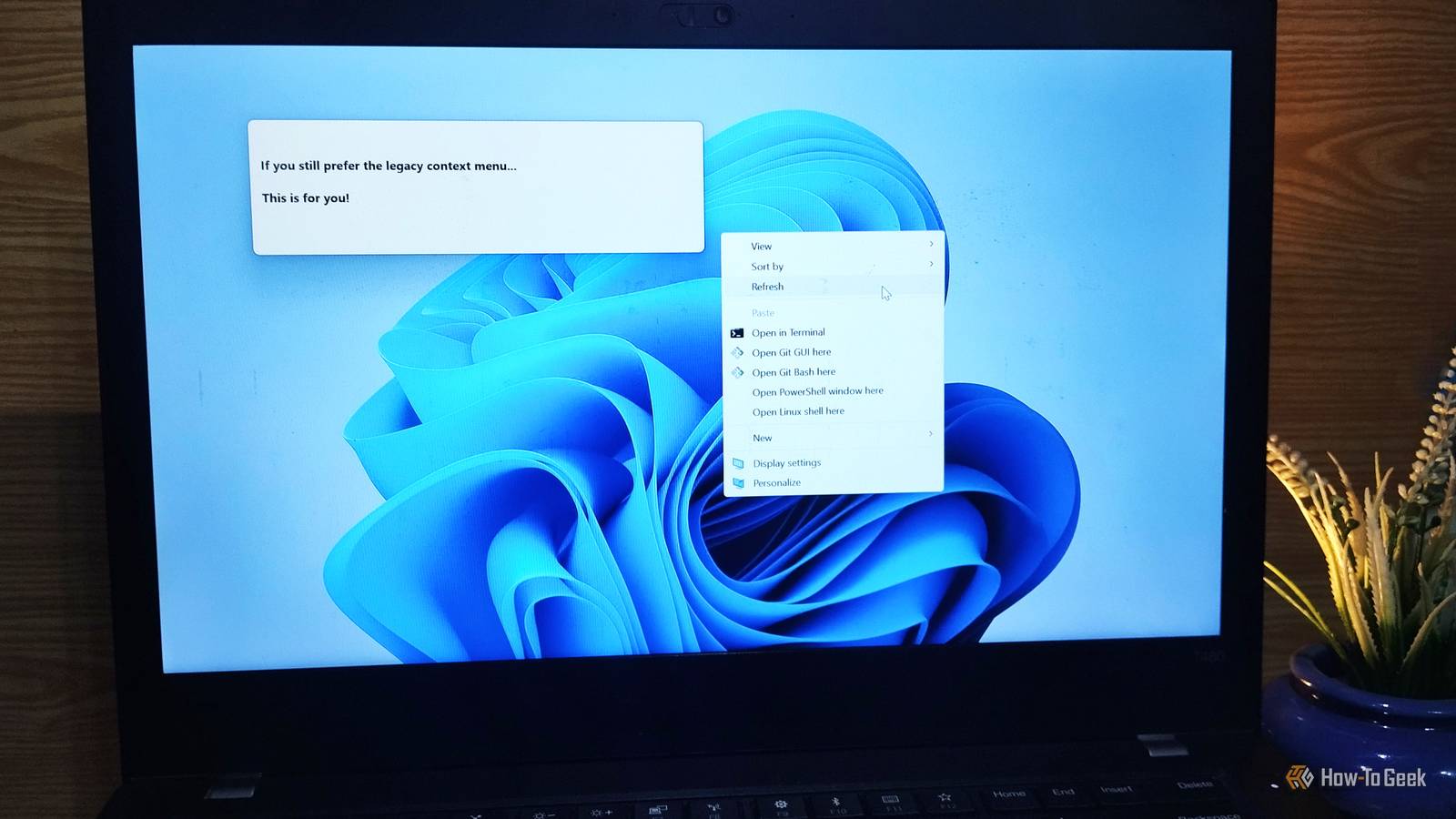
Published Nov 24, 2026, 12:31 PM EST Nimrah has spent the last five-plus years writing about technology, with Linux being one of her favorite subjects to explore. Her work covers everything from Linux and open-source software to databases, cybersecurity, and everyday software. She has contributed to Baeldung, Make Tech Easier, and LinuxHint. She particularly enjoys turning a concept that initially seems complicated into something anyone can understand. Away from tech, she loves to read, cook new recipes, and try new restaurants and cuisines. Windows 11's right-click menu is finally getting some much-needed attention. Microsoft's KB5127936 update introduces a faster, cleaner, and more customizable context menu that gets rid of the annoying Show more options step that has frustrated users since launch. The catch is that the rollout is gradual, so the update may not have reached your PC yet. If you've been using the old Registry trick to bring back the classic menu, you might also have noticed that it no longer works as expected. Fortunately, there's a new workaround. Whether you've received the update or are still waiting for it, here's how to bring back the familiar Windows 10-style context menu. For years, Windows 11's right-click context menu has been one of those small annoyances that can get under your skin. Microsoft replaced the familiar, information-packed menu with a simplified version that looks cleaner but hides several options behind Show more options. If you regularly use third-party applications, that extra click can quickly become irritating. Microsoft has finally addressed this with the redesigned context menu introduced through update KB5127936. The new menu removes the Show more options entry and brings more commands into a streamlined interface. More importantly, it opens faster and gives you greater control over what appears when you right-click something. The customization options are a nice touch, too. You can enable or disable built-in Windows commands such as Send to and Create shortcut, add commands such as Print, and decide which third-party application extensions appear in the main menu or a separate submenu. You can even hide the App extensions submenu altogether if you prefer a cleaner interface. You also get more control over the menu's appearance. Windows lets you display Cut, Copy, Paste, Rename, Delete, and Share as text instead of relying on the familiar row of icons. You can also move Properties to the bottom of the menu. There is one catch, though. Microsoft is gradually rolling out the redesigned menu, which means installing KB5127936 doesn't necessarily make it appear immediately. If you've installed the update but still see the older context menu, you may just need to wait for Microsoft to enable the feature on your device. The feature also arrives through the subsequent November update, KB5132061, for more broadly distributed systems. Even if you've received the new menu, you might still prefer the classic version. And that's perfectly fine. Microsoft hasn't taken it away entirely. Bring it back with a keyboard shortcut or registry tweak If you only occasionally need the classic context menu, there's no reason to change anything in the Registry. Simply hold down Shift and right-click a file, folder, or an empty area of your desktop. Windows immediately opens the classic context menu instead of the newer one. This is the easiest built-in option, especially if you enjoy the new menu but occasionally need older commands or third-party application entries. However, holding Shift every time can become a chore if you prefer the classic menu as your default. You can bring it back permanently with a Registry command. The old one-key Registry workaround is no longer sufficient on newer builds with the redesigned context menu. The updated method creates two Registry entries instead, allowing Windows to fall back to the classic menu. Before proceeding, create a restore point or back up your registry. You don't need administrator privileges for this particular change because it affects your current Windows user account. Open Command Prompt and run the following command: reg add "HKCU\Software\Classes\CLSID\{86ca1aa0-34aa-4e8b-a509-50c905bae2a2}\InprocServer32" /ve /f & reg add "HKCU\Software\Classes\CLSID\{51668040-5e31-4023-bbe3-149163bd80f1}\InprocServer32" /ve /f Now, you simply have to restart Windows Explorer to apply the changes: taskkill /f /im explorer.exe start explorer.exe Your taskbar and desktop might disappear briefly while Explorer restarts. That's completely normal. Once it comes back, right-click a file or folder to check whether Windows now opens the classic context menu by default. Undo the Registry tweak and enjoy Windows 11's default context menu If you change your mind or want to try Microsoft's new customizable context menu after receiving the gradual rollout, you can reverse the Registry changes just as easily. Open Command Prompt and run the following command to remove both Registry overrides: reg delete "HKCU\Software\Classes\CLSID\{86ca1aa0-34aa-4e8b-a509-50c905bae2a2}" /f & reg delete "HKCU\Software\Classes\CLSID\{51668040-5e31-4023-bbe3-149163bd80f1}" /f This removes the two keys created earlier, allowing Windows to use its default context menu handlers again. Now, restart Windows Explorer to apply the changes. Alternatively, you can restart your PC. Once Windows Explorer loads again, right-click a file to check whether the default context menu has returned. I'm sticking with the new menu for now, but if you haven't received the update yet, I'd try this registry tweak. Check back after a while to see whether Microsoft's customizable context menu has reached your PC. You can always undo the changes and give the redesigned menu a chance.
Tired of Windows 11's new right-click menu? Here's how to restore the classic one
Full Article
Original Source
Read the full article at Howtogeek →KhanList aggregates and links to publicly available news content. We do not host full articles from third-party sources. Always verify important information with original sources.