
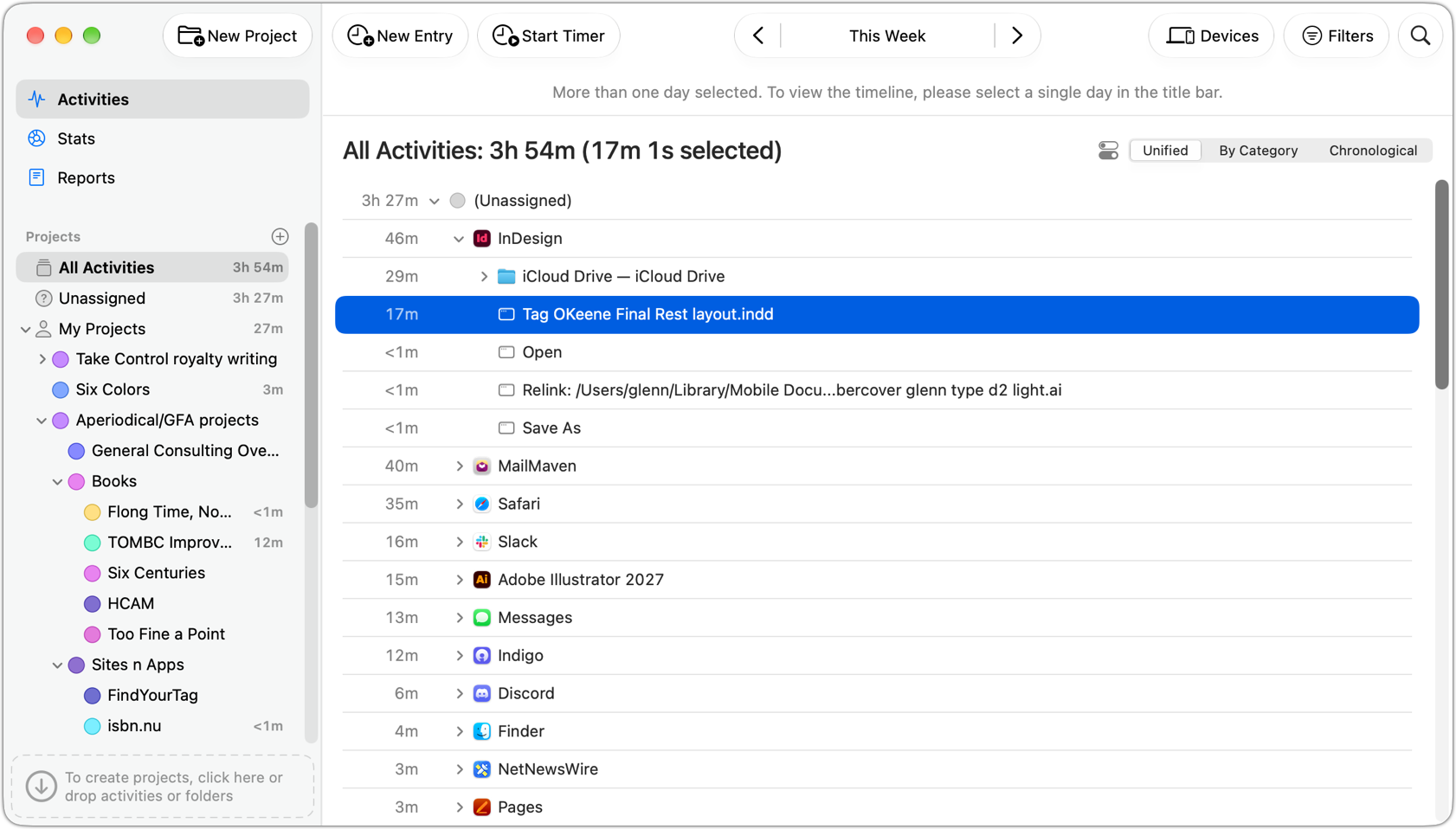
For many years, I have been frustrated by a simple question, one I ask myself all the time: what the hell did I do in my eight hours at work today? I’m a freelancer and micro-publisher, and my time may consist of moments spent each day across a thousand different tasks. This leaves me unable to recall comprehensively what I’ve done. I finally have an answer in the form of the Timing app: it offers app-driven, document- and dialog-level tracking. It’s not the first or the only such app, but it’s the first I’ve tried, found worthwhile, and stuck with. I now have many months of data about what I do, and it is truly revealing, particularly for the writing portion of my life. Timing tracks every context switch when you move from foreground app to foreground app, which includes the titles of windows and other identifying details. At the end of the day, I can see how much time I spent and most of what I did within each app. Timing captures what you do by app using window titles, pathways, and more. The reason Timing works for me? Powerful rules-based task filtering that, as I’ve set up over time, handles most of the work in letting me see what I’m doing without tediously categorizing pieces of time or individual documents and windows. I can mark time chunks manually or reassign them, but I rarely need to spend many of my precious minutes doing that. This review isn’t exhaustive—the app has many features I never use, but the subset I describe below has a high value to me. Identifying what you’re doing Timing records data about what’s happening in the foreground. While this has limitations, it has generally worked for me across many programs and types of work. Timing pulls titles from documents, tab titles from browser tabs, Terminal job information (often shown in a Terminal window’s title), people from Messages, channel names and DM names from Slack, and paths to files that are open. If you have Timing installed on multiple Macs, it syncs this data. You can manually start timers and edit information that’s been captured. The Devices filter lets you include or exclude your linked devices for clarity. While there’s no way for an iPhone or iPad app to extract document-specific usage, Timing Software extracts information from synced Screen Time data. The company notes that this is a workaround, and Apple could break this method in the future. The company avoided iOS/iPadOS app development by offering a web app for manual time recording that works on any platform. Timing records data by app, with the details broken out. As data accrues, Timing sorts it in the Activities view. There are two other main views—Stats and Reports—which I have barely touched in nearly a year of using it. Most of what I need I find in Activities. This report view may be useful to some people. It shows I have tracked 1856 hours of my time so far in 2026, starting in mid-January! The three features that helped me use Timing effectively were: The single-day view lets you get a densely layered graphical view of your work across all your devices. Time slicing: At the top of every view, there’s a time period button you can click to choose among presets, like the Past 30 Days, and custom ranges. If you choose Today or single day in Activities, you get a bonus graphical chronological view of the entire day’s behavior divided by platform, with some algorithm-generated text that defines the primary activity in that period. Projects: Create projects and sub-projects to organize what you’re doing. Because I have so many different things going on, I have my tiny publishing business, Six Colors, Take Control (books I write for royalties and books/consulting I do under contract), sites I’ve developed, and clients. I also set up projects for non-billable overhead stuff, which includes household work. (For clients, I don’t rely on Timing, but rather a separate timer-based accounting app that handles invoices and other tasks, too.) Rules: The most powerful feature, mentioned in the introduction, is Timing’s rules. The rules use pattern matching to assign an item identified in Activities to a project. You can create these rules automatically or by hand. For instance, I set up rules for specific paths for documents to always be part of a specific project, but I use automatic rule creation to add entries that don’t correspond to a path, like Safari windows that have a title that always starts with the same words. Those are the pieces; now I’ll tell you how I join them. Using dragging and rules to build the picture To bring this all together, I start in the Activities view. All Activities shows everything that’s been tracked in the currently selected time period. Anything assigned to a project appears under My Projects. The Unassigned section has all the uncut gems you can work with to bring order to your tracking chaos. (I should note that Activities defaults to Unified, which shows tasks by apps. You can also use By Category—website, path, etc.—or Chronological.) Depending on the app, you can drill down by clicking expansion triangles. So for Safari, I might click next to Safari, then Kickstarter, then find there are many different entries all related to a project I was working on. I can also hover over or click grouped or individual entries in the Today or single-day view at the right side of Timing, as shown above. The Activities view set to a single day lets you reveal a lot of information about ranges of time, and assign them to projects. In all these cases, I can assign tasks to a project, or drag windows, selections, or entire apps onto a project in the My Projects list. If I’m sure I want to have that assignment stick—the document entry I’m dragging is always part of a given project—I can Option-drag, and Timing adds a rule. Over weeks and months, I have accumulated many rules and tweaked the entries by hand to make sure I was sweeping in the right documents. For instance, I can review recent work on an update to Take Control of Apple Wallet by selecting the last 90 days as a time period, selecting the project name TCo Wallet in the sidebar, and then clicking Chronological. I can expand the time entries to make sure tasks were properly assigned, and look over the time I spent. I can see exactly how much time I’ve spent on this book update. My two greatest tips from using Timing are: I should be using tab groups in Safari more so that I have more discrete information when a Safari tab’s title tag lacks enough information for me to review later. Examine rules regularly to ensure you’ve got the right level of granularity to match what you want included in a project. Timing’s biggest problem in my usage isn’t its fault: some apps don’t provide specific-enough information or in the right form to track. I’d love to know how much time I spend in my email app on different tasks, but unless I am replying, which creates a new window with a title, I only see a generic entry for the inbox. The same is true on many websites, where the title doesn’t reflect enough specificity, particularly in web apps that are interactive within a window without reloading the page or updating the title. Time passages Timing is sold on a subscription basis, starting at $11 per month or $108 per year for Professional, the lowest-tier package, for a single computer, omitting iOS/iPadOS integration, among other features. For $14 per month or $132 a year, the two-computer Expert tier fit my needs. Team subscriptions start at $20 per month or $192 a year per user. Because my “job” is all self-driven, with some billable hours and many tasks that I decide the amount of time to spend on, Timing helps me get a picture of what I’m doing. When I can’t recall from the miasma of the day what I’ve done, I just look at my Timing record and say, “Oh, that’s how I wasted my time.” [Glenn Fleishman is a printing and comics historian, Jeopardy champion, and serial Kickstarterer. His current books in preparation, which you can pre-order, are Flong Time, No See, and That One Matt Bors Comic. Other books include Six Centuries of Type & Printing and How Comics Are Made.] If you appreciate articles like this one, support us by becoming a Six Colors subscriber. Subscribers get access to an exclusive podcast, members-only stories, and a special community.
Timing review: let an app track what you do
Full Article
Original Source
Read the full article at Sixcolors →KhanList aggregates and links to publicly available news content. We do not host full articles from third-party sources. Always verify important information with original sources.