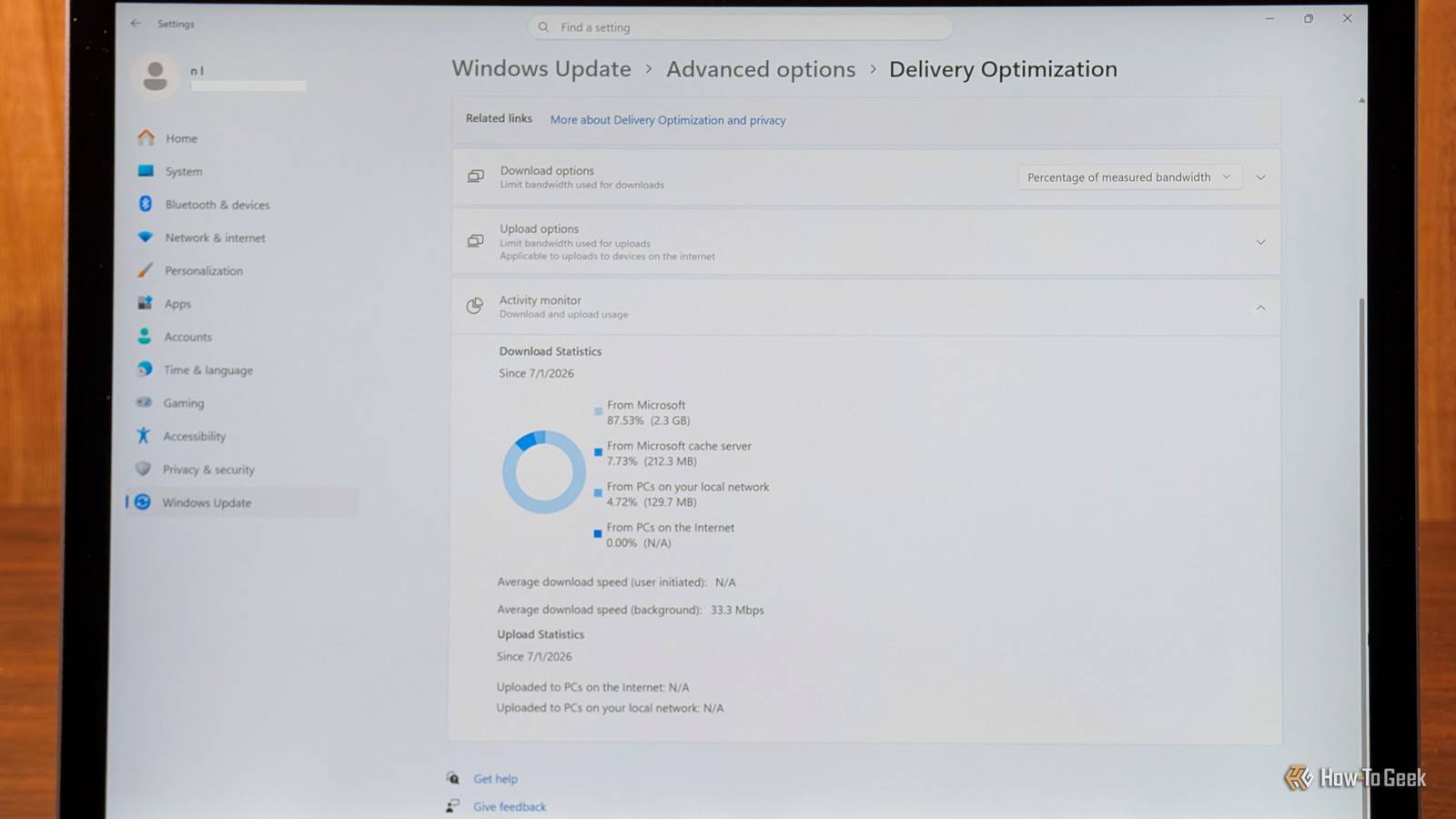
Published Aug 6, 2026, 11:30 AM EDT Nick Lewis is an editor at How-To Geek. He has been using computers for 20 years --- tinkering with everything from the UI to the Windows registry to device firmware. Before How-To Geek, he used Python and C++ as a freelance programmer. In college, Nick made extensive use of Fortran while pursuing a physics degree. Nick's love of tinkering with computers extends beyond work. He has been running video game servers from home for more than 10 years using Windows, Ubuntu, or Raspberry Pi OS. He also uses Proxmox to self-host a variety of services, including a Jellyfin Media Server, an Airsonic music server, a handful of game servers, NextCloud, and two Windows virtual machines. He enjoys DIY projects, especially if they involve technology. He regularly repairs and repurposes old computers and hardware for whatever new project is at hand. He has designed crossovers for homemade speakers all the way from the basic design to the PCB. Nick enjoys the outdoors. When he isn't working on a computer or DIY project, he is most likely to be found camping, backpacking, or canoeing. We've all been there: you're in the middle of a winning streak in a game and your ping spikes, or you're on a video chat and suddenly your image freezes without warning. Maybe a download is inexplicably slow despite other devices on the network functioning fine. When this happens, you're stuck with the same tedious mix of troubleshooting steps. Sometimes the culprit is a Windows feature called Delivery Optimization. What in the world is Delivery Optimization And why it lags your PC when you least expect it Delivery Optimization is a peer-to-peer update service. You can think of it as a BitTorrent-style distribution system for Windows updates and Microsoft Store apps. It turns your computer into both a client (downloading the update) and a seed (uploading it to others). The stated purpose is to reduce the load on Microsoft's servers and, theoretically, speed up updates by letting PCs share pieces of the files with each other directly. The part that tends to give people pause is that it can include devices across the entire internet, not just another Windows PC on your home network, though it doesn't, by default. It isn't just Windows updates either; it includes everything from driver updates to Defender definitions. To be clear, it probably isn't a privacy or data security issue. Microsoft—and you—only ever share update files that are cryptographically signed, so your data is as safe as it would be otherwise. The security of your data notwithstanding, it is still extremely annoying when it starts eating up bandwidth when you didn't ask for it or expect it. Why is it so hard on your home internet? If you have fast internet and your PC is hardwired, you'll probably never notice delivery optimization. The bandwidth of an Ethernet cable is both high and stable. However, most internet plans are asymmetric, which typically means your upload speed is much less than your download speed. In my case, my download speed is 1.2 gigabits per second, but my upload maxes out at a meager 40Mbps. When your PC completely saturates the upload bandwidth by sending out Windows updates, acknowledgment packets that your downloads depend on can get bogged down in the traffic jam. That manifests as slow downloads, even if you're not actually maxing out your download bandwidth. In theory, Windows tries to limit this to a percentage of your maximum connection speed by default to minimize its impact. In my experience, that setting doesn't work reliably. Wi-Fi adds an extra complication. Wi-Fi radios can only transmit or receive at one time (half duplex); it cannot do both simultaneously. Sometimes when you're uploading a ton of information, your radio spends more time transmitting than receiving. That can result in things like latency spikes or jitter. If you're just doomscrolling on social media, that sort of thing will probably go unnoticed, but it is painfully obvious if you're doing something that is latency sensitive, like gaming or video calling. Even more confusingly, your speed test could very well look normal (unless you specifically measure jitter). Confirming delivery optimization is a problem Windows keeps a running tally of data sent via delivery optimization, so you can actually check if this is your problem. Press Windows+i to open the Settings app, then navigate to Windows Update > Advanced options > Delivery Optimization > Activity monitor. If you see gigabytes of data uploaded to "PCs on the Internet" over the past month, there is a good chance Delivery Optimization is your issue. To confirm this in real-time during a lag spike, open Process Explorer (a program from the Sysinternals suite) and look for svchost.exe hosting the DoSvc service uploading a ton of data. You can't get rid of it by default Sharing is compulsory If you look through the Settings menu, one of the first things you'll notice is that you can't just shut off sharing. There is no "No, thanks" button anywhere. Disabling downloads seems to completely disable uploads too (and Microsoft's documentation supports that), so you could do that. If you want to completely disable it, you could also use the Registry Editor. Open up the Registry Editor, then navigate to: HKLM\SYSTEM\CurrentControlSet\Services\DoSvc Set the Start value to 4. Once you've changed that setting, remember to clear the Delivery Optimization cache via Storage settings to get back a few gigs of space. Don't spend money before you try disabling Delivery Optimization Unfortunately, performance issues like this are exactly the kind of problem that can take years to diagnose unless you know exactly where to look. That is compounded by the fact that the symptoms can resemble a shoddy Wi-Fi connection, a router that is thermally throttling, or a poor connection somewhere between you and your ISP. So, before you go replacing your router and ripping those cat5e cables out of your walls, try disabling Delivery Optimization—it may actually be your issue.
This weird Windows setting was responsible for my biggest Wi-Fi annoyances
Full Article
Original Source
Read the full article at Howtogeek →KhanList aggregates and links to publicly available news content. We do not host full articles from third-party sources. Always verify important information with original sources.