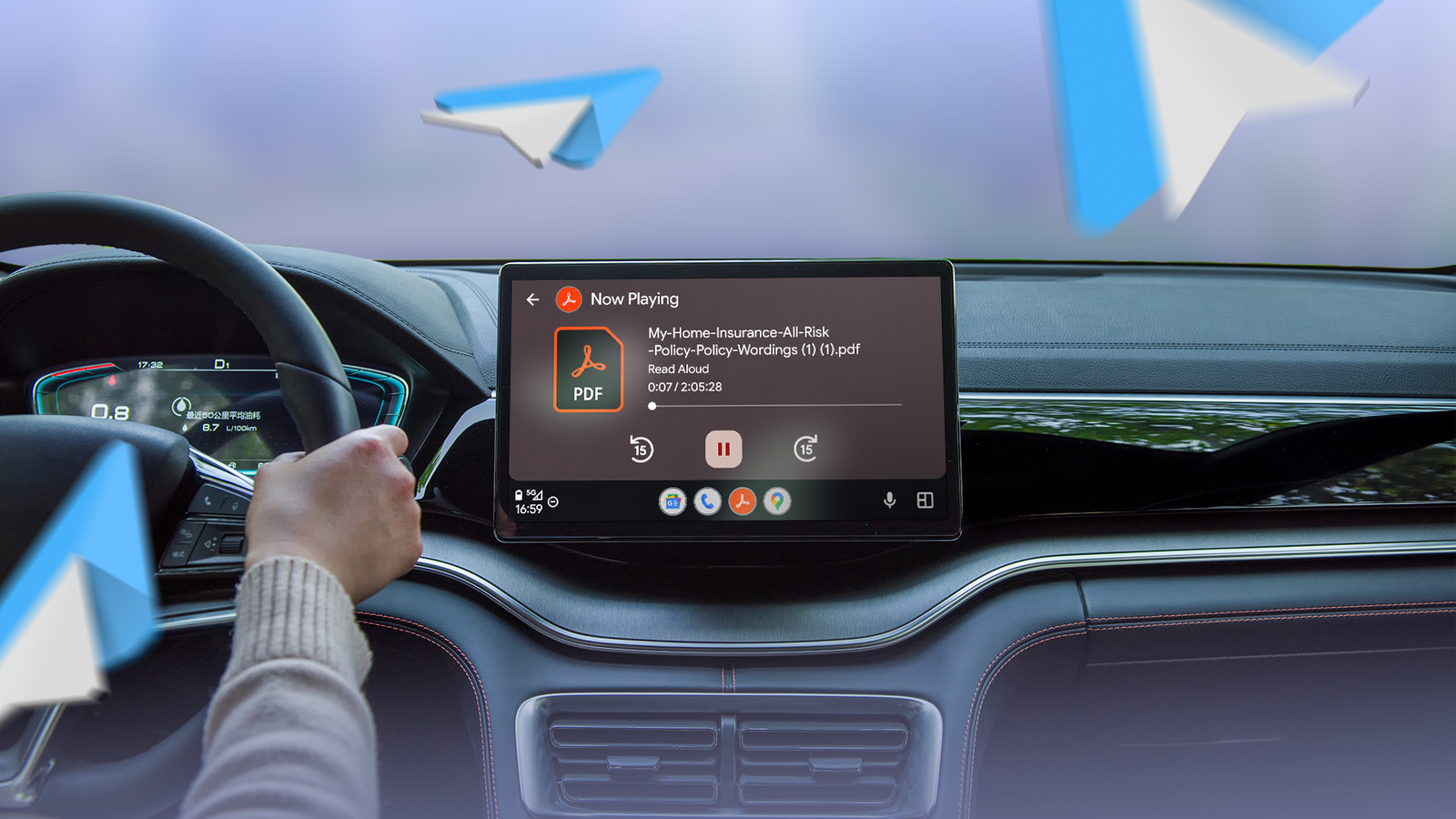
Published Jul 30, 2026, 8:30 AM EDT I cover Android with a focus on productivity, automation, and Google’s ecosystem, including Gemini and everyday apps. With a background in engineering and software development, I tend to go beyond surface-level tips and focus on how features fit into real workflows. Before joining AP, I wrote for tech publications such as Gizbot in 2023 and iJunkie (formerly known as iPhoneHacks) from 2021 to 2022. When Adobe Acrobat showed up on Android Auto, I assumed it was one of those apps that had no place in a car. After all, who wants to read PDFs while driving? However, I had the wrong idea. Acrobat turns compatible PDFs into audio you can control with Android Auto's familiar media controls so you can catch up on reports, study materials, or other documents during your commute. After I understood what it was designed to do, Adobe Acrobat on Android Auto turned out to be one of the most surprising productivity features I have tried. Adobe Acrobat isn't meant for reading PDFs while you drive It turns documents into something you can listen to instead My biggest misconception was thinking Adobe expected me to read PDFs from my car's display. That would be distracting at best and dangerous at worst. Instead, Acrobat uses its built-in Read Aloud feature to narrate compatible PDF documents while Android Auto provides familiar media-style playback controls. After playback starts, you can play, pause, or skip through the document from your car's infotainment screen, much like you would with a podcast or audiobook. It's the same idea as listening to an audiobook, except the "book" might be tomorrow's meeting agenda, a research paper, a training manual, or a report you've been meaning to finish. I used the free version of Adobe Acrobat throughout my testing, and it was more than good enough for my daily commute. It reads standard text-based PDFs aloud using the system's text-to-speech voices. Paid subscribers get access to more natural, human-sounding voices, but I never felt the need to upgrade. The free voices were perfectly adequate for listening to reports and other documents while driving. How to set up Adobe Acrobat on Android Auto Turn your PDFs into something you can listen to As long as you have the latest version of Adobe Acrobat installed on your Android phone, you can use its Read Aloud feature with Android Auto's familiar media controls. Here's how to get started: Connect your phone to Android Auto. Open Adobe Acrobat on your Android phone. Select the PDF you want to listen to from your device, cloud storage, or Acrobat library. Tap the three-dot menu and choose Read Aloud. Open Adobe Acrobat from the Android Auto app launcher if it doesn't launch automatically. Use the media controls on your car's display to play, pause, skip forward, or rewind while Acrobat narrates the document. The experience is much closer to listening to a podcast than reading a PDF. Android Auto doesn't display pages or encourage you to interact with the document. Instead, it focuses on hands-free playback so you can keep your attention on the road while catching up on a report, lecture notes, or another document you've been meaning to finish. Read Aloud doesn't work with every PDF. Password-protected files, scanned documents without OCR, and certain shared PDFs aren't supported. Set everything up before you start driving Choose your PDF while you're still parked The best way to use Adobe Acrobat on Android Auto is to treat it like you would a podcast or audiobook. Before I leave, I open Acrobat on my phone, choose the PDF I want to listen to, and start Read Aloud while I'm still parked. After playback begins, I don't need to keep interacting with my phone. From there, I can use Android Auto's familiar media controls on my car's display, or even my steering wheel controls, to play, pause, or skip through the document. Instead of fumbling with a PDF during my drive, I can listen to it the same way I'd listen to Spotify, Audible, or a podcast, while keeping my eyes on the road and my hands on the wheel. Adobe Acrobat in Android Auto made my commute surprisingly productive It turned out to be more useful than I expected Although I still spend most of my commute listening to music or podcasts, Adobe Acrobat has earned a spot in that rotation whenever I have something important to catch up on. Instead of staring at a lengthy PDF after I get to the office or waiting until I'm home, I can let Acrobat read it aloud while I drive. It turns time that would otherwise be spent passively into an opportunity to prepare for the day. If I receive a meeting agenda, project proposal, or report the night before, I don't have to squeeze in extra reading time before leaving the house. By the time I arrive, I'd already heard the key points and had a much better idea of what to expect. While it isn't a replacement for carefully reviewing an important document later, it's an excellent way to familiarize myself with the content. You can adjust the reading speed in Acrobat before you start driving. It's useful for much more than work documents I started using it for all the PDFs I'd been putting off I always seem to have a few PDF documents in my Downloads folder, whether they are travel itineraries, user manuals, event guides, white papers, or e-books in PDF format. Instead of letting those files collect digital dust, I can listen to them during my commute. By the time I reach my destination, I've often finished a document that would otherwise have remained unopened for weeks. It's also a feature I can see students getting plenty of value from. Lecture notes, study guides, assigned readings, and research papers are frequently shared as PDFs, and listening to them on the way to campus or while running errands is an easy way to reinforce the material. Adobe Acrobat deserves a spot in your Android Auto app drawer Adobe Acrobat won't replace the apps I use every day on Android Auto, but it has earned a place alongside them. The ability to turn compatible PDFs into audio and control playback from my car's display makes it a practical way to catch up on documents I might otherwise put off reading. As of now, it's also one of the very few apps that brings PDF listening directly to Android Auto instead of relying on phone-only text-to-speech. If you regularly receive reports, study materials, manuals, or other text-heavy PDFs, it's well worth giving Acrobat a try. It's a small addition to Android Auto, but one that can make your commute a little more productive.
This unexpected Android Auto app turned my commute into my most productive hour
Full Article
Original Source
Read the full article at Androidpolice →KhanList aggregates and links to publicly available news content. We do not host full articles from third-party sources. Always verify important information with original sources.