
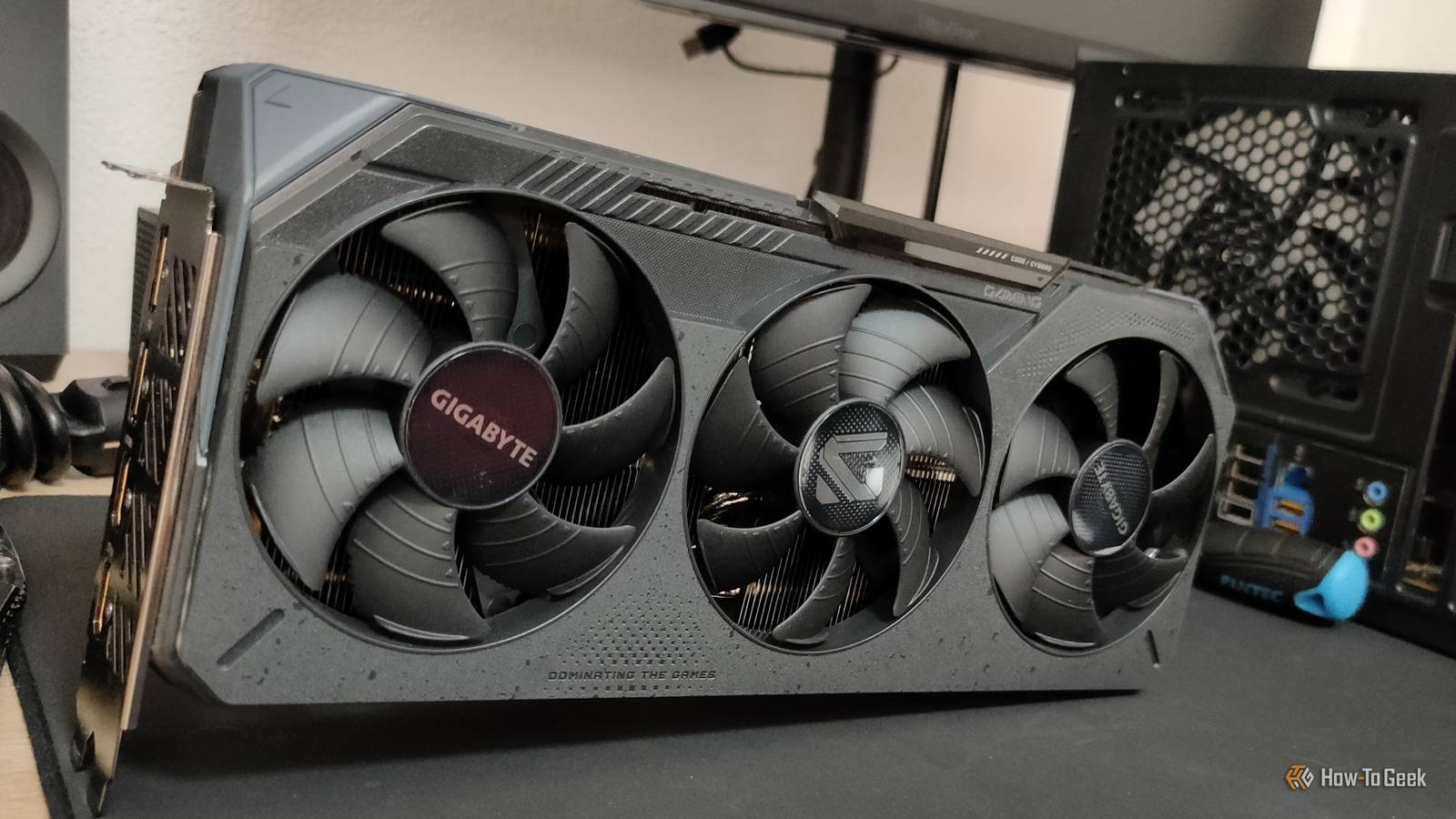
Published Oct 29, 2026, 5:30 PM EDT Monica J. White is a journalist with over a decade of experience in covering technology. She built her first PC nearly 20 years ago, and she has since built and tested dozens of PCs. PC hardware is her main beat, and graphics cards and the GPU market at large are her main area of interest, but she has written thousands of articles covering everything related to PCs, laptops, handhelds, and peripherals. From GPUs and CPUs to headsets and software, Monica's always willing to geek out over all things related to computing. Outside of her work with How-To Geek, Monica contributes to TechRadar, PC Gamer, Tom's Guide, Laptop Mag, SlashGear, Whop, and Digital Trends, among others. Her ultimate goal is to make PC gaming and computing approachable and fun to any audience. Monica spends a lot of time elbow-deep in her PC case, as she's always making upgrades, testing something, or plotting out her next build. She's the go-to tech support person in her immediate circle, so she's never out of things to do. Whenever she has spare time, you'll find her gaming until the early hours and hanging out with her dog. Let's face it, GPUs aren't cheap right now. If you own one, be it the RTX 5090 or something from 10 years ago, you want to make the most of it. Unfortunate, then, that just one slider can absolutely wreck your GPU performance, but if you check it out, you might be able to turn things around for the better. Your GPU has a power limit, and it might be holding you back One small setting can keep your expensive hardware from reaching its potential Some GPUs are pretty power-efficient, all things considered. Others are absolute beasts, turning your entire PC into a space heater and consuming enough power to make a bit of a dent in your electricity bill. One way or another, though, they all have power limits, which determine how much juice they're allowed to draw. On paper, that's good. In practice, it can also be bad. You might have seen mentions of this power limit in tools like MSI Afterburner, AMD Adrenalin, or another GPU tuning utility. It's usually called Power Limit (duh), and it's expressed as a percentage of your graphics card's default power budget. If this is set to 100%, you're basically telling your GPU to go nuts. It can enjoy its full power allowance. Lowering it, though, restricts how much power it can draw, and it can limit its performance. The thing is, modern GPUs adjust what they're doing all the time, including clock speeds and voltages. They also account for things like thermals and available power. If you restrict the power budget too much, your GPU might run into a wall where it can no longer reach or sustain its boost clocks. It's a little like how a single BIOS setting can hold back your RAM's performance ... only in this case, it's a tiny slider. You might have lowered the slider without realizing the consequences Quiet modes and old tuning profiles can leave performance on the table I know what you're thinking: Why would your GPU's power limit be lower in the first place? After all, we all want unlimited power for the one component that affects our PC's performance in the biggest way. Well, the answer is simple: You may have tweaked it yourself at one point without even realizing. Maybe you played around with undervolting or power limiting to keep the GPU cooler or quieter, or perhaps you tried a tuning preset and forgot all about it. Some utilities offer presets that prioritize lower noise and power consumption over maximum performance. Something that might've sounded good at the time could be backfiring ever since. Another possibility is an old tuning profile that's being applied automatically. Something you experimented with months ago might still be affecting your games today. This is also worth checking if you bought a used PC or GPU. Finding the slider takes less than a minute Check your GPU tuning software before touching anything else So, if you think your GPU is disappointing, you can easily find out whether there's anything wrong with this slider or not. All you need is your GPU tuning software. If you're using MSI Afterburner, just open the program and look for Power Limit in the main window. On most supported GPUs, 100% represents the default power limit, so anything under that means that your GPU is being throttled. For AMD GPUs, open Adrenalin, head to Performance > Tuning, switch to Custom/Manual tuning, and enable Power Tuning to reveal the power limit slider. Unlike Afterburner, Adrenalin typically shows the adjustment relative to stock, meaning 0% is the default, and negative values indicate a reduced limit. Next, have a look and verify whether you have any game-specific tuning profiles active, especially if the GPU is misbehaving in select games but not in others. The performance difference can be surprisingly large But it depends on how far you've moved the slider So, how much performance are you possibly missing out on when limiting your GPU power? You'll love the answer: It entirely depends. On the GPU, how far you've throttled it, and what you're doing. It's hard, if not impossible, to give a universal estimate that applies to every single scenario. Tom's Hardware published an interesting experiment on the RTX 4090, though. Dropping the power limit to 80% only reduced gaming performance by around 2.3% on average, but going all the way down to 50% cost the GPU 23% of its performance. And not every GPU is a powerhouse along the likes of the RTX 4090, so things will only get worse from there when you're using a less capable graphics card in the first place. But still, while some games suffer, others might not even feel it if they're CPU limited. GPU-heavy titles will take a bigger hit. This is another reminder that poor GPU performance doesn't necessarily mean your GPU is getting too old. Restoring the right power limit could bring back your missing FPS There's no need to max everything out If your power limit was, well, limited, fixing that should bring back the missing performance, provided that was the problem in the first place. I outlined the fix above, but if you don't want to tweak any sliders, some utilities will let you just go back to the start and reset your settings, such as MSI Afterburner. That's an option if you can't remember making any important changes to it yourself. Once you've done that, fire up whatever software or game was struggling before, and check whether it's improved. If not, you might have to go back to the drawing board and investigate other issues. Don't let your pricey GPU go to waste Setting a power limit can be useful if your goal is to improve efficiency, so it's not inherently bad. The catch is that if you're too aggressive with it, you could be gaining efficiency at the cost of heaps of performance. Play around with it and see where it gets you, as GPUs are too expensive to work at half speed.
This tiny slider is tanking your GPU performance
Full Article
Original Source
Read the full article at Howtogeek →KhanList aggregates and links to publicly available news content. We do not host full articles from third-party sources. Always verify important information with original sources.