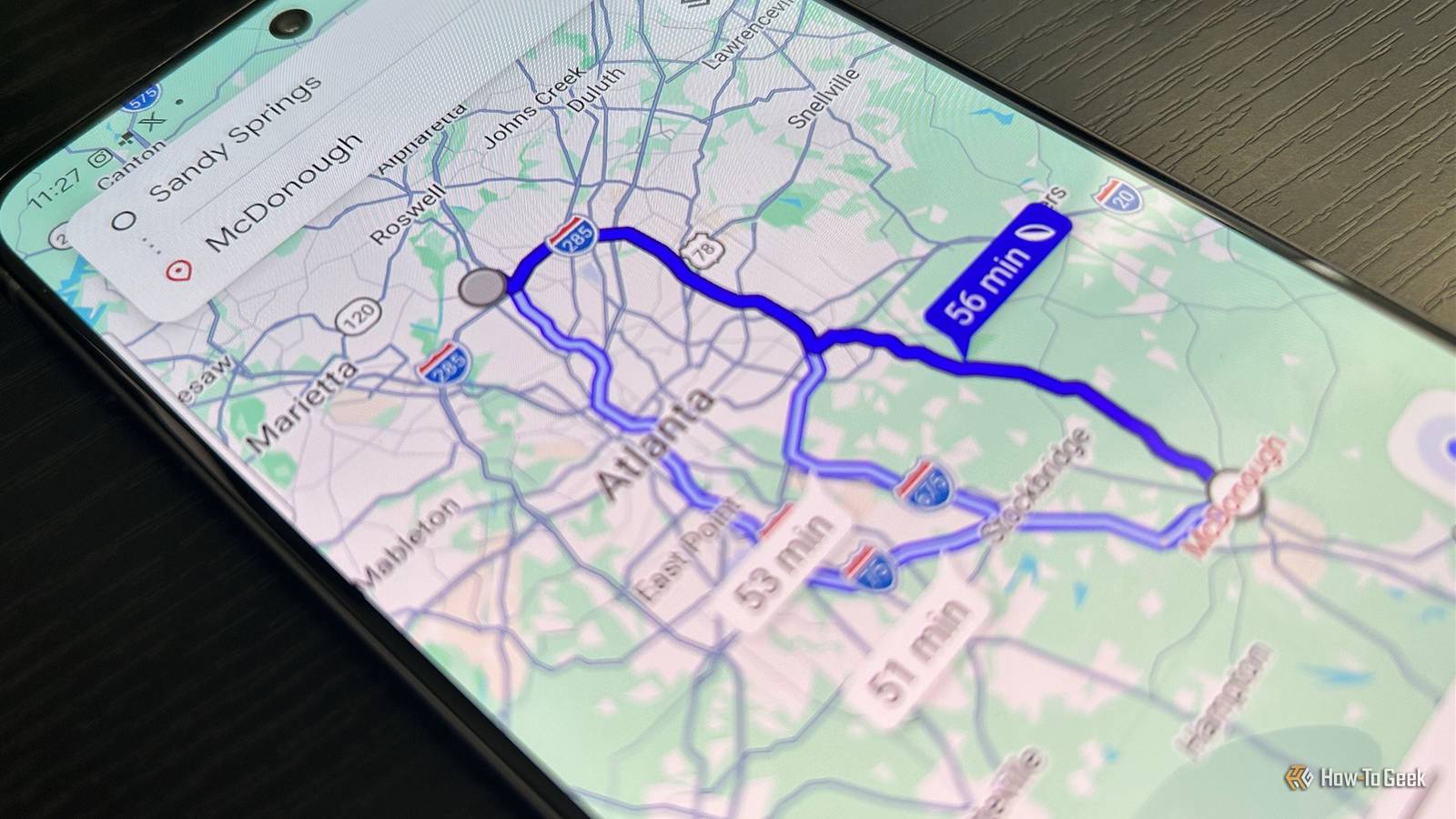
Published Aug 7, 2026, 9:45 AM EDT Tony Phillips is an experienced Microsoft Office user with a dual-honors degree in Linguistics and Hispanic Studies. Prior to starting with How-to Geek in January 2024, he worked as a document producer, data manager, and content creator for over ten years, and loves making spreadsheets and documents in his spare time. Tony is also an academic proofreader, experienced in reading, editing, and formatting over 3 million words of personal statements, resumes, reference letters, research proposals, and dissertations. Before joining How-To Geek, Tony formatted and wrote documents for legal firms, including contracts, Wills, and Powers of Attorney. Tony is obsessed with Microsoft Office! He will find any reason to create a spreadsheet, exploring ways to add complex formulas and discover new ways to make data tick. He also takes pride in producing Word documents that look the part. He has worked as a data manager in a secondary school in the UK and has years of experience in the classroom with Microsoft PowerPoint. He loves to encounter problems in Microsoft Office and use his expertise and legal-level training to find solutions. Outside of the Microsoft world, Tony is a keen dog owner and lover, football fan, astrophotographer, gardener, and golfer. For years, I assumed Google Maps always chose the fastest route to my destination. It wasn't until I noticed it repeatedly steering me away from quicker roads that I discovered one small setting was prioritizing fuel savings over speed. Turning it off has helped me avoid giving up small chunks of time that quietly add up over the course of a year. Google Maps wasn't always sending me the fastest way A small trade-off I hadn't noticed Google introduced "Prefer fuel-efficient routes" (Settings > Navigation > Route options) with good intentions. Instead of always sending you along the quickest route, Google Maps can recommend one that uses less fuel or energy when it estimates the arrival time will be roughly the same. The idea is simple: if you can save fuel without adding much time to your journey, why not? Google doesn't publicly specify the exact threshold for when arrival times are considered "roughly the same," but it can mean accepting a route that's a little slower if the estimated fuel savings justify it. Google also says the feature takes several factors into account, including traffic conditions, the steepness of hills, stop-and-go traffic patterns, and the types of roads you're using, such as local roads or highways. If you've specified your engine type in Maps (Settings > Your vehicles), that influences the calculations too, since each vehicle is most efficient under different driving conditions. In one example, Maps recommended a 51-minute fuel-efficient journey from Sandy Springs to McDonough, Georgia, even though a 48-minute alternative was available. After turning "Prefer fuel-efficient routes" off, the faster route became the default recommendation instead. It's a small difference on a single trip, but it perfectly illustrates the trade-off Google is making. If the time penalty becomes too large—or the fuel savings are too small—Maps may stop prioritizing the fuel-efficient route and instead recommend other options. That's when I realized Maps wasn't doing anything wrong. It was simply optimizing for something different from what I wanted. Most of the time, I'd rather arrive a little sooner than save a small amount of fuel. Of course, you can always choose a different route manually after Maps presents its options. The problem is that most of us don't spend time comparing every available route before every journey—we simply tap Start. Changing this setting means I don't have to remember to check for a faster alternative every time. If you drive an EV, energy-efficient routes don't include charging stops. Also, Google uses a gas-powered car as the default unless you manually choose your vehicle type. Small delays, big impact Three minutes isn't much. If Maps picks a route that's 51 minutes instead of 48, you're unlikely to notice the difference. The same goes for journeys that are 38 minutes instead of 37, or 36 instead of 34. On any individual trip, the extra time feels insignificant. But most of us don't make just one journey. Whether it's commuting, visiting friends and family, shopping, or heading out on the weekend, those tiny delays can happen again and again. Individually, they're easy to ignore, but over months, they begin to accumulate. Even a conservative example shows how quickly the numbers add up. If Maps chooses a route that's just three minutes slower four times a week, that's around 10 hours of additional travel time over the course of a year. I didn't keep a stopwatch running on every journey, but turning the feature off made me realize just how often I was giving up a minute here and two minutes there in exchange for marginal fuel savings. I still think it's a great feature—just not for me The right tool for different priorities Credit: Lucas Gouveia/How-To Geek Despite turning the feature off, I don't think it's a bad idea at all. If your priority is reducing fuel costs, lowering emissions, or maximizing the range of an electric vehicle, "Prefer fuel-efficient routes" is doing exactly what it was designed to do. In fact, many drivers may prefer leaving it enabled. My priorities are simply different. Most of the time, I'm happy to use a little more fuel if it gets me to my destination sooner. Saving a few minutes on every drive feels more valuable to me than saving a small amount at the pump. The good news is that disabling the setting doesn't stop Maps from showing fuel-efficient alternatives. If a more fuel-efficient route is available, Google can still show those alongside other routes. The only difference is that the app no longer assumes fuel efficiency is your default priority. Making Google Maps fit the way you drive The best navigation settings aren't necessarily the ones Google chooses for you. Disabling "Prefer fuel-efficient routes" only took a few seconds, but it let me choose the trade-off that mattered most to me. If you want to customize the app even further, you can change other settings to make Google Maps work on your terms. Sometimes the smallest tweaks are the ones that improve your everyday experience the most.
This tiny Google Maps tweak has saved me hours of driving over the past year
Full Article
Original Source
Read the full article at Howtogeek →KhanList aggregates and links to publicly available news content. We do not host full articles from third-party sources. Always verify important information with original sources.