
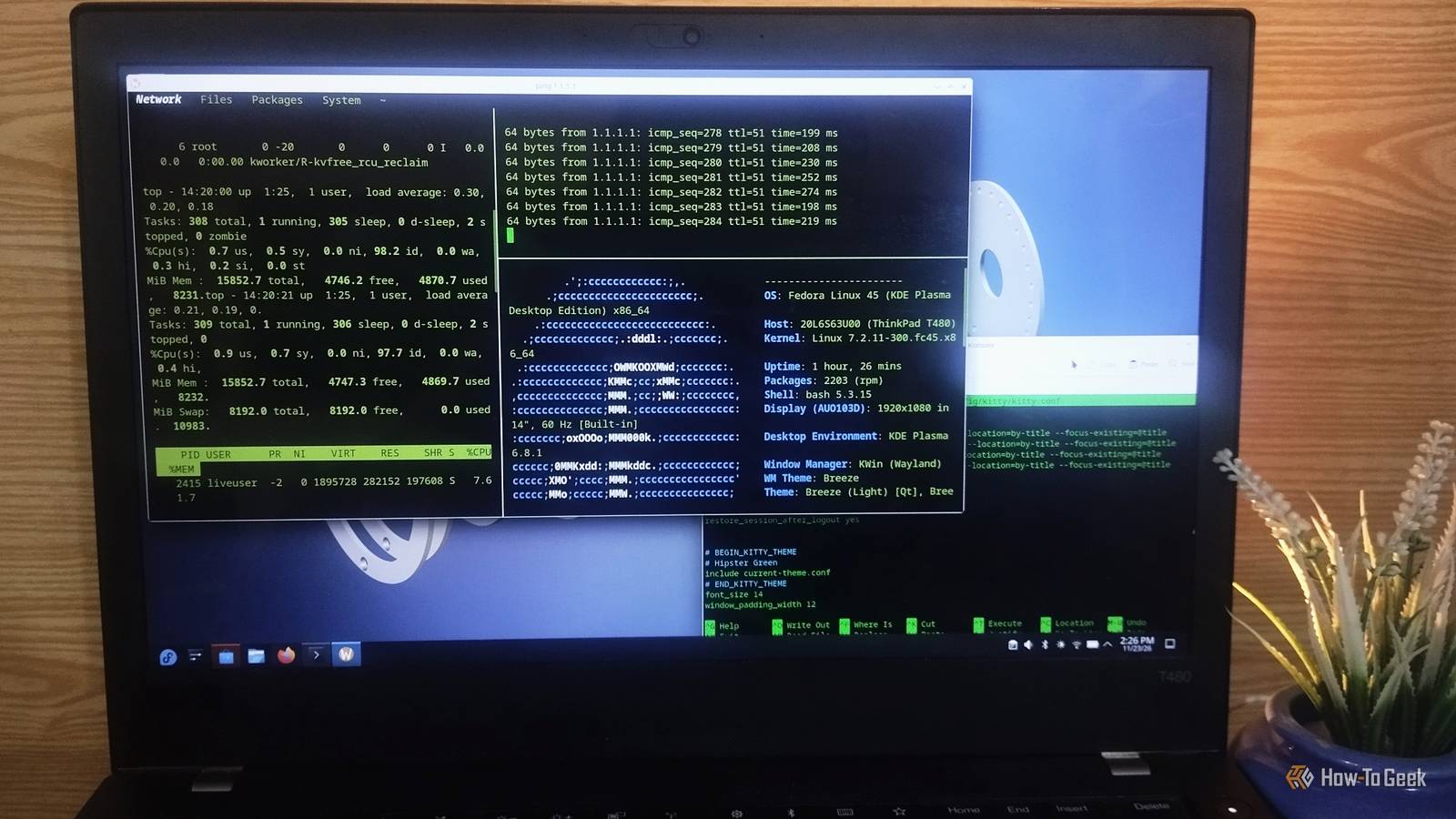
Published Nov 23, 2026, 4:00 PM EST Nimrah has spent the last five-plus years writing about technology, with Linux being one of her favorite subjects to explore. Her work covers everything from Linux and open-source software to databases, cybersecurity, and everyday software. She has contributed to Baeldung, Make Tech Easier, and LinuxHint. She particularly enjoys turning a concept that initially seems complicated into something anyone can understand. Away from tech, she loves to read, cook new recipes, and try new restaurants and cuisines. If your terminal workflow involves opening one window for system monitoring, another for package management, and a few more for everything else, things can get messy quickly. Before long, you're spending more time finding the right terminal window than actually using it. Kitty 0.51.0 makes that kind of multitasking easier with its workspace features. Instead of scattering command-line tasks across your desktop, you can organize them into named tabs, split windows, and switch between them without constantly opening new terminals. I tried it on Fedora 45, and it gave me a much tidier way to keep several command-line tasks within reach. Kitty makes managing multiple terminal sessions easier What makes Kitty different from a regular terminal? Kitty is a GPU-accelerated terminal emulator for Linux, macOS, and other platforms. It isn't a shell replacement, and it doesn't change how your commands work. Instead, it gives you more control over how terminal windows are arranged and managed. You can open multiple tabs, split a tab into separate windows, and switch between different layouts. That might sound familiar if you've used other terminal emulators, but Kitty takes the idea further with remote control and session management. The important distinction is that Kitty's tabs don't have to be disposable containers for whatever you're doing at the moment. You can give them meaningful names and use them as workspaces for different activities. For example, one tab can handle system monitoring, another can be dedicated to package management, and a third can hold your file-related commands. Kitty 0.50 introduced several features that make this workspace approach more practical, including options for focusing on existing tabs instead of creating duplicates. Version 0.51 builds on that foundation with another useful addition: docked windows that can stay available across every tab in the same Kitty window. I turned Kitty into my command-line workspace Running different command-line tasks side by side I wanted to see whether Kitty could keep everyday Linux tasks organized without forcing me to juggle a pile of separate terminal windows. I started by creating tabs for system monitoring, package management, file browsing, and network checks. This is a simple setup, but it makes a difference when you're working on several things at once. Instead of opening a new terminal every time I needed another command, I could keep each task in its own tab and give it a recognizable title. Tabs are useful when I want to give each task its own space, but sometimes I need to see multiple command outputs at the same time. That's where Kitty's window layouts come in. I could split a tab into smaller panes and arrange them horizontally, vertically, or in a grid. For instance, I could keep a system information command in one pane and a directory listing in another. Both remain visible, so I don't have to keep switching tabs just to compare their output. Kitty also lets me resize the panes to give the more important task additional room. I particularly like that tabs and splits serve different purposes. Tabs help separate unrelated tasks, while splits make it easier to work with commands that belong together. I don't need to cram everything into one screen, either. I can keep a few related commands visible and move the rest into their own tabs. Switching between sessions and restoring your workspace The real benefit of organizing terminal tasks is being able to return to them without rebuilding everything. Kitty's named-tab approach helps here. You can use its remote-control features to focus an existing tab by title rather than opening another copy every time you want to return to a task. This is particularly useful if you assign shortcuts to your regular workspaces. You could jump straight to your system tab or package-management tab without cycling through several unnamed windows. Kitty's remote-control system also lets you create tabs, launch programs, change layouts, and manage windows through commands or keyboard mappings. There's another feature worth enabling if you regularly leave terminal work open: session restoration. Add the following setting to Kitty's config file: restore_session_after_logout yes With this enabled, Kitty can save its state when you log out, restart, or shut down your computer. When you launch it again, it can restore its windows, tabs, layout, and scrollback, so you don't have to recreate the same arrangement manually. There is one limitation worth knowing. Kitty restores the terminal's contents, but it doesn't restart programs that were running inside those windows. You'll need to start those applications again yourself. On Linux, session restoration also depends on a desktop Inhibit portal that supports session monitoring, so it isn't guaranteed to work in every desktop environment. Kitty has more tricks up its sleeve Kitty 0.51's standout addition is its new operating-system-window dock. Unlike the earlier docking options, which were tied to individual tabs or windows, this dock belongs to the entire Kitty window. That means you can keep a terminal docked below the tab bar and have it stay visible as you switch between tabs. You can use it for frequently needed commands or a small shell, and resize it whenever you need more room. Kitty 0.51 also introduces launch wrappers, which let you control how programs opened in new windows are launched. For example, you can configure new windows to run inside the same container as the window they were opened from. My terminal finally feels like one workspace Kitty might be more than you need if you only run the occasional command, but its workspace features make a difference when you're juggling several tasks. I like being able to organize commands into named tabs, split windows when I need to see multiple outputs, and restore my layout later. You can also give Kitty a fresh look with kitten themes, which lets you browse and apply color schemes without manually editing your configuration. Between the organization options and visual customization, Kitty makes a compelling case for keeping your command-line work in one place.
This terminal update puts all your command-line tools in one place
Full Article
Original Source
Read the full article at Howtogeek →KhanList aggregates and links to publicly available news content. We do not host full articles from third-party sources. Always verify important information with original sources.