
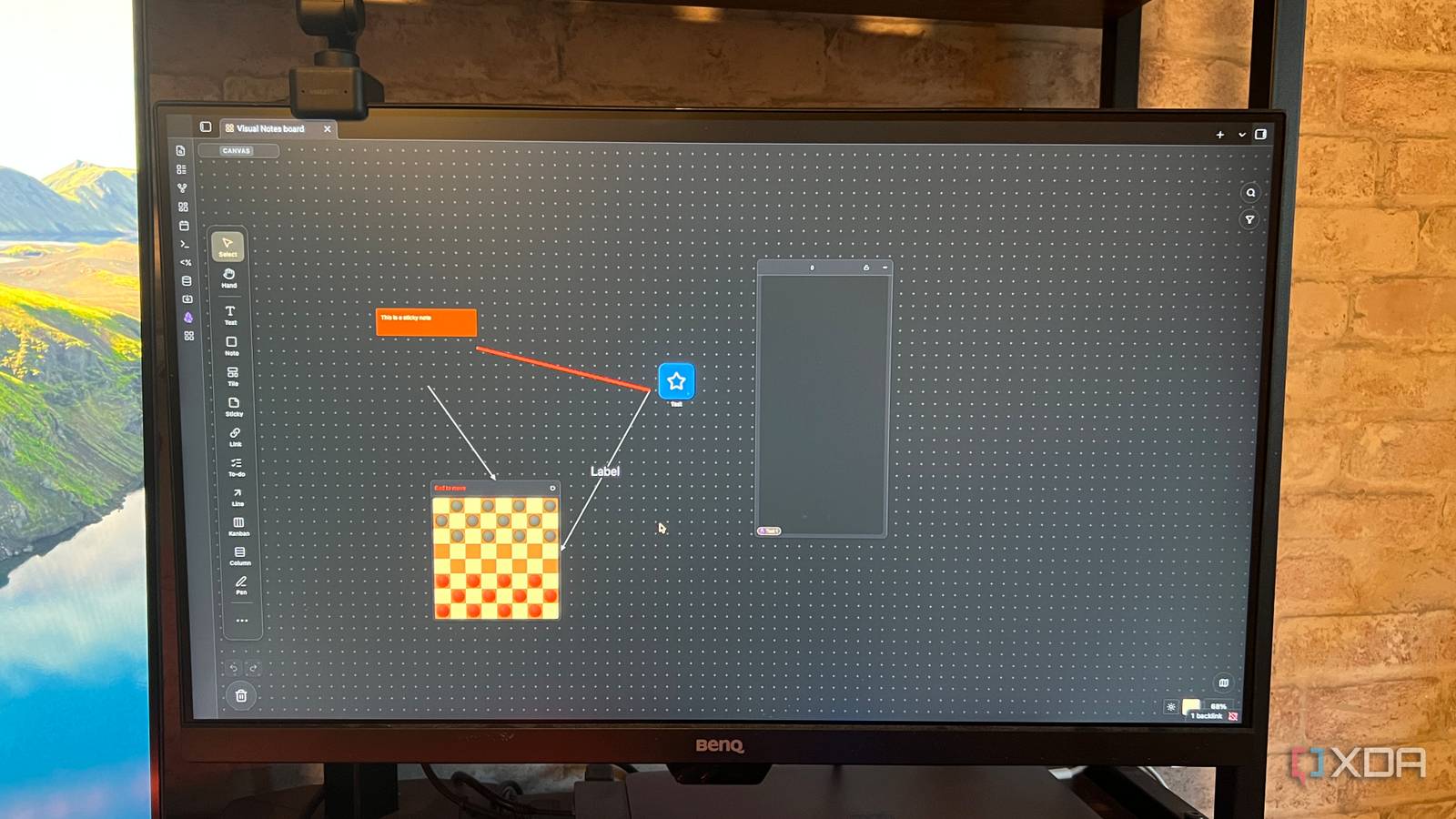
Published Aug 28, 2026, 10:31 AM EDT Patrick is a seasoned writer with more than a decade of experience, specializing in any and all things tech. His work has been featured on platforms like CNET, Yahoo, Xfinity, and many other outlets. When not typing away, he can be found with his nose in a book. When I first discovered Obsidian, one feature that appealed to me most was Canvas. It was such a cool concept, and I figured I could use it to visualize stories, brainstorm pitch ideas, and a lot more. After all, it was an infinite canvas that I could use to create cards, link ideas together, and even jump directly into a note. On paper, it seemed perfect. Unfortunately, it didn't behave quite like I wanted. Canvas works well out of the box and is incredibly flexible, but maintaining a mind map becomes a fight against the tool itself, not a seamless experience. Visual Notes brings some of those missing features to Canvas and turns it into a tool much closer to what I was looking for. Visual Notes adds richer connections and a wider variety of card types Columns, Kanban, and more Canvas lets you add notes, as well as embed Bases and even other Canvas files, but that's basically it. Customization options are strictly limited; while you can change the border color of a note and maybe add a background image, it is far more bare-bones than you might expect given the breadth of Obsidian's other features. Visual Notes expands on that, letting you create sticky notes, buttons, Kanban boards, and more. You can even add audio files and maps. And, if all else fails (and you, for some reason, need one), you can add a checkerboard in, too. The line types between cards are also much better than Canvas' native offerings. You can adjust line width, color, and add a label to explain the connection. You can also choose whether there is an arrowhead at one end of the line, at both ends, or at neither. That might not sound like much of an improvement, but it makes it much easier to see connections when you're zoomed out of a card. Plus, paired with the other features Visual Notes brings to the table, it feels like a new, upgraded version of Canvas. It's becoming my primary tool for ideation Over the years, I've tried many different techniques to get ideas out of my head and onto the page, especially when it comes to finding story pitches. The one I've found that works best for me is to write down the main theme and branch off that. Canvas works well enough on that front, but Visual Notes makes the whole experience more streamlined. Like I said earlier, it no longer feels like I'm fighting against clunky, unintuitive controls. I can start with a main idea — in the example above, I'm brainstorming about smart gardens — and branch off from there. I might have one section about accessibility features and another about cost. From there, I might branch off to "How long will it take to recoup the investment in a smart garden?" or "Are there cheaper, DIY versions that the average person can put together?" Again, I could do this in native Canvas, but it's so much easier with Visual Notes. The real advantage is that it's still Obsidian I can brainstorm without ever leaving my vault I've previously written about how I have turned Obsidian into a personal command center. I try to minimize leaving my vault as much as possible; after all, the more things I can do inside Obsidian, the more efficient I am. Jumping between windows costs time. By using Visual Notes as a brainstorming tool, I can move right from my ideas into a note and begin writing a pitch. I can link to notes from within Canvas, track whether a pitch has been accepted or is still pending, and keep it all contained within a single area of my vault. That's something other mind-mapping tools, like Milanote, can't offer. Large mind maps eventually hit a wall I find myself looking for a larger display Canvas (and Visual Notes) both give you an infinite space to work with, but there's a hard limitation to how functional one of those spaces actually is: your display size. I have a 27-inch monitor, and while that's a respectable size for most applications, I can only zoom out so far before the text in Canvas becomes practically unreadable. A larger monitor would let me take better advantage of Canvas, but I don't really want to shell out a few hundred bucks for one application. I love Visual Notes, but I find myself limiting my mind maps to smaller sizes (and creating new ones for deep dives). Of course, since I can embed a canvas within a canvas, that isn't hard to do. Visual Notes is the Canvas upgrade I've been waiting for Visual Notes expands Canvas in a way that feels natural and intuitive, bringing features to Obsidian that feel like they should have already been there from the start. I'd suggest anyone who uses Canvas on a regular basis give it a try. The improved functionality makes it worthwhile on its own. Obsidian OS Windows, macOS, Linux, iOS, iPadOS, Android Individual pricing Free normally; $4/month for Obsidian Sync Obsidian is a feature-rich note-taking app that's available on different platforms and offers a neat and clean interface. It's also free-to-use for individuals.
This plugin finally turned Obsidian’s Canvas into the mindmapping tool I always wanted
Full Article
Original Source
Read the full article at Xda-developers →KhanList aggregates and links to publicly available news content. We do not host full articles from third-party sources. Always verify important information with original sources.