
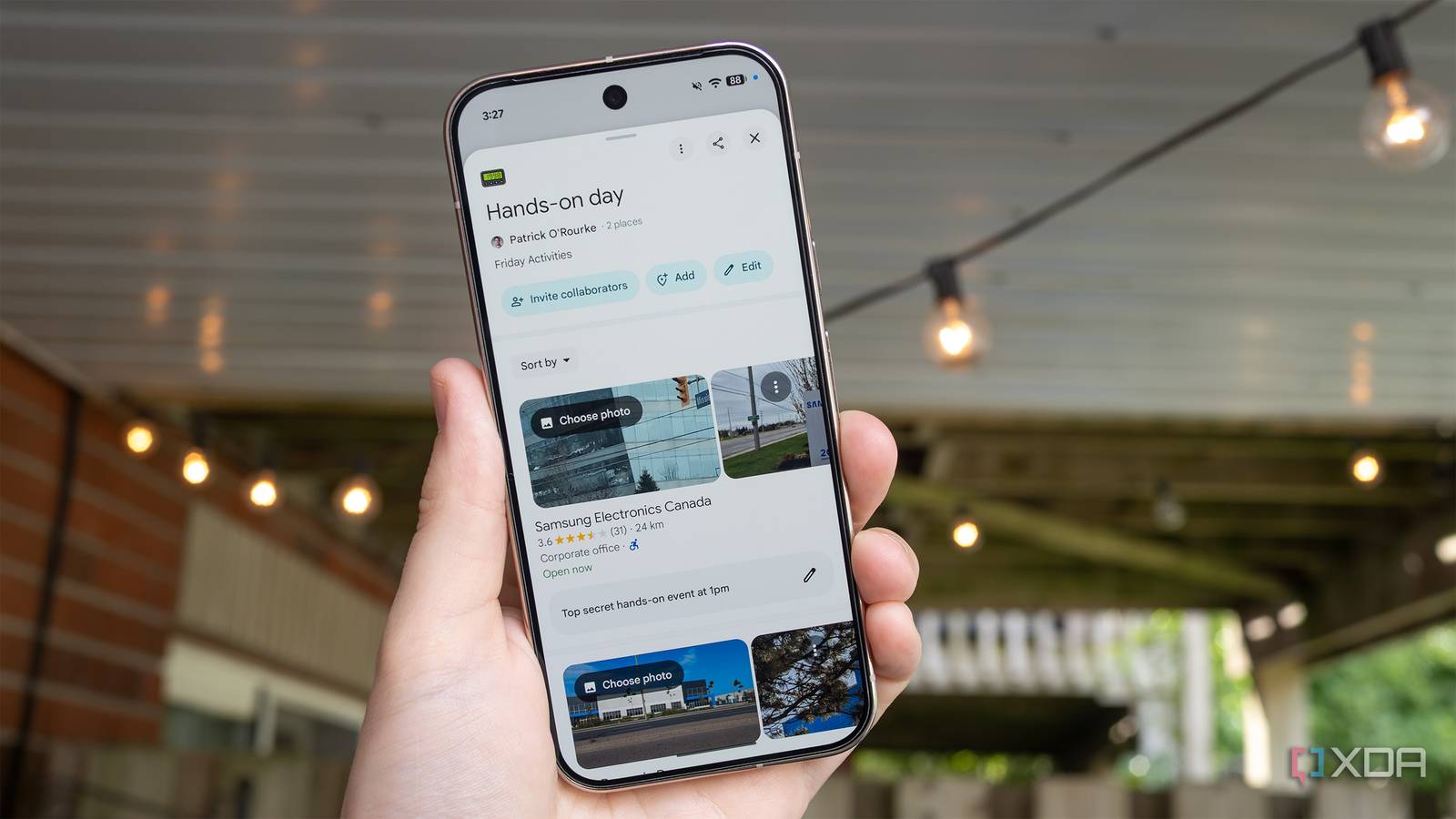
Published Aug 26, 2026, 11:30 AM EDT Patrick O'Rourke is XDA's News Editor and Entertainment Segment Lead. Previously, he was Pocket-lint's Editor-in-Chief, the Editor-in-Chief of Canadian tech publication MobileSyrup, and earlier in his career, he worked as the technology editor at the Financial Post and Postmedia. He's based in Toronto. Over the past 15 years, he's written thousands of articles. Patrick has also interviewed dozens of tech industry executives and covered GDC, E3, Gamescom, WWDC, Apple keynotes, Samsung Unpacked events and more. Patrick has a BA in journalism from Toronto Metropolitan University. Whenever I'm traveling in any capacity, I always plan things out as best I can. I jot down addresses, buzzer numbers, phone numbers, and more in a chaotic Google Keep note to make sure I stay on top of things as best I can. If I'm traveling for work, I kick this up a few notches with a more organized itemized list and a sequence of where I need to go and when, usually all saved once again, in a Keep note or a poorly formatted but very colorful Sheets document. I've always assumed there was a better way to do this, and, unsurprisingly, there actually is. I recently learned that I can use Google Maps pins and location lists to organize my makeshift itinerary better and even get a little extra information, like the distance between locations. In a way, using pins like this turns Google Maps into a surprisingly detailed travel notebook that I always have on me. Creating a custom list in Google Maps is very straightforward But it's a feature I don't think many people know even exists After launching Google Maps, the first thing I did was create a custom list instead of saving everything to Starred Places or my Favorites like I have in the past. With a custom list, you can add notes and rearrange the order of each pin, making it a far more customizable option. You can even spice things up a bit by adding a fun emoji if you want (this can also serve a practical purpose that I'll discuss later). It's unclear why Google doesn't offer these extra options for Starred Places and Favorites, but that's how Google Maps works right now. To create a custom list in Google Maps with my Pixel 10 Pro, I followed these steps: Open the Google Maps app. Tap on the You tab at the bottom (it's right in the center). Open New List. Name your new list and add a description. Select an emoji (you can skip this if you want). Turn on Customize List Order. Tap Create. After you've created the list, select the Add button to start adding locations. Icons are a great way to organize multiple similar locations in a list. For example, if I'm at CES and want to mark the locations of several restaurants I like or a bunch of nearby coffee shops, I can use a fork or a coffee cup emoji to view them all at a glance on the map. I can also mark locations like my hotel, other hotels where I have appointments, and the various locations I need to be on the show floor at the Las Vegas Convention Center for meetings, all within a specific list. It's worth noting that every location in a list has the same emoji attached to it. This is helpful if you're marking several types of stores or restaurants you want to visit, but it's not very useful if you're planning a full day when you're headed to several different locations that don't have anything in common (this is primarily what I use custom lists for). You can also share custom lists with anyone else you're traveling with so you're all on the same page. I haven't really taken advantage of Google Maps' custom lists on a lengthy trip yet I'm looking forward to putting it to the test What I've mentioned so far are just a few personal examples of how I could use Google Maps' custom locations list. This same system could easily be applied to a longer vacation with several historic landmarks or other locations you want to check out during your time there. At the same time, using custom lists lets you adjust your plans as the day changes. For example, if it starts raining and you want to skip the trip to the park on your list, you can slide it to the lowest priority and save it for a day when the weather is better. It's also cool that I only need to create a custom list once for a location I visit frequently, which tends to happen when my travel is work-related. For example, if I'm always in the San Jose area for Samsung's annual S series launch event, and I have a few restaurants and a local mall I like to hit up, as long as I've saved a custom list, I can just come back to it the next time that trip rolls around and all the addresses of the places I like to visit are right there waiting for me. I've yet to apply any of this to a longer trip, but I plan to experiment with it more on a brief vacation to Montreal early next month. That said, I have taken advantage of custom lists on a couple of recent appointment-packed days when I was headed to multiple unfamiliar locations, and it's worked quite well. Using Google Maps' custom lists feature basically took my cumbersome system of Keep Notes and randomly pasted URLs and drilled it down into something more straightforward and visually oriented.
This overlooked Google Maps feature has become my secret weapon for staying organized
Full Article
Original Source
Read the full article at Xda-developers →KhanList aggregates and links to publicly available news content. We do not host full articles from third-party sources. Always verify important information with original sources.