
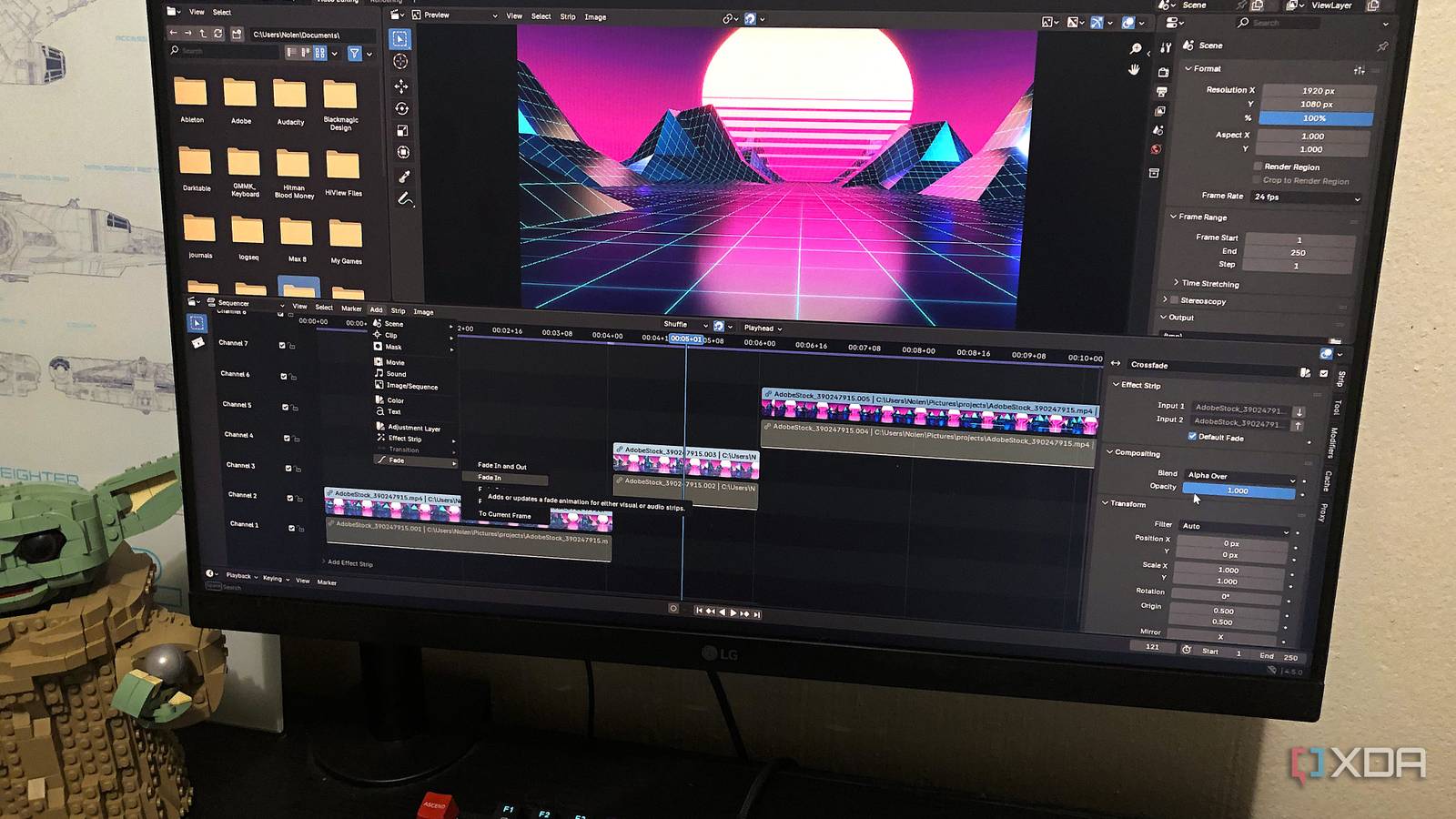
Published Nov 27, 2026, 9:30 AM EST Nolen began their writing career in 2019, with three years dedicated to editing the Creative section at MakeUseOf. Their expertise lies at the crossroads of technology and creativity, covering areas like photography, video editing, and graphic design. Outside of work, you'll often find Nolen diving into a good book, writing their own stories, or playing video games. If you do any type of creative work, you’ve probably had at least one Adobe subscription, or thought about getting one. I used to shuffle through pretty much every Adobe plan – All Apps, Photography, and the individual apps. Most people end up in this predicament because we usually need at least one app for images, another for videos, and so on. I ended up canceling all my subscriptions this year because of this subscription fatigue. I’ve migrated my entire workflow to free and open-source apps now, and continue to discover new options every week. There’s one open-source tool I’ve overlooked, however – Blender. This 3D modeling app has never been the first to come to mind for my graphics and video editing stack, but I underestimated its capabilities. Turns out, not only can you create 3D models with it, but you can also edit images, videos, and do motion graphics. After giving it a proper spin, I realized it could replace Photoshop, Premiere, and After Effects. What is Blender? It’s more than a 3D modeling app Blender is a free, open-source 3D modeling app first and foremost, but it expands into much more than that. It covers the entire 3D creation process, from modeling and rigging to animation and rendering. Artists use Blender to create everything from animated films and visual graphics to 3D models and virtual reality environments. A lot of major films have used Blender for some of their graphics, including Captain America: The Winter Soldier. So you might wonder, how does Blender, a 3D modeling tool, compete with Adobe’s ecosystem, which mainly consists of image and video editing tools? Well, Blender has various workspaces, including options for video editing, image editing, and motion graphics. This makes it an all-in-one powerhouse that can effectively replace pretty much all of your Adobe subscriptions. Here’s how… Using Blender as an image editor Replacing Photoshop Blender was the last tool I ever thought I’d use as a Photoshop alternative. But it has a workspace called Compositing, which functions as an image editor. Some people use the UV Editing workspace for images, but it’s not non-destructive like Compositing. Right out of the gate, you’ll notice the setup is completely different from Photoshop; that’s because it’s node-based rather than layer-based. Node editing takes some getting used to, but the upside is that you get precise, non-destructive adjustments. Each effect creates its own node, and you can stack them however you like between the image and the output view. Blender has loads of options here, from color correction and color grading tools to chroma keying and masking for subject isolation; there’s even a render window with some brush options. It also supports a wide range of color spaces, alpha channels, and even Z Depth, if you know how to set it up. It’s pretty much everything you’d find in Photoshop and then some, just in a completely different layout. Using Blender’s video editor Replacing Premiere Pro Blender has always had a dedicated video editing workspace called VSE (video sequence editor). I’ve used it for a couple of video projects before, and it’s surprisingly normal. It’s a multi-layer editor with a standard layout that has your media on the top-left, timeline at the bottom, viewer in the middle, and effects on the right. It has all your basics, such as splitting and trimming, plus some animation options like transitions and transform controls. Furthermore, you can edit the lighting and colors, add effects, add text, and create masks for things like background removal. All of this is tied together nicely with Blender’s keyframe abilities, which is how you’ll animate all the adjustments and effects. Not only does Blender’s VSE replace Premiere Pro, but it also integrates with the other workspaces. This means I can switch to a different workspace and enable 3D rendering for my video. Animating graphics in Blender Replacing After Effects Blender’s Geometry Nodes window is what makes it a real After Effects alternative. It’s a procedural system that lets you create, modify, and animate objects through connected nodes. So, once again, I’m working with a node-based editor here as opposed to layers, meaning I’ve got precise control over my elements and effects. You can do 3D objects in this space, but I prefer sticking to the flat geometry. The library is packed with effects like patterns, colors, and textures, and you can animate all of it using the transform controls and keyframes. This setup allows for parameter-based animations, meaning I can control all my elements with a few sliders. You can render the final creation and export it as a video, and you can also mix Geometry Nodes with the Compositor for more layered effects. This has been the perfect space to create animated overlays and backgrounds for my video projects – but you can create anything from particle effects to abstract and generative designs. The all-in-one tool that replaces Adobe’s creative suite I didn’t expect a 3D modeling tool to be a broad-spectrum Adobe replacement, but it genuinely replaces all three of these tools. There is a learning curve, especially if you’re used to layer-based editing, but once you get used to nodes, you actually have a little more control than in Adobe software. It’s an entire ecosystem of image, video, and motion editors rolled into one app. Blender
This open-source tool combines Photoshop, Premiere Pro, and After Effects - And it replaced all three for me
Full Article
Original Source
Read the full article at Xda-developers →KhanList aggregates and links to publicly available news content. We do not host full articles from third-party sources. Always verify important information with original sources.