
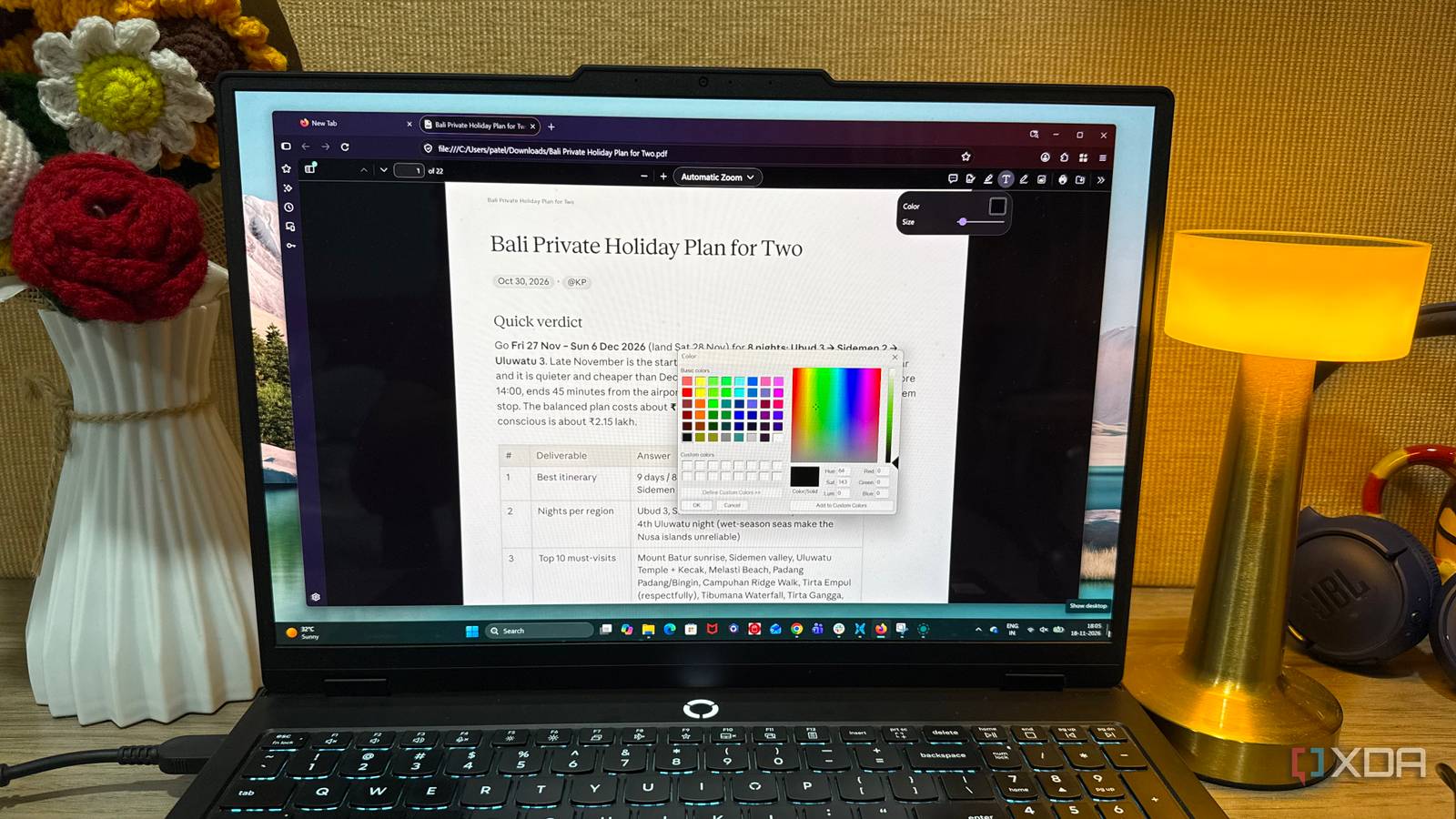
Published Nov 20, 2026, 7:00 PM EST Beginning his professional journey in the tech industry in 2018, Yash spent over three years as a Software Engineer. After that, he shifted his focus to empowering readers through informative and engaging content on his tech blog – DiGiTAL BiRYANi. He has also published tech articles for MakeTechEasier. He loves to explore new tech gadgets and platforms. When he is not writing, you’ll find him exploring food. He is known as Digital Chef Yash among his readers because of his love for Technology and Food. I never expected a web browser to replace Adobe Acrobat, one of the most frequently used applications on my desktop. For years, opening, reviewing, and editing PDFs meant launching Acrobat, even for minor changes. That changed when I started exploring Mozilla Firefox beyond its browsing capabilities. Its built-in PDF tools turned out to be far more capable than I expected, handling most of the tasks that previously sent me straight to Acrobat. Before long, Firefox quietly became my go-to PDF application. Firefox opens PDFs without making me launch another application It makes opening and navigating PDFs feel effortless One reason Firefox has become my default PDF viewer is its built-in PDF.js engine, Mozilla's open-source JavaScript-based PDF rendering technology. Once I set Firefox as the default PDF app in Windows, opening a document is as simple as double-clicking it in File Explorer. Windows launches the file in a Firefox tab rather than sending me to a separate reader. PDFs opened from links or the Downloads panel also appear in the browser, so there's no need to save every file before viewing it. Firefox's PDF viewer doesn't feel stripped down, either. It offers familiar controls for page navigation, zooming, and jumping to a specific page. A sidebar displays page thumbnails, making it easier to scan lengthy documents. Firefox also supports document outlines when the PDF includes them, along with a search box for locating specific words or phrases. Switching between open PDFs and regular websites using tabs keeps research and reference material together, and it makes the entire workflow feel more connected. Organizing PDF pages doesn't require a new tool Rearranging, merging, and extracting pages is surprisingly easy The page sidebar proves particularly useful when working with lengthy PDFs. Instead of scrolling through the entire document, its thumbnail view lets me jump between pages and manage their order directly. Rearranging pages is as simple as dragging them into a new position. Multiple pages can be selected, copied, and pasted elsewhere, while unnecessary ones can be removed. The Undo option helps reverse changes that don't go as planned. Combining documents is equally straightforward. Clicking the plus button in the sidebar lets me import another PDF and merge its pages with the document already open. This is a convenient way to bring related reports, receipts, or reference material into one file. I can export selected pages as a separate PDF, leaving the original file untouched. This saves me from sharing an entire report when someone only needs a specific section. The extracted pages are saved as a separate PDF, leaving the original file available for future reference. PDF editing is super smooth Firefox covers more than I expected I initially expected Firefox to handle basic PDF annotations, but its editing toolbar offers quite a bit more. The Text tool lets me add missing information anywhere on a page and adjust its appearance. When reviewing reports, the Highlight and Draw tools come in handy for marking important passages or adding handwritten notes. There's also a Comment tool for attaching feedback to specific sections. The Image tool lets me upload pictures, resize them, and position them anywhere on the page. For instance, adding a logo or visual reference doesn't require switching to another editor. Firefox also lets me add a signature annotation directly to a PDF. I can create one by typing my name, drawing it with a mouse, or uploading an image of my handwritten signature. Multiple signatures can be saved for future use, which is handy when filling out recurring forms. However, these are simple PDF annotations, not legally binding electronic signatures. They don't authenticate or verify the signer's identity, so they're best suited to routine paperwork rather than documents that require formal e-signatures. Firefox goes beyond conventional PDF editing with its AI-assisted features, too. Its AI chatbot integration can help summarize or proofread selected PDF content through supported chatbot providers. For lengthy reports, sending selected passages to an AI assistant for summarization can save time when reviewing large amounts of information. It still falls short sometimes However, it suits my workflow Firefox handles most of the PDF work I throw at it, but things get complicated when a document requires advanced editing. For starters, the Text tool lets me add new content, but correcting an existing paragraph or replacing information already embedded in a PDF isn't possible. Scanned documents present a challenge, too, as Firefox doesn't include built-in OCR to recognize text in scanned pages. I also miss features such as batch processing, compressing large files, and converting PDFs between different formats. Secure redaction is a limitation as well. Drawing over sensitive information doesn't permanently remove the underlying content, meaning the supposedly hidden information can still be recovered. Specialized PDF editors offer more control over these tasks. Still, these gaps rarely affect my workflow. Most of my PDF work involves reviewing reports, adding annotations, making quick edits, rearranging pages, and signing paperwork. Firefox handles these tasks without adding unnecessary steps. Unless a document requires extensive editing or specialized processing, I no longer feel the need to open a dedicated PDF application. Sometimes, the best desktop tools are already installed I've always thought improving my desktop workflow meant finding better applications, but Firefox has made me reconsider that approach. It reminded me that familiar software can have capabilities we rarely explore because we get used to using it for just one purpose. Adobe Acrobat still has its place when I need more specialized functionality, but Firefox has changed what I reach for first. It's a small shift in how I work, yet one that has made my desktop feel a little less cluttered. Firefox Firefox is a free, open-source browser popular for its privacy and ease-of-use
This open-source browser has quietly replaced the most used app on my desktop
Full Article
Original Source
Read the full article at Xda-developers →KhanList aggregates and links to publicly available news content. We do not host full articles from third-party sources. Always verify important information with original sources.