
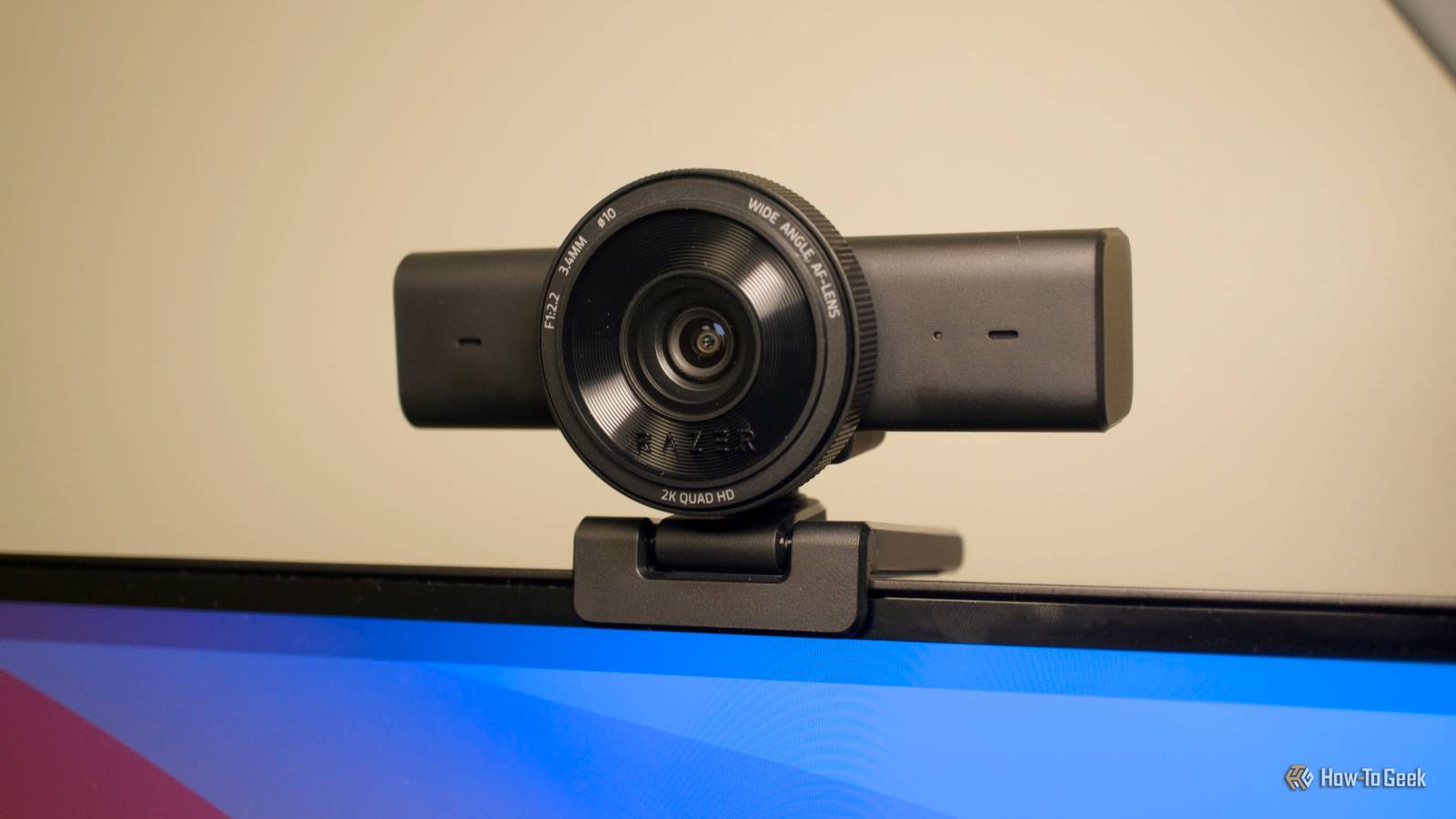
Published Aug 22, 2026, 1:30 PM EDT Aggy is a veteran writer and editor in the technology and gaming space. Having served as a Managing Editor for high-traffic digital publications, alongside being an editor and consultant for over a dozen sites. Aggy's published work spans a wide and respected array of tech and gaming outlets, including WePC, Screen Rant, How-To Geek, Android Police, PC Invasion, and Try Hard Guides. Beyond editorial work, Aggy's direct experience in the tech sphere extends to app development. Aggy has published two games under Tales and is always eager to learn and do more. He also likes working on computers and researching in his spare time. He knows about Windows, Linux, Audio, Video, and much more. Most people have a drawer, a box, or a pile somewhere full of physical documents they know they should digitize and never do. Scanners are either slow or too bulky when attached to a printer, even when you find the right one. And a phone app tends to upload everything to a server you didn't choose while not having the quality needed. A webcam you already own, pointed straight down at your desk, can replace all of that. Get the right hardware before you set it up You can always use your old webcam Credit: Corbin Davenport / How-To Geek When you're getting started with a DIY document scanning project, one of the first things you'll have to figure out is which camera sensor to use. A standard 1080p webcam might look fine for video calls, but its resolution just isn't high enough for every situation. At that level, fine lines in letters start to blur together, and OCR software ends up struggling to recognize characters correctly. If you want clean, legible text that actually works for digitization, you really need a 4K sensor that you can test out. That gives you the sharpness you need. Once you've got the right sensor, you also have to mount it securely. Articulating boom arms are also really good because you can move them around, but they don't hold their position well through repeated movement. They tend to vibrate slowly and drift over time, especially when you're turning pages. A professional copy stand, a heavy-duty desk clamp pole, or a rigid mini-tripod that supports your camera's weight is a much better choice. Make sure the mount keeps the camera perfectly parallel to your desk, with the lens at a strict 90-degree angle to the center of your document. If it's off even a little, you'll get a trapezoid-shaped perspective that you'll have to fix later with geometry corrections, which is annoying. Since the distance from the lens to the page won't change in an overhead setup, it's smarter to lock your camera's focus manually instead of relying on autofocus. Some older webcams don't let you do this, and if you can't, don't worry about it. If you can do this, you'll avoid lag, reduce wear on the lens mechanism, and stop the camera from hunting for focus every time you flip a page. How to turn your webcam into a scanner with open source software Camscan handles edge detection and keeps your files private Camscan is an open source tool that turns any standard webcam into a document scanner. You just connect a camera to your computer, and you can skip the bulky hardware or expensive subscription-based scanning apps. The software can scan the live video feed, automatically find the page edges, isolate the document, and fix any perspective distortion. That means you don't have to line up your paper perfectly or mess with tricky camera angles to get a good scan. Camscan also comes with post-processing features that you'll love using. There's even an automated book-scanning mode that detects open, two-page spreads and splits the left and right sides into separate image files. From there, you can tweak, enhance, and save your final documents without ever needing to open a command line. Since the whole app is open source, you can see exactly how it works and know your files stay private. Every bit of document processing and image rendering happens offline on your own computer instead of on cloud servers. And because the code is available, you can download it, look through it, or modify it however you want. You can scan multiple pages Set up your lights well so your scans look clean Credit: Corbin Davenport / How-To Geek You can manage continuous, multipage scanning sessions with Camscan without having to restart the software for every new document. The application handles your camera stream, image processing, and export workflow all from one screen, so you can just focus on getting your material digitized. You don't have to worry about manually sorting files, either, because it detects document edges, crops out extra background, and lets you re-order, rotate, delete, and compile captured pages as you go. Instead of leaving scattered image files all over your computer, the app organizes each capture and compiles them directly into a single PDF. Just keep in mind that capturing documents with a general-purpose webcam might give you uneven lighting, low resolution, and perspective distortion. While you want a 4K webcam, you can still do this on a standard 1080p camera. However, you probably won't like the result. Either way, getting your physical lighting set up properly before you start scanning makes a huge difference. You're going to need two different lamps over the document you are scanning for the best picture. If you just scan your desk with a single light or the light from your screen, you'll get an image, but not a very good one. Try not to mix light types, like cool LEDs with warm incandescents, so your grayscale conversion stays accurate. Once your frames enter Camscan, the app will flatten the page and remove dark borders. It will look a lot like a scanned document, but you'll notice issues if you didn't make sure everything looked right. This isn't as good as a real scanner A webcam scanner isn't going to match a flatbed on every job. The more complicated scans, like photographs or fine print, aren't going to look amazing. If you're working with a 1080p camera instead of 4K, you're also going to see issues. This is great when there are too many scans to do, because a flatbed takes over a minute on each document. The software is free, runs entirely on your computer, and doesn't ask you to create an account or agree to a privacy policy. If you've got a decent camera, then this is worth trying out. Camscan Camscan lets you turn your webcam into a real scanner for your computer.
This open-source app turned my old webcam into a free document scanner
Full Article
Original Source
Read the full article at Howtogeek →KhanList aggregates and links to publicly available news content. We do not host full articles from third-party sources. Always verify important information with original sources.