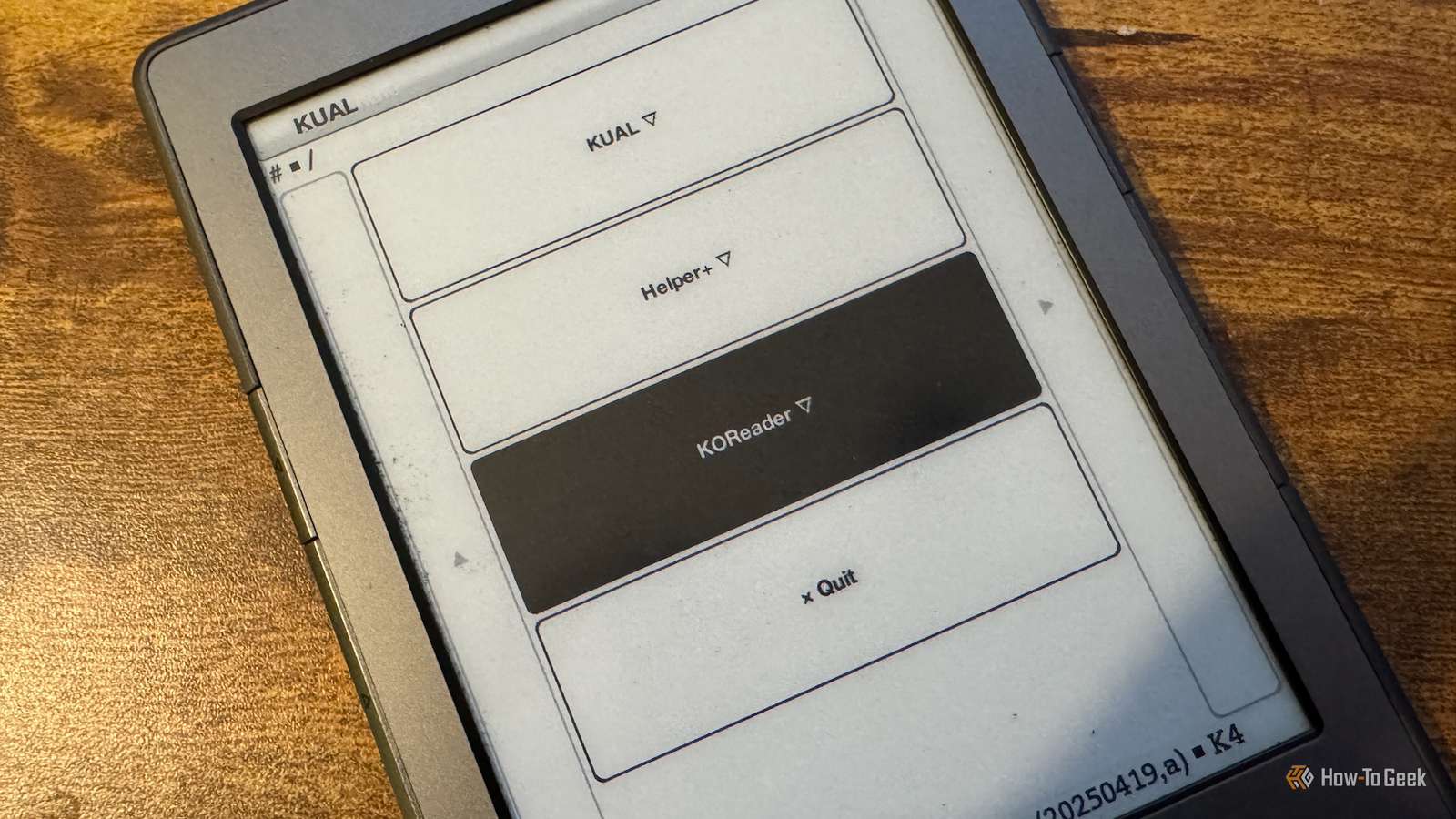
Published Jul 26, 2026, 9:30 AM EDT Adam has a degree in Engineering and has a life-long interest in technology. He has been writing for over a decade for various print and online publications, with a focus on consumer tech. He joined How-To Geek in 2024 while working at Pocket-lint. As well as being a long-term fan of Apple products, he also has a strong interest in smart home tech, running a Home Assistant server at home to automate all his smart home devices. He believes that the ideal smart home should work with minimal interaction from the user, with automations running as if by magic rather than requiring you to push buttons on a control panel. You can find more of his work on Muck Rack. I held off jailbreaking my Kindle for a long time, as I was afraid of bricking a device I was still using. When Amazon dropped support for my Kindle 4, there was no longer anything holding me back, so I performed the jailbreak and installed KOReader. Now I wish I'd done it sooner; KOReader's PDF support is so much better. Reflow alone is worth the effort Read your PDFs like a book Credit: Adam Davidson / How-To Geek PDF files were developed to keep text, images, and document layouts fixed across different devices and printers. They're great at what they do; you can open a PDF on any device, and it will look and print the same. The problem is that they were never intended to be read on an eReader. You can open PDF files on a standard Kindle. The problems only start when you try to read them. With a full-screen PDF, the font is usually too small to read easily, so you end up having to zoom in and read a chunk at a time. If the text is in columns or has a more complex layout, trying to move around the screen to follow the text is no fun at all. KOReader solves this problem in a very clever way. The Reflow feature extracts the text from the PDF and formats it as a single column of text that fits the width of your Kindle. You can then read the text from the PDF as if it had always been formatted as an eBook. The majority of the time, it works really well. A messy PDF that's a nightmare to read becomes perfectly formatted text that you can read through like a book. Column and flow direction control for dense PDFs Read one column at a time There's another really useful tool you can use if your PDF is formatted in columns. If you zoom in to read it using the Kindle software, you have to move all the way to the bottom of the first column, then all the way back up to the top of the next column and repeat the process. Using KOReader, you can designate how many columns there are, and KOReader will display one column at a time, so you can read through the first column, then the next, then the next, without having to drag the page around. You can also specify the flow direction. For a typical two-column PDF, the flow would be to the end of the first column vertically and then back up to the top of the second. If you're reading a PDF of a comic strip, however, you can switch to a flow direction that goes left to right, then moves to the start of the second row, and so on. Tweak the contrast and remove gray backgrounds Make faded scans easier to read Credit: Adam Davidson / How-To Geek A stock Kindle has very limited contrast settings. You can choose five levels of contrast for a PDF, and the setting applies to the entire document, not just the text. For poor-quality scans, this often doesn't make them much easier to read. With KOReader, you have both contrast and font weight controls. As with the stock firmware, changing the contrast applies across the entire document, so the text and images will both change. For faded scans, the Dewatermark option can be more useful. It can remove gray backgrounds and convert grayscale or color pages to black and white, which may make faint text easier to read without simply darkening the entire page. Per-document settings are a godsend No need to redo settings for every file Credit: Adam Davidson / How-To Geek This feature goes under the radar, but it's incredibly useful. When you open a PDF in KOReader, it creates a separate file that stores all the settings that you tweak for that document. The next time you open the document, the settings saved in that file are applied. Crucially, those settings only apply to that one PDF file. Each PDF has its own settings file, so if you open a PDF and change the font weight, that change won't affect any of the other PDF files you open. This saves you from having to undo changes you make to one file when you want to read another. A faded PDF with a single wall of text may need very different settings from a clear PDF with three columns. The per-document settings ensure that you always have the perfect settings for each file you open. Reading PDFs on a Kindle doesn't have to be painful With the stock firmware, I always tried to avoid reading PDFs on my Kindle because the experience was no fun. With KOReader, you can easily read even complex PDFs with just a few setting changes. If you ever have to read PDFs on your Kindle, it's more than worth the effort of jailbreaking it.
This one customization is worth jailbreaking your Kindle for
Full Article
Original Source
Read the full article at Howtogeek →KhanList aggregates and links to publicly available news content. We do not host full articles from third-party sources. Always verify important information with original sources.