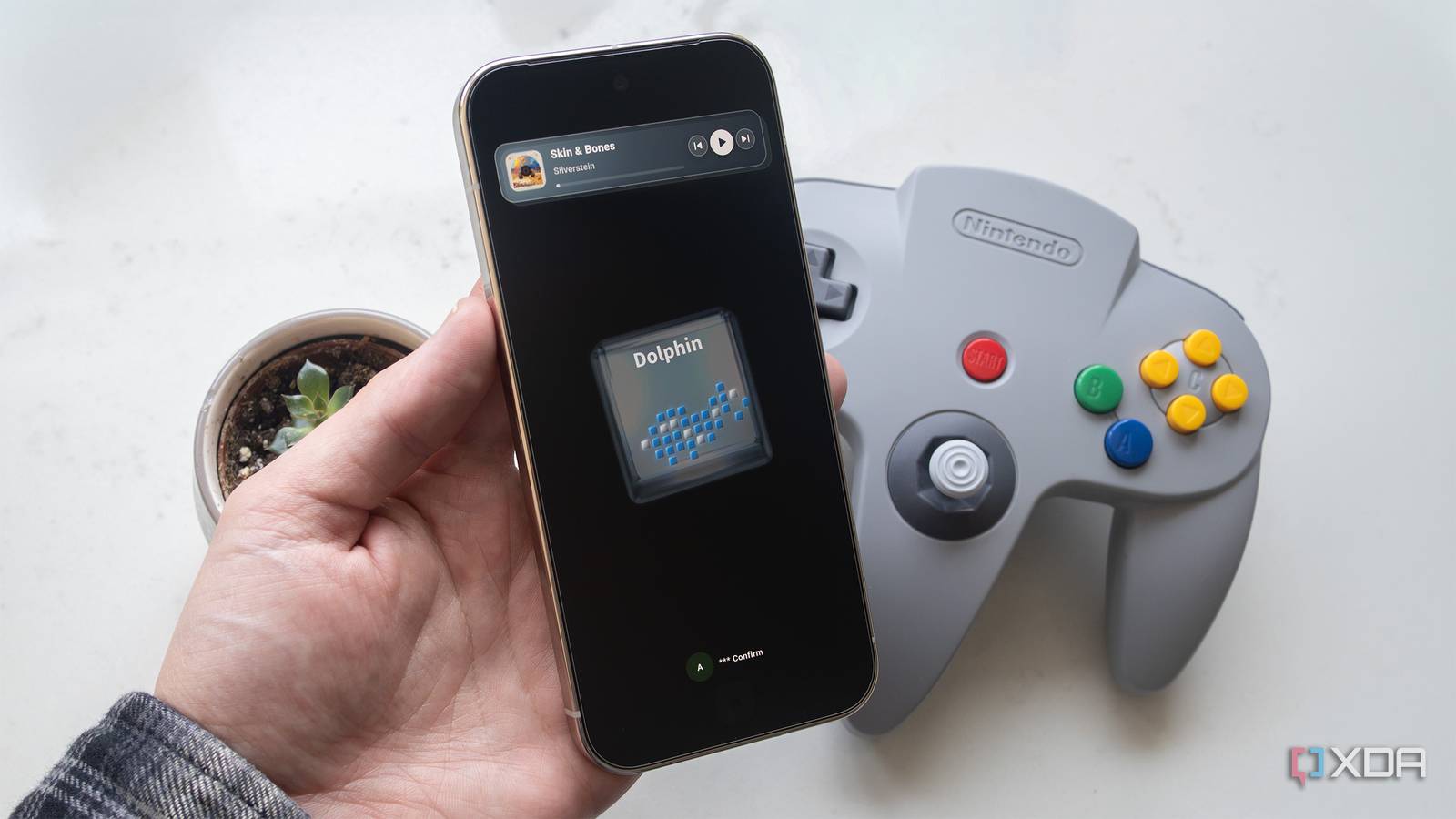
Published Jul 25, 2026, 11:30 AM EDT Patrick O'Rourke is XDA's News Editor and Entertainment Segment Lead. Previously, he was Pocket-lint's Editor-in-Chief, the Editor-in-Chief of Canadian tech publication MobileSyrup, and earlier in his career, he worked as the technology editor at the Financial Post and Postmedia. He's based in Toronto. Over the past 15 years, he's written thousands of articles. Patrick has also interviewed dozens of tech industry executives and covered GDC, E3, Gamescom, WWDC, Apple keynotes, Samsung Unpacked events and more. Patrick has a BA in journalism from Toronto Metropolitan University. Have you ever wanted to turn your Android phone — in my case, specifically the Pixel 10 Pro — into a GameCube? Probably not, right? Well, nevertheless, it's something you can actually make happen; and I'm glad I did, because GCube Launcher offers up a nostalgic blast from Nintendo's square-shaped past. Of course, GCube Launcher didn't actually turn my Pixel 10 Pro into a GameCube. It is just a launcher after all. Instead, Mr Rubik's GameCube-inspired Android theme brings the aesthetic of Nintendo's handle-clad lunchbox console to my Android device. The developer is also known for their work on Wii U, DS, and PlayStation 2 Android launchers, so they aren't entirely new to the make-your-smartphone-look-like-an-old-school-console shtick that I'm very much a sucker for. That familiar square GameCube user interface is back from the dead and on my Pixel 10 Pro It's a surprisingly practical UI for one-console emulation After downloading GCube Launcher directly from the Play Store, I booted up the launcher and was greeted with a legal disclaimer clearly outlining that the app has nothing to do with Nintendo, which I understand given how litigious the Japanese gaming giant often is. Next up is a Quick Start Guide explaining how to navigate the GameCube's menu. Little does the app know I spent my formative years in the mid-2000s, so I'm very familiar with the ill-fated GameCube and its unique, square-shaped UI. At this point, I was given the option to set GCube as my phone's default launcher, which, as cool as the app is, isn't something I recommend. I can see this option coming in handy if you plan to turn an older Android phone into a dedicated GameCube emulation device, though. Next, I needed to accept a few permissions to let GCube Launcher really do its thing, including letting the app's iconic and strikingly familiar home music play constantly. Swiping left, right, up, and down on my Pixel 10 Pro's home screen moves the GCube's square menu around to its various options. Navigation can get finicky at times, which forced me to close GCube Launcher. The basic things are there, though. You can set the clock, go into system options, and change features like locking to portrait mode and turning haptic feedback on/off, complete with familiar GameCube menu animations and sound effects. Lastly, the Game Play menu option is where you'll find your app drawer and set your favorite apps. Still, as an everyday launcher for my Pixel 10 Pro, GCube is pretty limited, so I find myself returning to the standard Pixel launcher for pretty much everything. To be fair, GCube Launcher doesn't exist to replace your default Android launcher. Instead, it's a way for you to create a more authentic-feeling GameCube emulation experience. There's a $2.70 one-time purchase option that adds more features to GCube Launcher, including full Dolphin emulator and game library integration, different colored skins, and quick access to pinned apps. I forked over the money for the premium version, but you can definitely use GCube Launcher without paying for it; you'll miss out on a few features and options. Adding Dolphin and ROMs to GCube Launcher is relatively straightforward GCube's real purpose is to make the GameCube emulation experience more nostalgic by offering a UI that looks nearly identical to the actual old-school console's. With that in mind, I downloaded Dolphin from the Google Play Store and booted up the Super Mario Sunshine ROM I always have on hand on my Pixel 10 Pro (for the record, I also own a physical copy of the game). The launcher immediately detected that I had Dolphin installed; all I needed to do was navigate to the Dolphin menu within GCube and tap the controller icon in the top-right corner of the screen. Then I selected the specific build of Dolphin I have on my device. Next, I hunted down my ROM folder by tapping the plus button in the middle of the screen. As long as you know where your ROMs are stored, loading them up within CCube is pretty easy (make sure you unzip them first). GCube Launcher instantly recognized Super Mario Sunshine and added the corresponding box art. I tapped the game, then pressed Start. As expected, Super Mario Sunshine booted up immediately. As a side note, Dolphin's on-screen keyboard is pretty obtrusive. It's usable, for sure, but connecting to a Bluetooth controller is a better option, as is the case with pretty much every retro game emulator on a mobile device. GCube is a great way to make your Android device feel more like a GameCube GCube isn't perfect and can be a bit laggy and difficult to navigate. Still, like other retro game launchers, it adds a layer of nostalgic authenticity to the emulation experience I really appreciate. If I ever decide to build up an extensive library of GameCube ROMs, I'll definitely keep GCube in mind as the main way to organize my library. You can download the GameCube Launcher from Mr Rubik's website and also from the Google Play Store. GCube Launcher
This nostalgic app transformed my Pixel into a GameCube
Full Article
Original Source
Read the full article at Xda-developers →KhanList aggregates and links to publicly available news content. We do not host full articles from third-party sources. Always verify important information with original sources.