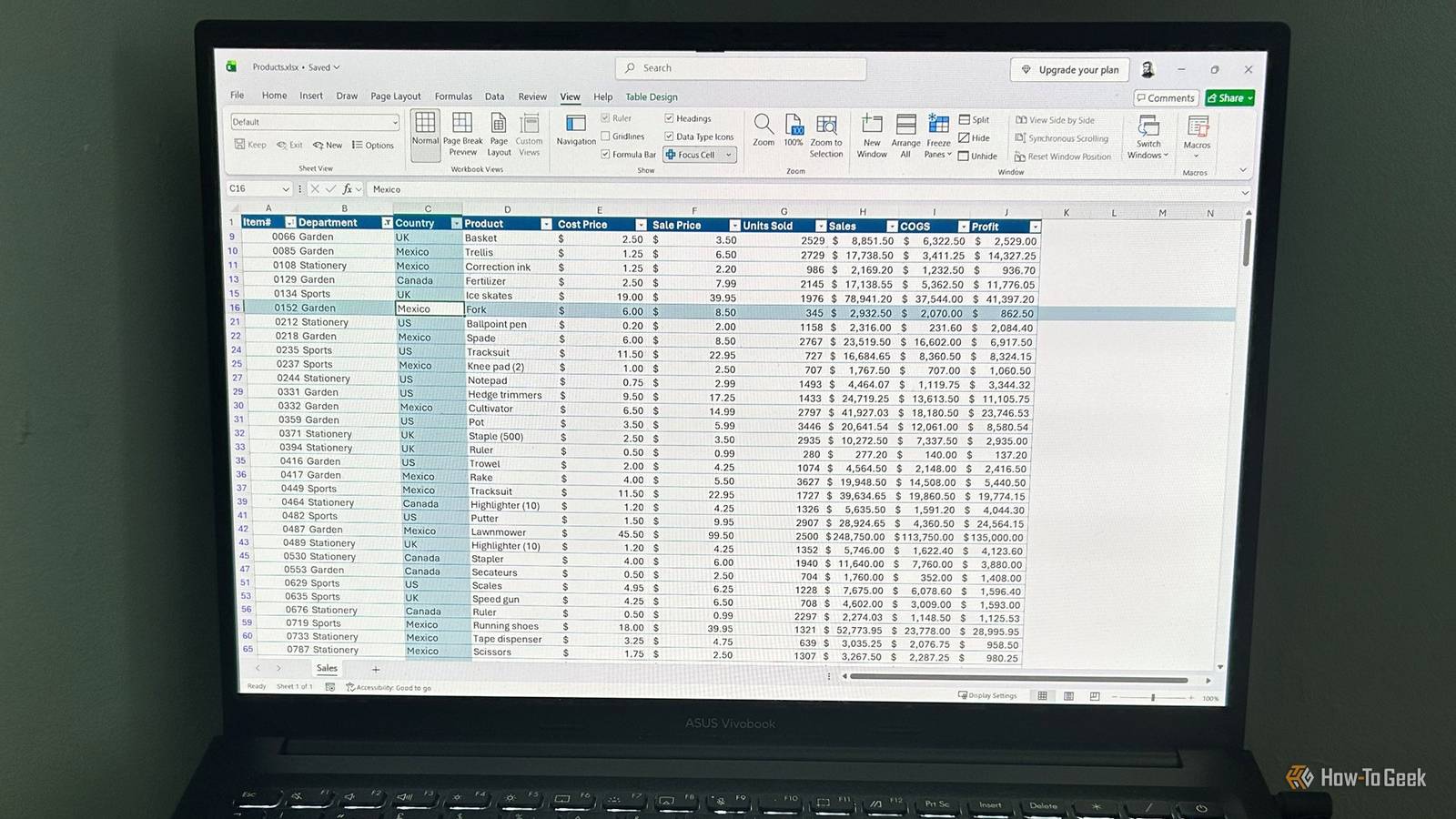
Published Jul 22, 2026, 7:30 AM EDT Tony Phillips is an experienced Microsoft Office user with a dual-honors degree in Linguistics and Hispanic Studies. Prior to starting with How-to Geek in January 2024, he worked as a document producer, data manager, and content creator for over ten years, and loves making spreadsheets and documents in his spare time. Tony is also an academic proofreader, experienced in reading, editing, and formatting over 3 million words of personal statements, resumes, reference letters, research proposals, and dissertations. Before joining How-To Geek, Tony formatted and wrote documents for legal firms, including contracts, Wills, and Powers of Attorney. Tony is obsessed with Microsoft Office! He will find any reason to create a spreadsheet, exploring ways to add complex formulas and discover new ways to make data tick. He also takes pride in producing Word documents that look the part. He has worked as a data manager in a secondary school in the UK and has years of experience in the classroom with Microsoft PowerPoint. He loves to encounter problems in Microsoft Office and use his expertise and legal-level training to find solutions. Outside of the Microsoft world, Tony is a keen dog owner and lover, football fan, astrophotographer, gardener, and golfer. After years of using Excel, it's easy to fall into muscle memory. You click the same ribbon tabs, rely on the same shortcuts, and barely notice when Microsoft adds new tools. That's how I initially overlooked Focus Cell, a simple feature that solved one of my biggest frustrations when working in Excel. Focus Cell is available in Excel for Microsoft 365 on Windows and Mac, as well as in Excel for the web. I stopped losing my place in large Excel spreadsheets A simple highlight makes large worksheets easier to follow When I scan across wide or dense worksheets, I find it surprisingly easy to lose track of my position. Whether I'm entering new data, reviewing a report, or checking a formula, I can look away for a second and suddenly lose track of which row or column I'm working in. Of all the little annoyances I have with Excel, this was one I never found a good solution for—until I discovered Focus Cell. Once I turned it on, it became a simple visual guide, highlighting my active row and column. Unlike manually selecting rows or adding conditional formatting, Focus Cell follows my active cell automatically without changing my worksheet or altering cell fill colors. Excel applies the color as a subtle overlay rather than a solid fill, so the values underneath remain visible. The highlight is only a visual aid while I work—it doesn't appear when I print the worksheet. The real time savings come from avoiding the small mistakes and moments of reorientation that add up when I spend hours working in the same workbook. Whether I'm scrolling across dozens of columns or moving down hundreds of rows, Focus Cell gives me an immediate visual reference. It also helps when I'm auditing formulas, reviewing reports, or comparing values across large datasets. Activating Focus Cell takes just a few seconds Turn it on and choose a highlight color Enabling Focus Cell only takes a moment, and Microsoft built the setting directly into the standard ribbon menu: Open the View tab on the ribbon. In the Show group, click the left half of the split Focus Cell button to turn the feature on. Select the drop-down arrow next to Focus Cell for more options. Hover over Focus Cell Color to preview the available preset tones. Click your preferred color. If none of the available options suit your workbook, you can also switch to a different theme (Page Layout > Themes), which changes the Focus Cell color palette. Once enabled, Focus Cell remains on when you open other workbooks, so you only need to turn it on once. Microsoft 365 Personal OS Windows, macOS, iPhone, iPad, Android Free trial 1 month Microsoft 365 includes access to Office apps like Word, Excel, and PowerPoint on up to five devices, 1 TB of OneDrive storage, and more. Pair it with Find and Freeze Panes While Focus Cell is useful on its own, I've found it becomes even more valuable when I combine it with some of Excel's other navigation tools. In particular, pairing it with Find and Freeze Panes makes it much easier to work confidently in large worksheets. Focus Cell + Find Excel's Find tool (Ctrl+F) jumps your cursor directly to matching values, but it doesn't always make the surrounding context clear when I'm zoomed out on a large worksheet. If Focus Cell is already enabled, Excel automatically moves the highlight to each matching cell as I click Find Next. However, if it isn't enabled, selecting Show Auto-Highlight from the Focus Cell drop-down menu in the desktop app provides the same visual guide only while I'm searching. The same behavior also works when searching through a worksheet with Find and Replace (Ctrl+H), making it easier to track each matching cell before swapping out its value. Focus Cell + Freeze Panes I also like combining Focus Cell with Freeze Panes because the two features solve different navigation problems. For example, freezing the top row ensures the column headings stay visible at all times, while Focus Cell highlights the exact record I'm reviewing or updating. Using the two features together gives me full context across both axes of the worksheet, even when I'm working hundreds of rows or dozens of columns away from the headers. When Focus Cell first launched, some people reported issues using it with Freeze Panes. Microsoft later addressed those compatibility issues, so if the two features don't work together, make sure Excel is fully updated. Focus Cell has some limitations to consider Know the quirks before you begin Focus Cell works well out of the box. However, there are a few other limitations worth keeping in mind: The highlight disappears when you switch windows: If you have two Excel windows open side by side, Focus Cell only appears in the window that is currently active. As soon as you click into the other workbook, the highlight disappears from the first one. While this means you can't keep both workbooks highlighted at the same time, I actually find it helpful because it immediately shows which Excel window is currently accepting keyboard input. The highlight colors are somewhat limited: Unlike font or fill colors, Focus Cell doesn't include a "More Colors" option for choosing a custom highlight color. That said, the available colors are tied to your workbook's current theme, so changing the workbook theme gives you an entirely different palette—a useful trick if none of the default options provide enough contrast. Range selections only highlight the active cell: If you select a block of cells, Focus Cell highlights only the row and column of the active cell within that selection, not the entire selected range. Small interface changes add up Focus Cell has become one of those features I now enable on every installation of Excel. It doesn't change how my workbooks work, but it removes one small frustration that can slow down data entry, reviewing, and analysis. The next time you open Excel, I'd recommend enabling Focus Cell and taking a few minutes to improve the rest of the interface too. Small changes like enabling Dark Mode, creating a personalized ribbon tab, or expanding the formula bar for multi-line formulas can make Excel much more comfortable to work in over long editing sessions.
This little-known Excel feature fixed one of my biggest spreadsheet problems
Full Article
Original Source
Read the full article at Howtogeek →KhanList aggregates and links to publicly available news content. We do not host full articles from third-party sources. Always verify important information with original sources.