
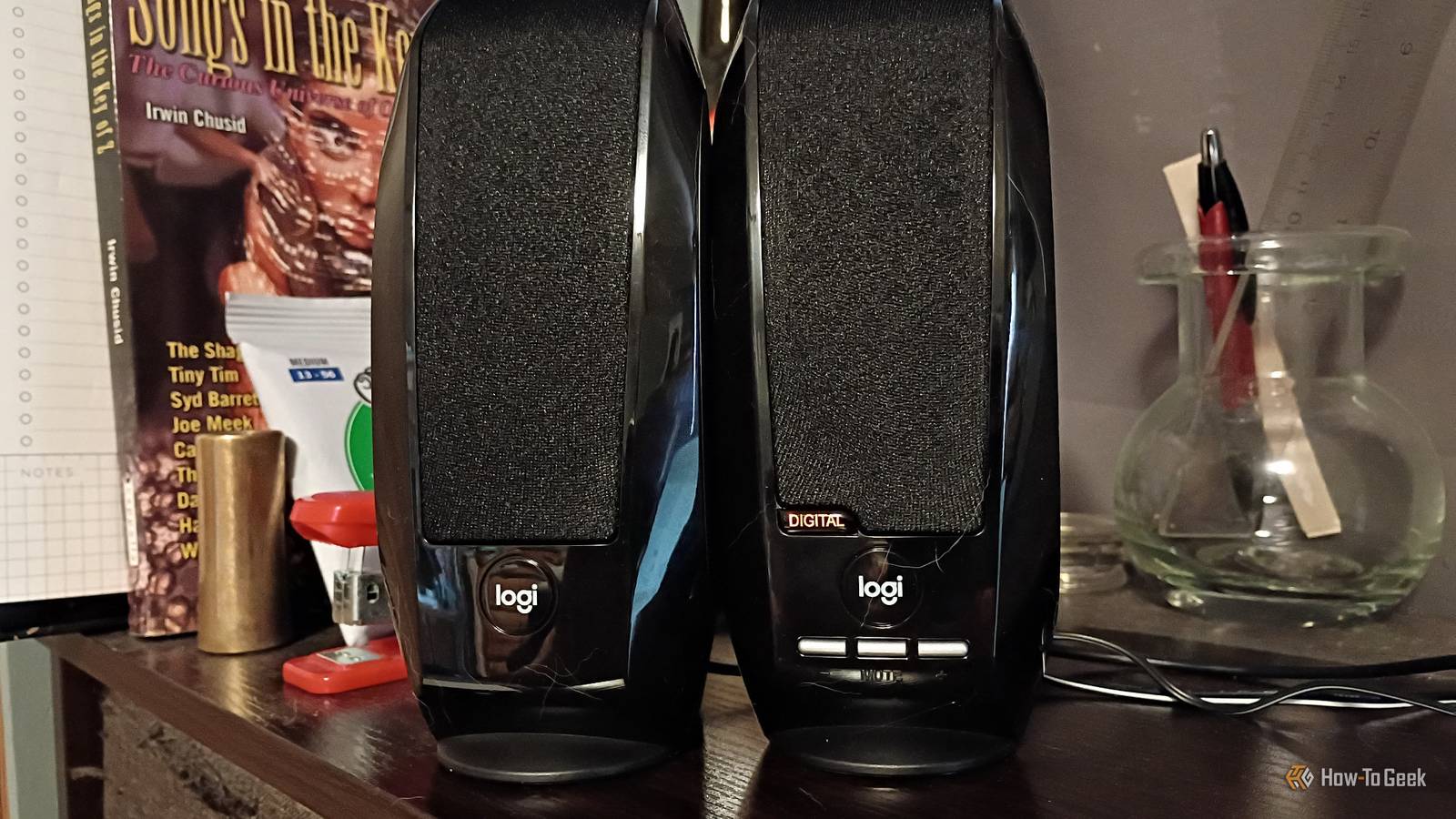
Published Sep 22, 2026, 10:30 AM EDT Former radio and TV guy (I Heart Radio and PBS). Now a writer, researcher, and musician who writes about the absurdity of our modern world and other offbeat topics. Specializes in weird music, the old web, retro video games and tech, and researching strange, yet interesting things. His work has appeared in Vice, Tedium, Star Trek.com, Today I Found Out, Typebar, SyFy Wire, and How To Geek. Currently working on a variety of music, web, and writing projects. Visit him on the web at https://djbuckfreelance.neocities.org/. My computer speakers aren't very good. Sometimes I wonder if sticking my phone in a coffee can would sound better. I used to own a nice set of M-Audio monitors that I used for my record player. But they broke. So I replaced them with a $15 set of Logitech computer speakers. I can usually get them to sound fine by messing around with different settings in the audio apps I use, but they still didn't sound great. But I found a solution to make them sound better (that didn't require buying new speakers): Easy Effects for Linux. An audio effects pipeline for Linux One of my favorite things about Linux is how much effort users put into making lightweight, open-source programs that anyone can use. With Easy Effects, we get a way to customize and fully control real-time audio on devices. It works on speakers, microphones, and system output, which I personally find quite useful. The program creates an effects pipeline based on user input and customization. The effects are modular, so you can pick and choose which ones you want to apply to your specific audio device. I installed it on Mint with sudo apt install easyeffects. You can also download it as a flatpak from Flathub and start using it within a few seconds. My $15 speakers leave something to be desired Putting my phone in a tin can would sound better So, let's talk about my speakers. It's been about a year since I've had a decent set of them. So, until I can track down a similar M-Audio setup (and somehow make space for it), I'm always looking for ways to improve what I already have. I do suffer from a bit of hearing loss, so I can get a bit fussy with my audio. I've been using a mix of studio monitoring and bone conduction headphones to help manage it a bit. But sometimes it's nice just to listen to my music outright. The speakers are quite mediocre. Tinny. The bass is almost non-existent. The treble is too high. I don't want to talk about the midrange. These speakers are fine for podcasts or videos, but for music? They're not great. The first time I applied an effects filter through Easy Effects, I noticed an immediate difference. Navigating the Easy Effects interface It's easy to get an effects pipeline going immediately Easy Effects has a great manual, but the software is so intuitive that I was able to just play with settings to find what I liked best. The first time I opened Easy Effects, I was pleasantly surprised at how simple and clean everything was. There's an Input, Output, and PipeWire menu. Under Input, you can add effects to an input device (like a microphone) by clicking on Effects -> Add Effect and just adding the ones you want. If you go to the Output tab, it'll show whatever media players you have running and let you apply effects to theoutput or exclude them as you see fit. This is the tab where we'll apply the effects to the speakers. There are a ton of effects, so I tested the Filter, Equalizer, Bass Enhancer, Limiter, and Compressor. To get them to work in a proper flow (or pipeline), you have to order them correctly in the menu. Audio moves from the top of the effects list to the bottom, so in my case it runs the filter first, then the equalizer, then bass enhancer, and so on until the effects pipeline runs through everything. Setting up an effects pipeline Testing and applying my favorite tools With my effects pipeline in place, I began tweaking settings. The filter helps clean the audio a bit by cutting out sub-bass frequencies. My Logitech speakers have very cheap drivers in them that can't really reproduce those frequencies. You get better midrange clarity, which is going to help. Significantly. I set the filter to High-Pass with a x4 (kind of steep) slope and a 150 Hz frequency range. I'm basing this on what sounds good to my ears, backed up with experience working in radio and as a performing musician. These work for me, but your experience may vary. Getting the equalizer just right is important to me. I stuck with IIR (Infinite Impulse Response) mode. I chose that because it doesn't use a lot of power. Then I just played with the settings until it sounded good to my ears. I set the Bass Enhancer up next. I had to install Calf Studio Gear to enable the plugin. I used sudo apt install calf-plugins. I set the scope to 150 Hz and slightly adjusted the amount to bring the harmonics up a bit. For the compressor, I set the ratio to 3, lowered the threshold to -1.0dB. And for the Limiter, I set the threshold to -1 dB. These settings should prevent distortion and allow the cheap speakers to handle bass better, while providing decent audio. I tested it with Rush, Beck, Jaco Pastorius, and The Blues Brothers. It did not help with the Beck album, for obvious reasons (it was Stereopathetic Soul Manure; great album, poor choice for testing). They sounded pretty good. Don't throw away your cheap laptop speakers just yet No amount of effects in the galaxy will change the fact that cheap speakers won't always sound their best. But I had a blast making them sound pretty good with Easy Effects. I was able to do it in about an hour on a $15 set of Logitech speakers, using the simple interface and my ears as a guide. That's not bad. I wonder what it would sound like on those old M-Audio Monitors?
This Linux app fixed my terrible laptop speakers without buying new hardware
Full Article
Original Source
Read the full article at Howtogeek →KhanList aggregates and links to publicly available news content. We do not host full articles from third-party sources. Always verify important information with original sources.