
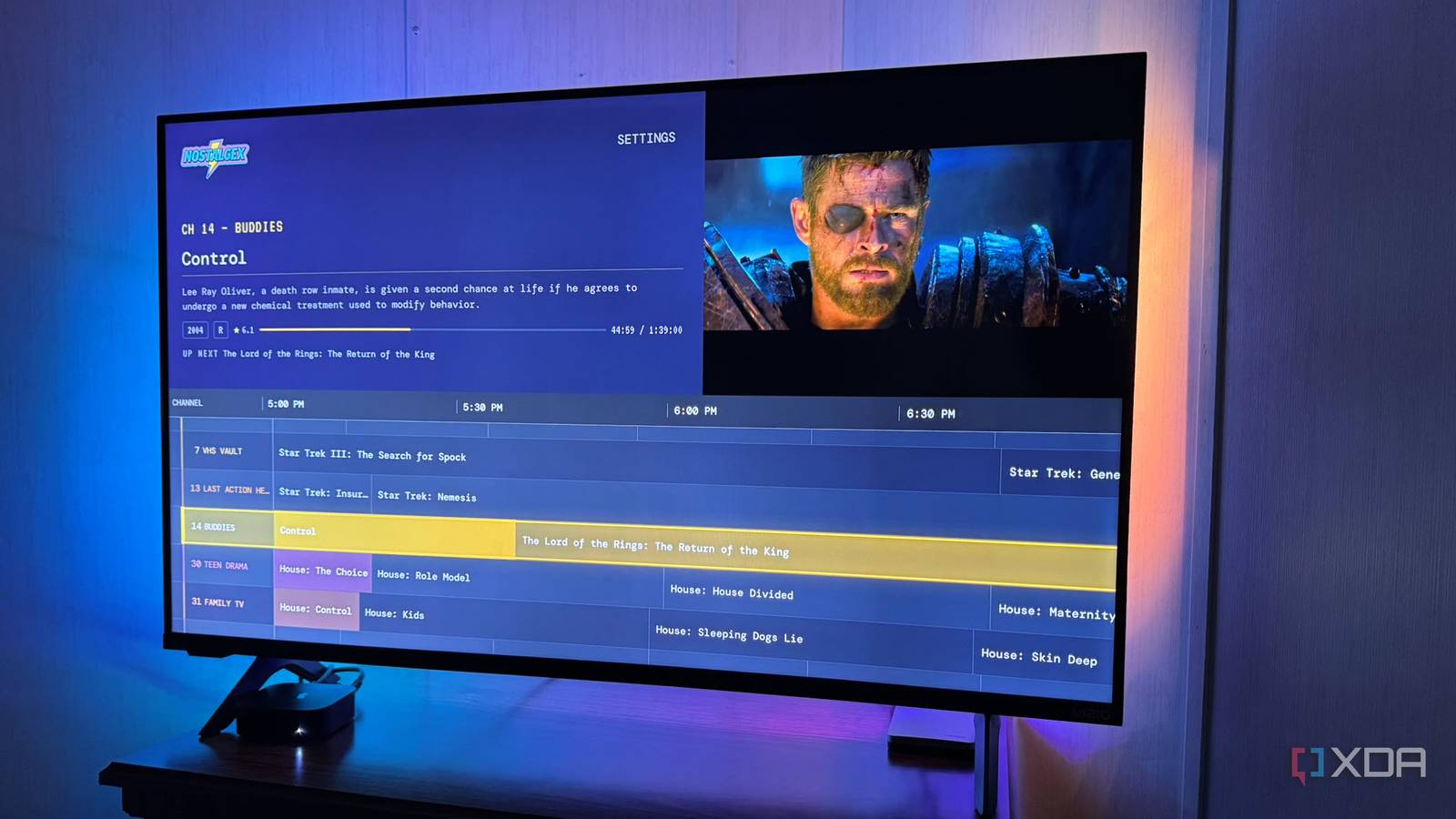
Published Oct 8, 2026, 3:00 PM EDT Based in rural Minnesota, Brian Burgess worked in IT for 10 years before finding his passion for writing about consumer technology. Brian earned his degree in computer and network technology in 2000. He held various IT positions, including help desk support, router installations for IBM, database administration, and other associate network administration roles. He's been a personal technology journalist for 18 years and has written thousands of articles about Microsoft products and services, Android, iOS, streaming, and more. He has written for notable tech sites including XDA, InformationWeek, How-To Geek, Byte, groovyPost, and others. When he is away from the keyboard, you will hear him playing guitar, working outdoors, and watching Star Trek. Managing a self-hosted server today is a lot of fun. We can use Plex, Jellyfin, or Emby to stream our Blu-ray and DVD collections throughout the house and access them remotely. However, sometimes I miss the simpler days of traditional TV with a guide. With Retro TV projects, I can turn my Jellyfin library into my own TV network — similar to using Tunarr or Ersatz TV for Plex. I found a cool project that turns my self-hosted media on my Jellyfin server into a retro experience. Nostalgex displays my media in a TV-guide-style layout. It's free and open-source, and you can use it via an app or the web for users with remote Jellyfin connectivity. Setting up a retro channels guide You can use the remote web tuner or the Apple TV app Nostalgex's developer created the project for his kids to have a unique entertainment experience. It was successful, so he made it open source for everyone. Setting up Nostalgex is straightforward: use the free Apple TV app, or if your Jellyfin server is set up for remote access, use the free web tuner portal. The project also works for Plex and Emby servers. The Apple TV route is for Jellyfin servers with local access, and the web tuner is for remote access if you have that set up. Either way, you'll get the same experience: a channel guide, channel surfing, and scheduled playback from your self-hosted media library. However, the same schedule won't necessarily show up as the same lineup on both versions. With the Jellyfin server running and the Apple TV app open on the same network, I entered my Jellyfin server IP address and port and signed in. After I signed in, Nostalgex created a four-channel guide pulled from my Jellyfin library. Given the retro-style experience, it made sense that it pulled up an old episode of Friends showing Joey on the old-school show Amazing Discoveries. It also showed a VHS glitch-style display while the media loaded, thanks to the included "retro mode," enabled by default. Nostalgex Ease of use It's an easier retro channel guide experience to create Rather than configuring each channel individually before displaying them like on Tunarr or Ersatz TV, Nostalgex builds scheduled channels from my library. It builds the library based on content genre, studio, release year, rating, and watch history. I don't need to manually create a playlist for each station. It created an After School and VHS Vault channel in the guide, which I found interesting. Only four channels were displayed at first; however, I can add more by going into Nostalgex's settings in the app and enabling more channel packages. I also hadn't run my Jellyfin server for several days, so I needed to rearrange a few files and rescan my collection to make sure the app could see it better. The app reads metadata through Jellyfin's API and not the "library.db" file. Switching users also changes the content it displays. I reorganized my media library, enabled more channel packages, and rescanned Jellyfin from the app's settings using my admin account. Once that was complete, more channels appeared, and my media library files displayed. When I highlight a movie or show, I see a preview in the top-right corner, like a retro cable guide. Pressing the show makes it full screen. It plays all the content from my server, including 1080p and 4K HDR Blu-ray-ripped MKV files, with ease. However, some titles take a while to load, and it will display a traditional static screen while loading. Pressing left on the guide pulls up the available package that I can tune to. Limited settings I wish there were more settings for controllability Tunarr and especially ErsatzTV provide much more control and customization over the channels and content I make available. They give me the experience of owning my own TV station. Nostalgex has plenty of settings to adjust the guide and display different content, but it automates much of the process. I can change settings while watching a movie or show and add channel packages, but I can't create individual channels with specific content. That makes it easier to put out a TV guide for my Jellyfin library, but it also means less customization. The guide will only be as good as the Jellyfin server it connects to. I mentioned I needed to reorganize a few things on my server for the content to display properly, and you may need to too. The default retro guide is a lot of fun with CRT scanlines, VHS glitches, and a 4:3 aspect ratio, but if I want something more modern, I can disable the retro mode in settings. A fun Jellyfin library viewing experience with Nostalgex Viewing my Jellyfin library in a retro-cable-style guide is fun and easy with Nostalgex. The only differences between using the Applet TV app or the web are that a remote connection uses a web-based interface, and scheduling and connection requirements differ. In the end, the same cable guide for your media library appears.
This Jellyfin plugin made my media library feel like old-school cable TV
Full Article
Original Source
Read the full article at Xda-developers →KhanList aggregates and links to publicly available news content. We do not host full articles from third-party sources. Always verify important information with original sources.