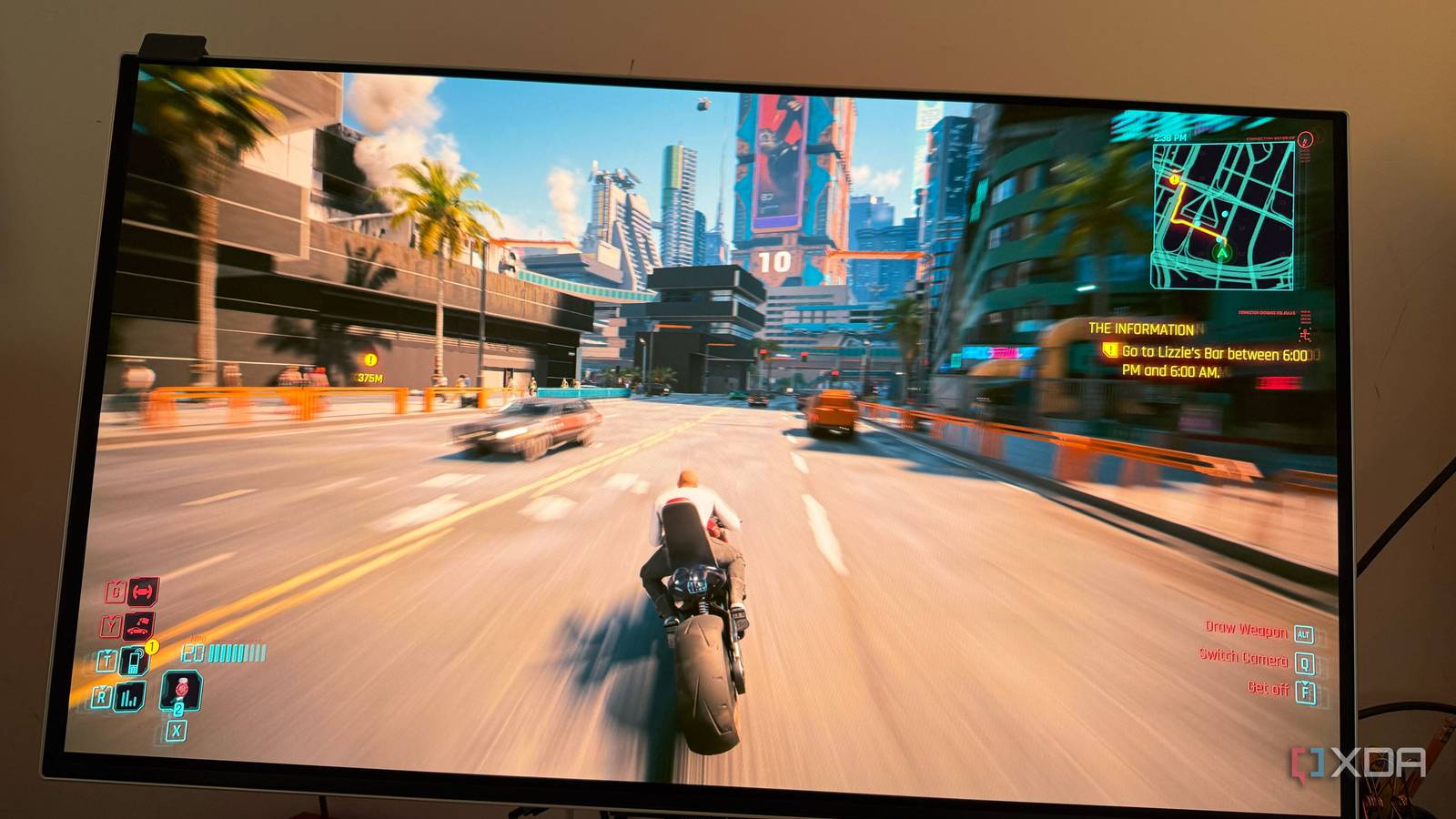
Published Jul 29, 2026, 7:00 AM EDT After a 7-year corporate stint, Tanveer found his love for writing and tech too much to resist. An MBA in Marketing and the owner of a PC building business, he writes on PC hardware, technology, and Windows. When not scouring the web for ideas, he can be found building PCs, watching anime, or playing Smash Karts on his RTX 3080 (sigh). When you're setting up a new gaming monitor, you probably think about enabling game modes, VRR, and HDR settings for the best gaming experience. Something that you might assume works properly by default is your panel's response time. And in many cases, that's indeed true. However, sometimes your monitor's response time settings might not be optimal, leading to ghosting or inverse ghosting. The setting that's probably behind this problem is called overdrive. It works by supplying enough voltage to an LCD panel's pixels so that they transition faster, improving image clarity. If the overdrive setting in your monitor's OSD is set too low or too high, it results in trails or halos around fast-moving objects, ruining your gaming experience. If your games are suffering from these issues, your overdrive setting might be the culprit. Overdrive is integral to meeting the response time target But it can overshoot it if not set correctly Your monitor's actual response time is tied to the overdrive tuning of your panel. It dictates how fast your panel can transition between fast-moving images. If you check your display's OSD, you'll see 4–5 overdrive levels, from "Off" and "Normal" to "Fast" and "Extreme." Different brands might have different names for these settings, but they work similarly in practice. You might think that the fastest setting available in the OSD should be the best for gaming, but it's not that simple. While you need a fast enough overdrive setting to prevent ghosting — the phenomenon where an object has a blurry shadow behind it — extreme settings have their own downsides. They can cause pixel overshoot, where the pixels change states too fast, causing inverse ghosting, i.e., the presence of bright or dark halos around objects. By default, most monitors come with a balanced overdrive setting enabled, which is usually the second-fastest setting. Some displays, however, might have a slower setting enabled in the OSD. If your games look blurry when things get frantic on screen, you might have to switch from, say, "Normal" to "Fast" in the "overdrive" or "response time" settings. Monitor marketing lies about the response time You might have chosen the wrong overdrive setting due to the hype Credit: Nvidia Manufacturers often claim a response time of 1ms, but these numbers are only achieved at the fastest overdrive setting of a given panel. Unsuspecting gamers can be misled into selecting the fastest overdrive setting in the monitor's OSD to get closest to this theoretical minimum. However, this setting is virtually useless for the majority of gamers in most scenarios, since the inverse ghosting it creates can be worse than the ghosting seen in slower modes. Even if your display has a blazing-fast refresh rate, inverse ghosting is very noticeable. Most games don't stay in a neat refresh rate window anyway. Whether you're playing slow, single-player titles or fast-paced shooters, the refresh rate keeps fluctuating, triggering the VRR of your display to dynamically drop the refresh rate. This can instantly render the fixed overdrive setting of your panel useless as the voltage it's pushing becomes too much for the now lower refresh rate. Many gamers might not even connect inverse ghosting to their display's overdrive settings, blaming it on the in-game TAA or motion blur settings instead. Test your overdrive settings in different scenarios before settling on one It's all subjective, so choose the setting that looks the best Credit: Steam The best way to choose an overdrive setting that works over a large refresh rate range is to test all the available modes in a number of games that play differently. Pick slow-paced narrative-driven titles, fast-paced multiplayer shooters, and some platformers to get a good sense of your practical gaming usage. Observe the trails behind or ahead of objects in various overdrive modes and pick the setting where the ghosting or inverse ghosting is the least visible. You can also use the UFO test by Blur Busters to observe these anomalies at various overdrive settings. Another thing to remember is that fixed overdrive settings will behave differently at wildly different refresh rates. Use variable overdrive if your monitor supports it, so that the response time keeps up with the refresh rate dynamically. As a general rule, most monitors work best on the second-fastest overdrive setting available. Unless your monitor handles inverse ghosting remarkably well at the fastest setting, avoid it entirely. And OLED owners don't need to worry about overdrive, since these panels have a near-instantaneous response time without resorting to voltage-level tricks. Overdrive settings on LCD monitors are more important than gamers think You might never have checked the overdrive section in your monitor's OSD, but it could be the setting holding back your panel's motion clarity. The wrong overdrive mode can be too slow or too fast for your monitor's refresh rate, creating blurry shadows and halos around fast-moving objects. Overdrive is the first thing you should check on your IPS, VA, or TN monitor if you're experiencing ghosting or inverse ghosting.
This ignored monitor setting is probably making your games look worse than they should
Full Article
Original Source
Read the full article at Xda-developers →KhanList aggregates and links to publicly available news content. We do not host full articles from third-party sources. Always verify important information with original sources.