
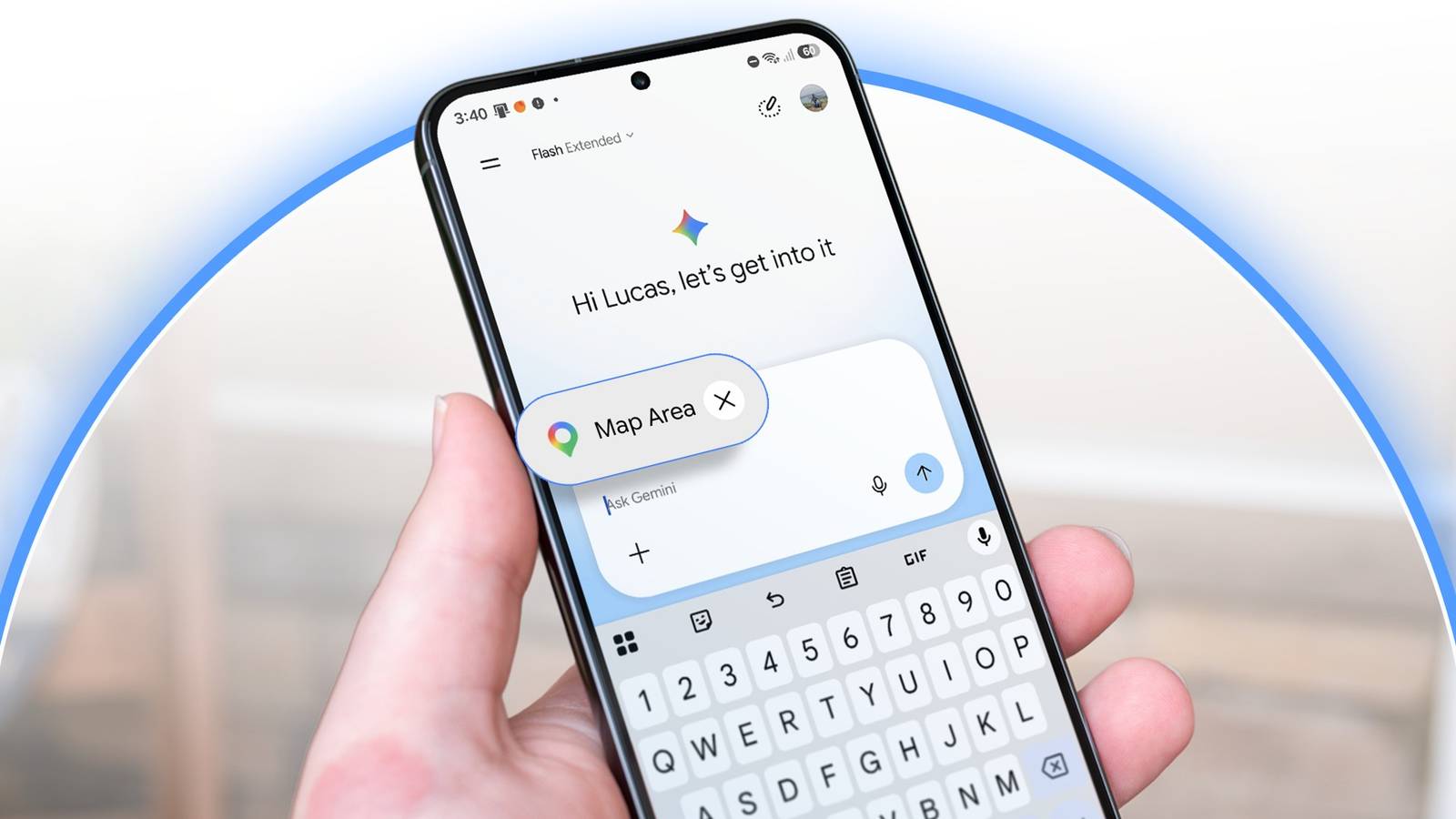
Published Oct 11, 2026, 8:45 AM EDT Haroun authors features for Android Police, covering Samsung, Google, and the wider Android ecosystem. He first joined in 2021, cutting his teeth on over 300 news stories before moving on to features and how-tos. A one-time OnePlus die-hard who genuinely couldn't stand Samsung, he's since done a full about-face — he now daily-drives a Galaxy S24 Ultra and keeps an S23+, S22+, and his old S20 within arm's reach, which gives him a lot of hardware to put through its paces. He's a medical doctor with a decade-plus obsession for consumer tech, and his coverage has also appeared on How-To Geek and Android Authority. When he's not buried in Google's apps or a Samsung settings menu, he's trying to get his chess rating past 1500 or playing table tennis/football. Most of my location searches in Google Search or Gemini start with me typing a street name I only half remember and hoping it figures out what I mean. It often gets close, but I usually have to reword my prompts. Gemini's new Map tool, which started showing up for users around Oct. 2, cuts down on much of my guesswork. Instead of describing a place, I point at it on a map and ask my question. I've been testing it for a few days, and it's changed how I look up places. Credit: Lucas Gouveia / Android Police | wedninth / Shutterstock Open the Gemini app and tap the plus (+) button on the left side of the chat box. A pop-up box appears with a row of tools. Scroll sideways to the end and tap the Map option. It opens a live Google Maps view with a circle around your current location. You can drag the map, pinch to zoom, tap the search icon to find a specific place, and jump back to your location. It only covers a few blocks when zoomed in. However, you can zoom out to cover an entire neighborhood or a small state. When you're happy with the location, tap Explore this area at the bottom of the page, and Gemini adds a Map Area chip to your prompt. The Map tool is only available on the Android and iPhone apps. It's not on the web or the desktop apps. The circle actually controls what Gemini finds Most of the time, at least Credit: Lucas Gouveia / Android Police | Gorodenkoff / Shutterstock I started my tests in a popular place: Park Slope, Brooklyn. I wanted to see how useful the circle is, whether Gemini totally excludes everything outside it. I asked it to find good coffee places within walking distance, and it returned several options inside the circle, each with ratings, price ranges, and opening hours. Then I asked it to list the same spots from closest to farthest with walking times. It did, with distances measured from the center of my circle. For example, Café Martin and Poetica Coffee were both about 3 minutes away, Postmark Café was about 4 minutes away, and Casita of Brooklyn was about 8 minutes away. I verified their addresses, and the times were approximately correct. All surfaced results were within the highlighted area, except in specific situations. While the Map tool mostly stayed within the highlighted area, one exception occurred during my tests. In a less-mapped area with few cafés, it admitted the options were limited and suggested the closest café outside the circle. I also tried asking the same question without the map. I typed a landmark name, and Gemini found fewer places. Typing an exact intersection worked better. But that only helps when you know the street names. With the tool, I move the circle to the part of the map I care about, and it gives me results. It connects to Google Maps The results go beyond a simple text list Credit: Lucas Gouveia / Android Police Each suggestion appears as a card with photos, a rating score, a price range, and whether it's open and when it closes. Tapping a card brings up review snippets and an option to open the location in Google Maps. This isn't new to the Map tool, as Gemini has shown results this way since the Dec. 2025 update. The most useful part is the map preview at the top of every answer. Tapping it shows every suggested place as a pin, with an Export to Google Maps button at the bottom to save them to Google Maps as a custom list. This is a nifty shortcut if you usually save places one at a time. You can also ask follow-up questions, and Gemini keeps everything in context (for a while). I asked which Park Slope cafés were good for working on a laptop, and Gemini narrowed the list down with explanations from reviews. It still has a few rough edges Double-check the results before you head out Credit: Sanuj Bhatia In areas with less map data, Gemini was much weaker in my experience. When I asked for coffee places in a less popular area, it admitted coffee shops were limited. But it then padded the list with a pizza place and a shawarma spot because places like that "frequently serve hot beverages." The only actual café it found was about a mile away, which it described as within walking distance. My follow-up question about gyms got an even worse response. Its top pick was a laundry. Long chats caused a different problem. After several follow-up messages, Gemini said it no longer had the exact location of my circle and asked for a street name. I fixed it by starting a new chat and reattaching the Map Area chip. Credit: Lucas Gouveia / Android Police The Map tool removes the hardest part of asking Gemini about a place you don't know: describing where it is. In a well-mapped neighborhood like Park Slope, it stayed inside my circle and gave me accurate walking times and distances. In places with less map data, I'd double-check its answers before going anywhere. But it's definitely worth trying the next time you plan a trip or explore a new neighborhood.
This Gemini Map feature solved my biggest search frustration in seconds
Full Article
Original Source
Read the full article at Androidpolice →KhanList aggregates and links to publicly available news content. We do not host full articles from third-party sources. Always verify important information with original sources.