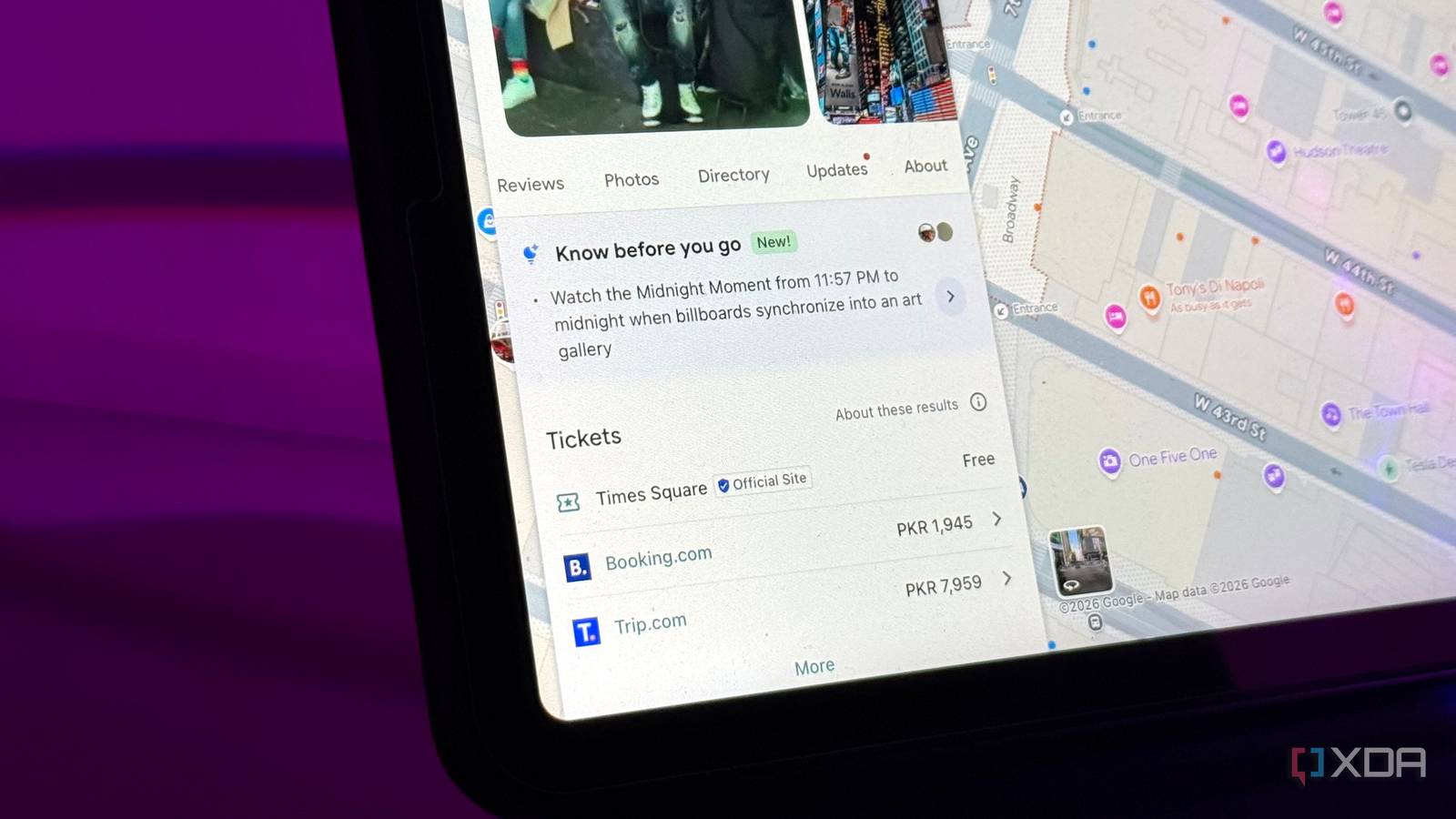
Published Aug 6, 2026, 10:30 AM EDT Mahnoor Faisal is a tech journalist covering AI and productivity tools with bylines at XDA, SlashGear, MakeUseOf, Laptop Mag, and Android Police. She's been writing professionally since she was sixteen, and has since penned hundreds of articles. This includes in-depth coverage of AI tools like NotebookLM to breaking news across the AI space. Her passion for technology started when she received her first iPod Touch (4th generation) on her 8th birthday, and she's been deep in the tech world ever since. Currently pursuing a degree in computer science, Mahnoor brings both a journalist's eye and a technical foundation to her coverage of how AI is reshaping the way we work and learn. While I've praised Google's AI efforts plenty of times before, the company's flagship assistant has rarely been the reason. My enthusiasm has almost always traced back to NotebookLM (now Gemini Notebook) and never Gemini itself. This is exactly why I didn't expect a Gemini feature to win me over, and least of all one that was tucked inside Google Maps. Deciding where to go is only half the battle Picking the place was never the hard part I don't currently drive and the city I live in isn't very walkable, so I don't use Google Maps (or any other navigation app) all that much on a regular basis. However, I spent the last two weeks in a country completely foreign to me, and Google Maps was likely my most-used app of the entire trip. I'm the kind of traveler who does 30,000 steps a day, hates staying in one place, and wants to squeeze every drop out of a trip. Cramming that much into every day means constantly deciding where I'm heading to next, and that's where the trouble usually starts. If you've ever found yourself in an unfamiliar country or city with Maps open, you know the drill: you open the app, search for somewhere to eat or see, and get hit with a wall of listings that more or less look the same at first glance. Star ratings blur together, review counts don't tell you much, and photos are either professionally staged or from years ago. Ultimately, you're left with no choice but to do the work yourself. You tap into a place, skim a few reviews, maybe even head to Google or social media to dig deeper, try another, and repeat the whole cycle until one place edges ahead of the rest. Once you do settle on somewhere, that's the moment you realize deciding where to go was only half the battle. Now, you need to answer all the questions the listing never bothered to: Is there a dress code? Where do I actually park? Is this the kind of place that takes walk-ins, or will I be turned away at the door? Is there a better time to show up, or a menu item everyone says you shouldn't miss? On a normal day at home, you have the flexibility and the time to shrug and figure it out. You can head to YouTube, scroll through a few vlogs, read a blog post someone wrote about their visit, dig through Reddit threads, and piece it all together at your own pace. However, when you're on a tight itinerary, all the digging is time you simply don't have, and every unanswered question is a risk you're taking blind. This is exactly where Google's Know before you go tab within Maps steps in. The Know before you go feature is all the research done for you Like a local who actually likes tourists A few hours into using Google Maps and scouring listing after listing, I noticed something I hadn't really paid attention to before. Right near the top of a restaurant's page (just under the photos, above the hours, the address, and everything else) was a section labeled "Know before you go," marked with a little "New!" tag. The Gemini x Maps feature is exactly what it sounds like, and is a tidy little list of tips that answered the exact questions I would normally have to go hunting for myself. When you search for a place in Maps (restaurants, hotels, and concert venues are the main ones for now), you can scroll down to find these Know before you go tips, and it's a bit like having a local who's been there before lean over and tell you what you actually need to know. Instead of making you dig, Maps does the research on your behalf. Using Gemini, it pulls from reviews and other helpful information it finds online, then distills it all into a handful of top insights: the best way to book a reservation, the secret menu items worth ordering, where to park, and more. Each tip is tappable, too. This means if one catches your eye, you can dig into the detail behind it and find the exact reviews the tip was drawn from. For instance, my favorite example of this was when I was looking for a spot to go for lunch/dinner on my trip. Given I was at an Island and was surrounded by beaches, I wanted to have a meal somewhere I could actually catch the sunset, not just eat and leave. Now, the sun would set at 7:30 that day, and there was one place my friend had recommended, and I had seen on my Instagram. I figured I'd get there 15 minutes before, grab a table, and settle in just in time for the sunset. However, when I pulled up the restaurant on Maps, its Know before you go section told me to arrive before 6:30 PM to secure a good beachfront spot for the sunset. That was a full hour earlier than I had planned! Initially, the plan was just to have a good meal and enjoy the sunset. The Know before you go section, though, revealed that there was more to the evening than the dinner — performers on the public beach put on a fire show. I ended up spending over 5 hours at the place I had only planned to grab a quick bite at, and this Gemini-powered section was the only reason I even knew there was a reason to. There are a few rough edges, but they don't change the verdict This feature is primarily based on user reviews, which means it's only ever as reliable as the people writing them. If a place has thin, outdated, or skewed reviews, the tips Gemini surfaces will inherit those same blind spots. However, given you can see which reviews were used to generate each tip, it's easy enough to gauge how much weight to put on it. The feature is also currently only available on the mobile Google Maps app, so you won't find it on the desktop version currently. That said, it's exactly the kind of thing you'd reach for on your phone mid-trip anyway, so the limitation stings less than it sounds.
This Gemini feature in Google Maps is so useful I'm shocked more people aren't talking about it
Full Article
Original Source
Read the full article at Xda-developers →KhanList aggregates and links to publicly available news content. We do not host full articles from third-party sources. Always verify important information with original sources.