
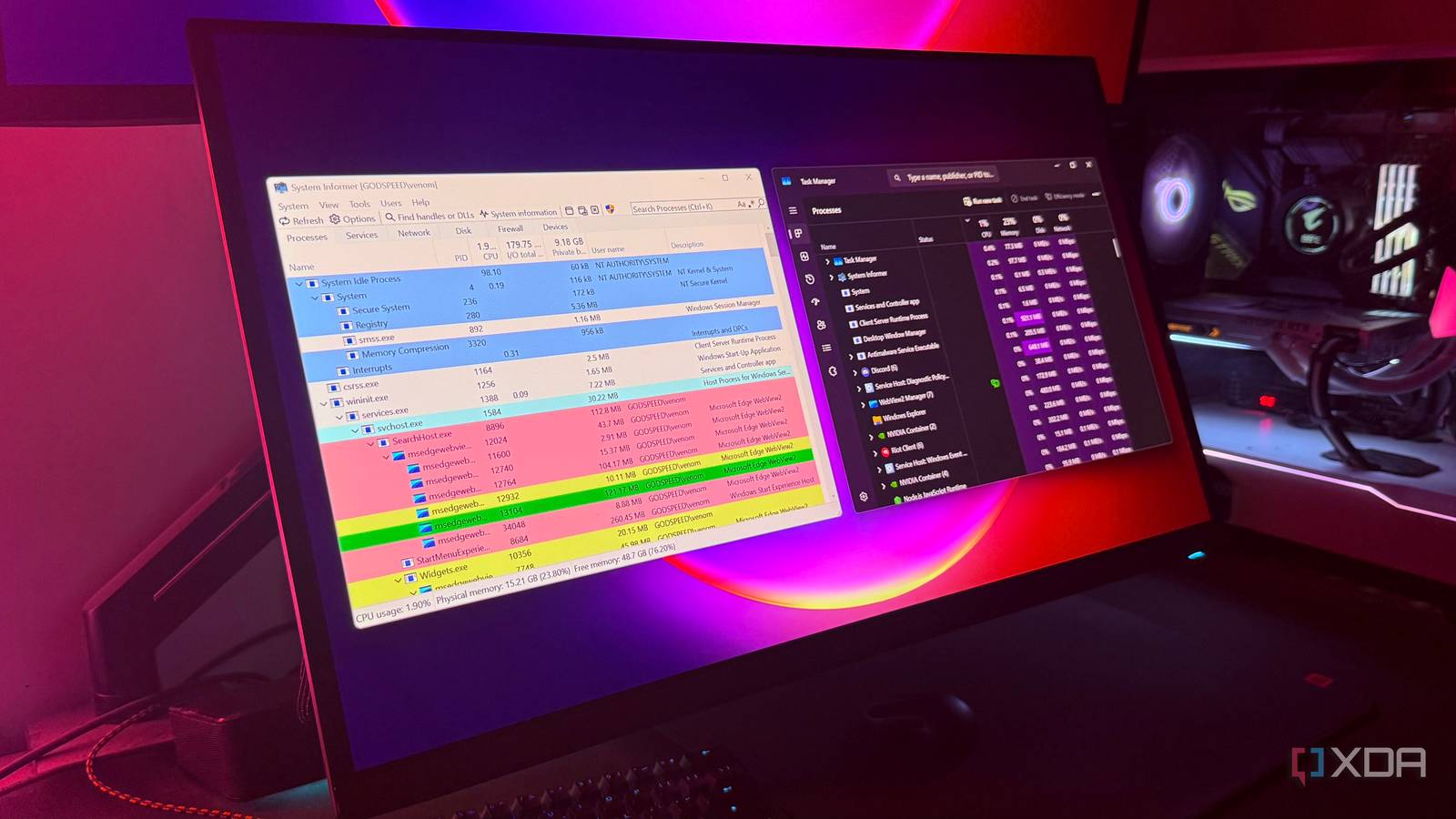
Published Sep 23, 2026, 5:30 PM EDT Hamlin has been in the tech field for over nine years. Since 2017, his work has appeared on MakeUseOf, Android Police, OSXDaily, Beebom, and more. He served as the Senior Editor at Valnet's MakeUseOf for over two years before joining XDA. He uses a high-end gaming rig for desktop use and a MacBook for traveling, but dislikes some of the quirks of macOS. You're more likely to catch him at the gym or on a flight than anywhere else. Task Manager is one of those things I open on Windows without even thinking twice whenever an app or game stops responding, or my PC suddenly feels sluggish for no reason. It's reassuring to know that I can press Ctrl + Shift + Esc at any point and hit End Task on an app that just won't close normally, or see what's hogging my CPU or RAM. And if that's all you do in Task Manager, you probably don't have anything to complain about. But if you're anything like me and like digging a little deeper, Task Manager doesn't show nearly as much information as you'd like. That's exactly what convinced me to try System Informer when a gaming friend recommended it recently. It's a completely free and open-source tool that looks like Task Manager on steroids. I've only been using it for a week, but it's already convinced me to set up a keyboard shortcut so I can bring it up as quickly as Task Manager. System Informer tells me much more about every process Task Manager barely scratches the surface The first thing you see when you open System Informer is a long list of all the processes running on your PC, similar to what you see in Task Manager, except it's much more detailed and overwhelming at first. System Informer organizes processes into a proper parent-child tree with highlighting that makes different types of processes easier to distinguish. You can also add a ridiculous number of columns if you want to by right-clicking any column header and clicking Choose Columns. You can add details for disk writes, I/O history, GPU dedicated bytes, and more. I haven't added anything myself yet, but I like having the option to track down something specific if needed. Double-clicking a process is where Task Manager gets left behind because it does nothing. System Informer, on the other hand, gives you dedicated views for individual threads, GPU, memory, handles, and other detailed information. The Modules tab, for instance, lets me see every DLL a process has loaded. I'm sure most of you don't need this level of detail every time you open Task Manager, but when you're actively trying to troubleshoot something, having all this information in one place can save you a lot of digging around. It doesn't just replace Task Manager It's like having several Windows utilities in one app System Informer also saves you from opening separate utilities whenever the problem isn't obvious from CPU or memory usage. For instance, I can click Find handles or DLLs and search for a specific file to see exactly which process has it open. This is useful when Windows refuses to delete or rename a file because it's being used by another program, but doesn't make it obvious which one. Windows lets you search through associated handles in Resource Monitor, but I like having this functionality built in. Then, there's the Services tab, similar to the one in Task Manager, but System Informer gives you more information and control without making you open Services.msc separately. I can double-click a service to check its dependencies or change its start type. I also like how its Network view shows me the actual connections each process has open. Even the Disk view is useful, since I can see which processes are actively reading from or writing to specific files without opening Resource Monitor. Task Manager is still more than enough for most people But even for the basics, System Informer gives you more options As much as I've enjoyed using this tool, I don't think everybody needs to replace Task Manager right away. I'm sure most of you just bring it up to end an app that has stopped responding or quickly check what's hogging your CPU or RAM, and Task Manager is perfectly fine for that. As I said earlier, System Informer can feel pretty overwhelming at first and somewhat unnecessary if you don't care about all the extra information it gives you. However, System Informer still gives you more options for some of those basic tasks. For example, instead of simply terminating a process, you can use Terminate Tree to kill it and all its child processes, which is handy when an app runs several processesin the background. You can also suspend a process without killing it completely and resume it later whenever you want. In the last week that I've used it, I've only used these options twice, but I'd still rather have that extra control whenever I need it. The keyboard shortcut makes it just as easy to access Honestly, I would've just gone back to Task Manager if opening System Informer every time felt like an extra step. But I've set up a keyboard shortcut by right-clicking System Informer's shortcut and opening Properties. Now, all I need to do is press Ctrl + Shift + I to bring it up, which is close enough to Ctrl + Shift + Esc that I've been used to since forever. Considering I've only been using it for a week, I'm sure I'll still open Task Manager out of habit every now and then, but I can already see System Informer becoming my default. At the end of the day, it's everything I want from Task Manager, but better in almost every way. System Informer System Informer is an open-source task management and system monitoring tool for Windows PCs that gives you way more options and control than the built-in Task Manager.
This free open-source tool beats Windows Task Manager at its own game
Full Article
Original Source
Read the full article at Xda-developers →KhanList aggregates and links to publicly available news content. We do not host full articles from third-party sources. Always verify important information with original sources.