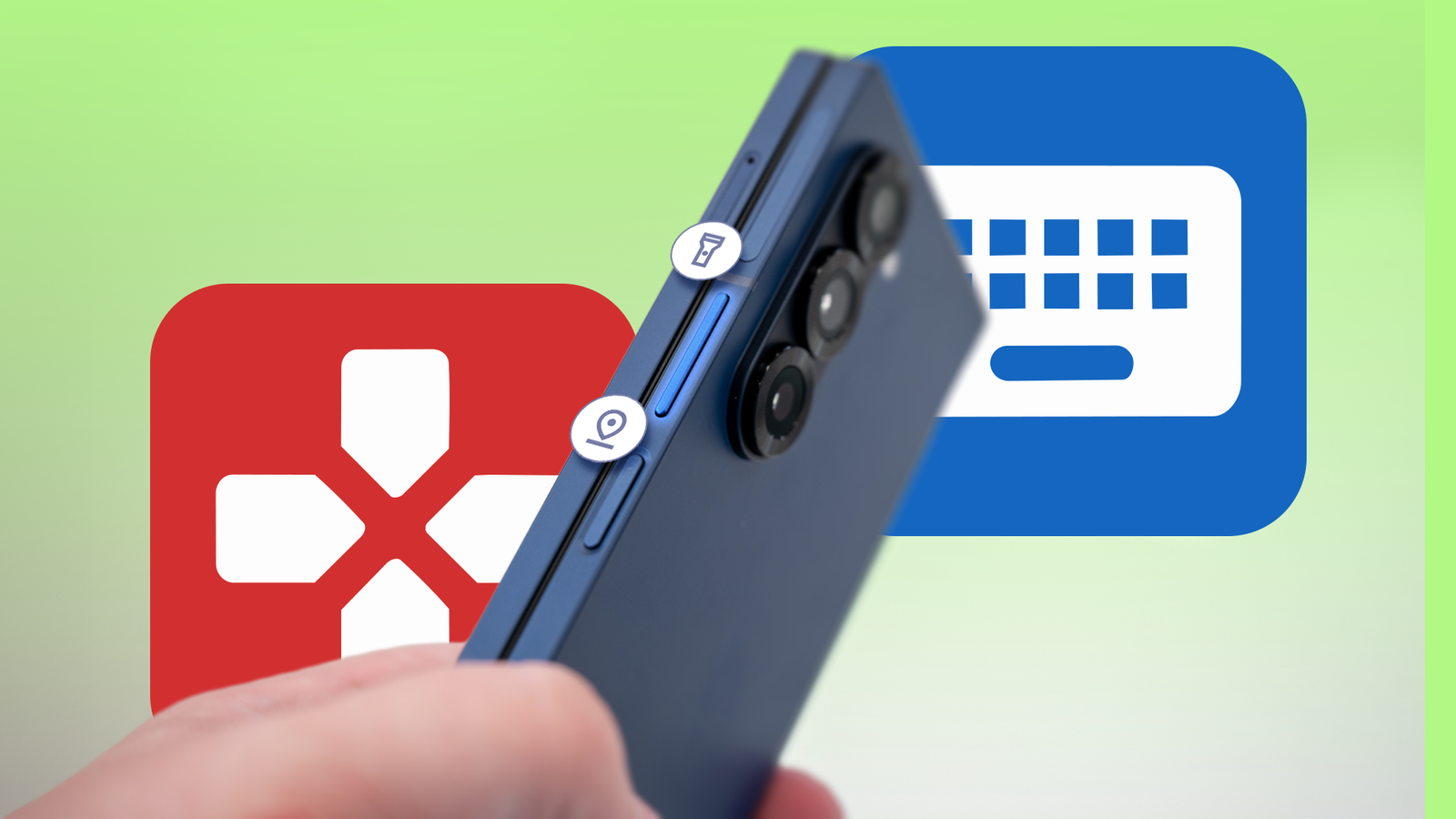
Published Aug 9, 2026, 7:00 AM EDT I cover Android with a focus on productivity, automation, and Google’s ecosystem, including Gemini and everyday apps. With a background in engineering and software development, I tend to go beyond surface-level tips and focus on how features fit into real workflows. Before joining AP, I wrote for tech publications such as Gizbot in 2023 and iJunkie (formerly known as iPhoneHacks) from 2021 to 2022. Android gives you plenty of ways to customize how your phone works, but many of its most useful shortcuts are either hidden in settings or unavailable without the right tools. I thought I'd explored most of them. Then I tried a free, open source app that lets me remap buttons, create custom gestures, and trigger actions I didn't realize my phone could perform. The best part is that I didn't need a new phone or a complicated automation setup. I just needed to look at my existing hardware differently. Setting up Key Mapper is straightforward It is easier than it looks The first time you open Key Mapper, the app may look a little more complicated than it is. The important part is getting its accessibility service enabled, because Key Mapper needs that access to detect button presses and apply your custom shortcuts. The app points you toward this during the initial setup. After installing it, open Key Mapper and look for the Accessibility service prompt on the home screen. Tap Fix and find Key Mapper in Android's list of installed accessibility services and turn it on. Key Mapper lets you choose a button press or combination as the trigger and what should happen when you use it. I turned my volume buttons into custom shortcuts They became my favorite shortcuts Before using Key Mapper, my phone's volume buttons had a single purpose: adjusting the sound. With the app, I realized they could do much more without getting in the way of their normal function. I could assign different actions to a double press, long press, or a sequence of button presses while keeping a regular tap reserved for changing the volume. I settled on two shortcuts that I found myself using surprisingly often. I set a double press of Volume Down to open Google Maps, so I can get to navigation without searching for the app. Then I gave Volume Up a completely different job: a double press plays or pauses whatever I'm listening to. That second shortcut turned out to be the more useful one. If my phone is in my pocket, and I'm listening to music or a podcast, I don't have to pull it out, wake the screen, and find the playback controls. Two quick presses of the volume button pause or resume playback. Key Mapper goes beyond Pixel's built-in shortcuts It offers more flexibility Pixel already has some great shortcut options. Quick Tap, for example, can open an app, take a screenshot, or play and pause media, while the power button can be assigned to launch the Camera or Wallet. What I found more useful was how much more flexible I could make those shortcuts. I can use different press types and button combinations as triggers, then assign actions or sequences to them. That means a shortcut doesn't have to stop at "press this button, open this app." I can build a more specific combination around something I want to do. You can turn your screen into a shortcut panel The paid version adds floating buttons The free version was enough for my volume button shortcuts, but Key Mapper has a paid add-on that takes the idea further with floating buttons. Instead of relying on physical buttons, you can create your own on-screen buttons and assign them actions just like you would with the volume keys. You can move them around the screen, resize them, and use different layouts depending on what you're doing. That could be useful if you want control over apps without constantly reaching for Android's menus. The paid version also makes these floating controls more flexible, including the ability to show them over apps, the keyboard, or in the notification panel. I didn't need this feature for my own setup, though. I was mainly interested in remapping physical buttons, so the free version gave me everything I wanted. My phone had more shortcuts than I realized Key Mapper started as a simple experiment with my volume buttons, but it ended up changing how I use the physical controls on my phone. A double press can open Maps, another gesture can control playback, and combinations can trigger actions that would normally require several taps. The app supports more than 100 actions and works with everything from phone buttons to keyboards and game controllers. What made things even better was that I didn't have to pay for the shortcuts I wanted. The core Key Mapper experience is free and open source, while features such as floating buttons are available as paid add-ons.
This free open source app finally made my phone's physical buttons actually useful
Full Article
Original Source
Read the full article at Androidpolice →KhanList aggregates and links to publicly available news content. We do not host full articles from third-party sources. Always verify important information with original sources.