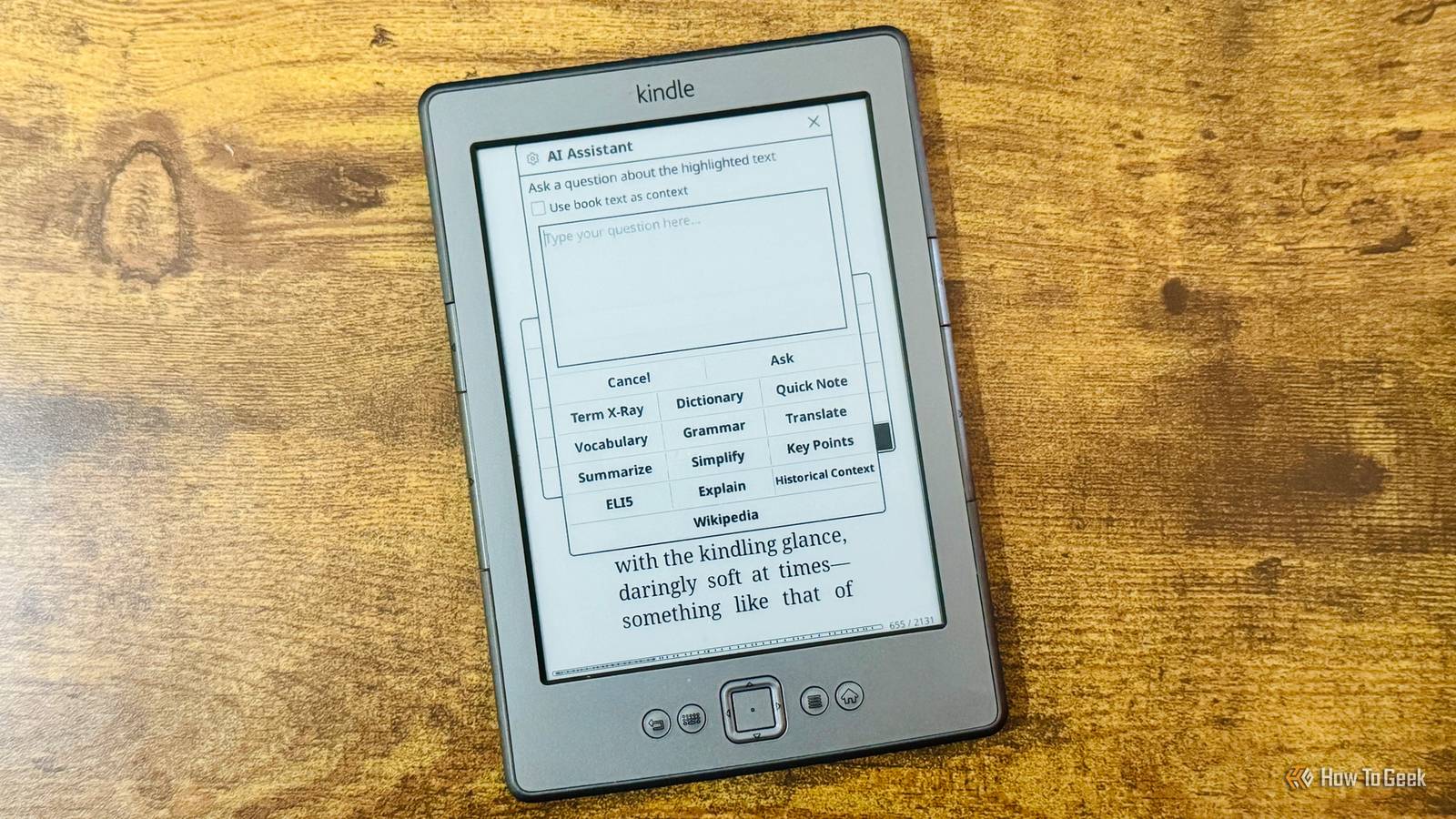
Published Aug 13, 2026, 8:30 AM EDT Adam has a degree in Engineering and has a life-long interest in technology. He has been writing for over a decade for various print and online publications, with a focus on consumer tech. He joined How-To Geek in 2024 while working at Pocket-lint. As well as being a long-term fan of Apple products, he also has a strong interest in smart home tech, running a Home Assistant server at home to automate all his smart home devices. He believes that the ideal smart home should work with minimal interaction from the user, with automations running as if by magic rather than requiring you to push buttons on a control panel. You can find more of his work on Muck Rack. AI fatigue is a real thing. Companies continue to shoehorn unnecessary and unwanted AI features into everything they can, to the point where just seeing the letters "AI" can be enough to put you off. Using the free Assistant plugin for KOReader to add AI to a jailbroken Kindle seems like a terrible idea, but it turns out that it can be incredibly useful. Get a spoiler-free recap of your book so far No need to start from the beginning again Credit: Adam Davidson / How-To Geek This is one of the most useful features of the KOReader Assistant plugin. In an ideal world, I'd find plenty of time each day to devote to reading. The reality is that all too often, life gets in the way, and a book will go unread for days or even weeks. If you're a reasonable way through reading the book, this can be really frustrating. You want to carry on from where you left off, but you don't have a clue about what's happened so far or who any of the characters are. The idea of starting again from the beginning is enough to put you off reading the book at all. If a book hasn’t been opened in 28 hours and is less than 95% complete, Assistant can automatically generate a recap of the book up to the current point while attempting to avoid giving any spoilers for what happens later. Since AI isn't perfect, some spoilers may occasionally sneak through. You can also manually generate a recap at any time. Get a Kindle-style X-Ray for any book A structured overview of characters, locations, and themes Credit: Adam Davidson / How-To Geek X-Ray is a built-in Kindle tool that's been around for a long time. It lists important characters, places, events, topics, and other terms from a book, and you can use it to find where they appear in the text. The problem is that X-Ray is only available for supported books from the Kindle Store, and it doesn't work with books that you sideload yourself. Assistant offers a similar AI-generated overview for books you open in KOReader, listing key characters, locations, themes, terms, and events up to your current reading position. Explain confusing passages in plain English You can even get an ELI5 If something in the book you're reading is a little confusing, you can ask Assistant for help. All you need to do is highlight the relevant passage, select AI Assistant, and then select Explain. The AI will then explain it in clear terms. If that's still too confusing, there's also an ELI5 (Explain Like I'm 5) option that will give you a very simple explanation of what the passage means. The best part is that you can do it all directly from your Kindle; you don't have to look things up on your phone and then get distracted by other apps. Explain words in context More helpful than a standard dictionary Credit: Adam Davidson / How-To Geek A dictionary is a useful tool, but many words change their meaning depending on context. Dictionary definitions can often be long lists of all the possible meanings of a word, and you have to try to find the one that fits best. An AI can define a word based on the context. Instead of simply giving every possible definition, Assistant can look at the surrounding text to determine what the particular meaning of the word is in the context of the passage that you're reading. It's usually a much quicker way to understand the meaning of a word that you've not come across before. Translate passages with contextual understanding Great for language learning Credit: Adam Davidson / How-To Geek This is one of the most common ways that I use Assistant. I've been learning Italian for a long time, and while Duolingo continues to get worse, I've found that trying to read books in Italian really helps improve my vocabulary and grammar. I'm still not very good, so I usually choose books that I've read before, which are fairly simple and which I know well, such as the Harry Potter books. Even though I know the stories well, I regularly come across words or phrases that I don't understand. With Assistant, I just highlight the text I don't understand, and the AI can translate it for me. It's far more useful than just looking up the individual words, because it takes context into account. A phrase might be a popular idiom, for example, which doesn't make much sense when translated directly, but Assistant can provide the intended meaning of the phrase rather than simply a literal translation. Assistant can use cloud or local AI models Assistant needs to be connected to an AI service to work. You can use it with popular providers such as Claude, OpenAI, and Gemini, but you can also connect to a local LLM through Ollama if you want a more private solution. The quality and speed of responses will depend on the models that you use, but with the right model, it can be an incredibly useful tool.
This free KOReader plugin is the best reason to jailbreak your Kindle
Full Article
Original Source
Read the full article at Howtogeek →KhanList aggregates and links to publicly available news content. We do not host full articles from third-party sources. Always verify important information with original sources.