
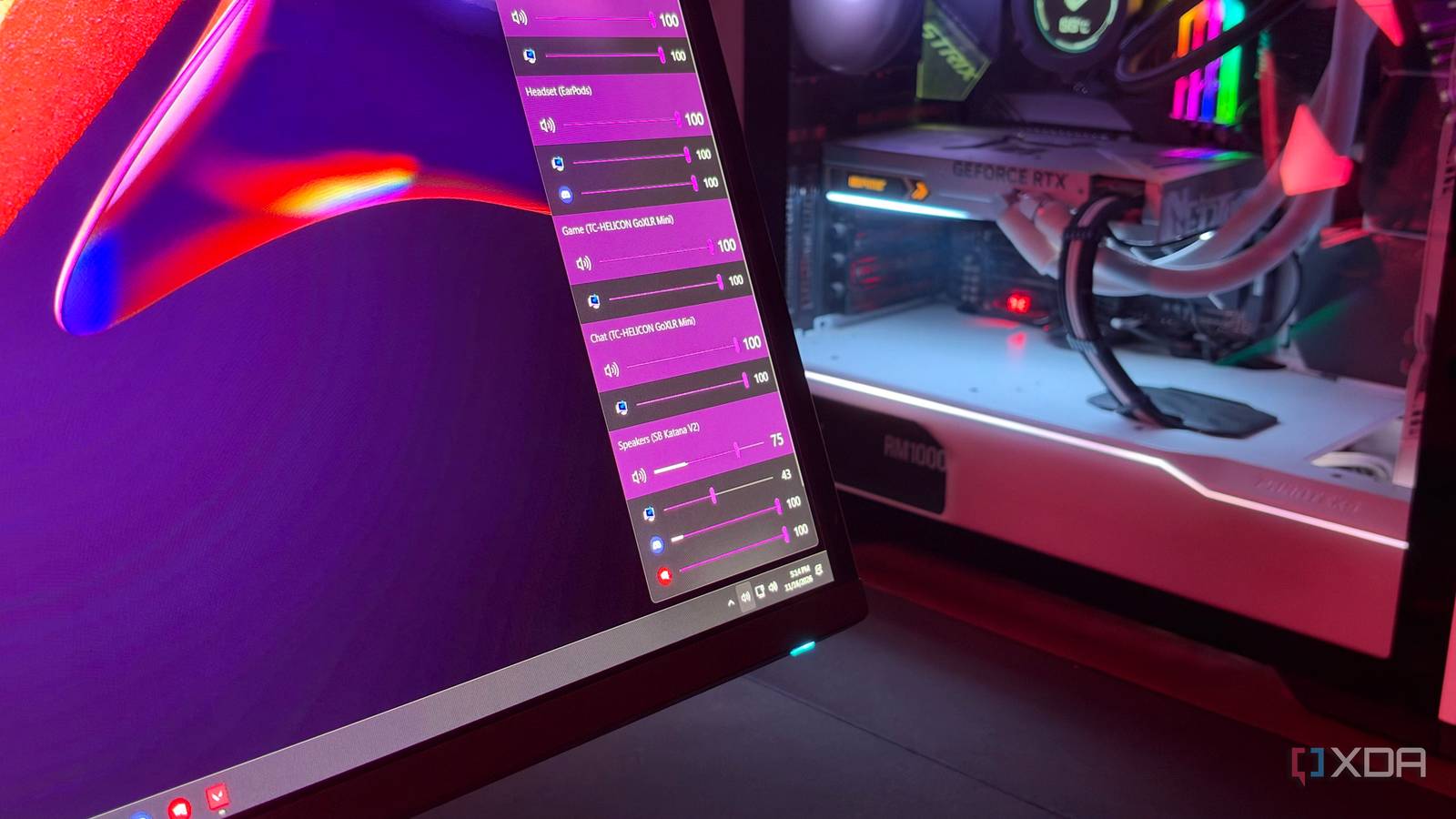
Published Nov 17, 2026, 5:00 PM EST Hamlin has been in the tech field for over nine years. Since 2017, his work has appeared on MakeUseOf, Android Police, OSXDaily, Beebom, and more. He served as the Senior Editor at Valnet's MakeUseOf for over two years before joining XDA. He uses a high-end gaming rig for desktop use and a MacBook for traveling, but dislikes some of the quirks of macOS. You're more likely to catch him at the gym or on a flight than anywhere else. If there's one thing I don't like about Windows 11's audio controls, it's the way I have to access them. It gets on my nerves every time I want to adjust the volume of a particular app without affecting anything else. And that's despite Windows having a volume mixer that lets you do exactly that. The problem is that I need to click twice and scroll down before I can even get to the individual volume sliders. Sure, I could use the Windows + Ctrl + V keyboard shortcut to bring up the mixer, but that isn't all that convenient if I still have to scroll down. It doesn't help that I have multiple audio devices connected to my PC, either. Between my GoXLR, headset, and soundbar, the list of outputs that show up is longer than I'd like. That's what made me look for third-party options, and after a quick Google search and browsing through a couple of Reddit threads, I came across EarTrumpet. Now, I have a second volume icon sitting in my system tray, but I actually enjoy using this one. Same functionality, but much more convenient EarTrumpet just puts everything in the right places I don't get why Microsoft buries the volume mixer under a separate menu. I mean, if I'm clicking the volume icon in the system tray, I'd like to see all the sliders right away instead of having to look for them. That's exactly what EarTrumpet does, and I don't think it could've made things any simpler. Clicking its icon brings up a compact flyout with the master volume slider at the top and individual app sliders underneath. So if I want to quickly mute Discord, for example, all it takes is two clicks. That's not all there is to it, though. You can expand the flyout to see all your playback devices and the apps using them. Considering I have a GoXLR set up, this takes up almost all the vertical space on my monitor because of all the virtual audio outputs it adds to Windows. But I actually prefer having all the sliders visible at once instead of having to select each playback device from a separate menu just to adjust its volume. It only took five minutes with EarTrumpet for me to start wishing Windows 11 made things this straightforward in the first place. I don't even need the volume sliders half the time Sometimes, all you have to do is scroll or press a key As much as I like having all the volume sliders within reach, there are times when I don't even bother opening the mixer anymore. And that's thanks to EarTrumpet's mouse shortcuts. For starters, hovering over its icon in the system tray reveals the current volume level and the default playback device. While you're at it, you can simply use the scroll wheel to increase or decrease the volume. Or if you want to mute everything going through that device, you can just middle-click the icon. These options are handy when I'm in the middle of a game and want to make a quick adjustment without opening another menu. If you prefer, you can even configure your own hotkeys to open the flyout, bring up the volume mixer, or increase/decrease the volume. Now, I'm not a fan of using keyboard shortcuts since it's hard for me to keep up with all the combinations I already use on Windows, let alone memorize a bunch of new ones just to control the volume. But it's always good to know the option is there just in case. I still can't ditch the native volume icon, though But it's not like I expected EarTrumpet to replace it anyway The only thing that slightly annoys me about using EarTrumpet is that I now have two volume icons in my system tray. Even though I rarely click the wrong one, I'd love to get rid of the native icon and have EarTrumpet take its place. Except I can't because it's part of the Windows 11 Quick Settings panel, which I still use almost every day to toggle Wi-Fi, connect Bluetooth devices, and sometimes even enable Night light when I'm staying up late. So a cleaner system tray can't come at the cost of losing those controls. But then again, I didn't install EarTrumpet thinking I'd no longer need the volume icon. I just wanted a more convenient way to access per-app volume controls, and this tool gave exactly that and more. Besides, EarTrumpet actually lets you switch to its legacy icon if having two identical volume icons bothers you so much. You can find the option in Settings -> General -> Legacy settings. I find that icon a bit tiny, though, so I'd rather stick with the default one. Functionality is kind of pointless without ease of use I think EarTrumpet is a great example of how much of a difference ease of use can make, even if it's nothing special in terms of functionality. Windows 11 already offers most of the same audio controls EarTrumpet does, but makes accessing them cumbersome. I get that there's no space in the Quick Settings panel, but why does the volume mixer have to be crammed into a tiny section in the bottom-right corner when there's so much vertical space to work with? All Microsoft needs to do is let users expand the Quick Settings panel to show all volume sliders at once. If and when that happens, I'll finally have a reason to ditch the second volume icon. EarTrumpet EarTrumpet is a free, open-source app that does a much better job than Windows at surfacing per-app volume controls, managing multiple audio devices, and more.
This free app fixed everything that annoyed me about Windows 11's volume mixer
Full Article
Original Source
Read the full article at Xda-developers →KhanList aggregates and links to publicly available news content. We do not host full articles from third-party sources. Always verify important information with original sources.