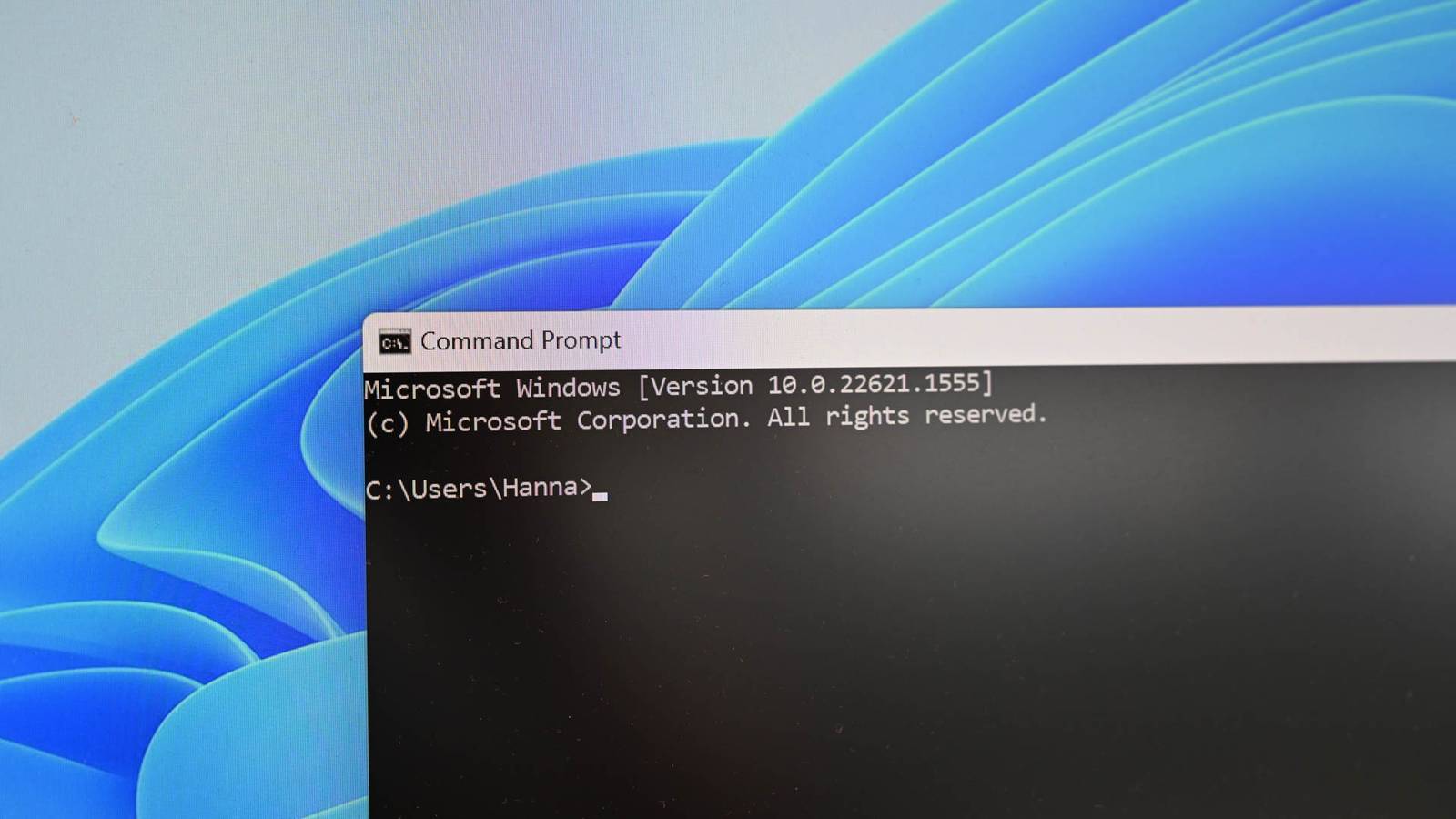
Published Jul 27, 2026, 3:00 PM EDT Aggy is a veteran writer and editor in the technology and gaming space. Having served as a Managing Editor for high-traffic digital publications, alongside being an editor and consultant for over a dozen sites. Aggy's published work spans a wide and respected array of tech and gaming outlets, including WePC, Screen Rant, How-To Geek, Android Police, PC Invasion, and Try Hard Guides. Beyond editorial work, Aggy's direct experience in the tech sphere extends to app development. Aggy has published two games under Tales and is always eager to learn and do more. He also likes working on computers and researching in his spare time. He knows about Windows, Linux, Audio, Video, and much more. Most people who use the Command Prompt regularly have a muscle memory routine of pressing the Up Arrow key until the right command comes back around. It works, but it's slow, and if you run the command more than a few steps back, you're in for some cycling. There's a faster way that's been sitting on Windows since the early 90s, and most people have never seen it. Windows has a fast history trick that goes back decades Microsoft built this shortcut right into the system Credit: Hannah Stryker / How-To GeekCredit: Hannah Stryker / How-To Geek If you hit F7 in the Command Prompt, then a little pop-up appears showing a numbered list of every command you've recently run. From there you can pick one and re-run it without mashing the arrow keys or typing anything out again. It's a small thing, but it's been quietly sitting there since the early 90s. What's really cool is that you can trace it all the way back to MS-DOS 5.0, which shipped a utility called DOSKEY.exe. Back then it was a clunky workaround where a program that had to be loaded into memory would basically intercept keyboard input at the software level, hooking into DOS's interrupt handlers, just to give you command recall. It got the job done, but it wasn't pretty. The version most people know today actually came together a little later on Windows when Microsoft was rebuilding Windows from the ground up as a proper 32-bit operating system. Instead of using external tools like DOSKEY, the engineers built the command history and line-editing logic right into the operating system's console subsystem. After that, F7 just worked, no setup required. The reason it's still there now, completely unchanged, has a lot to do with backward compatibility. A huge number of legacy scripts, admin tools, and enterprise systems were built assuming the terminal itself handles input buffering and history instead of the application running inside it. When you press F7, the console host pauses whatever's running, grabs a snapshot of your screen, draws a pop-up using plain box-drawing characters, fills it with your command history in high contrast colors, and then wipes it clean and restores everything once you're done. A lot is going on, but it happens so fast that you don't notice it. Terminals have mostly moved away from this setup. Now the terminal just displays characters and lets the shell handle everything else, which is how PowerShell's PSReadLine works. But Microsoft has held the line on F7. How to use the command history overlay Quick keys make picking commands simple Credit: Jorge Aguilar / How To Geek To try this out for yourself, open a Command Prompt window. You can get there by hitting the Windows key, typing "cmd," and pressing Enter, or by using Windows key + R and typing "cmd" in the Run box. Once you've got that black window with the blinking cursor in front of you, run a handful of everyday commands to give your session some history to work with. Try something like ipconfig /all to check your network adapters, ping google.com to test your connection, dir to see what's in your current folder, or tasklist to browse your running processes. It's nice to try out just so you can get used to it. Most people, when they want to re-run one of those commands, just hammer the Up Arrow key until they cycle back to it. That works, but using F7 is just better. This only works in your current session, so if you have a command you use a lot, it won't stay saved after you close the window. On the classic Windows console, it looks retro, drawn with box-drawn characters and high-contrast colors. On the newer versions of Windows, the terminal is a bit cleaner, sitting neatly below your active prompt. Either way, it works the same as it always has. Use the Up and Down arrow keys to move through the list, and when you land on what you want, hit Enter to run it again. That way, you don't have to retype it or worry about typos. Those index numbers next to each command aren't just decorative, either. If you spot a command you want and note its number, you can press F9, type that number, and hit Enter to pull it straight to the prompt. And if you open the F7 menu and change your mind, just press Escape, and you're back to a clean prompt with nothing run. Old features still beat typing everything out PowerShell still has a lot to offer Credit: Jorge Aguilar / HowToGeek It's fair to say that this is a relic from the 90s that never quite fit into how terminals are supposed to work. Popping a static overlay directly over your active command line breaks the flow. It covers up previous output, hides context, and gets in the way of whatever you were already looking at. The biggest downside is that modern terminals moved toward a setup where the shell handles history instead of the console. PowerShell's PSReadLine module does this, and so does the standard Ctrl+R reverse search, or just tapping the up arrow. Those tools also do things F7 can't, like saving history across sessions, writing it to disk, and automatically scrubbing out passwords or API keys before they get logged. Even with all that, it's hard to get over how much command history shows you at once. Instead of having to blindly cycle through history one entry at a time, you get a numbered list you can scan visually and jump to immediately. It might seem like a small thing, but it saves time. You can be for or against it, but it genuinely helps a lot, especially when you don't want to use PowerShell. F7 won't beat PowerShell F7 isn't going to replace PowerShell or any modern shell with great history management. It doesn't save anything between sessions, it can't search, and it drops a retro overlay over your active prompt, which isn't for everyone. If you live in PowerShell, PSReadLine already does more than F7 ever could. However, if you're already using Command Prompt and want to re-run a command without hitting the arrow key ten times, this is much faster.
This forgotten Windows shortcut from the '90s replaces your worst terminal habit
Full Article
Original Source
Read the full article at Howtogeek →KhanList aggregates and links to publicly available news content. We do not host full articles from third-party sources. Always verify important information with original sources.