
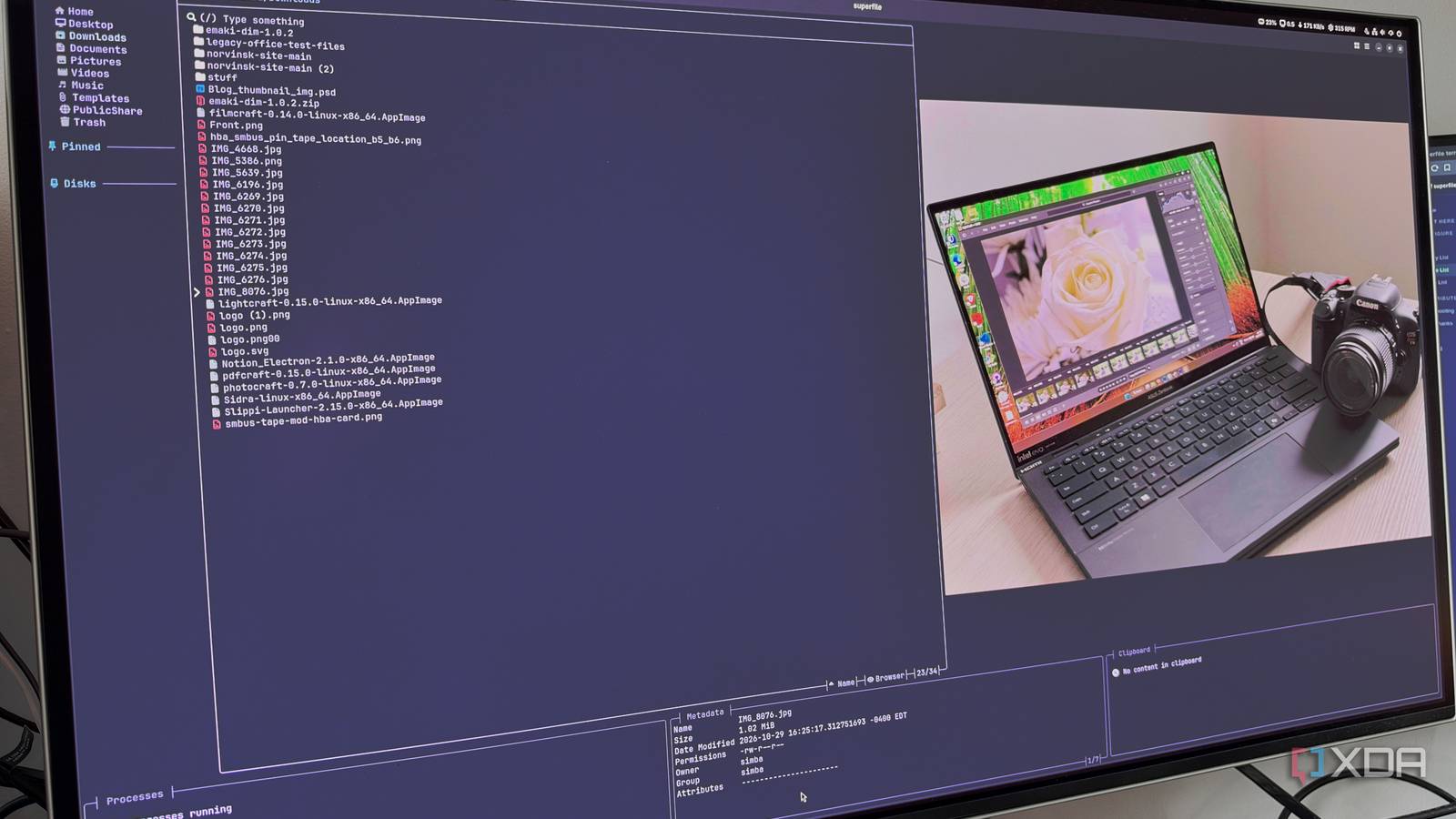
Published Nov 11, 2026, 8:00 PM EST His love of PCs and their components was born out of trying to squeeze every ounce of performance out of the family computer. Tinkering with his own build at age 10 turned into building PCs for friends and family, fostering a passion that would ultimately take shape as a career path. Besides being the first call for tech support for those close to him, Ty is a computer science student, with his focus being cloud computing and networking. He also competed in semi-pro Counter-Strike for 8 years, making him intimately familiar with everything to do with peripherals. Plenty of Linux users who live in a terminal still have a GUI file manager, and they reach for it when it's time to shuffle files around. There's nothing wrong with that, and a terminal can do the job just as well, but terminal file managers have a reputation for either looking or feeling decades-old to use. superfile doesn't fall into either of those categories, and it's the first terminal file manager I've used that I would reach for over a GUI. It's launched with a single command and is designed to look and behave a lot like a graphical interface you already know. It definitely doesn't make GUIs redundant for file management, but it can go places they can't, and I find myself opening it more than my old default. Getting started with superfile is easy It's laid out a lot like the file manager you're familiar with already superfile is packaged almost everywhere Linux users get software. On Arch and its derivatives, it’s a single pacman install, and there’s also Homebrew, a Nix package, and a one-line install script. Launch it with spf, and run spf pl to print the paths to its config and hotkey files. Vim users will be happy to know that there's a vim-style hotkey file you can swap to that's included in the project. The layout looks and feels pretty natural by default. The main file panel sits next to a sidebar of pinned folders and mounted drives, which does the same job as the Places list in Files or Dolphin. Below are panels for metadata, the clipboard, and running processes. The processes panel tracks copies and moves the way a GUI progress indicator does, and having all of this on one window is very refreshing. The shortcuts feel familiar too. Ctrl+C, Ctrl+X, and Ctrl+V all perform copy, cut, and paste duties respectively. Ctrl+N creates a new file, or a folder if the name ends in a slash, and Ctrl+R renames. Ctrl+D sends the selection to the trash, which is the same trash your desktop uses. Like most GUI file managers, you can open multiple panels in superfile, and you can move across them using Tab, and that can make moving or copying files so much less tedious. You can open as many panels as your monitor allows compared to Dolphin's two and GNOME Files' zero, so that's already a marked improvement. For bulk work, v switches to select mode, where Shift and the arrow keys sweep up a run of files and Shift+A grabs the whole directory. From there you can copy, cut, or trash the lot, or compress it with Ctrl+A. Ctrl+E does the opposite, and will extract archives. It also has more than 20 built-in themes, which should cover virtually all of your bases in terms of how you want it to look. My favorite feature The preview pane is on by default, but you can toggle it using f. In this pane, text files, folders, and images all render inside it, and while it might sound small, this is by far my favorite feature of superfile. superfile produces sharp image previews in terminals that support it, and that's huge for browsing through large batches of images, which is something I do in my daily workflow. These previews also load asynchronously, so scroling past big swaths of large image files doesn't stall the interface. Pressing m focuses the metadata panel, which shows things like permissions, owner, group, and so on. Folder sizes only render while the panel is focused, so you're not sizing up every directory you scroll past. There's a lot more you're able to do in this panel, like view Linux file attributes and show EXIF data through a plugin, but even at default it's a valuable feature. The tricks your desktop file manager can't pull off superfile has a deep bag For those who have been in GUIs most of their computing lives, living in a terminal might seem like a limitation, but it's a feature here. With zoxide installed and support enabled, pressing z opens a jump panel for your most used directories. If you also turn on cd_on_quit and add the short wrapper from the docs, quitting superfile with q will now leave you in whatever directory you were just browsing. That turns it from something you use to look at files into something you use to actually get around your file system. When you land on a file you want to edit, pressing e will open that file in the default editor, and Shift+E opens the whole directory. You can map which programs you want to open specific file types in the config as well, so it's not always using the system default. Perhaps the biggest bonus of superfile is its ability to run anywhere a terminal will, and that means it works pretty much flawlessly over SSH. I can SSH into my Proxmox server and, as long as superfile is installed, I can run it and use all the same keybinds and panels as I do on the desktop. It makes it super easy to quickly parse through configuration files and make quick changes without needing to cd through directories constantly. A super valuable addition for anyone running a home lab with a large selection of services like myself. Another thing that surprised me about superfile is its compatibility—I initially discovered it as a Linux tool, but you can install and use it on Windows and even macOS, too. A GUI still earns its keep for some things, but superfile is invaluable on all of my Linux installs superfile is great, but you can't drag files from a superfile window to another app, or open network drives that aren't mounted, and those are the things I still use a GUI for. But that's the thing, you don't have to uninstall your GUI file manager to use superfile. It can live right alongside whatever you currently use, and you can even launch it straight from an app launcher like you would something like Dolphin. It's just another tool in the toolbox for Linux users, and it's one that I'll be installing on all of my machines going forward. superfile
This file manager lives entirely in a terminal window, and it’s better than your GUI
Full Article
Original Source
Read the full article at Xda-developers →KhanList aggregates and links to publicly available news content. We do not host full articles from third-party sources. Always verify important information with original sources.