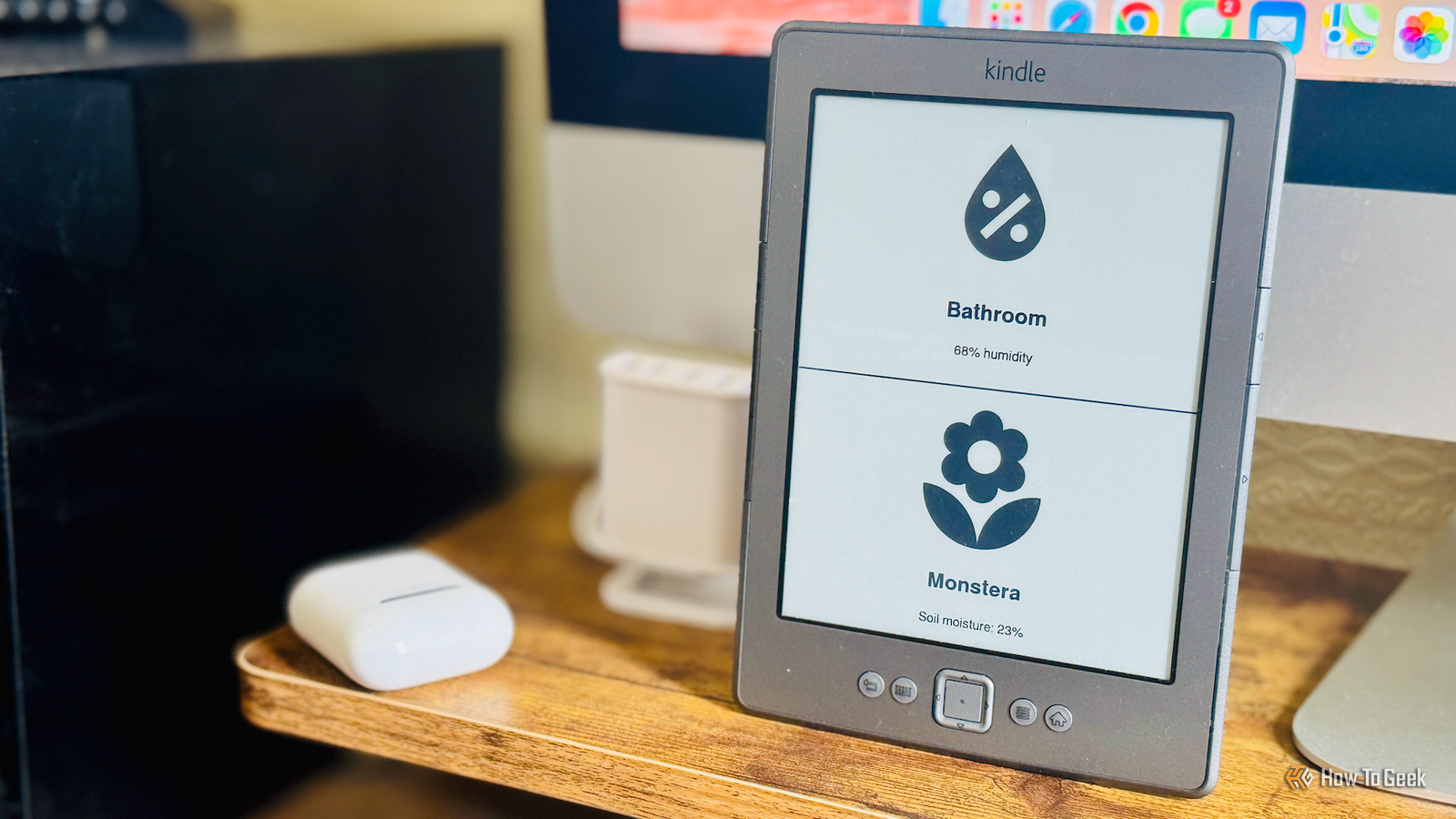
Published Aug 5, 2026, 11:00 AM EDT Adam has a degree in Engineering and has a life-long interest in technology. He has been writing for over a decade for various print and online publications, with a focus on consumer tech. He joined How-To Geek in 2024 while working at Pocket-lint. As well as being a long-term fan of Apple products, he also has a strong interest in smart home tech, running a Home Assistant server at home to automate all his smart home devices. He believes that the ideal smart home should work with minimal interaction from the user, with automations running as if by magic rather than requiring you to push buttons on a control panel. You can find more of his work on Muck Rack. Notification fatigue is a real problem. I was sick to death of having so many notifications filling up my phone. Even after culling many of them or moving some to the Notification Summary, I was still getting more than I wanted. I decided it was time to get rid of some of my Home Assistant phone notifications and move them elsewhere. My phone was getting full of notifications Too many notifications are as bad as too few Credit: Adam Davidson/How-To Geek My smart home has a lot of devices, integrations, and automations. Many of these automations are designed to send useful information to my phone in the form of notifications. I get a notification when the price of electricity changes, when the bathroom humidity level has dropped, when it's time to take my medication, and a lot more. Individually, these notifications can be really useful. The problem is that I get so many of them throughout the course of the day that I will often find 10 or more notifications unread on my phone when I check it. It's reached the point where I miss genuinely important notifications because there are so many notifications coming through that I start to tune them out. I wanted to find a way to ensure that I still got all the same information without becoming completely overwhelmed by notifications. Amazon Kindle (2024) 8/10 Resolution 300ppi, 16-level gray scale Storage 16GB Even in the budget department, the Amazon Kindle is a stellar value, from its light and compact design, to its adjustable front light and 6-inch display. Screen Size 6-inches Supported formats Kindle Format 8 (AZW3), Kindle (AZW), TXT, PDF, unprotected MOBI, PRC natively; PDF, DOCX, DOC, HTML, EPUB, TXT, RTF, JPEG, GIF, PNG, BMP through conversion. Battery Up to six weeks Size 157.8 x 108.6 x 8.0mm Weight 5.56oz (158g) Connectivity Supports 2.4GHz and 5.0GHz networks with support for WEP, WPA, WPA2, WPA3 and OWE security using password authentication Front light Built-in light Color Matcha, Black Ports USB-C charging port Not every notification is time-sensitive Non-urgent notifications don't need to come to my phone Credit: Tim Brookes / How-To Geek The problem is that a lot of the notifications that get to my phone aren't time-sensitive. They contain useful information, but it's not information that I need to know immediately. For example, my electricity prices update every 30 minutes, and a notification arrives every half hour with the current price. This is something that's useful to be able to check in my notifications, but it means I end up with more than 30 notifications a day just from this one automation. That stack of notifications can obscure other notifications that hold more timely information. I wanted a way to move this less critical information off my phone so that only the most important notifications remained. Cutting down the number of notifications on my phone should make it less likely that I would miss a genuinely important one. I'd already set up my Kindle as a Home Assistant dashboard Another project had freed it up for a different use Credit: Adam Davidson / How-To Geek I'd already set up my old Kindle 4 as a simple dashboard for Home Assistant. After Amazon dropped support for this model, I finally got around to jailbreaking it. I was then able to use the Home Assistant Lovelace Kindle Screensaver tool to display a custom dashboard on the Kindle's screen. It works by taking screenshots of a specific dashboard in Home Assistant. These snapshots are converted into grayscale PNG images that the Kindle's E-Ink screen can display. The Kindle then periodically checks for an updated image and downloads it when one is available. I was using the Kindle to display a simple weather dashboard that was updated once per hour. However, I set up a dedicated weather dashboard using a cheap ESP32-powered display, so I didn't need to use the Kindle for that purpose any longer. I created a dedicated dashboard in Home Assistant that shows information that had previously been sent as notifications. The dashboard cycles through the available information every two minutes. I pointed the Kindle at this new dashboard, and within a minute, the dashboard was visible on the E-Ink display. I've cut my phone notifications in half Only the most important notifications end up on my phone I have the Kindle set up in my room during the day, with the dashboard up and running. When the electricity price updates, the dashboard updates too, allowing me to see the current price at a glance. It also includes information such as devices with low batteries, trash day reminders, plant watering reminders, and more. I've now stopped sending notifications to my phone containing the information that appears on the dashboard, reserving phone notifications for more important or time-sensitive information. By shifting a lot of the notifications to the dashboard, it's slashed the number that appear on my phone. I now pay far more attention to the phone notifications I receive, and I still have access to all the same information as before. The best part is that at the end of the day, I take the Kindle to bed and can read the next chapter of my book in KOReader before I fall asleep. Instead of the Kindle sitting idle for most of the day, it's serving another useful role by keeping me informed about the state of my smart home. Phone notifications aren't the only option Getting notifications on your phone is an effective way for Home Assistant to keep you informed, but getting too many notifications can limit their effectiveness. There are plenty of other ways that Home Assistant can share information without having to rely on your phone.
This E-Ink Home Assistant display cut my phone notifications in half
Full Article
Original Source
Read the full article at Howtogeek →KhanList aggregates and links to publicly available news content. We do not host full articles from third-party sources. Always verify important information with original sources.