
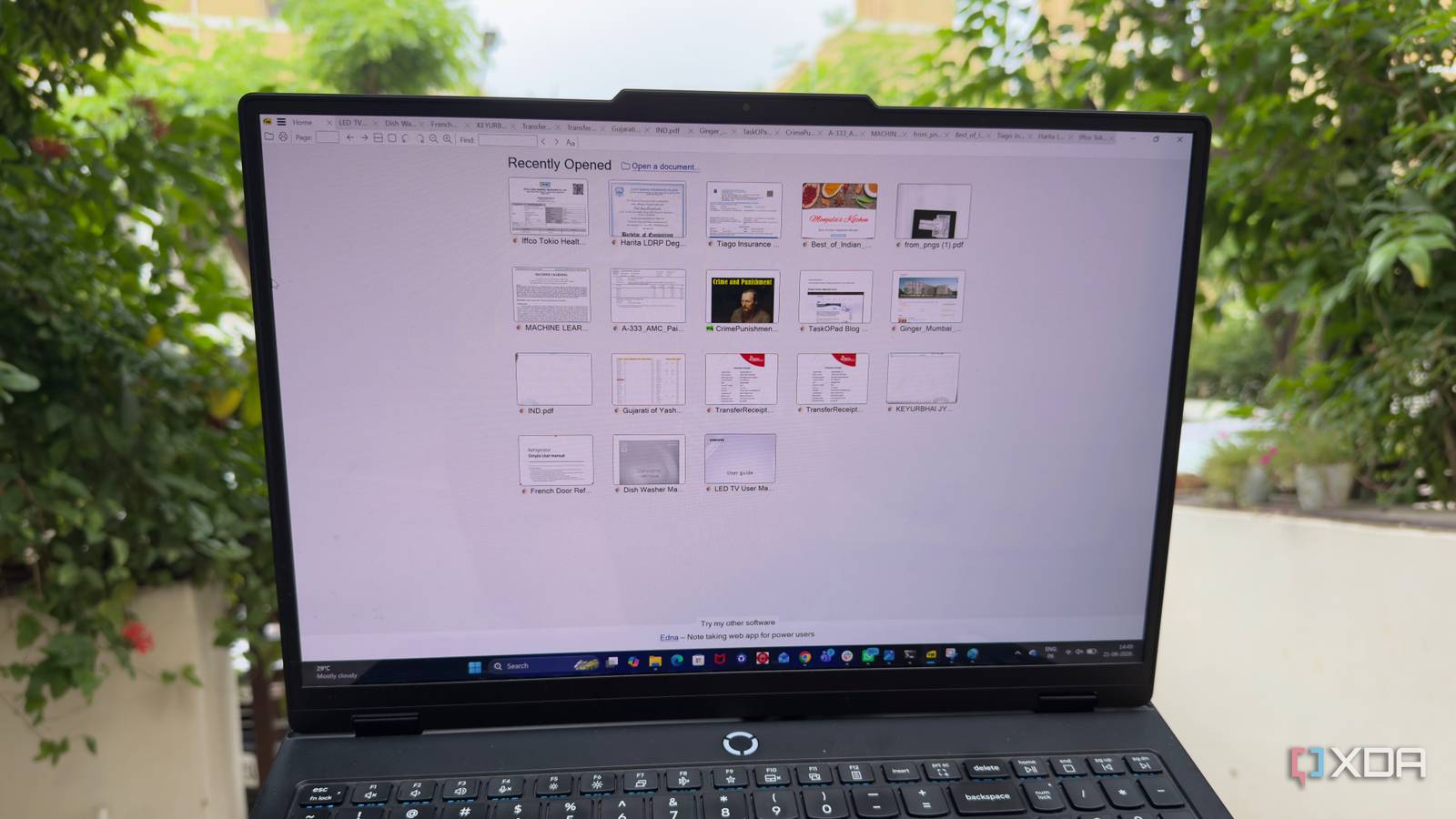
Published Aug 26, 2026, 4:00 PM EDT Beginning his professional journey in the tech industry in 2018, Yash spent over three years as a Software Engineer. After that, he shifted his focus to empowering readers through informative and engaging content on his tech blog – DiGiTAL BiRYANi. He has also published tech articles for MakeTechEasier. He loves to explore new tech gadgets and platforms. When he is not writing, you’ll find him exploring food. He is known as Digital Chef Yash among his readers because of his love for Technology and Food. I’ve used Adobe Acrobat Reader for years because it has always been the obvious choice for opening PDFs. But lately, I’ve started looking for something simpler. I don’t need a full document suite every time I want to read a manual, article, or technical document. That’s how I ended up trying SumatraPDF. It is an old-school open-source alternative to Adobe Acrobat Reader that takes a very different approach. Instead of trying to match every feature Acrobat offers, it focuses on being a desktop reader. After spending some time with it, I found myself questioning how much of Acrobat’s extra functionality I actually need for everyday PDF reading. SumatraPDF is ridiculously simple Nothing gets between me and PDFs The first thing I noticed after installing SumatraPDF was how little there was to figure out. I opened a PDF and could start reading immediately. There was no complicated setup, no cluttered workspace, and no need to spend time figuring out where basic controls were hiding. That simplicity also shows in how the app handles everyday reading. SumatraPDF doesn't make me think about the software while I'm using it. It stays in the background and lets the document take center stage. For something as basic as reading a PDF, that feels exactly right. I don't need a long list of options before I can simply start reading. The interface feels like a time capsule Classic interface with power reader features SumatraPDF looks like an older Windows application, with a compact toolbar, simple menus, and very little wasted space. The design hasn't changed much with modern UI trends, but the interface still gives me quick access to the features I actually use. I can keep multiple documents open in tabs, switch between them quickly, and use keyboard shortcuts for common actions. For long documents, I can use bookmarks, the table of contents, and different viewing modes such as continuous scroll, single-page view, book layout, and presentation mode. I can also rotate pages, change the zoom, and adjust the background and other appearance settings for more comfortable reading. Large documents remain easy to work with, and I don't need to dig through multiple panels to change how a page is displayed. It supports much more than just PDFs PDFs aren’t its only trick SumatraPDF isn't limited to PDFs. It is my ebook reader as well. It supports several other document and ebook formats, including EPUB, MOBI, XPS, DjVu, CHM, CBZ, and CBR. I use it for EPUB and PDF files, but the support for comic-book formats is also useful. CBZ and CBR files open directly in the same application, so I don't need another reader for them. The same applies to older formats such as DjVu and CHM. I can also open these files directly from Windows without installing plugins or additional software. The interface and reading controls stay familiar across supported formats, so I don't have to learn a different application for each document type. Less is more SumatraPDF doesn't try to sell me features Modern PDF readers are increasingly adding AI features. They can summarize documents, answer questions, rewrite text, extract information, and connect with cloud services. SumatraPDF does none of that. The app has no AI assistant, chatbot, document summarizer, or cloud-based workflow. It doesn't try to turn a PDF reader into an AI workspace. I open a document, read it, and close it when I'm done. SumatraPDF also doesn't constantly introduce new features that I may never use. Its focus remains on reading documents. That's a big difference from newer PDF apps. They keep expanding their feature sets, while SumatraPDF stays focused on the core job: opening and reading documents. The open-source benefit A PDF reader I can customize SumatraPDF is open source, which gives me more control. It has a configuration file for users who want more control. Instead of relying only on settings exposed in the interface, I can edit the file directly and change things such as default zoom levels, navigation behavior, and keyboard shortcuts. The configuration is text-based, so I can make changes with a basic text editor. I don't need another tool or account to customize these settings. This isn't something every user will need, but I find it useful. It lets me change how SumatraPDF works without adding extensions or installing extra software. Old, simple, and still worth using SumatraPDF isn't trying to compete with every feature-packed PDF app, and that's exactly why I like it. It gives me a fast way to read documents without turning the experience into a full productivity workflow. It may look old and lack the latest AI features, but I don't see that as a problem for everyday reading. If I just want to open a document and get through it, SumatraPDF does the job without getting in my way. After using it, I can see why this 20-year-old app still has a place on my PC. Sumatra PDF SumatraPDF is a lightning-fast, minimalist, open-source PDF reader optimized for viewing documents, not editing. It is portable, low on system resources, and supports other formats like ePub and CBR.
This 20-year-old open-source Adobe alternative makes modern PDF readers feel bloated
Full Article
Original Source
Read the full article at Xda-developers →KhanList aggregates and links to publicly available news content. We do not host full articles from third-party sources. Always verify important information with original sources.