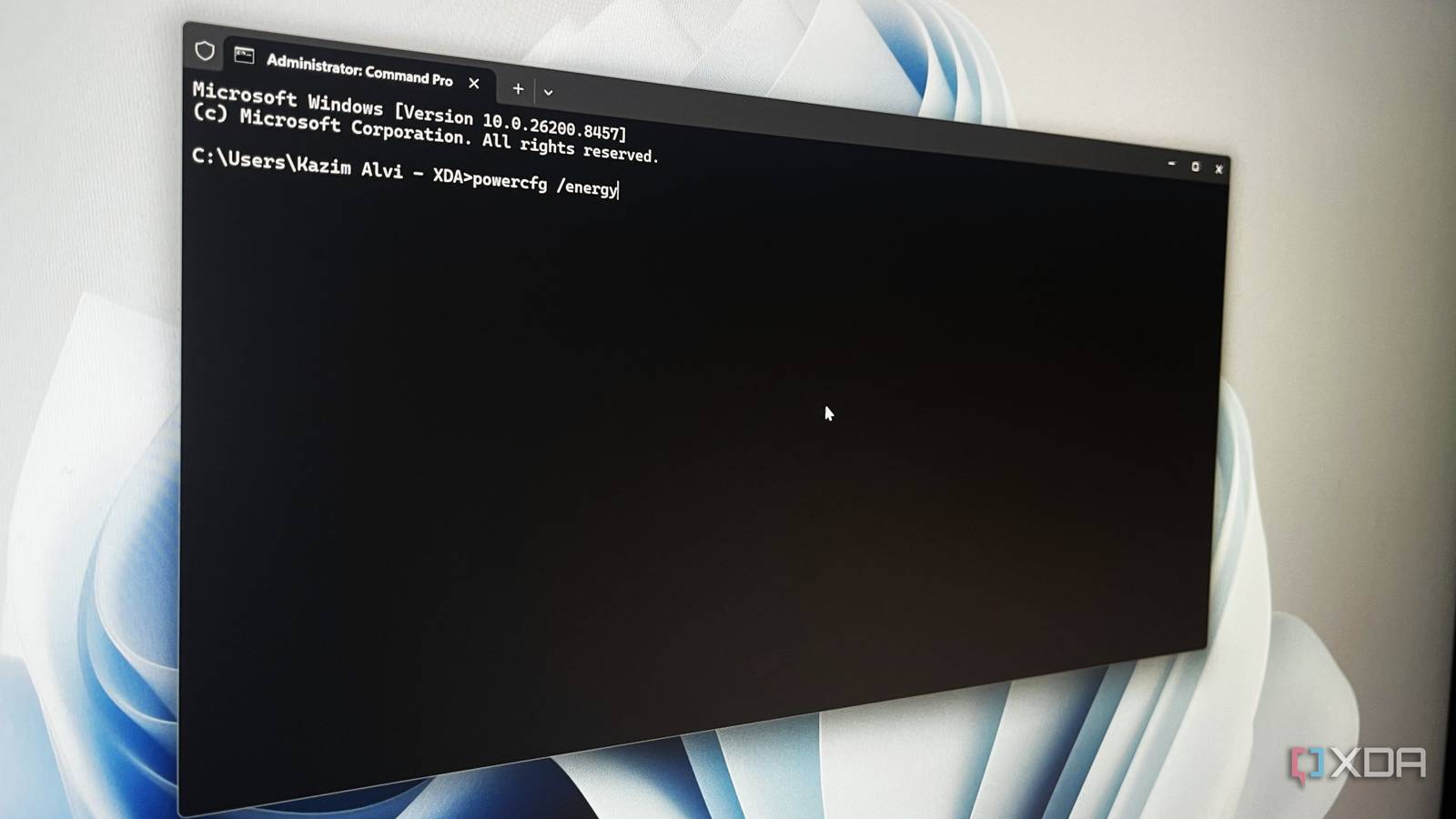
Published May 15, 2026, 5:30 PM EDT With over five years of experience in the tech industry, Kazim excels at simplifying complex topics, making them accessible to tech enthusiasts and general readers alike. He has extensively covered the Windows ecosystem, from Windows 7 to Windows 11. When he’s not writing, you’ll find Kazim planning weekend getaways or diving into tech verticals beyond his expertise. I have been using Windows as my primary operating system for around two decades, and for the most part, I rarely relied on Terminal-based commands. Frankly, it felt confusing. When Windows already had troubleshooters and dedicated settings for everything, using commands seemed unnecessary. But once I moved to terminal commands, there was no going back. In most cases, these commands are more powerful and reliable than fixes buried deep within the Settings app or the Control Panel. Some even solve problems that Windows troubleshooters completely miss. Over the last few years, I have made a list of commands that I run whenever my PC starts acting up, whether it's slow and buggy Windows, internet issues, or update errors. It has honestly made troubleshooting much easier. You run a command, then sit back and wait while it does the job. Most of these commands require running Windows Terminal with administrative privileges. To do that, search for "Windows Terminal," and then click on "Run as administrator." sfc /scannow Repairs corrupted system files SFC (System File Checker) scan is, by far, my most-used terminal command. Whether the PC is running slow, throwing errors, or when system components fail to start, this is the command I run first. The SFC tool, built into Windows, fixes corrupted system files by replacing affected versions with their cached copies. To run it, you simply need to use this command: sfc /scannow I have often seen Windows users complain about the efficiency of the SFC tool. That's largely because it fails to fix the issues with their system. But, in most cases, this is linked to a corrupted Windows Component Store that SFC relies on. That's why Microsoft recommends running the DISM (Deployment Image Servicing and Management) tool followed by the SFC scan, because DISM repairs the component store. The command to run the DISM tool is: DISM.exe /Online /Cleanup-image /RestoreHealth Related 6 utilities that solve the most annoying Windows problems These utilities will solve common Windows problems you may be annoyed by. ipconfig /flushdns Internet issues are another area where Terminal comes in as a useful resource. Whether it's websites showing connectivity issues or failing to load altogether, this command gets things running in no time. The command basically clears the system's DNS cache and forces it to fetch fresh data the next time it looks up a domain. To clear the DNS cache, simply launch an elevated Terminal and run this command: ipconfig /flushdns Your system (or the browser) stores this DNS cache to load websites faster upon subsequent visits. But when it is corrupted or outdated, you start running into issues. Remember, clearing the DNS cache is completely safe. Delete Windows update cache This fixes Windows update issues At this point, almost everyone knows that recent Windows 11 updates have been a mess, often triggering issues on perfectly fine systems. But that's not even the worst part. Many still frequently run into Windows update errors. And with Windows troubleshooters deprecated, it becomes challenging to fix even the simplest issues, which can be solved by simply clearing the update cache. That's why I now use Terminal to clear the update cache whenever an update fails to download or install. The command I use is: del /f /s /q %windir%\SoftwareDistribution\Download\* Keep in mind that before clearing the cache, you have to disable Windows Update and a bunch of related services. This can be done both via Terminal and the built-in Services utility. Related 100+ run commands that can help you work efficiently on Windows Skip the clicks! Master these run commands to save your time running Windows Chkdsk Scans the drive for errors Next on the list is Check Disk, a built-in utility accessible via Terminal and CMD, that helps find and fix drive-related errors. There are a few different Check Disk commands, each performing a specific function. Generally speaking, Check Disk does two things. First, it scans the drive for file system errors, and if any are detected, the tool will attempt to fix them. Second, it scans the drive for bad sectors and repairs any that can be fixed. As for those that can't be repaired, Check Disk marks those bad sectors so that no data is written to them. Whenever I run into drive-related issues, Check Disk is the first command I run, and I usually use the "/r" switch since that way, Check Disk attempts to repair both file system errors and bad sectors. For just file system errors, you will need to use the "/f" parameter. Many recommend running "/f" first, followed by the "/r" parameter, since the former is a lot quicker. The commands for both are: File system issues: chkdsk /f For bad sectors (includes file system issues): chkdsk /r You may need to restart the system to run the scan, and depending on the extent of the problems, it will take some time to complete. powercfg /energy Generates an energy efficiency report Given the nature of my job, I have to experiment with a lot of things, especially system settings, and install different applications. Sometimes this directly impacts battery life, and to verify that, I use a dedicated Terminal command to generate an energy efficiency report. The command for it is: powercfg /energy When run, Windows analyzes the system for 60 seconds (the default period, which can be changed) and then generates a report highlighting any settings, misconfigurations, and driver issues that could be causing battery drain. In my experience, it's a useful command that tells you things about the PC you often miss. Related 16 lesser-known uses of Command Prompt Do you know Command Prompt well? Think again! Check these 16-lesser known uses Terminal is undoubtedly better at troubleshooting Windows While Settings has changed significantly over the past few years, transitioning into a more modern form on Windows 11, it's still not the best troubleshooting option. The moment you switch to Terminal commands, you realize the wide array of fixes you can implement, some of which are not even accessible via built-in utilities. I agree, it seems a little intimidating initially, but once you get the hang of things, Terminal commands save both time and effort.
These Windows terminal commands fix what Settings can't, and I use them every time my PC breaks
Full Article
Original Source
Read the full article at Xda-developers →KhanList aggregates and links to publicly available news content. We do not host full articles from third-party sources. Always verify important information with original sources.