
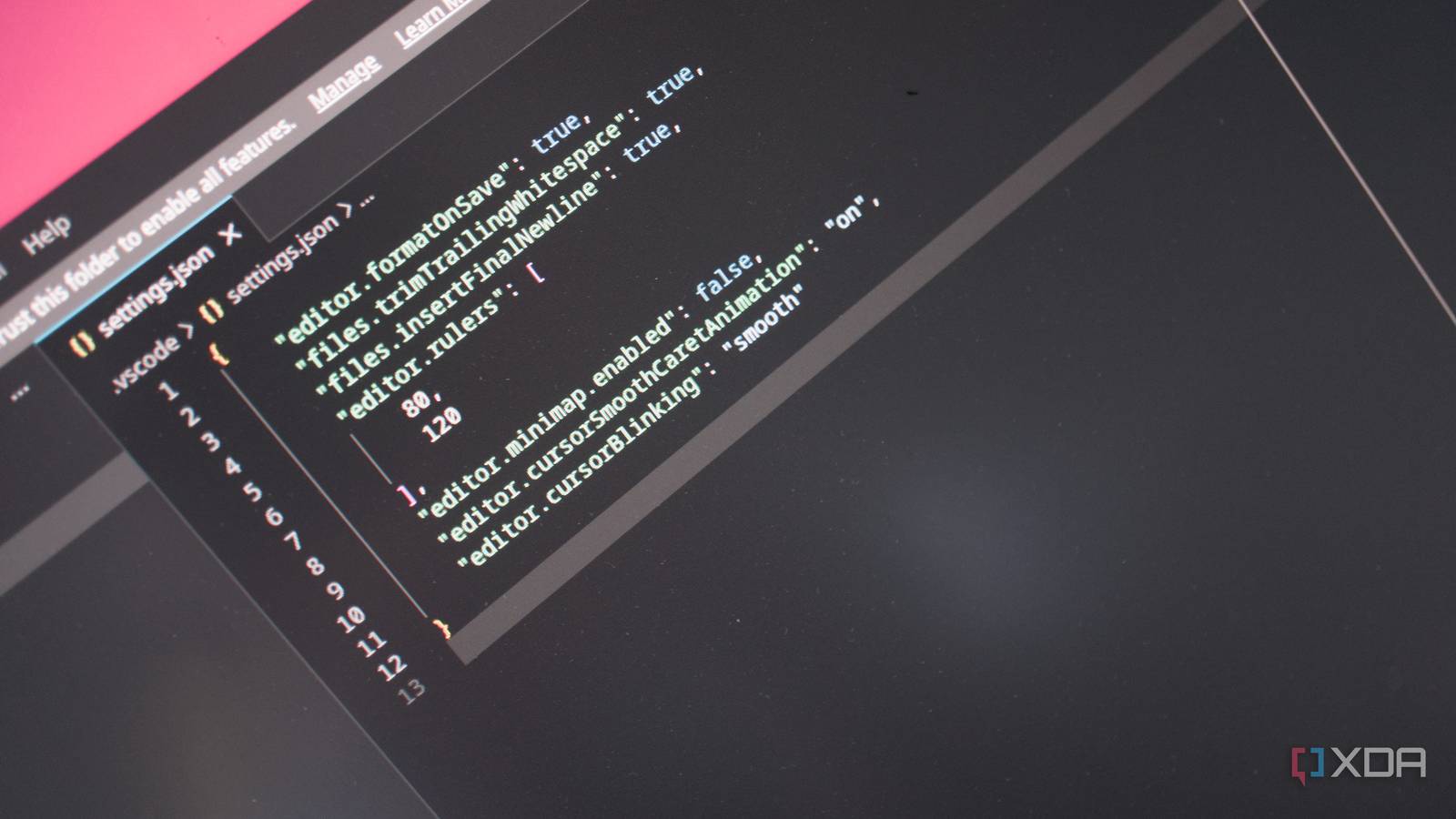
Published Sep 24, 2026, 7:00 PM EDT Richard is the PC Hardware Lead at XDA and has been covering the technology industry for almost two decades. He's been building PCs since young, and when not creating content, you can often find him inside a chassis somewhere. I love using VS Code. It's my favorite integrated development environment (IDE) and my top Microsoft software pick. Obsidian is great, but it's no IDE replacement, at least not for me. That said, VS Code still needs a few tweaks to make it even better. I rounded up a few setting adjustments I always make before writing a single line of code in a new project. Some may alter the way you work while others are simply cosmetic. Format on save This is a must-have This one configuration allows VS Code to perform an automatic cleanup pass with each save, and it's one of the first I add to a new project. Instead of wasting time in YAML or any other type of file perfecting indentation, spacing, quotes, and line breaks while coding, VS Code can handle this work for you. It's brilliant. "editor.formatOnSave": true It's not perfect, however, and checks will need to be made to ensure VS Code is using a complete and consistent formatting configuration; otherwise, you'll end up with some weird results. When writing and editing code, I prefer to remain firmly in the zone when it comes to structure and behavior. I don't want to think about correct placement, which is precisely what this single setting addresses. Getting rid of whitespace Trailing in the rear and causing trouble Trailing whitespace is like that group of kids from school that would always sit at the rear of the coach and cause a racket, throwing paper balls at everyone in front. It's just as annoying and can result in Git diffs being recorded, code review comments, and weird Markdown behavior. It can also be a pain for web applications such as MediaWiki. "files.trimTrailingWhitespace": true This setting ensures VS Code removes it whenever files are saved. It's worth noting that this can remove whitespace that is actually manually entered into a file, so if you did want that line break, it would need to be re-added post-saving. But it's well worth having, since depending on what you're working on and where the whitespace is, making legitimate changes can be harder to review. Append a new line at file end Great for keeping Git healthy and happy Did you know that not having a new line at the end of a file could lead to Git pointing out the fact? Many Unix tools and conventions expect files to end with a new line, which is precisely what this VS Code setting achieves. It simply appends a new line at the end of the file. It's wonderful, automatic, and can save a few headaches. "files.insertFinalNewline": true It's a similar theme to the rest of my setting alteration recommendations in that they all come together to solve tiny inconsistencies before reaching source control. I don't want to see any code-review comments asking for a new line to be added to the bottom of a file and I'm sure you don't either. This addresses that. Smooth cursor operator Everything looks so smooooooth Are you coding late at night or simply wishing for your cursor blinker to stop blinking so blinking quickly? That's precisely where cursorBlinking comes into play. Setting it to smooth slows down the animation and makes the entire interface a more relaxing view to gaze at for hours at a time. It may do absolutely nothing for you, but I'm a big fan of this. "editor.cursorBlinking": "smooth" "editor.cursorSmoothCaretAnimation": "on" Similarly, cursorSmoothCaretAnimation being enabled shows that not every preference alteration will save hours of development work. Some will simply alter the appearance and experience of using VS Code for longer periods. With these two settings configured as such, you'll have a smooth cursor gliding across the interface. Configure project language defaults One size does not fit all What may work for me in PHP, HTML, or even some CSS won't likely do the job as well for your C project. That's where project language defaults come in to save the day. This allows you to configure each setting accordingly, depending on which language is used. For instance, I may want formatOnSave set to true for both TypeScript and Python, but only have rulers enabled in the latter language profile. "[typescript]": { "editor.defaultFormatter": "esbenp.prettier-vscode", "editor.formatOnSave": true }, "[python]": { "editor.formatOnSave": true, "editor.rulers": [88] } Using the above, this is not only possible but highly encouraged if you find yourself working with different languages. Personal and ergonomic settings can be applied on a global scale, whereas language-specific adjustments can be made on a project or workspace basis. It's a testament to how customizable VS Code is, allowing one to personalize it with language-specific alterations to be as productive as possible. Making the most of your IDE It's vital you don't settle for the default experience offered by IDEs. They're there to help make your life easier, so it's only right you spend the invaluable couple of minutes looking up some settings, plugins, and guides in order to make the most of the available features and functionality. The more tuned the setup is to your requirements and project, the more you'll get done in the same allotted time. I've saved valuable seconds with each session, better spent with loved ones and then some.
These VS Code settings solved my code review headaches before they even started
Full Article
Original Source
Read the full article at Xda-developers →KhanList aggregates and links to publicly available news content. We do not host full articles from third-party sources. Always verify important information with original sources.