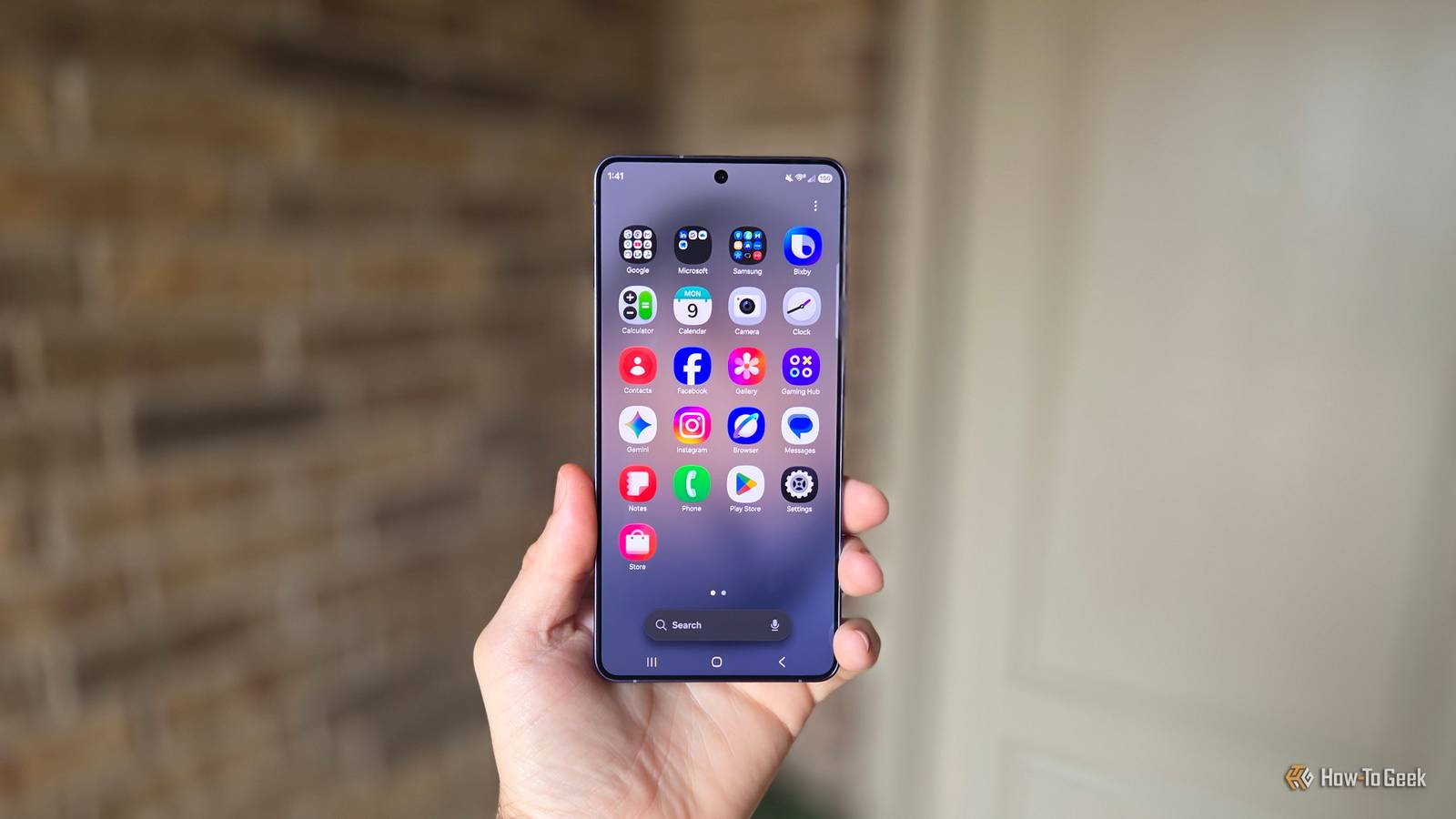
Published Aug 1, 2026, 9:45 AM EDT Cory Gunther is a senior author and Newsletter Editor at Valnet, covering cutting-edge tech, Android, and more for How-To Geek. He's covered Android, cars, and technology for over a decade. When he's not reviewing the latest gadget, you can find him off-roading in his Toyota truck, fixing said truck, or doing something outdoors with friends and family. He's covered CES, SEMA, and MWC and reviewed countless phones, TVs, speakers, EVs, e-bikes, and more. Before Valnet, Cory worked for GottaBeMobile. His writing has also appeared on SlashGear, InputMag, and AndroidCentral. He's written over 9,000 articles. Do you wish your Samsung Galaxy phone was a little faster or had longer battery life? It's fair to assume we all look for ways to make our phones better, and that's why you'll love these two settings hiding in plain sight that'll actually make a pretty big difference in performance. No one likes a phone that's starting to run a little slow or laggy, which is why I'm constantly recommending that people uninstall unnecessary apps to free up space or schedule weekly reboots. But when it comes to daily performance, opening apps, and navigating your device, there are several other ways to make it better. Here are two quick settings that'll make your Galaxy feel faster than ever. Adjust the gesture navigation sensitivity It's like speeding up the mouse on a PC Credit: Lucas Gouveia/How-To Geek By now, most people have ditched the old 3-button navigation controls on Android and are using gesture navigation instead. But did you know you can actually adjust the sensitivity to all those taps, swipes, and gestures? I'm not talking about the default touchscreen sensitivity, but about changing the gesture navigation setting specifically. Just like many people increase mouse speed on a computer, you can do the same on Samsung Galaxy phones and make them fly. More importantly, if you use a case and find it hard to gesture at the edge at times, a higher sensitivity will help, thus allowing for faster operation and fewer mistakes. Here's how to adjust gesture navigation sensitivity on a Samsung Galaxy phone: open Settings > Display > Navigation bar > Choose Swipe gestures, then tap More options. Now, you can adjust the slider to change how easily swipes are registered. Once you adjust the sensitivity, it might take some getting used to, but you'll quickly start to notice the benefits. That said, if you frequently do gestures by accident, lowering this sensitivity might be a better option. Sure, that'll make the phone react more slowly, but with fewer mistakes, you'll be faster and more proficient with your device. It works either way. Speed up all those animations I change this setting on every Galaxy phone Credit: Justin Duino/Lucas Gouveia/How-To Geek Next, I want to mention one more option in a completely hidden developer menu on your phone. Many Android enthusiasts have been changing the animation speeds on their phones for years, so this is nothing new. But, if you're new to Android or only just recently got into the hobby of tinkering with its settings, you'll absolutely love this one. The hardware inside your phone isn't the only thing that controls how fast it runs; there are also a slew of software optimizations that can improve performance. One of those is animation speeds, and you can quickly adjust three little settings in a hidden developer menu that'll instantly make your phone feel brand new. To change the animation scale settings, you'll need to enable Developer Options on your phone. It sounds scary, but it's not all that complex as long as you don't go changing things you don't understand. Head to Settings > About Phone > Software Information (or a similar option). Find the Build Number and tap it 7 times until a message appears at the bottom of your screen that says, "Developer mode has been turned on" or "You are now a developer!" Depending on your Android version or One UI, you may need to enter your PIN first. Once you do, you'll see the message that you're now a developer. Next, hit back, and at the very bottom of the settings menu, you'll see a new Developer Options button. Open that, scroll down about halfway, and look for "Window animation scale, Transition animation scale, and Animator duration scale". All three will be set to 1x; tap each option to lower it to .5x. By changing all three of these from 1x to .5x, you've essentially made the window, transition, and animations twice as fast, resulting in a phone that feels snappier and more responsive. It works surprisingly well and might even increase battery life a bit. Samsung Galaxy S26 Ultra Brand Samsung SoC Snapdragon 8 Elite Gen 5 Get the new Galaxy S26 Ultra with AI smarts and an all-new privacy display. It's big, powerful, packed with AI, and you'll love the S-Pen stylus. Little changes with big results Once you change these two settings, you won't have to do it again. You'll now have a Samsung Galaxy phone that feels a bit faster and more responsive while you're swiping around the gesture navigation system. More importantly, every time you open an app, close a window, or send a message, the operating system's animations and fluid movements will go so fast it'll feel like a completely different phone. Give these two suggestions a try today!
These two hidden settings made my Galaxy phone feel faster than ever
Full Article
Original Source
Read the full article at Howtogeek →KhanList aggregates and links to publicly available news content. We do not host full articles from third-party sources. Always verify important information with original sources.