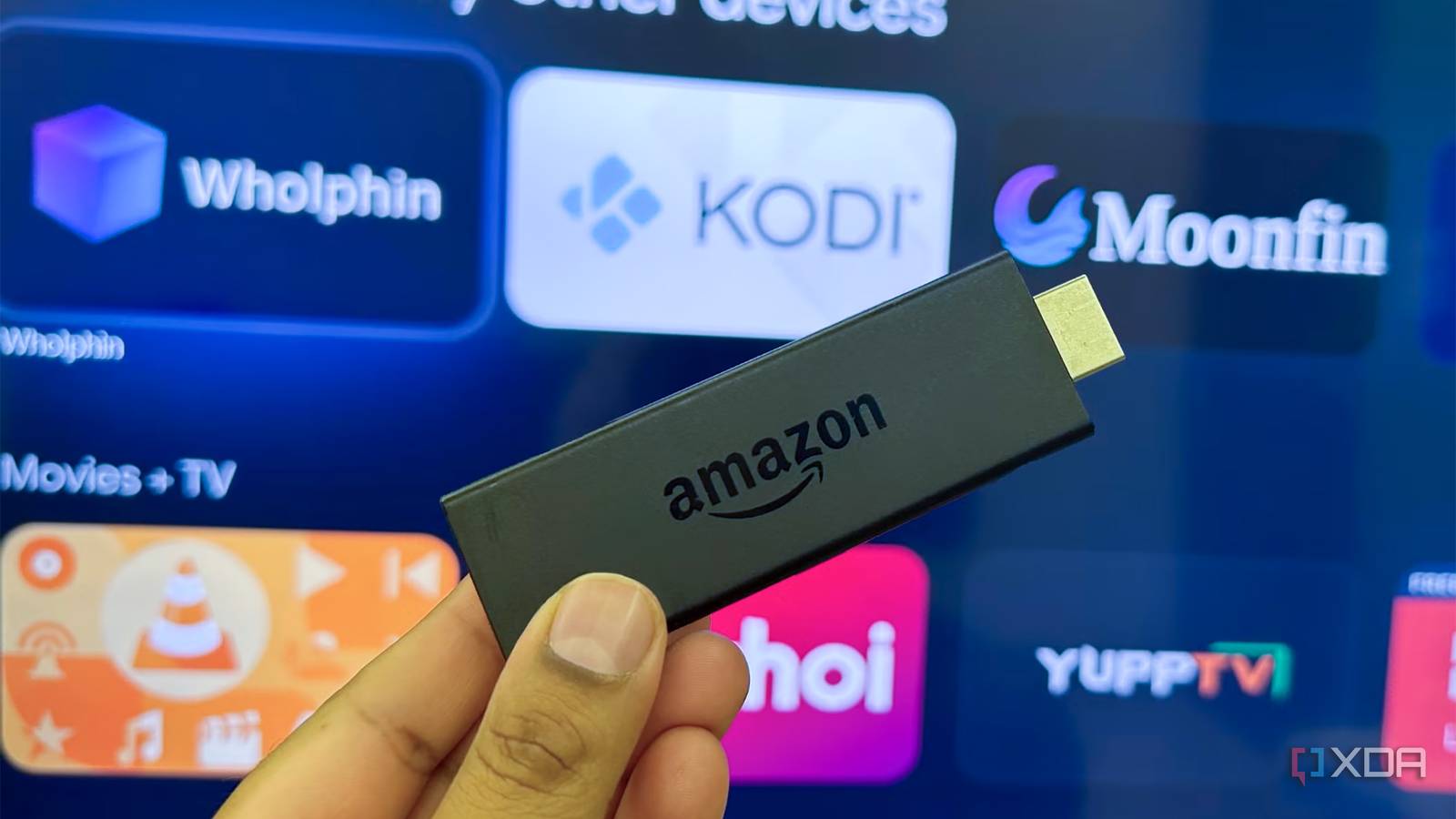
Published Jul 18, 2026, 4:30 PM EDT Gaming has been Samarveer’s greatest passion, and the Literature graduate in him takes immense joy in dissecting games for their themes, messages, and impact. Samarveer holds a deep appreciation of gaming, and considers the platform to be the most immersive and impactful across all media. He can be found engaging with gaming communities online, always ready to debate the finer points of ray tracing or itching to write an 8-page collegiate thesis on any game that impacts him emotionally. Now that Amazon's new Fire TV Stick devices ship with their own Vega OS instead of the Android-based Fire OS, my 2022 Fire TV Stick is more valuable to me than ever. Of course, owning a four-year-old unit also means acknowledging that it's just not as fast as it used to be. That's hardly surprising, though, considering the years of cached data, installed apps, and dwindling storage space that accumulate over time. However, I wasn't ready to replace perfectly good hardware with a few annoyances. Thankfully, tweaking a handful of overlooked settings has breathed new life into it, making the interface feel faster, smoother, and surprisingly fresh without spending a single cent. Disabling autoplay fixed my laggy Fire TV The Fire TV home screen has become increasingly content-heavy over the years. Every time you land on it, trailers begin playing automatically while feature rows keep loading in the background. I'll admit it looked pretty flashy initially, but now it just means my streaming stick is spending resources on things it doesn't really need. This would be pretty easy to ignore on new hardware, but my 2022 Fire Stick really does need all the resources it has. I've also come to prefer the quieter home screen now. I already know what to watch, whether it's Netflix, YouTube, or Prime Video. I don't need the trailers shouting at me every time I press the Home button. Disabling autoplay removes unnecessary distractions while also giving older Fire TV hardware one less thing to worry about. Turning off both video and audio autoplay immediately made the interface feel calmer. It has even had a positive effect on navigation, which feels smoother just because pressing a direction button immediately takes me to the next tile instead of being stuck trying to play audio or video from the currently highlighted tile. Disabling autoplay definitely had the biggest impact (for the better) on my overall experience. Clearing all application caches It's the quickest way to reclaim lost performance This is absolutely one of the first things you should do if you're trying to make an old Fire TV Stick work faster, too. It's no secret that apps quietly build up caches over months and years to speed up their loading times, but eventually, those temporary files go from a convenience to a burden, especially when your storage runs low. I hadn't realized just how much cached data had accumulated until I started checking app by app. Between Prime Video, Netflix, Moonlight, YouTube, and a few other regional apps that were absurdly unoptimized, I saw hundreds of megabytes just sitting there, doing very little. Clearing those caches instantly freed up storage and made the stick noticeably more responsive during everyday navigation. Doing this didn't delete my apps or sign me out of my accounts, either. The latter happens only if you clear app data instead of the app cache. Clearing the cache is a quick, low-risk maintenance trick you can repeat every month or two, and if you only try one thing from this list, this is probably where I'd start. Turning off notifications has helped, too After five years, they aren't nearly as useful Notifications are supposed to help the user experience, but after five years of ownership and an equally old processor working overtime, even the notifications can cause the processor to slow down by putting sudden loads on it. They also have an annoying habit of appearing at the wrong moment, pulling your attention away from whatever you're actually watching. My entire usage experience is streamlined to a few apps, so why would I need notifications at all? I'm not discovering new services through pop-ups, and I certainly don't need reminders about content I've already decided not to watch. Turning notifications off made the entire experience feel much cleaner because the interface stopped interrupting me. Now, this tweak didn't really double my Fire TV Stick's performance, but it was another small source of unnecessary background activity that I managed to eliminate. When it comes to older hardware, that's pretty much the theme: each small change chips away at the little annoyances that make an aging device feel even older. Matching the original frame rate has been a game changer Movies finally look like movies again This one hasn't made my Fire TV Stick any faster, but it sure has been a pretty big visual upgrade. By default, the stick outputs everything at my TV's refresh rate, which varies between 60Hz and 144Hz depending on the panel I plug it into. Enabling Match Original Frame Rate now lets compatible apps switch to the frame rate at which the content was actually shot and mastered, making movies and TV shows look noticeably more natural. Turning on Match Original Frame Rate on your Amazon Fire TV can also often result in about a 2-3 second delay when playing a video with a different frame rate. I didn't appreciate just how much this mattered until I turned it on. Slow camera pans have become smoother, judder has reduced, and movies have stopped having that slightly artificial, video-like look that I'd subconsciously gotten used to. It might be hard to describe, but once you see it, it becomes immediately obvious. It's a free setting, it takes seconds to enable, and if your TV and streaming apps support it, you'll wonder why it wasn't turned on from the start. Disabling device usage, data tracking, and data monitoring I'd rather my Fire TV Stick focused on streaming instead Telemetry services running in the background are always sipping system resources, regardless of how little. On a brand-new Fire TV Stick 4K Max, it would probably not be a big deal. On the nearly a half-decade-old Fire TV Stick, though, every bit of overhead starts to matter. That's why turning off Device Usage Data, Collect App Usage Data, Interest-based Ads, and Data Monitoring frees the hardware from spending cycles on analytics. Disabling these services lets my Fire TV Stick do the thing I bought it for: run my streaming apps. I generally turn off telemetry and background data collection on almost every device I own, including my Windows PC, Android phone, and, of course, the streaming stick. The privacy benefits aside, on older hardware, I also appreciate squeezing every bit of performance I can out of the processor. The CPU and memory on my old Fire TV Stick are already limited, and with all kinds of background data collection features turned off, it can focus on playing content and opening apps instead of how I use my TV. Volume leveling has been a game changer An auditory upgrade that I can't appreciate enough This hasn't been a performance tweak, per se, but it's an upgrade nevertheless. Modern TV shows and movies have struggled with inconsistent sound mixing for years now, with dialogue coming through way too quietly until an explosion or a car crash sends you lunging for the remote. Chances are, everyone you know will agree this is a problem, but surprisingly, few people realize that their Fire TV Stick can help with this. Enabling Volume Leveling in your Fire TV Stick's settings won't completely fix poor audio mastering, and it isn't a replacement for a proper surround system or an equalizer, either. What it has done remarkably well, though, is reduced the gap between quiet conversations and deafening action scenes, which has made my long viewing sessions far less frustrating. My partner, in particular, has come to appreciate this setting more than anyone else in the house. She no longer has to adjust the volume between scenes constantly, and neither do I. It's a pretty appreciable quality-of-life upgrade that has improved every movie night, and all it took was a quick setting toggle in the settings menu. I'm not replacing this Fire TV Stick just yet I'm a big believer in getting every last bit of value out of hardware before replacing it, and my 2022 Fire TV Stick is proof that there's still plenty of life left in older devices. It's not nearly flawless, and yes, my Fire TV Stick still pauses for a second here and there while I navigate menus. But the moment my movie or TV show starts playing, none of that really matters anymore. A few thoughtful settings have transformed the overall experience without costing me a single dollar. Such free upgrades are always the most enjoyable. I might still cave in someday and buy a new Vega OS-based Fire TV Stick 4K Max, but that day has been pushed back thanks to these quick "upgrades" I've made to my existing Fire Stick.
These Fire TV settings made my aging streaming stick feel brand new, no hardware upgrade needed
Full Article
Original Source
Read the full article at Xda-developers →KhanList aggregates and links to publicly available news content. We do not host full articles from third-party sources. Always verify important information with original sources.