
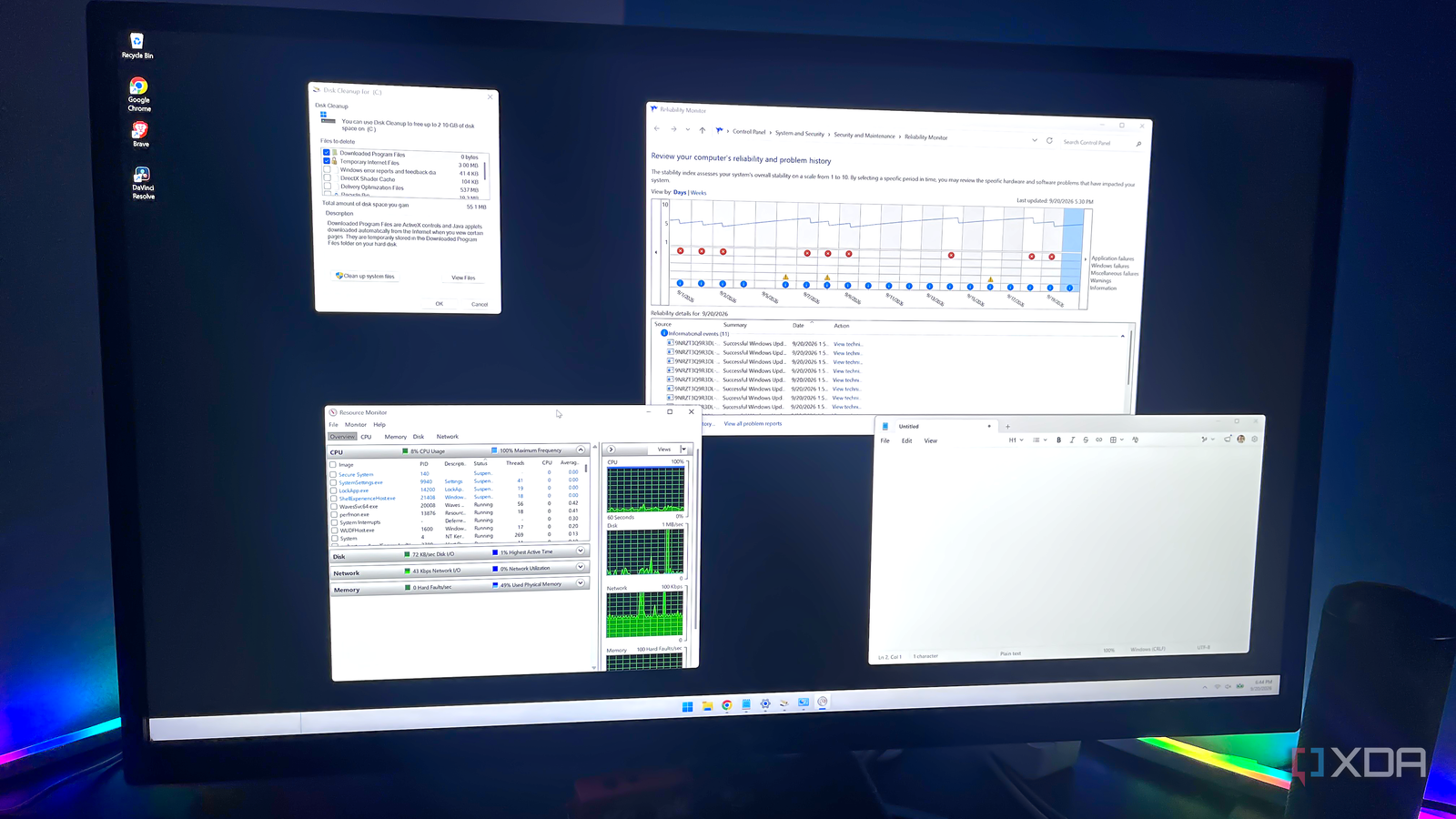
Published Sep 22, 2026, 8:00 PM EDT With over five years of experience in the tech industry, Kazim excels at simplifying complex topics, making them accessible to tech enthusiasts and general readers alike. He has extensively covered the Windows ecosystem, from Windows 7 to Windows 11. When he’s not writing, you’ll find Kazim planning weekend getaways or diving into tech verticals beyond his expertise. For the longest time, we have been conditioned to believe the built-in Windows tools are somehow inferior to third-party options. That's a major reason behind the popularity of programs like CCleaner for clearing unnecessary files or ShareX for capturing screenshots. Frankly, I have got nothing against these third-party tools. They may work for some — even I use a couple of them — but it's also important to note that native Windows tools have improved significantly over the years. If you have relied on third-party tools for years because the native options didn't complement your workflow, it's perhaps time to give them another try, especially the ones that have recently received major upgrades. And let me be clear: I am not talking about Microsoft's AI push. There are other genuine improvements as well. Besides, even the old Windows utilities work best in many cases, outperforming most third-party tools. Disk Cleanup and Storage Sense For clearing unnecessary files Let's start with something, I guess, most of us have used at some point: a disk-cleaning software. They do help to a certain extent, but it's not like Windows can't handle that. Ever since the early days of Windows, we have had the Disk Cleanup utility, which can help clear a large amount of unnecessary data and system cache. And its successor, Storage Sense, first introduced in Windows 10 and then carried over to Windows 11, is even better at the job. Storage Sense allows you to automate the process, with Windows automatically deleting unnecessary files at a set frequency. So, if you are still using a third-party tool to clear storage on your Windows PC, do give it a try. In my experience, the two, or even just Storage Sense, should suffice. As for finding other non-system files that are hogging your PC's storage, a disk analyzer tool like WizTree will help. Try to avoid third-party programs that automatically clear the data for you, as they can sometimes introduce instability. Resource Monitor and Task Manager For managing resource consumption If you have been trying to analyze your system's performance or fix random slowdowns, third-party tools may seem like a good option, but Windows already has two tools dedicated to the job: Task Manager and Resource Monitor. The former is a simple, user-friendly utility that shows you the list of active processes, the resources each process is consuming, general system information, and lets you manage startup apps. I am guessing most already know how it works. But many of you may not have used the Resource Monitor. Resource Monitor is an advanced, built-in tool that provides more detailed insight into the underlying cause rather than giving you a simple overview of the problem. I agree, Resource Monitor's UI may make it feel like the tool is designed for power users, but, frankly, it's not complex. The Overview tab, which loads by default, gives you a general picture, while the dedicated CPU, Memory, Disk, and Network tabs give you detailed insights into what's consuming the resources and the reason behind it. For screenshots and recordings Another Windows utility I have rarely seen people use is Snipping Tool. Natively available on all Windows 10 and 11 PCs, Snipping Tool lets you capture screenshots and record videos of the screen. If that's something you often have to do, Snipping Tool is worth considering over third-party options, and there are several reasons for that. For the longest time, I solely used ShareX to capture screenshots for articles. It's open-source, easy to use, and offers a bunch of annotation options, while Snipping Tool was, simply put, bare-bones for years. But that's no longer the case. Snipping Tool is now better than ever, with Microsoft adding features like automatic borders, a color picker, a text extractor, annotations, and more. So, the next time you are about to capture a screenshot, use the Windows + Shift + S hotkey and give Snipping Tool a try. Notepad It has improved a lot in recent years Notepad is something I have always relied on for drafting articles, and I can't even think of ditching the text editor for third-party alternatives, even though decent options exist. The best part about Notepad is its simplicity. Despite Microsoft making a bunch of changes to Notepad in Windows 11, the text editor remains easy to use, which, honestly, can't be said about every native tool. As for the recent changes, I consider most of these genuine improvements. For instance, with the new formatting options and built-in spellcheck, initial drafts turn out much better. That said, I do feel that Notepad's spellcheck is not perfect, and Microsoft should further refine it. Reliability Monitor and Event Viewer To identify and troubleshoot issues with the system Lastly, Windows has two excellent native tools to help you troubleshoot issues with the system: Reliability Monitor and Event Viewer. These don't fix the problem for you, but the utilities help you identify the underlying cause. Between the two, I suggest using Reliability Monitor first. Reliability Monitor offers a more user-friendly interface and helps you quickly identify what's wrong with the system or the component/app that's failing. Once you have a general idea, use Event Viewer to get into the details and track the problem's history. For the average user, this is the best approach. And in most cases, the two negate the need for third-party tools. Windows tools can effectively handle most jobs I don't think people install third-party tools because native Windows utilities aren't as effective or user-friendly. Personally, I believe it has more to do with how third-party tools are promoted. When you see something labeled as a one-click or AI-powered solution, you are bound to favor it over a utility that has looked the same for the last decade. Also, you are missing that, in many cases, the third-party tool essentially relies on core Windows components to do the job. So, why not eliminate the middleman and let Windows take care of the stuff, at least the things it can effectively handle?
These 7 built-in Windows tools are better than the apps most people install instead
Full Article
Original Source
Read the full article at Xda-developers →KhanList aggregates and links to publicly available news content. We do not host full articles from third-party sources. Always verify important information with original sources.