
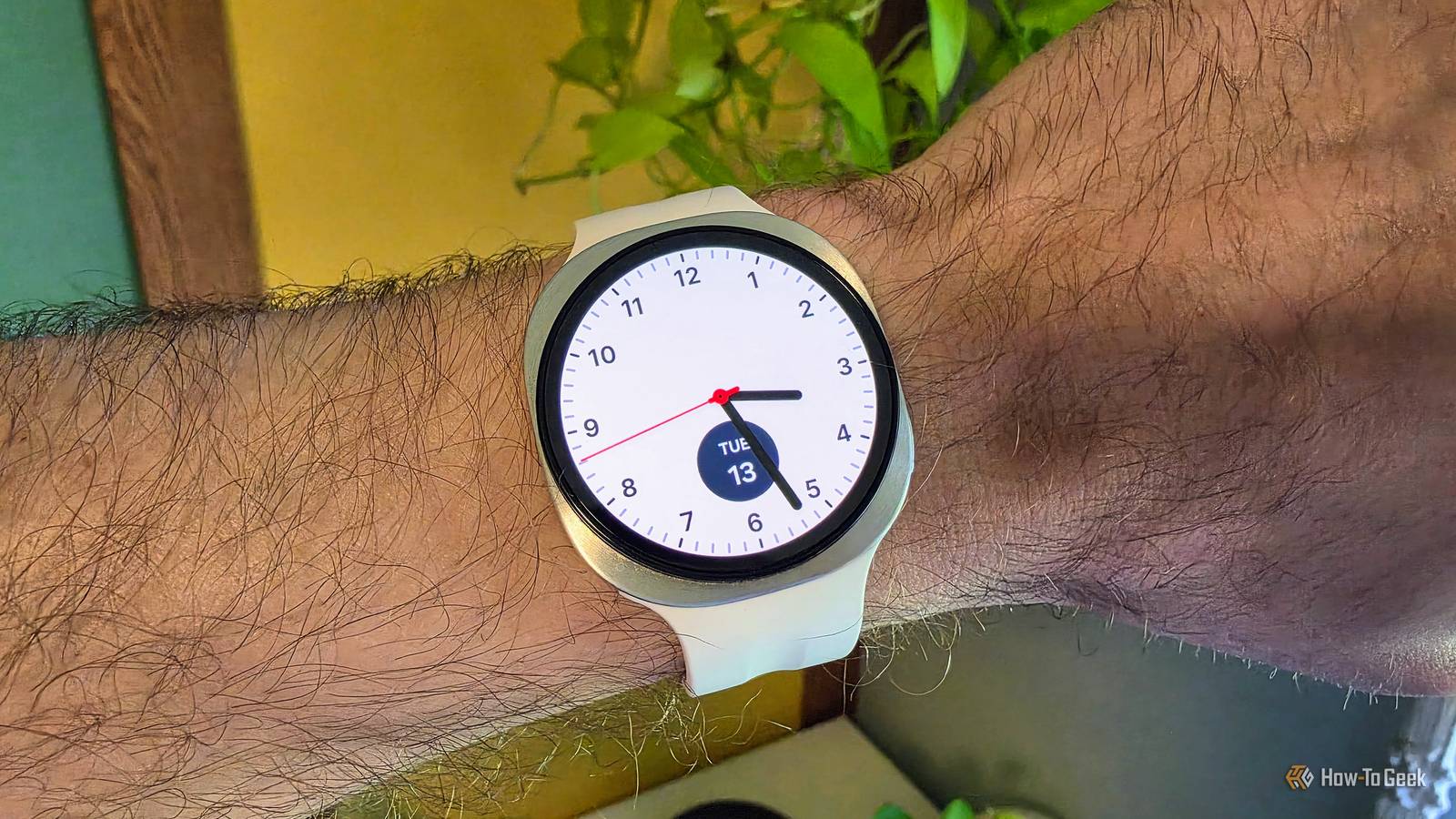
Published Oct 14, 2026, 6:30 AM EDT Joe Fedewa has been writing about technology for over a decade. Android and the rest of the Google ecosystem have been a focus for years, as well as reviewing devices, hosting podcasts, filming videos, and writing tutorials. Joe loves all things technology and is also an avid DIYer and food blogger. He has written thousands of articles, hundreds of tutorials, and dozens of reviews. Before joining How-To Geek, Joe worked at XDA-Developers as Managing Editor and covered news from the Google ecosystem. He got his start in the industry covering Windows Phone on a small blog, and later moved to Phandroid where he covered Android news, reviewed devices, wrote tutorials, created YouTube videos, and hosted a podcast. From smartphones to Bluetooth earbuds to Z-Wave switches, Joe is interested in all kinds of technology. After several years of jailbreaking and heavily modifying an iPod Touch, he moved on to his first smartphone, the HTC DROID Eris. He's been hooked ever since. Smartwatches are, well, smart, but that doesn't mean other watches are dumb. For example, mechanical watches don't require batteries at all — they operate purely through a tightly wound spring. You can give your Galaxy Watch the same vibe in a few simple steps. Of course, we can't change the inner workings of a Galaxy Watch. We can, however, flip a few toggles and make some aesthetic changes to approximate the look and feel of a mechanical watch. And you don't have to give up the smart features to do it. Make it sound like a real watch Skeuomorphic audio A mechanical watch is full of moving parts that keep it ticking, and these inner workings are not completely silent. It's not loud enough to hear all the time, but when you hold a mechanical watch to your ear, you can hear the ticking. For as long as I can remember, Samsung Galaxy Watches have included a toggle in the Sound settings called "Ticking." As you would expect, it enables a mechanical watch-like ticking sound from the watch face. However, it's not supported by all watch faces (more on that later). Enable it by going to Settings > Sounds and vibration > System sounds > Ticking. Keep the screen on all the time Real watches don't turn off Here's a simple, common-sense thing to do: enable the always-on display. Let's face it, a real watch doesn't have a display. The clock is visible at all times, whether you're looking at it or not. Thankfully, Galaxy Watches have gotten very good at conserving battery while the always-on display is enabled. If you already charge your watch every night, you very likely won't notice any difference in daily usage. Combined with the next tip, you may even save battery. Head over to Settings > Display > Always On Display. Prioritize manual interaction Fewer gestures and touches Let's save some battery and make your watch feel a bit more mechanical at the same time. Most modern Galaxy Watches have a dedicated low-power co-processor for the always-on display. The primary processor is only activated when the display is woken up. Limiting how often the primary processor powers on improves battery life. To do that, you'll want to disable "Raise wrist to wake." For our purposes, it also happens to make the watch feel a tiny bit less digital. To take it to the next level, you can disable "Touch screen to wake" as well, which means you'll need to press the physical buttons to wake the screen. Both of these toggles can be found at Settings > Display. The right watch face makes all the difference Look for the key characteristics While technically not a "setting," a watch face is essential for selling the mechanical look as best as possible. I mentioned that the ticking sound is not supported by all watch faces. There are a couple of other characteristics to look for in a watch face as well. First, I wasn't able to find many third-party watch faces that support ticking. However, you can use the "Ticking Sound Wear" app to add the sound to any face. Most of Samsung's analog faces work with the ticking sound. The one I'm using in the photo at the top of this post is called "Simple Classic." The second thing to look for in a watch face is a sweeping second hand. This is a key characteristic of mechanical watches. While non-mechanical analog watches move the second hand one tick at a time, a mechanical watch moves it in a constant, smooth motion that doesn't jump or stutter. Some watch faces include a toggle to enable this, others do it by default — Simple Classic also has it. Do the best with what you've got Look, I get it: No one is going to mistake a Galaxy Watch for a mechanical watch. There are obvious advantages to wearing a smartwatch, but they have a very different aesthetic. This isn't about fooling anyone. The goal is to simply make your Galaxy Watch feel just a bit more analog. You may even save some battery in the process, which is always a good thing. Samsung Galaxy Watch 9 Operating System One UI 9.0 Display Size 1.34 Inches
These 4 tricks make my Galaxy Watch feel more like a mechanical watch
Full Article
Original Source
Read the full article at Howtogeek →KhanList aggregates and links to publicly available news content. We do not host full articles from third-party sources. Always verify important information with original sources.