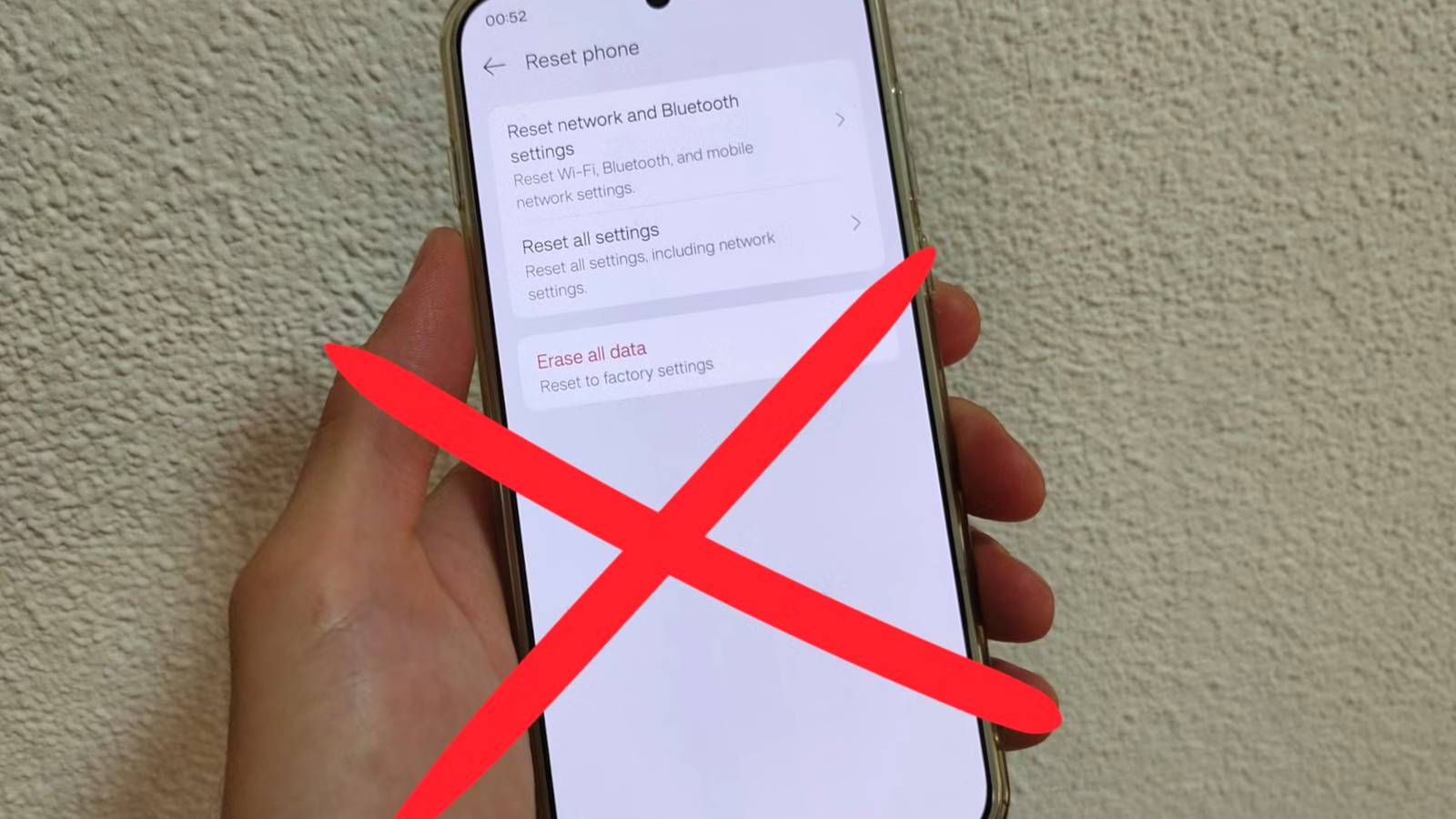
Published Aug 5, 2026, 1:00 PM EDT Ismar is a Senior Author at How-To Geek. He previously worked as a writer, editor, and general manager at a content agency before joining the team in 2023. He began his writing career in 2021 after completing a BA in English Language and Literature. Beyond How-To Geek, Ismar has contributed to Red Stag Fulfillment and Authority Hacker. He has also worked on various SEO projects to help clients improve their search visibility. Ismar has been around Windows PCs since the age of three, so friends and family naturally chose him as the resident tech support. His projects often involve tinkering, such as disassembling mechanical keyboards and gaming mice to mod his beloved gear. He also enjoys pushing hardware to the max through overclocking while staying on a reasonable budget. An avid gamer, Ismar has logged thousands of hours across various genres, including first-person shooters, RPGs, racing games, and roguelites. When he is not at his desk, he is probably exploring other people’s phones to discover their quirks and features or experimenting with the latest AI tools. In his free time, Ismar enjoys spending time with his wife, working out at the gym, playing guitar and bass, cooking gourmet meals, and traveling. Above all else, he’s a proud cat owner. When an Android phone starts to feel sluggish, a factory reset is often the first solution people think of. While restoring your phone to its factory settings might sound like the easiest way to restore its performance, it's far from the silver bullet you might think it is. More often than not, a factory reset creates more work than it's worth, especially when there are several simpler ways to improve performance without spending hours setting the phone back up. A factory reset fixes fewer problems than you think Save yourself the headache Back when we only used our phones for calls, messages, emails, occasional web browsing, YouTube, and taking photos, a factory reset seemed like a pretty easy way to make an aging phone perform like it did when it was new. Older phones were often underpowered and shipped with bloated Android skins, so performance could noticeably degrade after just a few months, making factory resets a sensible solution. However, today, our lives depend on our phones more than ever. Between banking apps, 2FA authenticators, password managers, eSIMs, accounts for everything from coupon apps and games to work tools and companion apps for other devices, and not to mention the almighty Google account, there's just so much tied to our phones in our everyday lives. Losing access to even a few of these apps could be disastrous, especially if you don't take the necessary precautions for things like your 2FA app and Google account. And I haven't even mentioned all the photos, videos, and other media you'd have to transfer back to your phone from the backup you've hopefully made beforehand. Given how much work you'd have to do after a factory reset, it's just not worth the hassle—especially if you're going to set your phone up the exact same way it was before the reset. If you reinstall all those bloated apps and fill the storage back up, you're merely trying to fix the symptom, not the actual problem. Thankfully, there are plenty of simple fixes you can try to make your old phone feel new again that don't require hours of manual labor to set everything back up after a factory reset. Freeing up storage can do more than you expect A cleaner phone runs better Credit: Ismar Hrnjicevic / How-To Geek Like a factory reset, freeing up storage isn't a magic pill that'll automatically make your phone perform better. Even so, it's one of the most important things you can do to keep an aging phone running smoothly. Allow me to explain. Android doesn't just use its storage for your apps and personal files; it also relies on free space for temporary files, app caches, installing updates, and other system tasks. When your phone is nearly full—which is a common issue on budget devices with only 128GB of storage—Android has much less room to work efficiently. Apps and system processes have less space for temporary data, updates become more cumbersome to install, and the phone's flash storage performs crucial tasks like wear leveling and garbage collection more efficiently when there's plenty of free space available. One of the easiest ways to free up a large amount of storage is to move your photos and videos to a NAS if you have one, your laptop or PC, or even cloud storage. For example, I've got 68.8GB of photos and 15.5GB of videos on my phone. If I were using a phone with just 128GB of storage, moving even a portion of that library elsewhere would free up a massive amount of space. Another easy way to reclaim storage is to uninstall apps you no longer use. While many apps only occupy a few hundred megabytes, those figures quickly add up—especially when you factor in cached data, which can grow shockingly large for social media apps. Games are another major storage hog, so if you haven't touched one in months, there's little reason to keep it installed. In extreme cases of storage constraint, you might want to consider lightweight versions of apps you regularly use, such as Facebook Lite instead of the regular Facebook app or Google Maps Go. On top of using less storage, they use fewer resources, which makes them a good option for aging phones. As a side note, stay away from those memory cleaner apps that promise to clean your cache or "boost" your RAM. They tend to do more harm than good. The only ones worth using are apps that help you identify duplicate files, large files, and other storage hogs so you can free up actual space. Keep Android and your apps up to date Don't skip the basics Credit: Joe Fedewa / How-To Geek A common piece of advice among Android enthusiasts is to avoid installing major system updates on aging hardware. The thinking is that each new Android version adds features, more demanding animations, and extra security protections that gradually make older phones feel slower. While that may have been true more than a decade ago, Android updates have become much more incremental over the years. Modern phones are also significantly more powerful, so they have a much easier time handling newer software than older devices did. If your phone does feel sluggish immediately after an update, don't panic. Android often spends the next day or two rebuilding app caches, re-indexing files, and performing other post-update optimization and cleanup tasks. It's perfectly normal for your phone to feel a little slower than usual while this is happening in the background. Once everything settles down, you'll see how much better your phone will feel after the update. There are the usual bug fixes and compatibility improvements, but you might even see some performance optimizations that make your phone feel faster, not slower. Apps are a similar story. While every developer is different, most app updates are simply incremental patches that fix bugs, improve stability, and optimize performance. Unless a specific update is known to cause problems, keeping both Android and your apps up to date is generally the best practice. Make your phone do less, not more Every little bit adds up Credit: Bertel King / How-To Geek Every app you've got installed, every widget on your home screen, and every notification service running adds to the amount of work your phone has to do before you even open an app you actually want to use. For starters, get rid of any widgets on your home screen that you can live without. Widgets can be surprisingly demanding, especially if they're constantly syncing in the background or using complex animations. I've already mentioned using lightweight versions of regular apps and uninstalling those you don't use, but you should also consider restricting background activity for problematic apps that you can't live without. One way to identify these apps is to dive into your phone's Battery settings and check Battery Usage. If an app has used an unusually high amount of battery or consumed power despite you not opening it in the past 24 hours, consider limiting how much it can do in the background. To do this, simply tap on the app from the list and switch it to Restricted background activity. If you notice an app here that's using up your battery but you don't actually need it, simply uninstall or disable it. A fresh battery can make an old phone feel new The phone's original battery could be holding it back Credit: Ismar Hrnjicevic / How-To Geek A phone's performance doesn't really deteriorate in a meaningful way over time—except for one important component: the battery. Lithium-ion batteries wear out as they age, and on top of losing the capacity that has you reaching for the charger more frequently, their ability to deliver peak power also degrades over time. When a phone is a few years old, the battery may no longer be able to keep up with the demands of the processor, leading to slowdowns and, in extreme cases, app crashes or unexpected shutdowns. An easy and fairly inexpensive way to restore some of your phone's lost performance is to replace the battery. On top of lasting longer than the worn-out one, a new battery can help your phone deliver the performance it used to have. If you're going to start over, make it count with a new ROM If you've gone through all the ways of fixing your phone and still aren't satisfied with its performance, or if you're stuck on an outdated version of Android and want to upgrade, there's one last-ditch effort you should consider: switching to a custom ROM like LineageOS. If LineageOS is available for your phone, you could get access to a newer version of Android, along with a cleaner experience, fewer manufacturer apps, and ongoing updates that can give your device a few more years of usable life. If you're already going to deal with the hassle of factory resetting your phone, you might as well make it worthwhile by installing a custom ROM.
These 4 fixes make your Android feel new without resetting it
Full Article
Original Source
Read the full article at Howtogeek →KhanList aggregates and links to publicly available news content. We do not host full articles from third-party sources. Always verify important information with original sources.