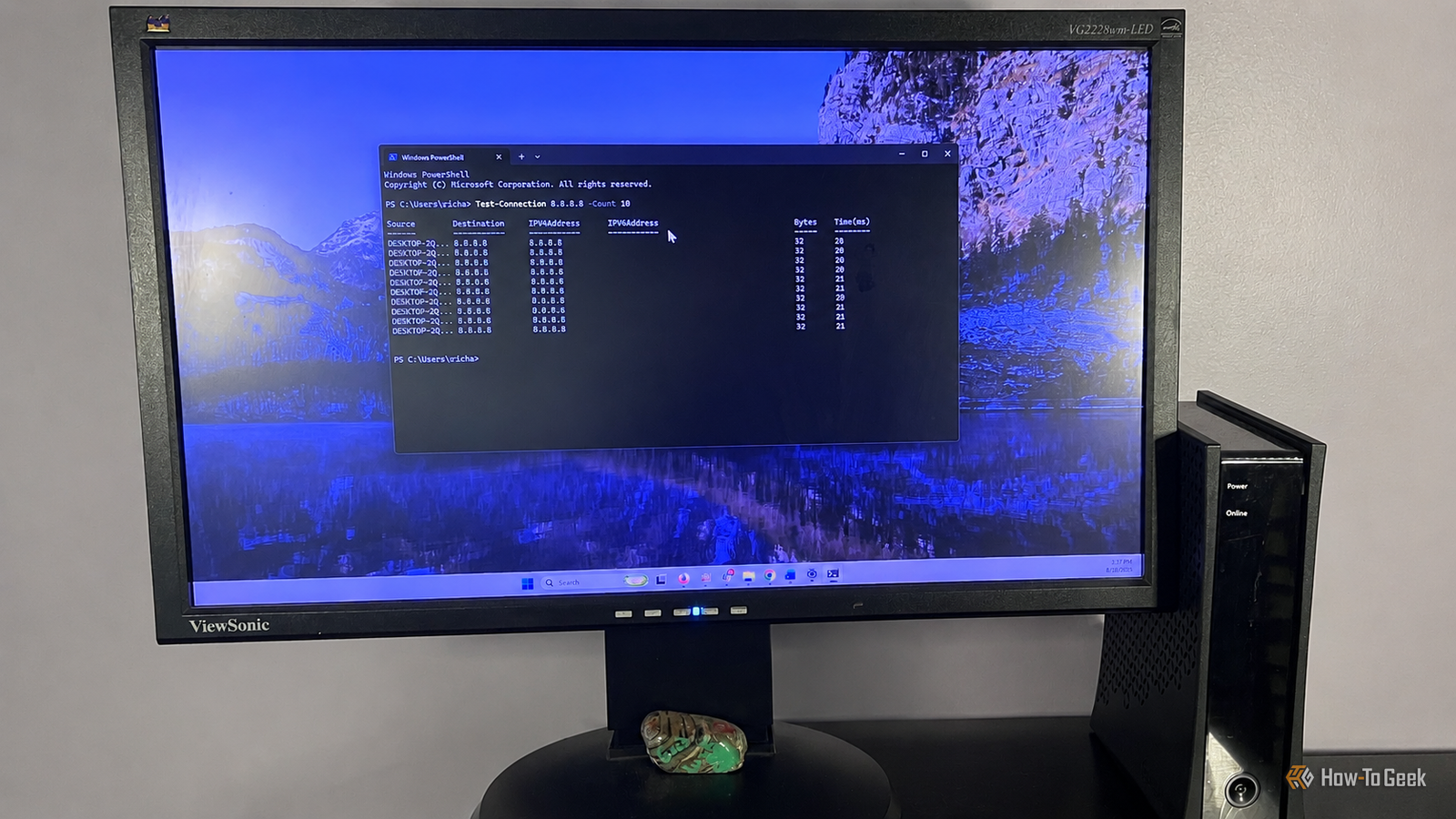
Published Aug 20, 2026, 1:30 PM EDT Rich Hein is a veteran technology journalist with more than two decades covering developer, consumer and enterprise topics. Rich's career has been dedicated to service journalism, connecting readers to content that informs and delights. Previously, Rich was vice president and editor-in-chief for Simpler Media Group, director of audience development for IDG and editor/writer for sites like CIO.com, ComputerWorld, CodeGuru and other tech-centric publications. He's received numerous accolades, including the IDG Summit and Azbee awards and has been covered by Medium for his work in audience development. When not at his desk, Rich lives in Daytona Beach with his wife and three dogs. He enjoys playing guitar, surfing and staying abreast of the latest in tech. Last week, my internet started acting up. It wasn't completely down, but web pages were loading slowly, and my video meetings kept having connection problems. I rebooted my mesh network and modem, but the problem kept coming back. At that point, I knew it was time to dig a little deeper. That's where these PowerShell commands can help out. They can help narrow down whether the problem is your PC, your network, DNS, or something else entirely. And you don't need to be a PowerShell guru to use them. In most cases, you're copying and pasting a command, looking at a few key pieces of information, and using that to figure out what to try next. Test whether the problem is local or on the internet Test-Connection helps narrow down where the trouble starts This is where I started my troubleshooting because I wanted to figure out whether the slowdown was happening inside my network or somewhere beyond it. PowerShell's Test-Connection command does essentially the same job as ping. It sends test packets to another device and shows whether they came back, along with how long each response took. I started by opening PowerShell and running ipconfig. Under the network adapter I was actually using, I looked for Default Gateway. That's the address of the router or mesh network, and on most home networks it'll look something like 192.168.1.1. I then ran this command: Test-Connection 192.168.1.1 -Count 10 I replaced the IP with my current gateway, 192.168.4.1. Since that traffic never leaves my home network, I expect the responses to be fast and fairly consistent. A slightly slower response here and there isn't a big deal, especially over Wi-Fi. What I'm looking for are repeated timeouts, dropped replies, or response times that suddenly jump from a few milliseconds into the hundreds. Once that looked normal, I tested something outside my network with this: Test-Connection 8.8.8.8 -Count 10 That sends the same test to Google's public DNS server. The important part is comparing the two results. If my gateway responds normally but the outside test shows timeouts or big latency spikes, that tells me the problem probably isn't between my PC and the router. If both tests look bad, I'd start looking closer to home at the PC, Wi-Fi connection, router, or mesh network. I'm not looking for one perfect latency number here. I'm looking for obvious inconsistencies, especially lost packets, timeouts, and large swings in response time. Check which DNS server Windows is using Get-DnsClientServerAddress shows which DNS server Windows is using DNS was my next stop because, a couple of months earlier, I'd changed mine while researching another article. I tested several different DNS providers at the time, so I wanted to make sure I hadn't left Windows pointed at one of them by mistake. Since web pages were loading slowly even though the connection itself was still up, DNS was an easy thing to rule out. In PowerShell, I ran this command: Get-DnsClientServerAddress This command shows the DNS servers assigned to each network adapter on your PC. You don't need to run PowerShell as administrator just to check them. I looked for the adapter I was actually using, which for me was Wi-Fi, then checked the ServerAddresses column. That's where you'll see the DNS server addresses Windows is currently using. The important thing is knowing what those numbers mean. Google's public DNS servers are 8.8.8.8 and 8.8.4.4, while Cloudflare uses 1.1.1.1 and 1.0.0.1. You may not see any of those, though. If you're letting your ISP handle DNS automatically, you'll probably see its servers instead. I was specifically looking to see whether one of the DNS services I'd tested for that earlier article was still configured. Get-DnsClientServerAddress showed that I was still using Google’s DNS. I changed the address back to my ISP's DNS address, and it helped with part of the problem, although I still had some network trouble left to deal with. See exactly how Windows configured the connection Get-NetIPConfiguration gives me the whole picture in one place After checking DNS, I wanted to see how Windows had configured the connection as a whole. Get-NetIPConfiguration will show you this data. Instead of checking one setting at a time, this command shows the important network details for each adapter, including the IP address, default gateway, and DNS servers Windows is using. I ran Get-NetIPConfiguration and focused on the adapter I was actually connected through. In my case, that was Wi-Fi. The first thing I checked was the IPv4Address to make sure Windows had been assigned a normal local IP address. On most home networks, that'll start with something like 192.168 or 10.x. I also checked IPv4DefaultGateway to make sure Windows knew where to send traffic leaving my network, then looked at DNS server to confirm the DNS addresses I'd just been troubleshooting. What I'm really looking for here is anything that doesn't make sense. If there's no default gateway, no usable IP address, or Windows has assigned itself an address beginning with 169.254, that's a strong sign it isn't getting a proper network configuration from the router. I also use this command to make sure I'm looking at the right adapter. Windows can list Ethernet, Wi-Fi, VPNs, and other connections, so it's easy to spend time troubleshooting the wrong one if you don't check first. Reset Winsock when something is stuck netsh winsock reset was the last thing I tried At this point, everything I'd checked looked normal. I'd already rebooted the modem and mesh network, tested the connection, checked DNS, and looked over the way Windows had configured the adapter. Nothing was obviously wrong, but the connection still wasn't behaving the way it should. That's when I decided to reset Winsock. For this step, I opened PowerShell as administrator and ran this: netsh winsock reset Winsock is the part of Windows that handles how apps communicate over the network, and resetting it can clear out problems caused by a bad configuration or something that has gotten stuck. If the command works, PowerShell will tell you the Winsock catalog was reset successfully and that you need to restart the computer to finish. After rebooting, I tested the connection the same way I had before, by loading web pages and joining video meetings. Thankfully, everything seemed stable again. There isn't much to inspect in the command output itself. You're mainly looking for confirmation that the reset was completed successfully. The real test comes after the reboot, when you see whether the connection problems are actually gone. PowerShell made the problem easier to track down The nice thing about these commands is that none of them take long to run, but together they can tell you a lot about where a Windows networking problem is coming from. In my case, there wasn't one obvious smoking gun, but checking the connection, verifying DNS, reviewing the configuration, and finally resetting Winsock helped me work through the problem without guessing. Once I rebooted after the reset, the connection was stable again, and both web browsing and video meetings went back to normal.
These 4 commands I run in PowerShell solve the Windows network problems I run into most
Full Article
Original Source
Read the full article at Howtogeek →KhanList aggregates and links to publicly available news content. We do not host full articles from third-party sources. Always verify important information with original sources.