
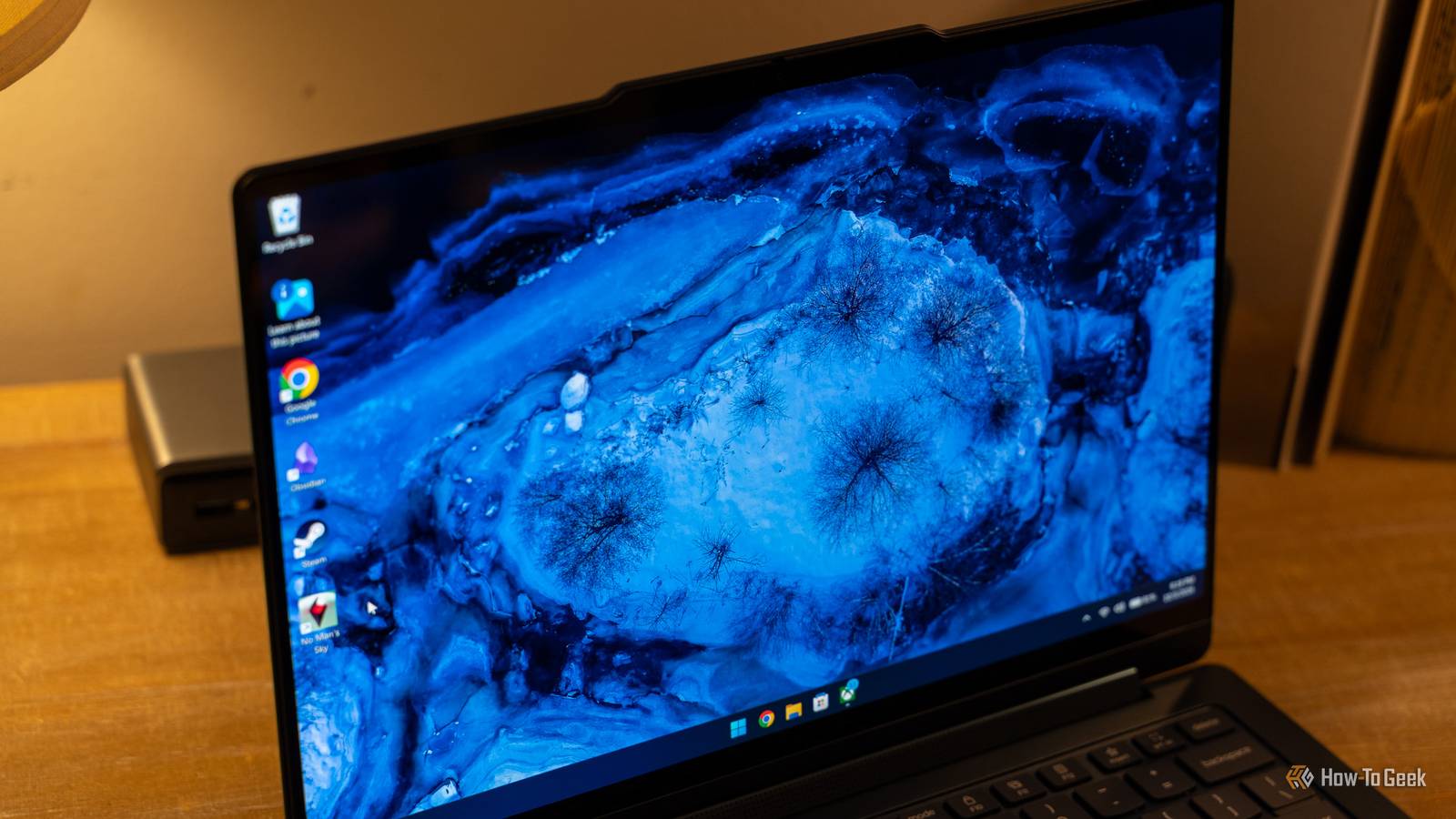
Published Oct 29, 2026, 4:00 PM EDT Arol is a tech journalist who currently works as a contributor at How-To Geek since 2022. He first began writing online for the short-lived portal of Spanish-language gaming forum Emudesc in 2013. Years later, in 2017, he got his true start in tech journalism working for a small Google-focused site called Pixel Spot. He transitioned to a news and feature writer role at XDA Developers that same year, where he worked until 2021 before making the jump to other websites. Arol brings nearly a decade of writing experience, and the occasional hot take, to his writings. While he's a technology lover at heart, he holds computer hardware and smartphones particularly close to heart. You'll normally find him covering news, although he has also written the occasional deal, buyer's guide, how-to post, and round-up. He's also written for Android Police and MakeUseOf. He's also a Political Science student at the Central University of Venezuela, and a proud member of student movement Àgora UCV. When he's not writing, you'll probably find him hitting the gym, trying to ace a new hobby, reading his textbooks, or traveling. You can reach him at me@arolwright.com. A cluttered Windows desktop, while it could be better with a little bit of discipline, is partly not your fault. It usually comes from too many windows, too many repetitive tasks, and too few tools for managing them. Three Microsoft-made utilities can fix that, and none of them costs anything. Microsoft Power Automate Automating the tedious chores behind a messy desktop Downloads pile up, screenshots land in random folders, and the same handful of apps get opened by hand every morning. Power Automate for desktop is Microsoft’s answer to that kind of busywork. It’s a robotic process automation tool, which means it can repeat the clicks, keystrokes, and file operations you would otherwise do yourself. On Windows 11, it comes with the operating system. Searching for “Power Automate” in the Start menu either opens it or installs it within seconds, and signing in with a free Microsoft account is enough to start building flows. Windows 10 users can download it from Microsoft at no cost. The free tier lets you record, build, and run desktop flows locally, with no trial period or expiration date. Building a flow doesn’t require programming knowledge. The app offers hundreds of prebuilt actions that you drag into a sequence, such as moving files that match a pattern, renaming them in bulk, launching applications, or pulling data from a website into an Excel spreadsheet. There’s also a recorder that watches what you do and turns it into steps you can edit later. A flow that sorts your Downloads' folder by file type, for example, can be put together in a few minutes and run whenever the folder gets out of hand. The free version has real limits, and they’re worth knowing before you invest time in it. Flows run when you start them while you’re signed in. Scheduling them from the cloud, triggering them remotely, or running them unattended requires a paid Power Automate Premium license, and some of those capabilities also require Windows Pro, Enterprise, or Server rather than Home. For personal cleanup routines, though, the free tier covers most of what people actually need. Virtual Desktops Separating work, play, and everything in between Credit: Arol Wright If Power Automate deals with the chores, virtual desktops deal with the sheer number of open windows. Windows 11 calls the feature simply “Desktops,” and it lets you split your apps across separate workspaces on the same monitor. A browser full of research tabs can live on one desktop, your chat apps on another, and a game or streaming app on a third, without any of them crowding the others. The feature is enabled by default and lives inside Task View, which you can open from the taskbar button or with Windows key + Tab. From there, you can create a new desktop, but the keyboard is faster. Windows key + Ctrl + D creates one instantly, Windows key + Ctrl + Left or Right arrow moves between them, and Windows key + Ctrl + F4 closes the one you’re on. Any windows on a closed desktop move to a neighboring one rather than shutting down. Organizing apps across desktops is just as straightforward. In Task View, you can drag a window onto another desktop’s thumbnail or right-click it and choose where to move it. Windows that you need everywhere, like a music player or a notes app, can be set to appear on all desktops. You can also decide in the taskbar settings whether the taskbar and Alt + Tab show windows from every desktop or only the one you’re currently using, and the second option does a lot to reduce visual noise. Windows 11 also makes each desktop easier to identify. You can rename them to something meaningful, like “Work” or “School,” and give each one its own wallpaper, which helps you tell at a glance where you are. It’s a small touch, but it turns virtual desktops from an abstract concept into distinct spaces that you actually use. FancyZones (PowerToys) Building custom window layouts that Snap can’t match Credit: Arol Wright Even with fewer windows per desktop, the ones you keep open still need somewhere to go. Windows’ built-in Snap feature handles basic splits well, but it works from a fixed set of layouts. FancyZones, part of Microsoft’s free and open-source PowerToys suite, lets you design your own. PowerToys is available from GitHub, the Microsoft Store, or through winget, and FancyZones is one of its most popular modules. The idea is simple. You divide your screen into zones, then drop windows into them. Pressing Windows key + Shift + the backtick key opens the layout editor, where you can start from templates like columns, rows, or a priority grid, or build a custom layout from scratch. Custom layouts come in two styles: a grid that splits the screen into adjoining areas and a canvas that allows zones to overlap and sit anywhere. That flexibility is especially useful on ultrawide and high-resolution monitors, where a simple half-and-half split wastes space. Once a layout is in place, holding Shift while dragging a window highlights the zones, and releasing it snaps the window into place. You can also let FancyZones take over the Windows key + arrow shortcuts so that windows move between your zones instead of the default Snap positions. If you assign numbers to your layouts in the editor, Ctrl + Windows key + Alt + a number switches between them instantly, which makes it easy to keep separate arrangements for writing, coding, or video calls. FancyZones also works per monitor, so a multi-display setup can use a different layout on each screen. Microsoft continues to update the tool through regular PowerToys releases, and it pairs naturally with virtual desktops, giving each workspace not just its own apps but a consistent place for every window. Three free tools, one far tidier desktop Power Automate handles repetitive chores, virtual desktops split your apps into focused spaces, and FancyZones gives every window a defined place. Each one solves a different part of the clutter problem, and together they make a chaotic Windows setup feel deliberate, all without spending anything.
These 3 free Microsoft apps will completely declutter your Windows PC
Full Article
Original Source
Read the full article at Howtogeek →KhanList aggregates and links to publicly available news content. We do not host full articles from third-party sources. Always verify important information with original sources.