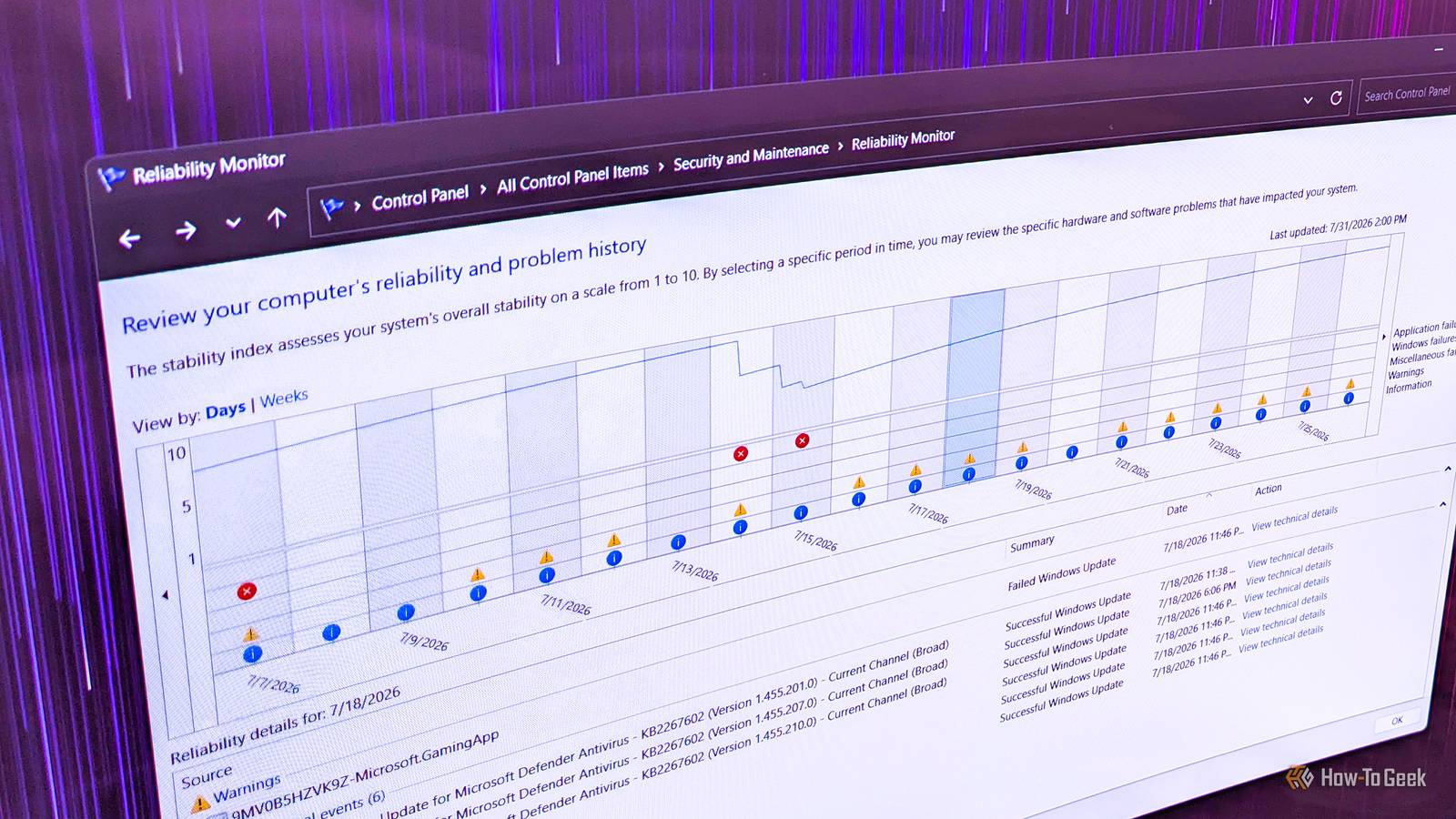
Published Aug 7, 2026, 7:30 AM EDT Ever since he got his first smartphone, the legendary Nokia 6600, back in 2005, Goran became obsessed with technology. This obsession had only gotten worse after he received his first gaming PC a couple of months later. He fell in love with video games in the early '90s, shortly after embarking on his gaming journey with the Sega Master System II and SNES. Since then, he has built dozens of PCs, played thousands of games, and authored hundreds of articles about PC hardware, gaming hardware, and video games. He knows everything there is to know about the PC gaming and PC hardware space, and while his console gaming knowledge isn't as comprehensive, he considers himself a console veteran. Goran has almost a decade of experience writing about tech and video games for numerous web publications including TechSpot, TechPowerUp, and EsportsHeadlines. He has been writing for How-To Geek since December 2022. When he isn't gaming or deciding which component of his PC to upgrade next, you can find him strolling around Novi Sad while listening to music and contemplating what to play next. Windows is teeming with useful tools that Microsoft, for one reason or another, doesn't talk about or promote. Worse still, many of them are tucked away in places where hardly anyone would think to look, even though they can be indispensable for troubleshooting various Windows issues. One of them is Reliability Monitor, which has been part of Windows for almost two decades. Reliability Monitor has helped people diagnose Windows crashes, and more, since Windows Vista Almost two decades and counting Microsoft introduced Windows Reliability Monitor with the initial launch of Windows Vista in 2007, tucked inside the operating system's built-in maintenance section. The tool has been tucked away inside the Security and Maintenance section of the Control Panel ever since, but hardly anyone knows about it, let alone uses it. I was one of those people until the late 2010s, when I discovered it in an article similar to the one I'm writing now. Ever since, I've used Reliability Monitor to troubleshoot system and game crashes, but you can also use the tool to diagnose app crashes, driver issues, and failed Windows updates. Thanks to Reliability Monitor, I discovered that my previous CPU, a Ryzen 5 5600X, wasn't particularly stable at higher undervolting offsets, that my RAM wasn't stable at 3600MT/s (so I dropped it to 3200MT/s), and that the two were responsible for a number of game crashes. The best thing about Reliability Monitor is that it's very simple to use. Once you open it, you're greeted with a visual timeline that shows different events, including application, Windows, and miscellaneous failures, warnings (usually failed Windows and built-in app updates), and informational events, such as successful Windows updates. You can view the timeline by day, which shows the last 20 days of activity, or by week, which lets you see the last 20 weeks of activity. The tool also includes a metric called the Stability Index (also known as the Reliability Index), shown as the blue line on the timeline in the screenshots above, that reflects your PC's overall reliability on a scale from 1 (least reliable) to 10 (most reliable). You can also move backward and forward through the timeline by clicking the arrow buttons on either side of it. Here's how Reliability Monitor helped me diagnose a recent BSOD The tool also uncovered a few other issues with my PC I hadn't used the tool for a while, as you can see from my weekly view, but then my PC crashed in early July, so I reached for the Reliability Monitor and found that my RAM was acting up again. What helped me diagnose the issue was that the latest BSOD had Bug Check Code 50, the same code that had appeared during a series of previous BSODs caused by unstable RAM, which led me to drop the memory frequency from 3600MT/s to 3200MT/s. After I did that, everything was fine for a good while until the RAM caused the aforementioned crash. The silver lining is that the memory has caused only one crash so far, so I hope it was just a temporary issue and that I won't have to buy new RAM in the middle of the RAM-pocalypse. At least it's DDR4, so I can hunt for used RAM sticks, but again, I hope I won't have to. While looking through Reliability Monitor, I also noticed that my GPU driver had crashed twice on July 7. The LiveKernelEvent code was 193, which points to a GPU driver error. It didn't crash Windows and hasn't happened again since, nor have I experienced any in-game crashes, so I reckon all's good with my GPU. I also found out that the Xbox app had failed to update on its own. As you can see in the screenshots, there were a number of failed MicrosoftGamingApp updates (the internal codename for the Xbox app), so I had to open the Microsoft Store and update the Xbox app manually. All in all, I used Reliability Monitor to diagnose a BSOD, but the tool also showed me that my GPU driver had acted up a bit and that the Xbox app couldn't update automatically, which shows just how useful it can be. Personally, I prefer it over Windows Event Viewer because Reliability Monitor gives you a simple, informative view of system events that's easy to navigate. If you're experiencing Windows, game, or app crashes on your PC, or are having issues with drivers or failed Windows updates, I recommend using Reliability Monitor instead of Event Viewer because it's much more user-friendly for everyday troubleshooting. How to access Reliability Monitor on your Windows PC There are a few different ways, and they're all very straightforward Now, if you want to check out the tool for yourself, there are multiple ways to access it. The fastest is to type Reliability Monitor into Windows Search and then click View reliability history. This takes you directly to the Reliability Monitor and is generally the quickest way to open it. Alternatively, you can open the Control Panel, click System and Security, and then open Security and Maintenance. Next, expand the Maintenance section and click View reliability history. That's it! Reliability Monitor is one of Windows' most underrated troubleshooting tools I still have no idea why Microsoft treats Reliability Monitor like an unwanted child. It's simple to use, offers a wealth of information in an accessible, visual way, and can help you diagnose crashes and BSODs in a jiffy. It's one of the most underrated Windows tools, and I hope this article introduces it to more people because every Windows user should know about it.
There's a hidden Windows diagnostic tool that's been there since Vista and almost nobody uses it
Full Article
Original Source
Read the full article at Howtogeek →KhanList aggregates and links to publicly available news content. We do not host full articles from third-party sources. Always verify important information with original sources.