
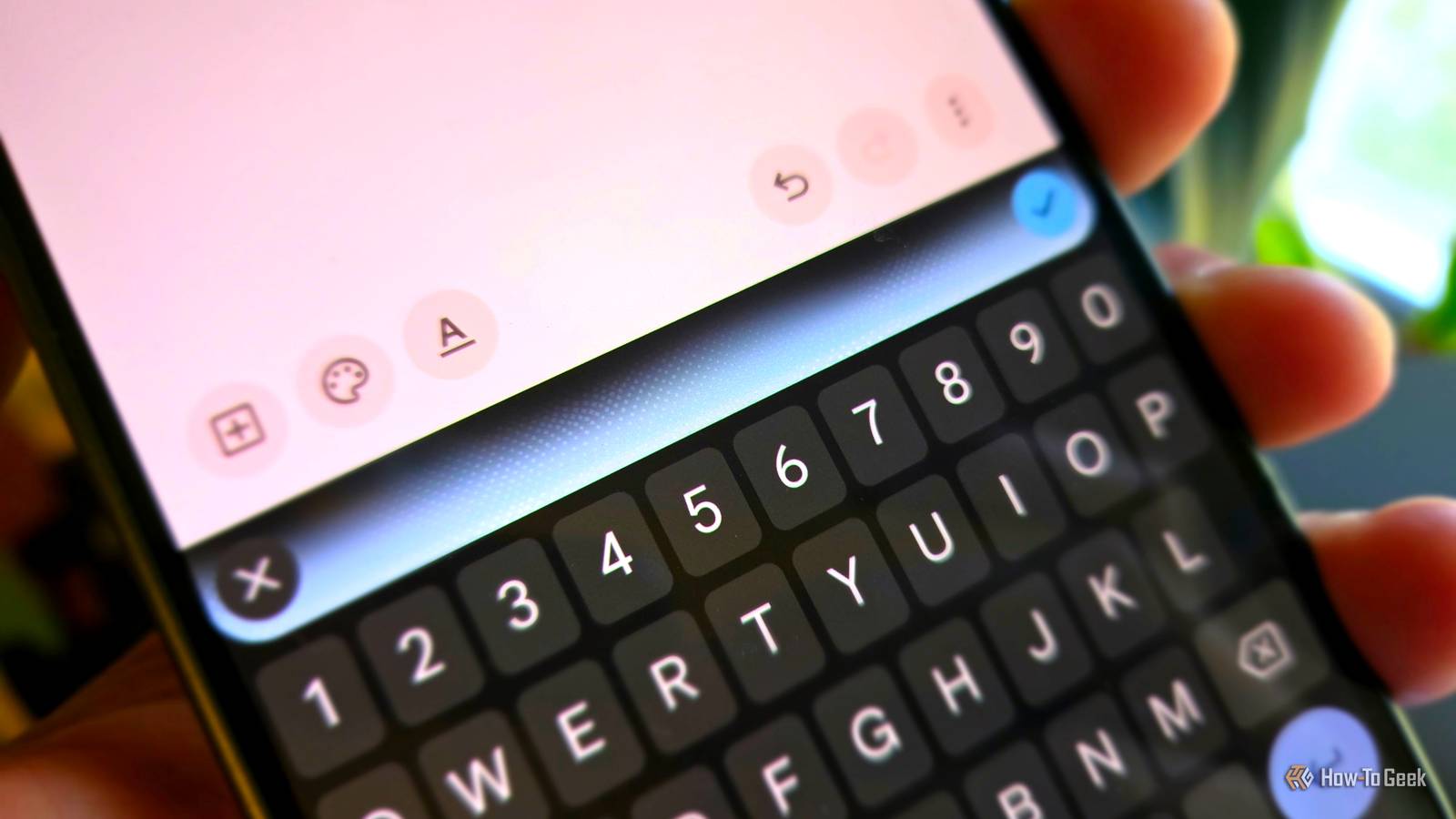
Published Oct 23, 2026, 1:00 PM EDT Joe Fedewa has been writing about technology for over a decade. Android and the rest of the Google ecosystem have been a focus for years, as well as reviewing devices, hosting podcasts, filming videos, and writing tutorials. Joe loves all things technology and is also an avid DIYer and food blogger. He has written thousands of articles, hundreds of tutorials, and dozens of reviews. Before joining How-To Geek, Joe worked at XDA-Developers as Managing Editor and covered news from the Google ecosystem. He got his start in the industry covering Windows Phone on a small blog, and later moved to Phandroid where he covered Android news, reviewed devices, wrote tutorials, created YouTube videos, and hosted a podcast. From smartphones to Bluetooth earbuds to Z-Wave switches, Joe is interested in all kinds of technology. After several years of jailbreaking and heavily modifying an iPod Touch, he moved on to his first smartphone, the HTC DROID Eris. He's been hooked ever since. The newest Pixel phone is often the first to get features that eventually trickle out to the entire Android ecosystem. "Rambler" for Gboard is one such feature that's currently exclusive to the Pixel 11 series. I'm here to tell you that you should be very anxious to get your fingers (and voice) on it. Rambler was actually announced before the Pixel 11, back at Google I/O in May. The company said it would be arriving sometime this year for all currently supported Pixel phones. However, more recently, Google has said it's only for the Pixel 11 series. That didn't stop it from being ported to more devices, of course. Allow me to show you what makes it special. Rambler is built into Gboard Yes, it's powered by AI First things first, Rambler is technically a Gboard feature, not a Pixel feature. Google claims it's exclusive to the Pixel 11 because of the Tensor G6 chip (we already know that's easy to bypass). On the Pixel 11, the old "Standard" voice dictation is still an option in Gboard, but Rambler is enabled by default. You can tell Rambler is enabled by the sparkle icon on Gboard's voice typing microphone icon. On first launch, you'll see this explanation: Tidy up automatically: Remove pauses, "ums," and "ahs" Edit in your own words: Just say "make it sound friendly" or "add some happy emoji" Mix and match languages: "See you tomorrow, ठीक है? " / "がんばって、 you can do it!" There's also the usual disclaimer that comes with AI features: When you use this feature, your text, audio input, and personal dictionary will be temporarily processed by Google. Rambler can make mistakes, so double-check it. This may all sound like a fairly typical description for any voice-to-text engine, but Rambler is quite a bit different than anything you may have used in the past. Transcriptionist vs. dumb voice-to-text A big change in how voice typing works The big thing to know about Rambler is that it doesn't put your words on the screen in real time as you talk. This takes a bit of getting used to. The first time I used it, I wasn't sure it could hear me. Once you get the hang of it, it's like having your own personal transcriptionist. Instead, Rambler takes it all in and only stops listening when you tap the button again. The full transcript is spit out all at once with proper punctuation and formatting. In many articles, this is where I'd say something like, "At least that's the idea," but Rambler actually works remarkably well in my experience. In the video below, you can hear me use Rambler on a Pixel 11 and Gboard's standard voice typing on a Samsung Galaxy phone at the same time. The results are drastically different. Rambler formatted my, well, rambling, into neat paragraphs with proper punctuation. It did mess up a few times — ironically, it did not understand when I said "Rambler" — but it was essentially ready to send. Standard Gboard, on the other hand, gave me a long-winded stream of consciousness without any punctuation (and plenty of mistakes). I'd need to spend some time editing this before sending, in which case I might as well have typed from the get-go. Editing is the real superpower No more moving the cursor around Speaking of editing, that's another thing that sets Rambler apart from standard voice typing. After you're done talking, you can tap the microphone button again and simply describe how to make changes to the text. Here's a quick example of the process. Original text: This is a test paragraph with Rambler. I'm just talking and editing this after the fact to see what it can do. Me: "Add a sentence after "Rambler" that says "It's the new feature available on the Pixel 11." Text: This is a test paragraph with Rambler. It's the new feature available on the Pixel 11. I'm just talking and editing this after the fact to see what it can do. Me: "Change the first period to an exclamation point." Text: This is a test paragraph with Rambler! It's the new feature available on the Pixel 11. I'm just talking and editing this after the fact to see what it can do. Rambler can do more complex edits, too. You can ask it to rewrite the text "friendlier" or replace words with emoji. Here's how it made the previous text "fiendlier." Text: This is a fun test paragraph with Rambler! It's an exciting new feature available on the Pixel 11. I'm just chatting away and editing this after the fact to see all the cool things it can do! Again, it's the difference between having an actual transcriptionist at your disposal, rather than a very basic voice-to-text engine. You can speak to your keyboard with natural language. That's something I thought I was already doing, but Rambler made me see just how much better it could get.
The Pixel 11's best feature completely ruined standard voice typing for me
Full Article
Original Source
Read the full article at Howtogeek →KhanList aggregates and links to publicly available news content. We do not host full articles from third-party sources. Always verify important information with original sources.