
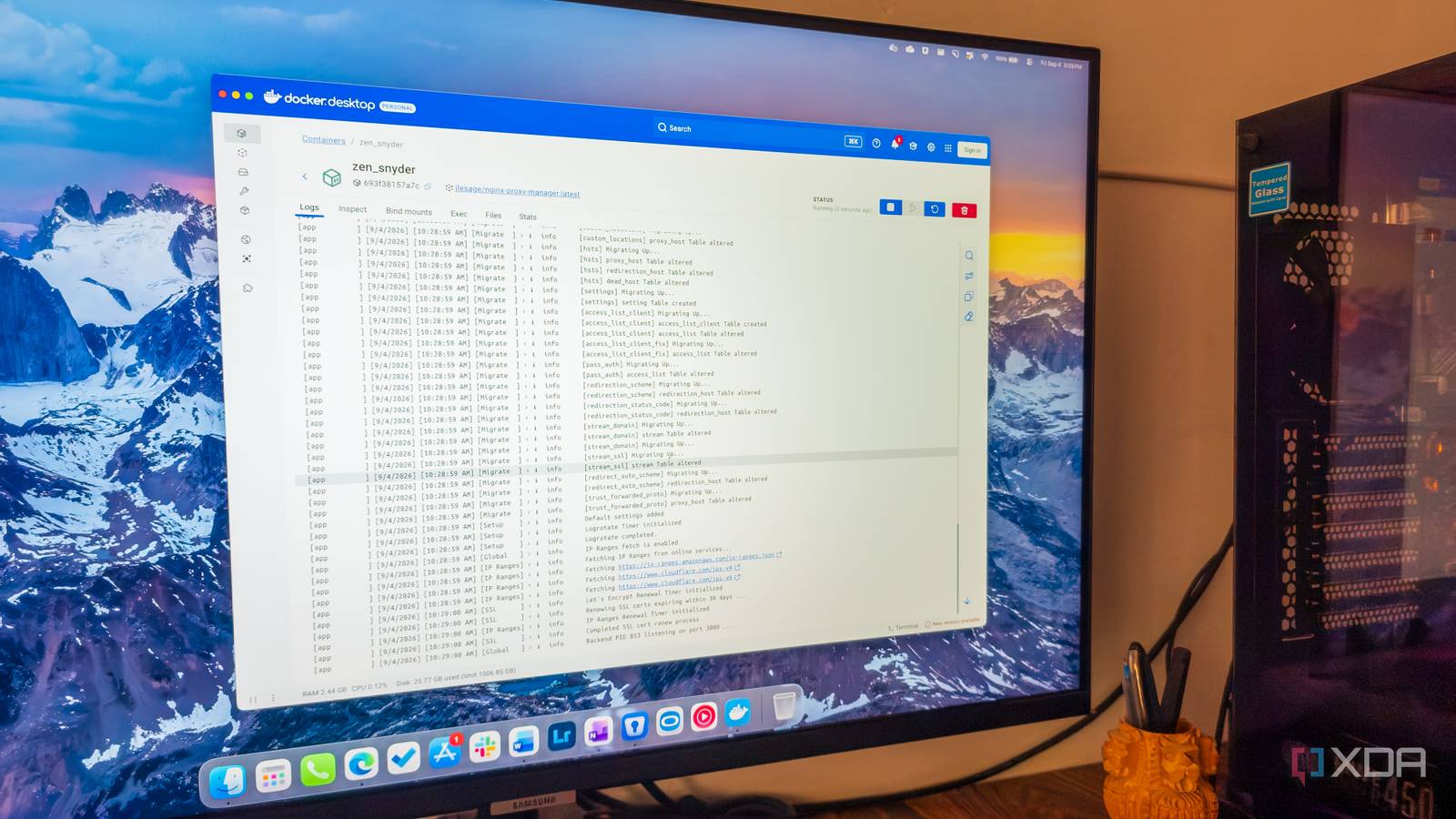
Published Sep 6, 2026, 4:00 PM EDT Parth, a seasoned tech writer, wields the keyboard (or pen) with finesse to unravel the intricacies of both Windows and Mac operating systems. He has covered evergreen content on mobile devices and computers for multiple publications over the last six years. You can find his work on AndroidPolice, GuidingTech and TechWiser. Whether it’s demystifying system updates, deciphering error codes, or exploring hidden features, Parth’s prose guides readers through the binary maze. When not immersed in tech jargon, you’ll find him sipping chai, pondering the next software review, and occasionally indulging in a friendly debate about mechanical keyboards. I was making Docker networking far more complicated than it needed to be. Every time I ran a new service, I treated it like another little networking project: expose a port, remember the address, update my bookmarks, and hope I didn’t create another mess I would have to clean up later. Eventually, I needed one clean entry point that could route everything where it belonged, handle proper domains, and take care of SSL along the way. That container was Nginx Proxy Manager. I was exposing Docker services the hard way The problem wasn’t Docker; it was access When I first started with Docker, I didn’t think there was anything wrong with my setup. I would install a container, check which port it used, expose that port, and save the address somewhere. If Home Assistant was on 8123, I opened 8123. If another app like Outline used 3000 or 8080, I did the same thing again. The problem started when my homelab grew. A couple of containers turned into several, and suddenly, I had a long list of IP addresses and port numbers to remember. Some services were easy to identify, while others were just random numbers I had to look up every time. My Chrome bookmarks did most of the work because there was no chance I was going to remember them all. Docker was supposed to make deploying apps easier, but I had somehow turned accessing them into the most annoying part of the process. Besides, I didn’t want to stop experimenting with new containers just because my networking was getting messy. I wanted one clean way to reach all of them without exposing each service individually. Nginx Proxy Manager gave me one entry point I replaced ugly IP addresses with proper domains This is where Nginx Proxy Manager changed the way I looked at my Docker setup. First of all, it doesn’t make the process feel more complicated. In fact, the interface is one of the main reasons I stuck with it. I don’t need to edit long Nginx configuration files or remember a bunch of commands every time I add a new service. I can open the dashboard, create a new Proxy host, enter the domain name, point it to the correct internal IP address, and save it. The dashboard also gives me a clear view of all the services I have configured. I can see my proxy hosts, certificates, redirects, and access lists from one place. I still have ports running behind the scenes, but I no longer need to treat every single one as something I have to expose separately. Before Nginx Proxy Manager, a lot of my services lived behind addresses like 192.168.1.50:3000 or 192.168.1.50:8123. Now I use proper domains instead. Instead of remembering an IP address and port for Home Assistant, Grafana, Nextcloud, or another service, I can use simple addresses like home.mydomain.com or grafana.mydomain.com. Setting this up is quite easy. I just enter the domain, choose where it should forward traffic, and let Nginx Proxy Manager handle the routing. It is packed with security features HTTPS stopped being another separate project Before Nginx, every app felt like its own security project. Adding a service often meant opening another port, creating another endpoint, and remembering another configuration. Nginx Proxy Manager lets me route services through a single layer instead of exposing every container directly to the internet. From the dashboard, I can create access lists, add authentication, manage certificates, force HTTPS, and enable options such as HSTS where appropriate. That does not make every service automatically secure. I still need to update containers, use strong passwords, and avoid exposing admin tools unnecessarily. HTTPS used to feel like another task for every new service. I had to manage certificates, renewals, and configurations separately. With Nginx Proxy Manager, I can request a Let’s Encrypt certificate while creating a Proxy Host, enable SSL, and force HTTPS from the same interface. Certificate renewal is handled automatically, so I don’t need to configure HTTPS inside every container. Running Nginx Proxy Manager doesn’t mean I have zero inbound ports open. In a typical setup, I still need ports like 80 and 443 open so web traffic can reach the proxy. If I wanted a true setup with zero open ports, I would look at something like Cloudflare Tunnel or Tailscale instead. My homelab stopped feeling so messy Nginx Proxy Manager did not magically remove networking from my homelab, but it finally made it feel manageable. I can give each app a proper domain, manage SSL from one dashboard, and keep the whole setup far cleaner than my old port-by-port approach. It is not the flashiest container in my homelab, but it is easily one of the most useful. If your Docker setup is starting to look like a collection of random ports and bookmarks, give Nginx Proxy Manager a try.
The one Docker container that stopped me from exposing every service
Full Article
Original Source
Read the full article at Xda-developers →KhanList aggregates and links to publicly available news content. We do not host full articles from third-party sources. Always verify important information with original sources.